Start a job and keep the claim in writing
Create a job, then log every call, approval and adjuster change so nothing is lost. About 5 minutes.
Watch it (1:43, no sound)
- Signed in to CaseLens Pro, with your company set up.
- The property address, the customer's name and, for an insurance job, the carrier, claim number and adjuster.
Step by step
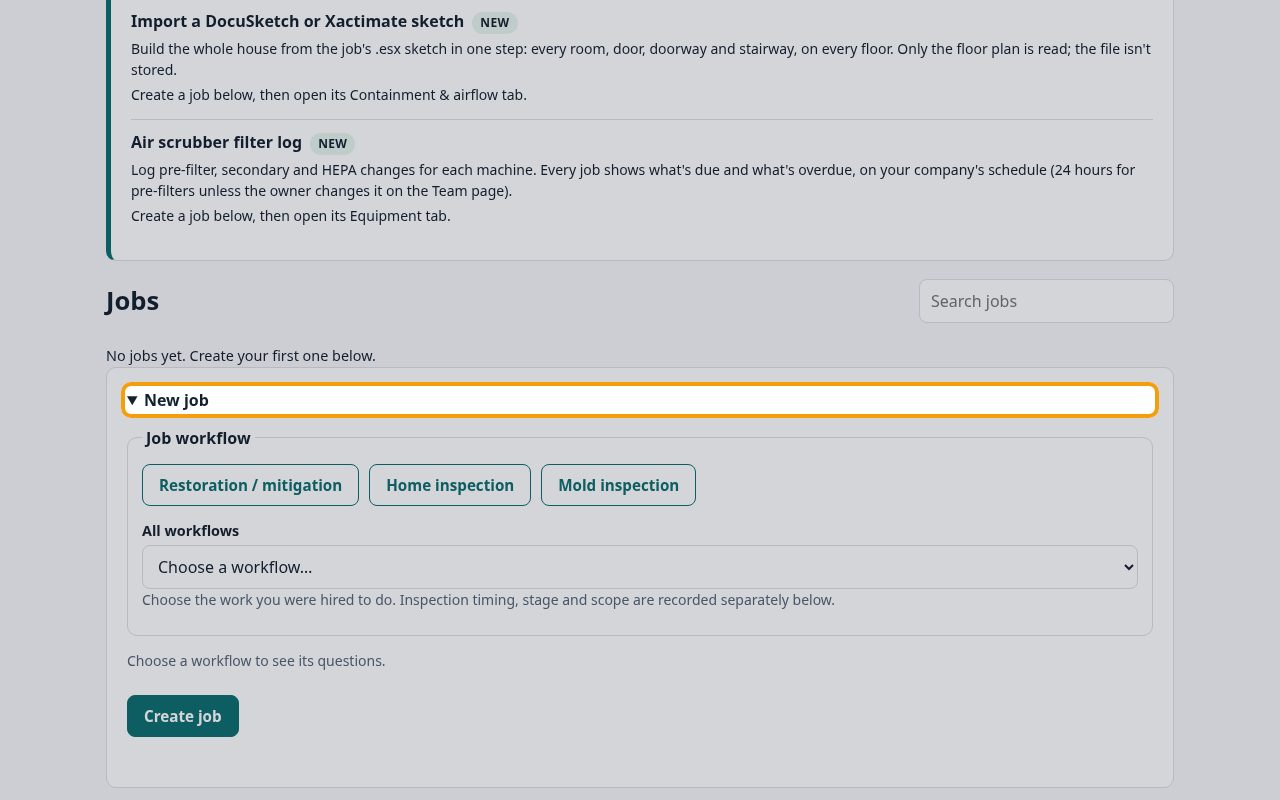
1Open the New job form
On Jobs, click New job. The form opens under it.
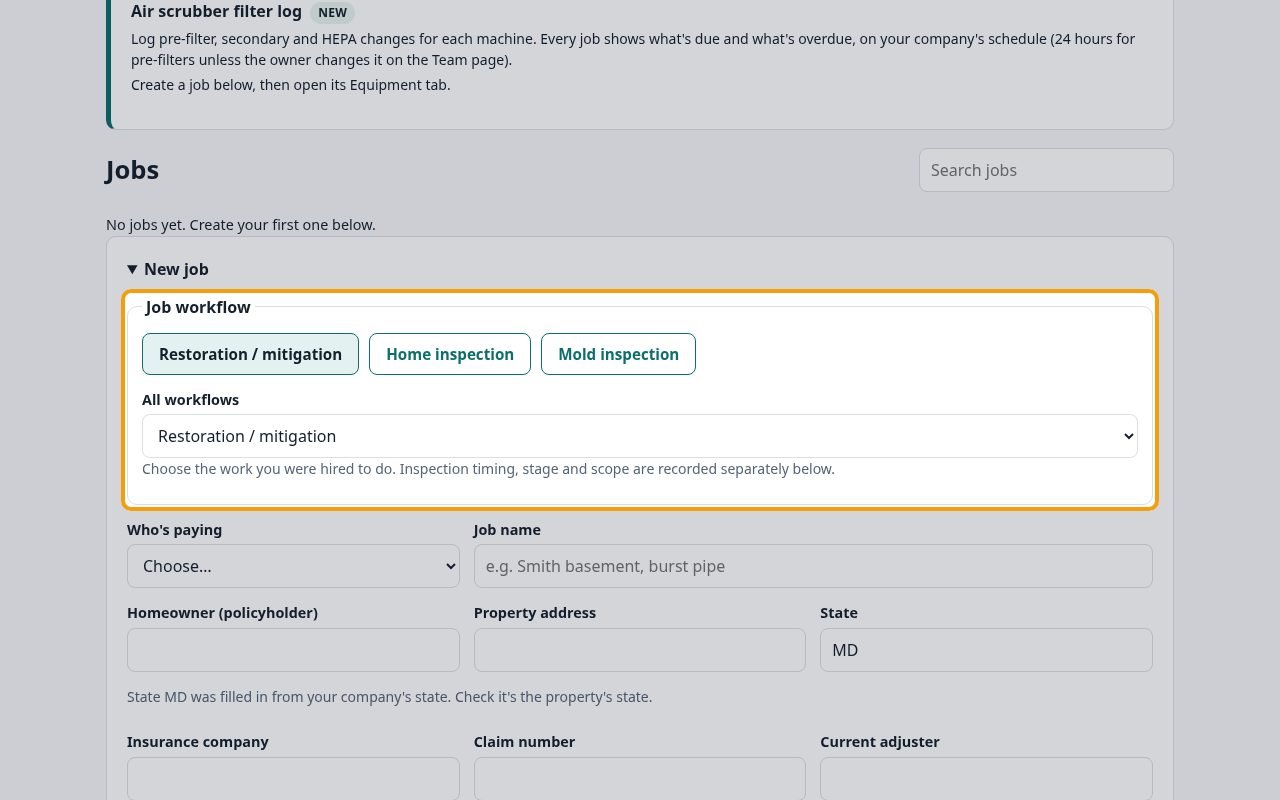
2Choose the workflow
Under Job workflow, choose Restoration / mitigation. For an inspection, choose the actual service under All workflows: see Start an inspection job. The rest of the form appears once you choose.
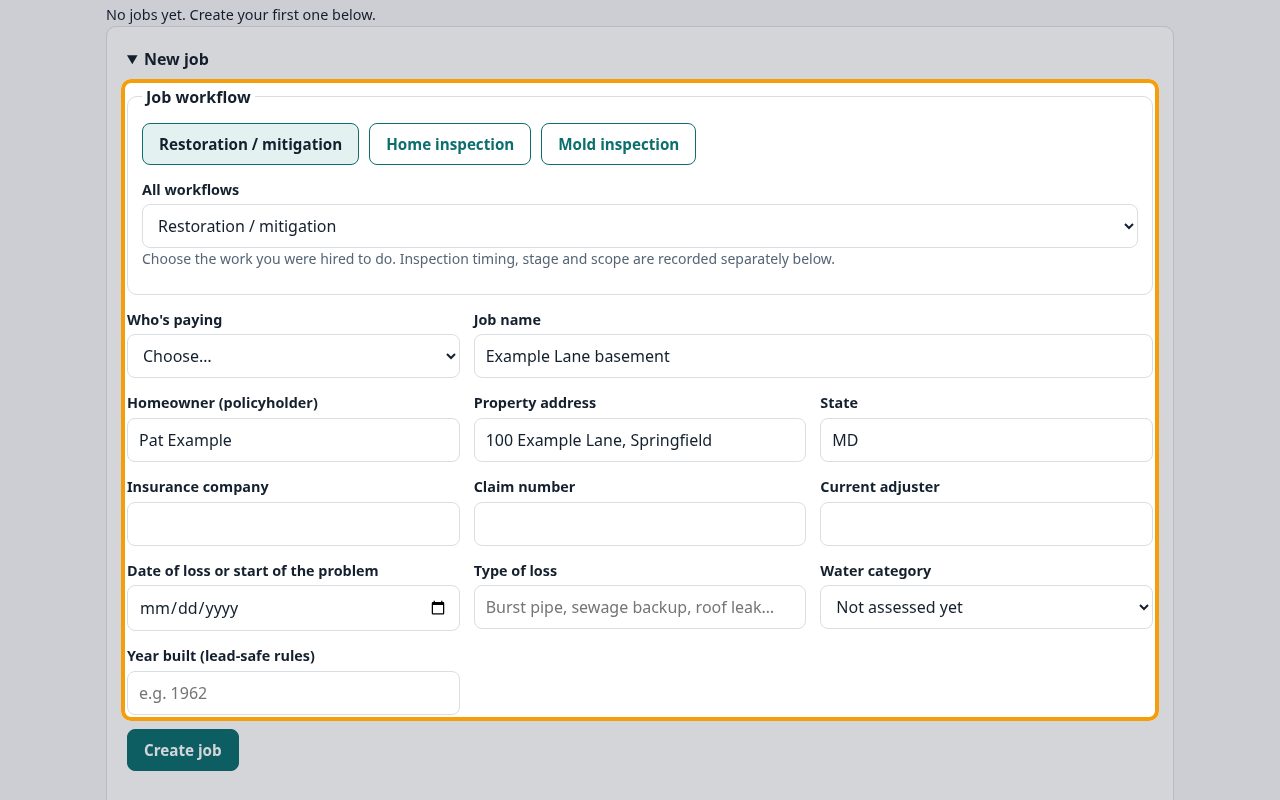
3Name the job and add the property
Give the job a short name you'll recognize under Job name (for example the street and the room). Type the customer's name under Homeowner (policyholder). Start typing the Property address and pick it from the suggestions, or type it in full, and check the State (two letters).
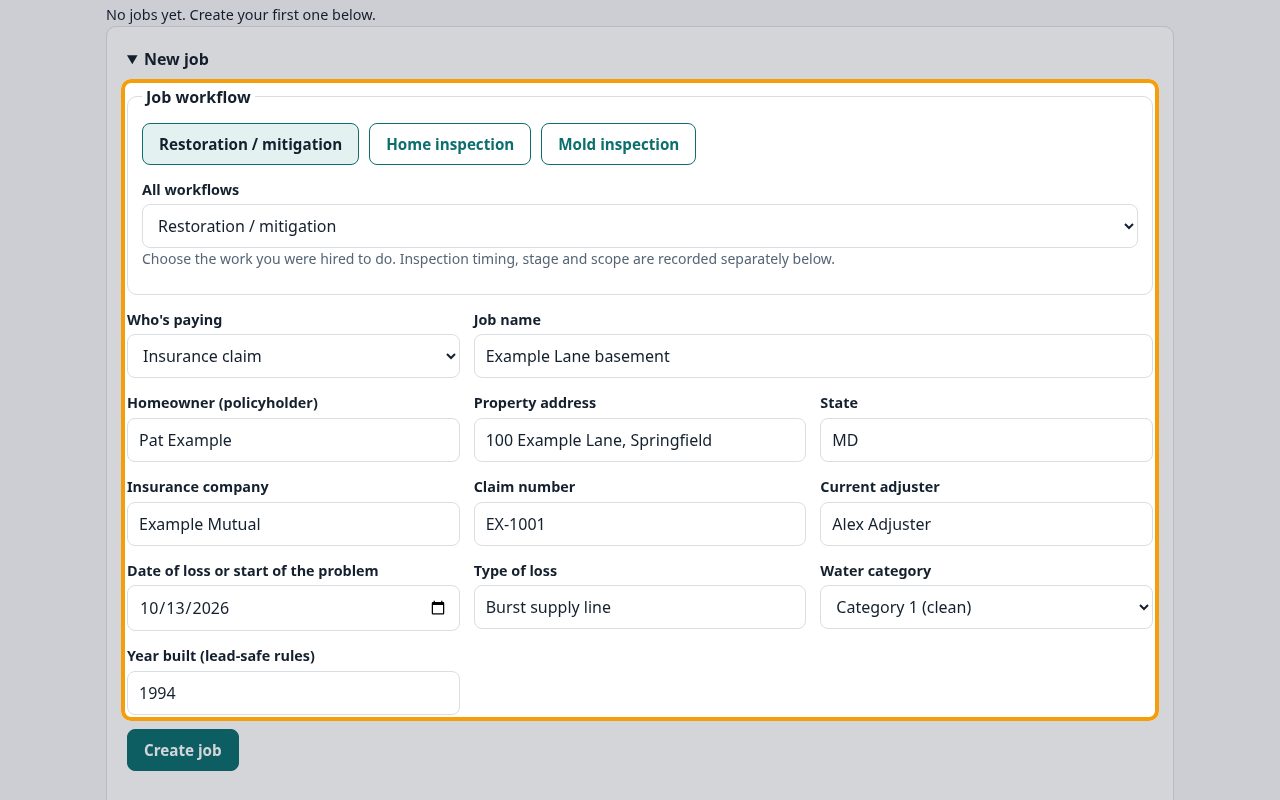
4Choose who's paying
Pick Who's paying. For an Insurance claim, fill in the Insurance company, Claim number, Current adjuster and Date of loss or start of the problem. Fill in Type of loss and Year built (lead-safe rules) if you know them, and the Water category once you've assessed it (until then it stays Not assessed yet): the carrier report uses them. If the customer pays directly, the claim boxes go away. Click Create job.
5The job opens on its timeline
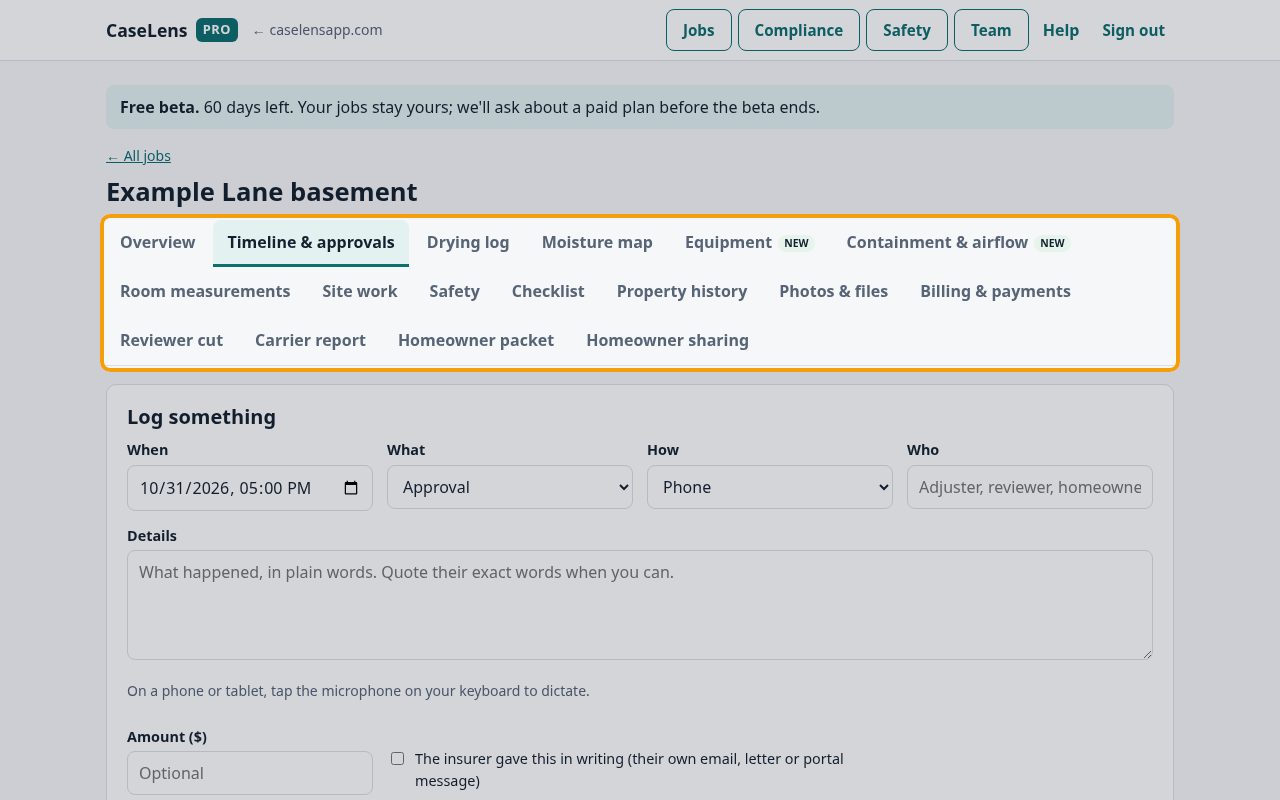
The job opens on Timeline & approvals. The tabs across the top hold everything else for this job: drying log, moisture map, equipment, containment & airflow, photos, billing and reports.
6Log an approval as soon as you hang up
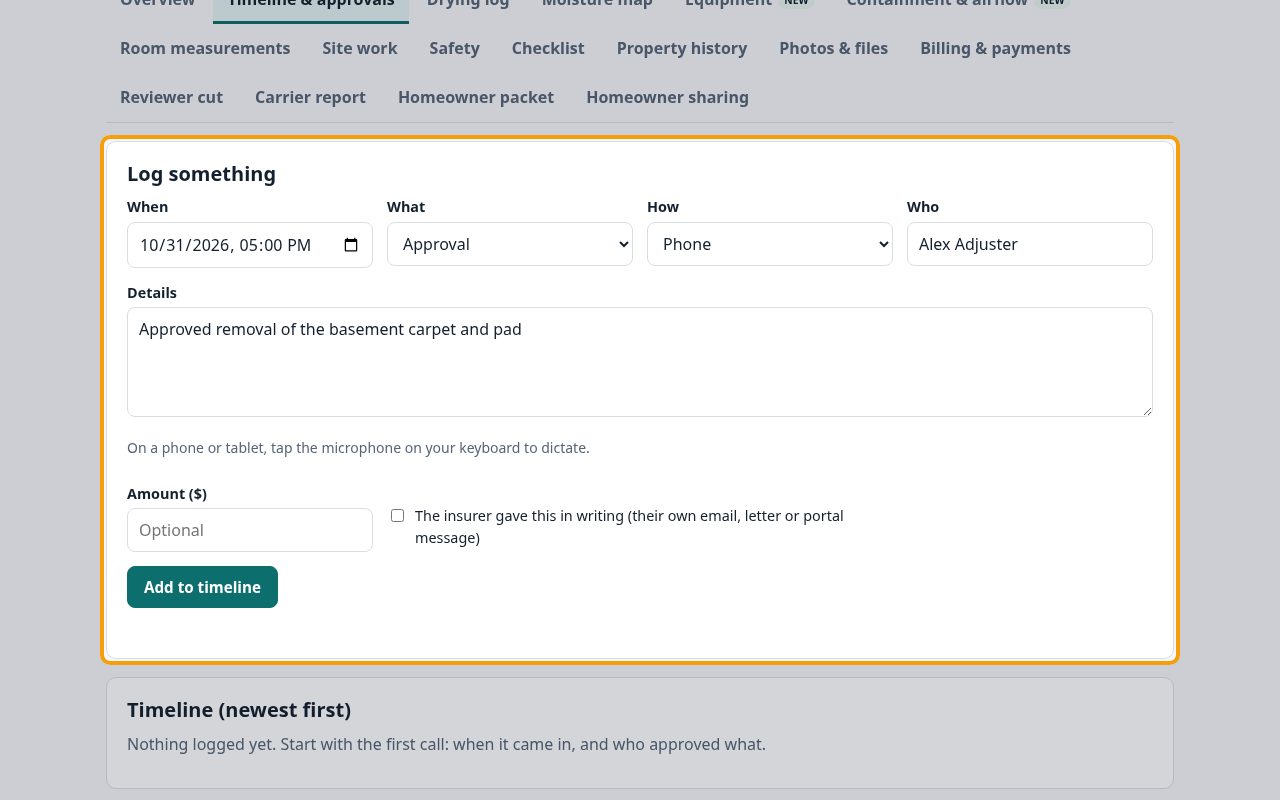
Under Log something, check When, choose What happened (an approval, call, email, site visit, adjuster change, reviewer cut and so on), How it came (phone, email, in person) and Who it was. Write what they said under Details, in their own words if you can. For a phone call, leave The insurer gave this in writing unticked. Click Add to timeline.
7Get phone approvals confirmed in writing
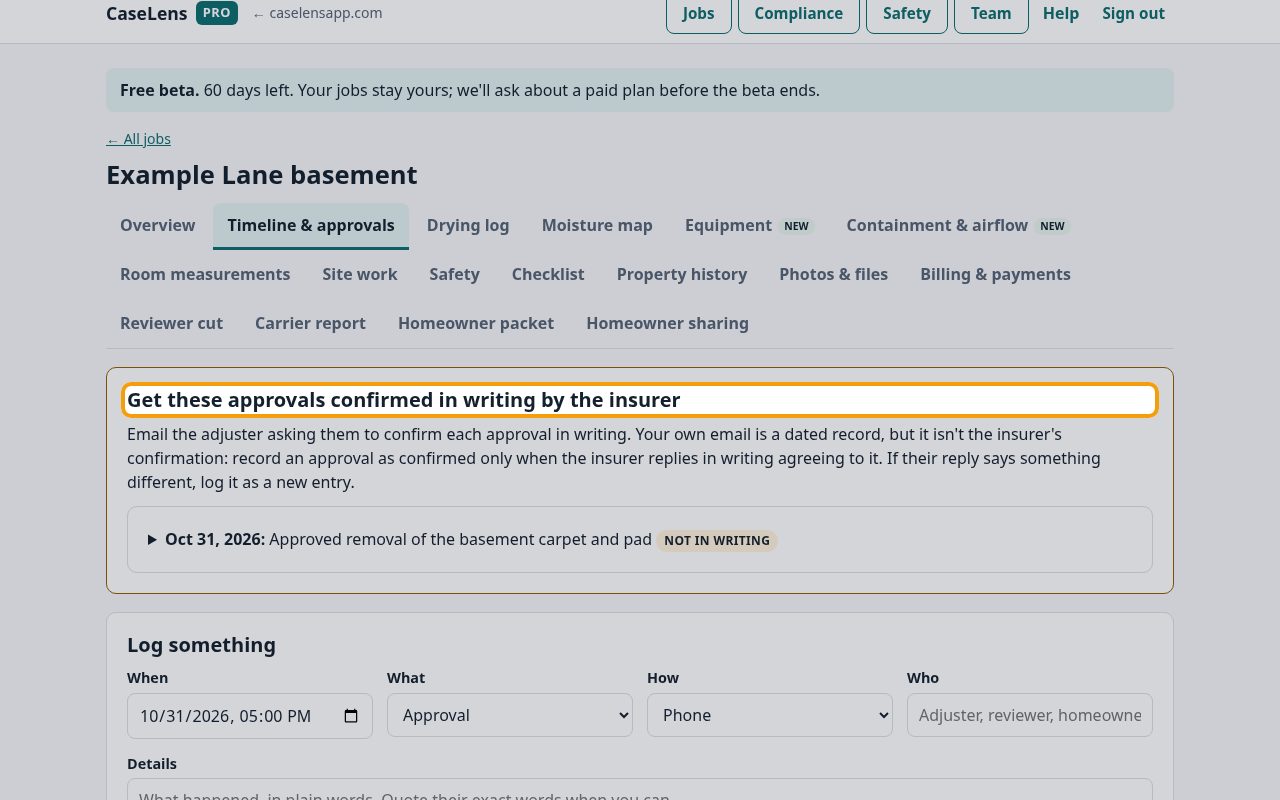
A phone approval isn't in writing yet, so CaseLens lists it under Get these approvals confirmed in writing by the insurer. Open it to see a ready-to-send email asking the adjuster to confirm. Copy it into your email, replace [Your name] at the bottom with your name, and send it.
8Mark that you sent it
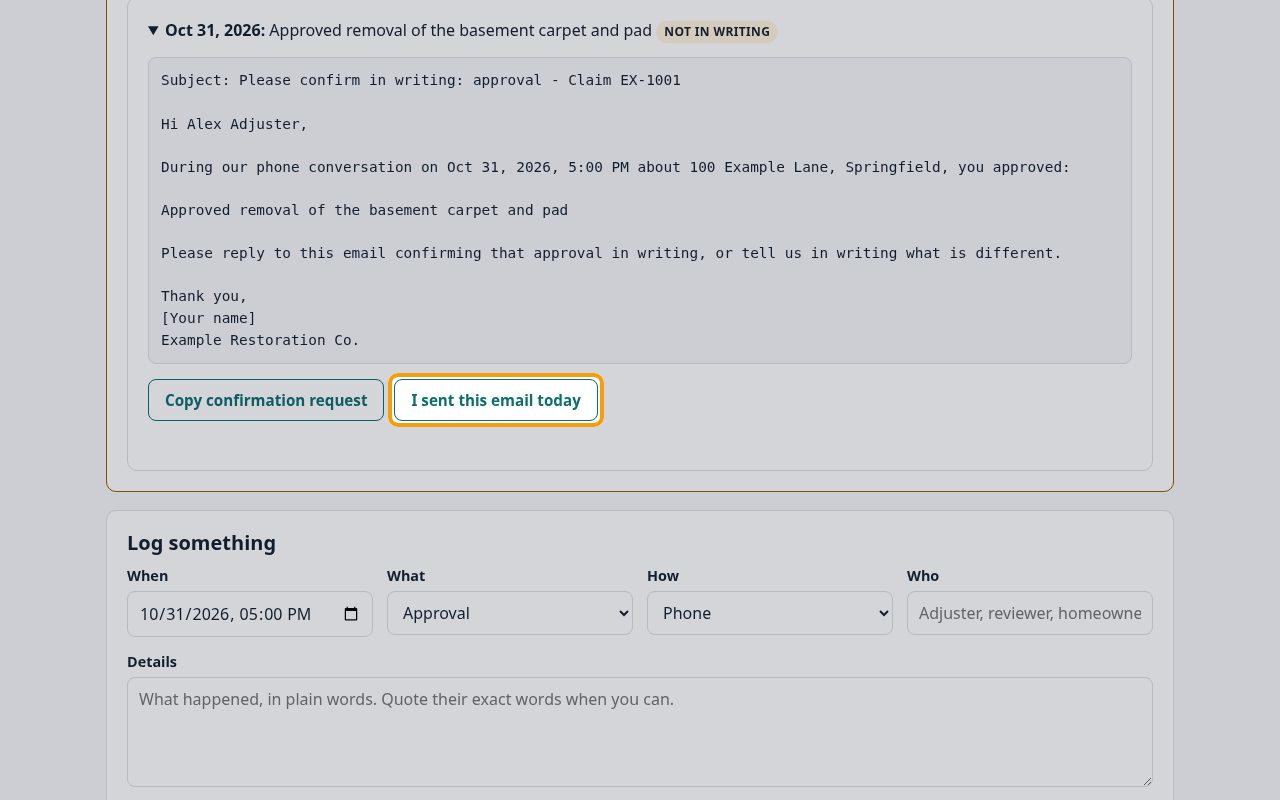
After you send the email, click I sent this email today. When the adjuster replies in writing, record that reply on the timeline. Your own email is a dated record, but only the insurer's written reply counts as confirmation.
Tip: Use Copy confirmation request to copy the email, paste it into a new email to the adjuster, replace [Your name] at the bottom with your name, and send it from your own email.
If something goes wrong
- I logged something by mistake
- Each timeline entry has a remove option until the job's report is finalized. Every change is kept in the job's history.
- The adjuster changed
- Log an Adjuster change entry with the new adjuster's name, and update the adjuster on the job's Overview tab.
What's next
- Keep the drying logSet up the points you read every day, enter each day's moisture readings and the air readings for each drying chamber. CaseLens works out grains per pound and dew point. About 10 minutes to set up, a few minutes a day after that.
- Upload photos and documents to a jobAdd job photos with their room and caption, plus reviewer reports, written approvals and receipts, so each one is dated and fingerprinted. About 5 minutes.