Keep the drying log
Set up the points you read every day, enter each day's moisture readings and the air readings for each drying chamber. CaseLens works out grains per pound and dew point. About 10 minutes to set up, a few minutes a day after that.
Watch it (1:53, no sound)
- A job already created in CaseLens Pro, with its dehumidifiers logged on the Equipment tab (each dehumidifier has a drying chamber, and air readings are asked for per chamber).
- Your moisture meter and a thermo-hygrometer, and for each point a dry standard: the reading of the same material in an unaffected area.
Step by step
1Open the Drying log tab
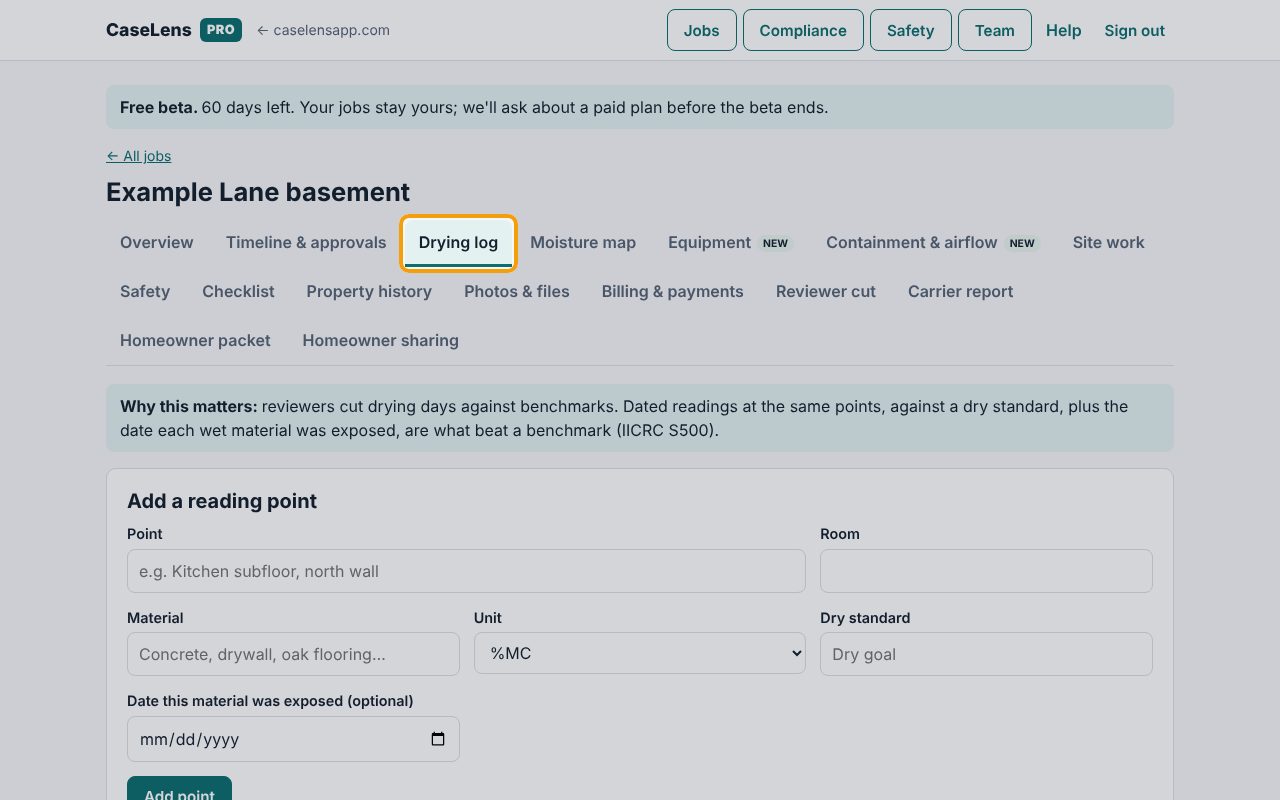
Open the job and click Drying log. Start with Add a reading point: a point is one spot you'll read at every visit, in the same place each time.
2Add a reading point
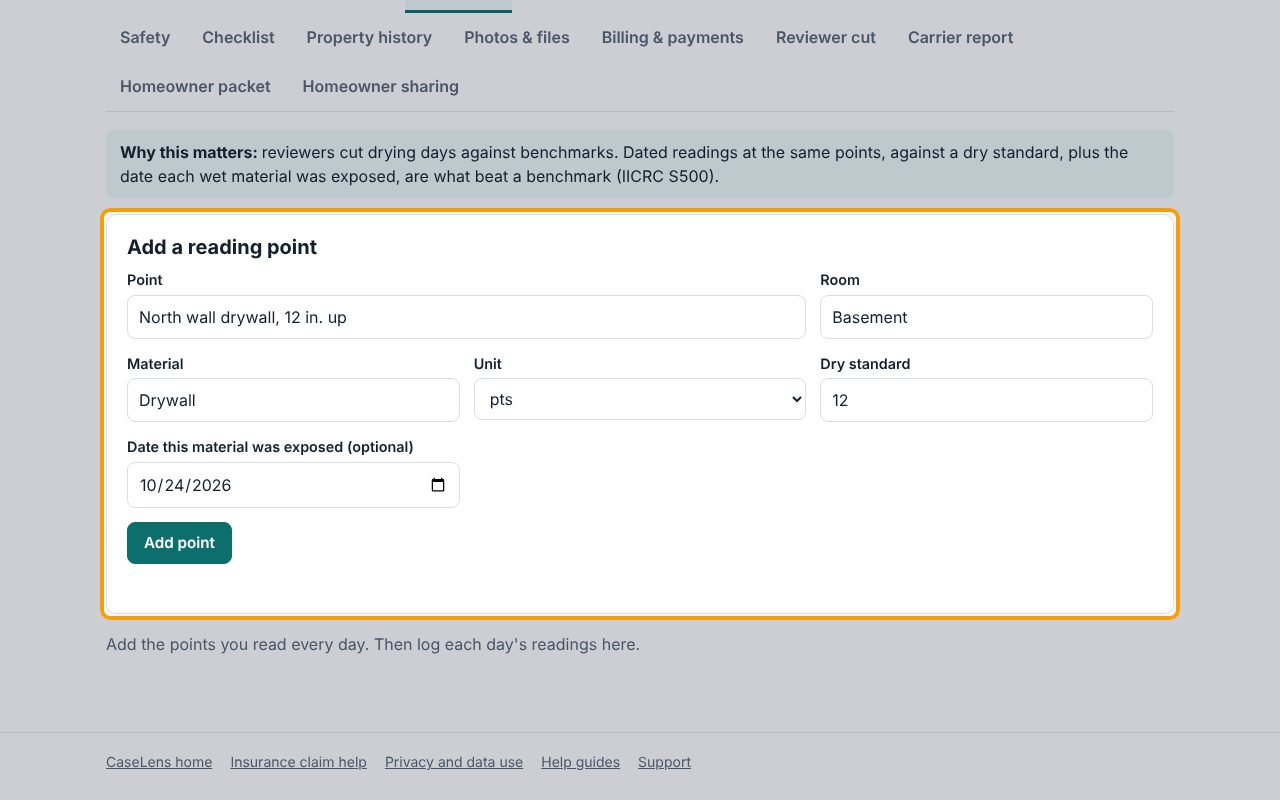
Name the Point so anyone can find it again (for example the wall and the height). Fill in Room and Material, choose the Unit your meter shows, and enter the Dry standard, the reading you're drying to. Add Date this material was exposed if you know it: the report counts drying days from it. Click Add point.
3Enter today's readings
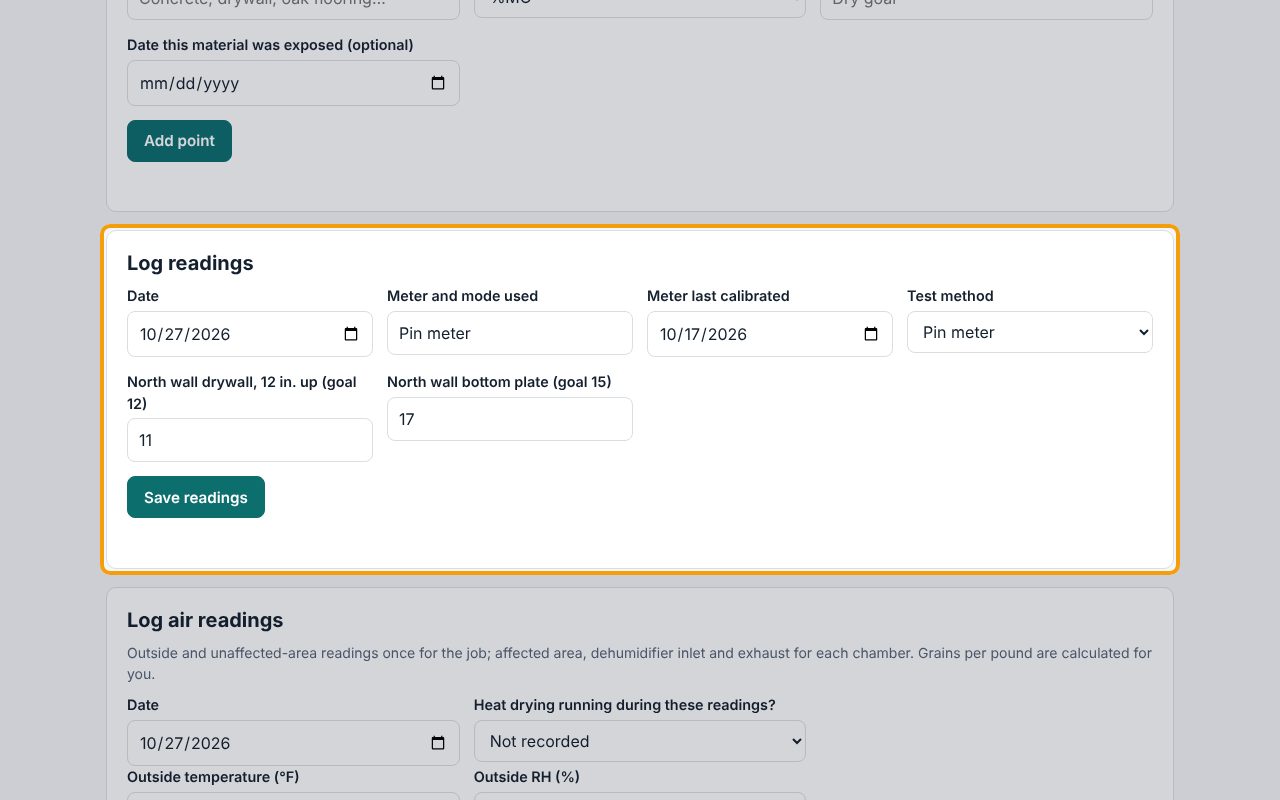
Add every point the same way; each one gets a box under Log readings. Each visit, check the Date, enter the Meter and mode used, Meter last calibrated and Test method, and type the reading at each point (its goal is shown beside its name). Click Save readings.
Tip: On a concrete slab job the form also asks when heat drying was turned off, whether the slab was back at its normal temperature, and the room's temperature and RH at the test. A slab reading taken while heat was on, or with no record that it wasn't, is marked "taken during heating: may read wetter than actual" in the table and the report.
4Watch the points dry
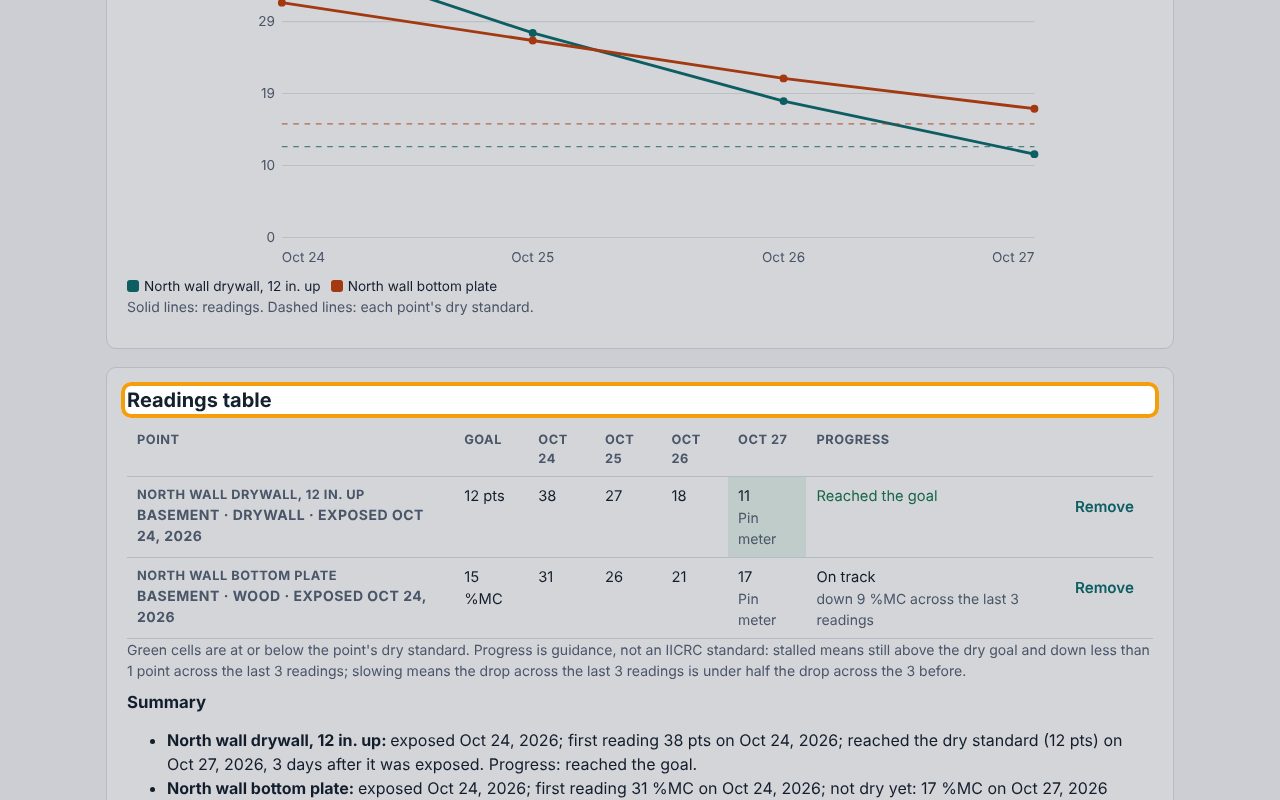
The Readings table has a column for each day. Green cells are at or below the dry standard, and Progress says whether each point has reached the goal, is on track, or is slowing or stalled. To fix a day, pick that date under Log readings: its readings fill back in to edit.
5Enter the air readings
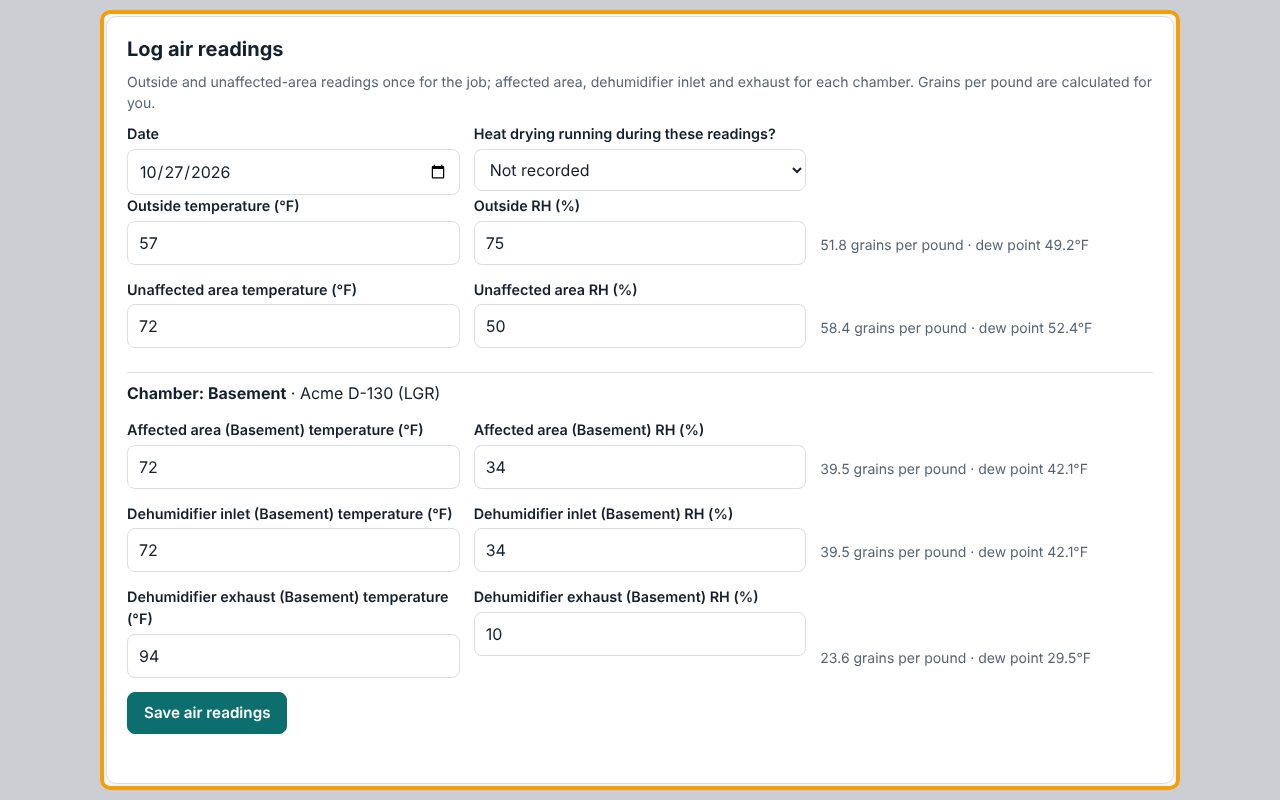
Under Log air readings, check the Date, then enter the temperature and RH Outside and in the Unaffected area, once for the job. Then, for each Chamber (one per dehumidifier), enter the Affected area, Dehumidifier inlet and Dehumidifier exhaust.
6Save the air readings
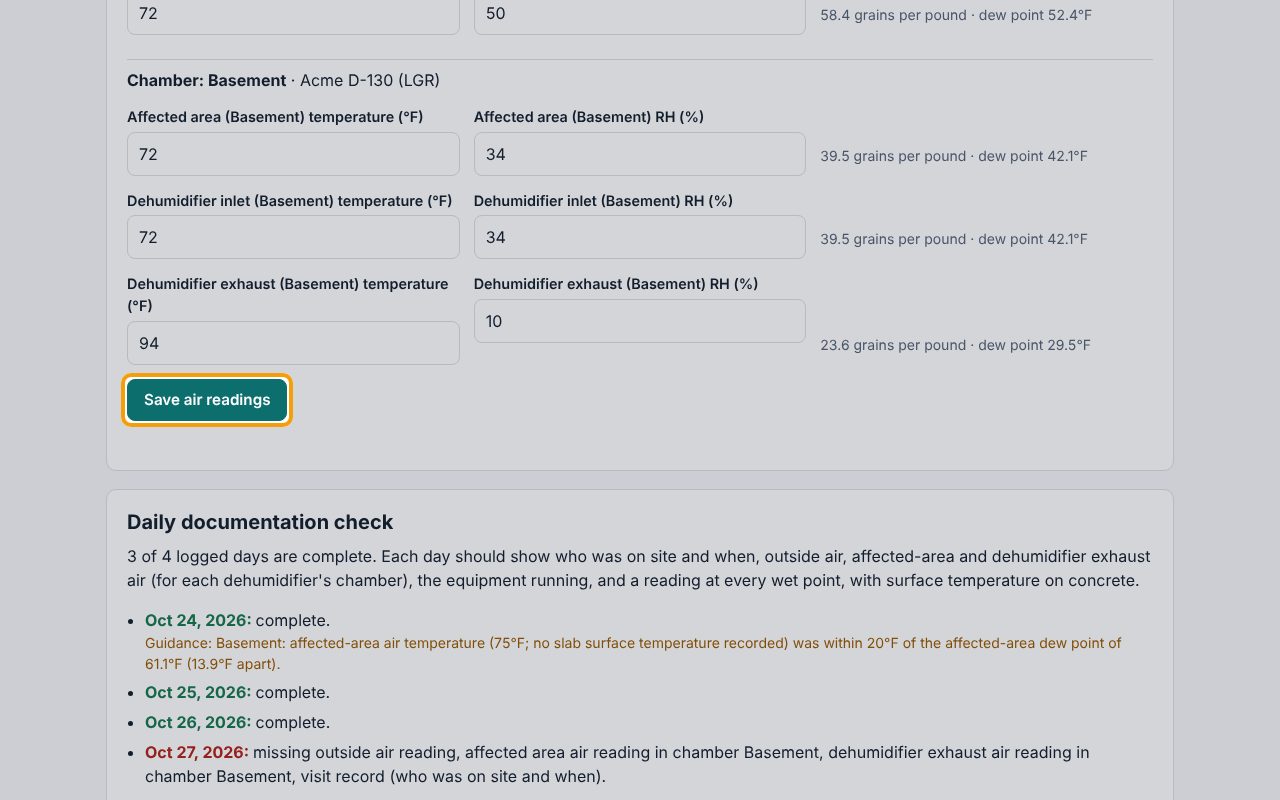
Grains per pound and dew point are worked out beside each pair as you type (for the exhaust here, 23.6 grains per pound · dew point 29.5°F). Leave a place blank if you didn't read it; a place with only temperature or only RH won't save. Click Save air readings.
7See the air readings by chamber
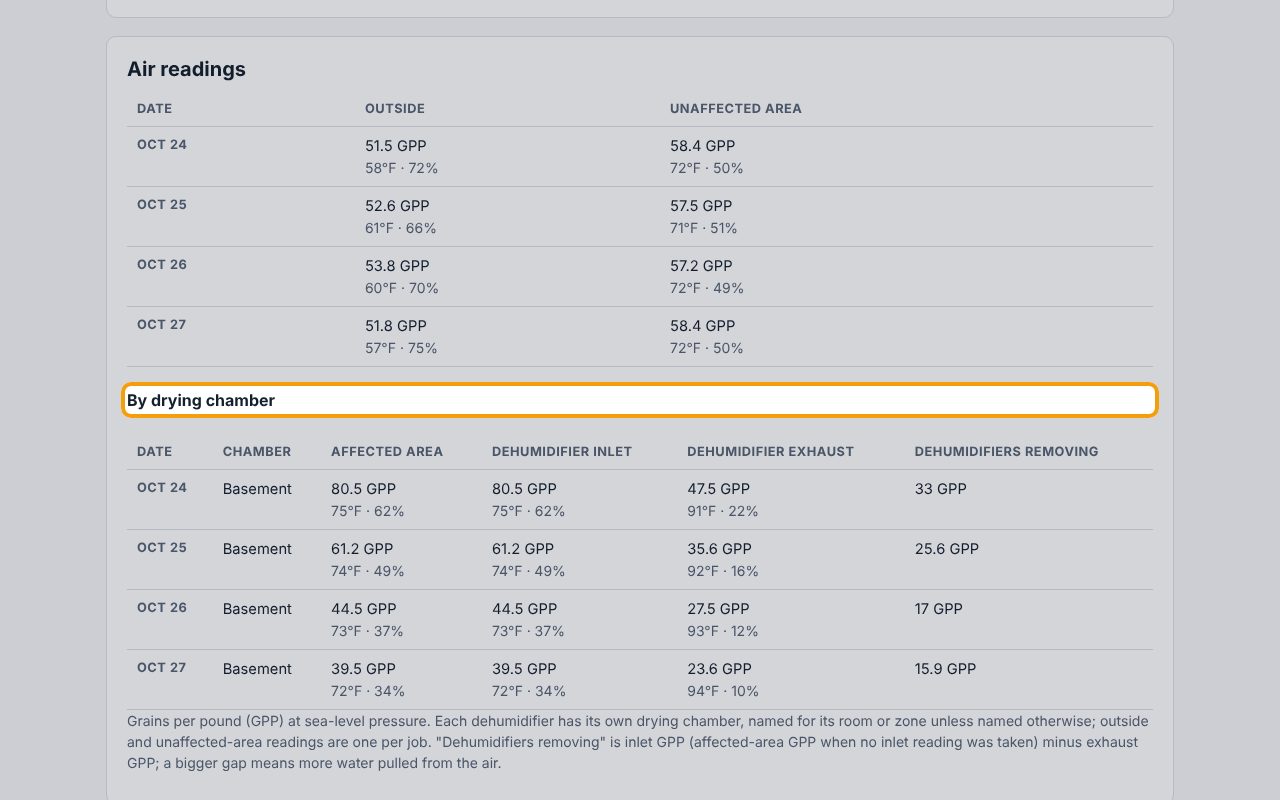
Air readings lists each day, with a By drying chamber table. Dehumidifiers removing is the inlet minus the exhaust in grains per pound: a bigger gap means the unit is pulling more water out of the air.
8Check each day is complete
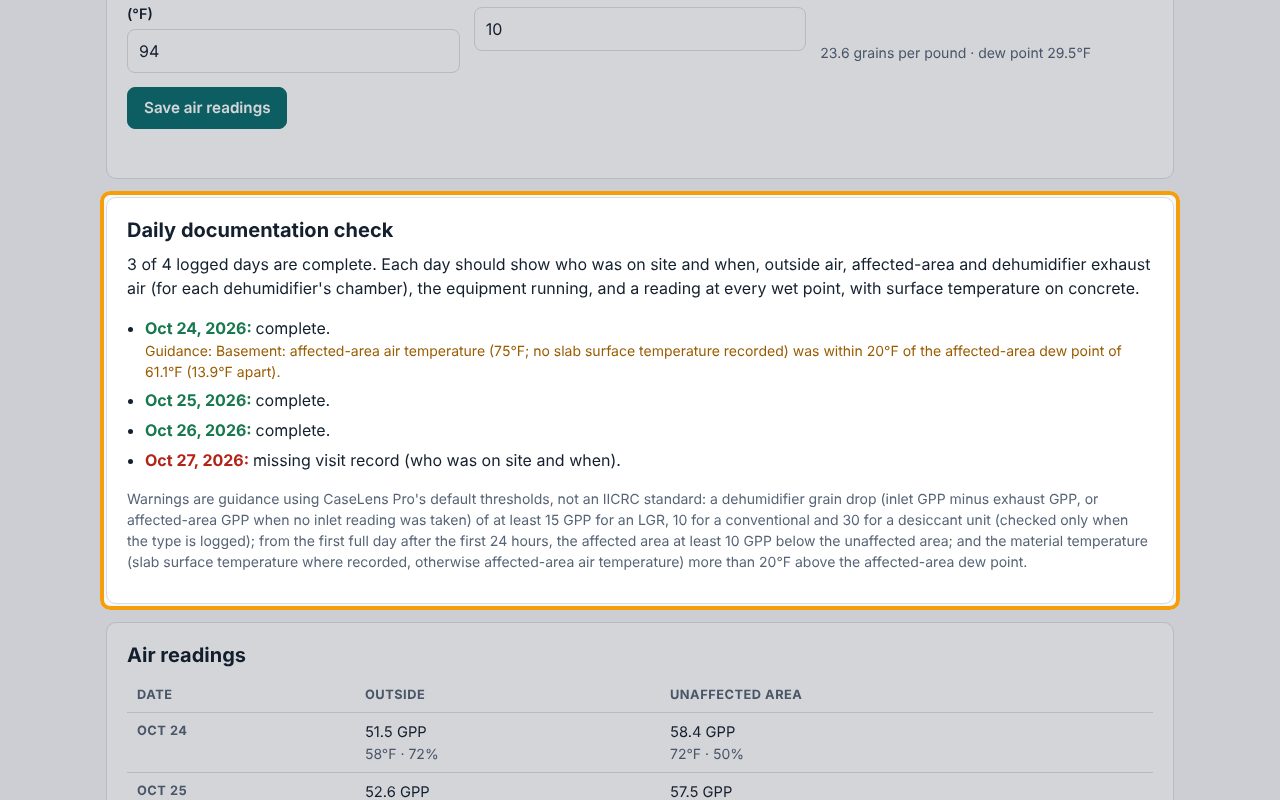
Daily documentation check lists each logged day as complete or says what's missing: who was on site (from the Site work tab), outside, affected-area and exhaust air for each chamber, and a reading at every point. Here today is missing only its visit record, which comes from logging the visit on Site work. Amber Guidance lines, when they appear, flag drying problems such as a dehumidifier not pulling enough water. Fill any gap the same day.
If something goes wrong
- "Readings can't be dated in the future."
- Check the Date under Log readings. It starts at today.
- "… needs both temperature and RH."
- Each place needs both numbers. Fill in the missing one, or clear both to skip that place.
- There's no Chamber section for air readings
- Chambers come from dehumidifiers on the Equipment tab. Log the dehumidifier with the time it was set, then come back; on a day with no dehumidifier logged you get one set of places for the job.
- A point was added by mistake
- In the Readings table, click Remove on its row, then Click again.
What's next
- Make a moisture mapDraw the rooms, place your reading points and outline the wet area, so a reviewer can see where every reading was taken. About 5 minutes.
- Log equipment on a jobRecord each dehumidifier, air mover and other unit when it's set, moved and removed, so the job's equipment days add up from the record. About 5 minutes.