Compare the remediation and rebuild estimates
Choose the job's two estimates as PDFs, see room by room what comes out and what goes back, read the differences, and print a Rebuild Plan for the homeowner and the rebuild contractor. About 5 minutes.
Watch it (2:11, no sound)
- A job already created in LossTrail Pro.
- The remediation estimate and the rebuild estimate as PDFs, saved on the computer or phone you're using. Use the PDF the estimating program exported. A scan or a photo of a printed estimate can't be read.
- You can start with one estimate and add the other later. The comparison needs both.
Step by step
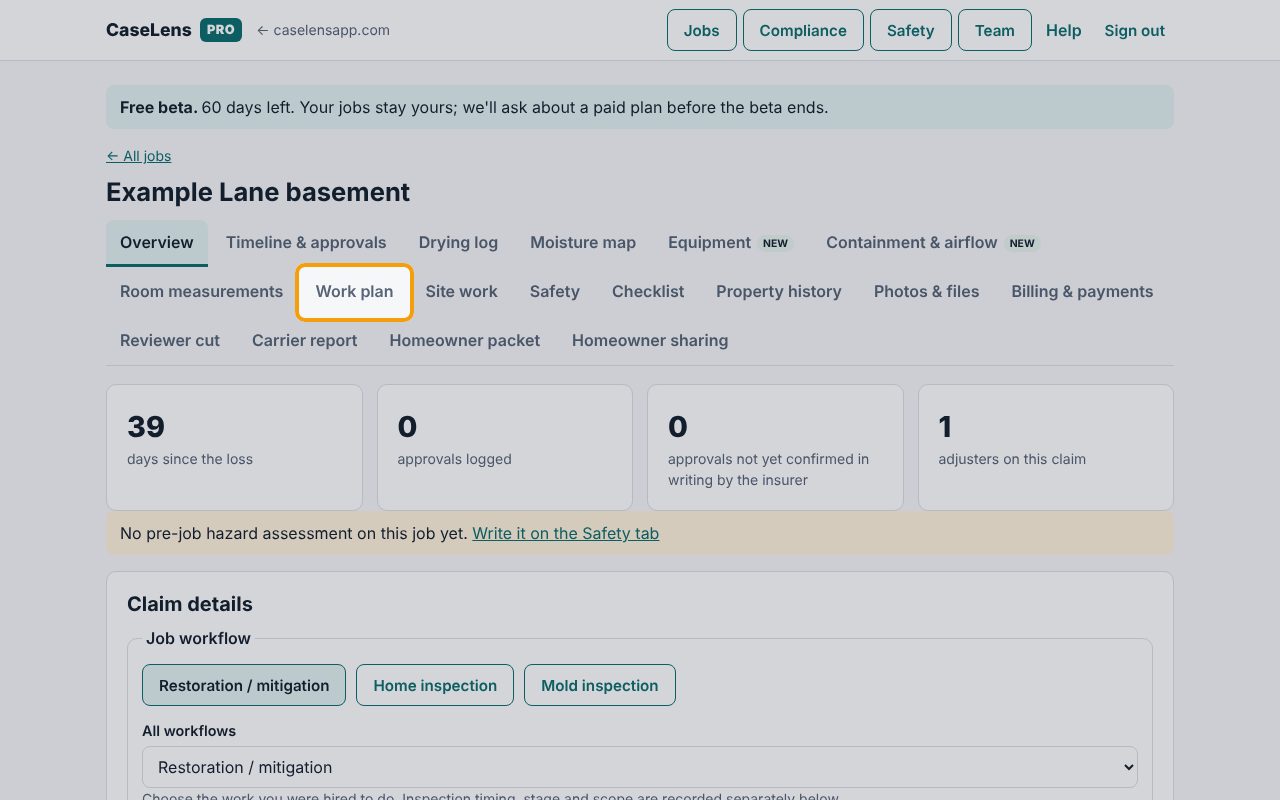
1Open Work plan
Open the job from Jobs and click the Work plan tab.
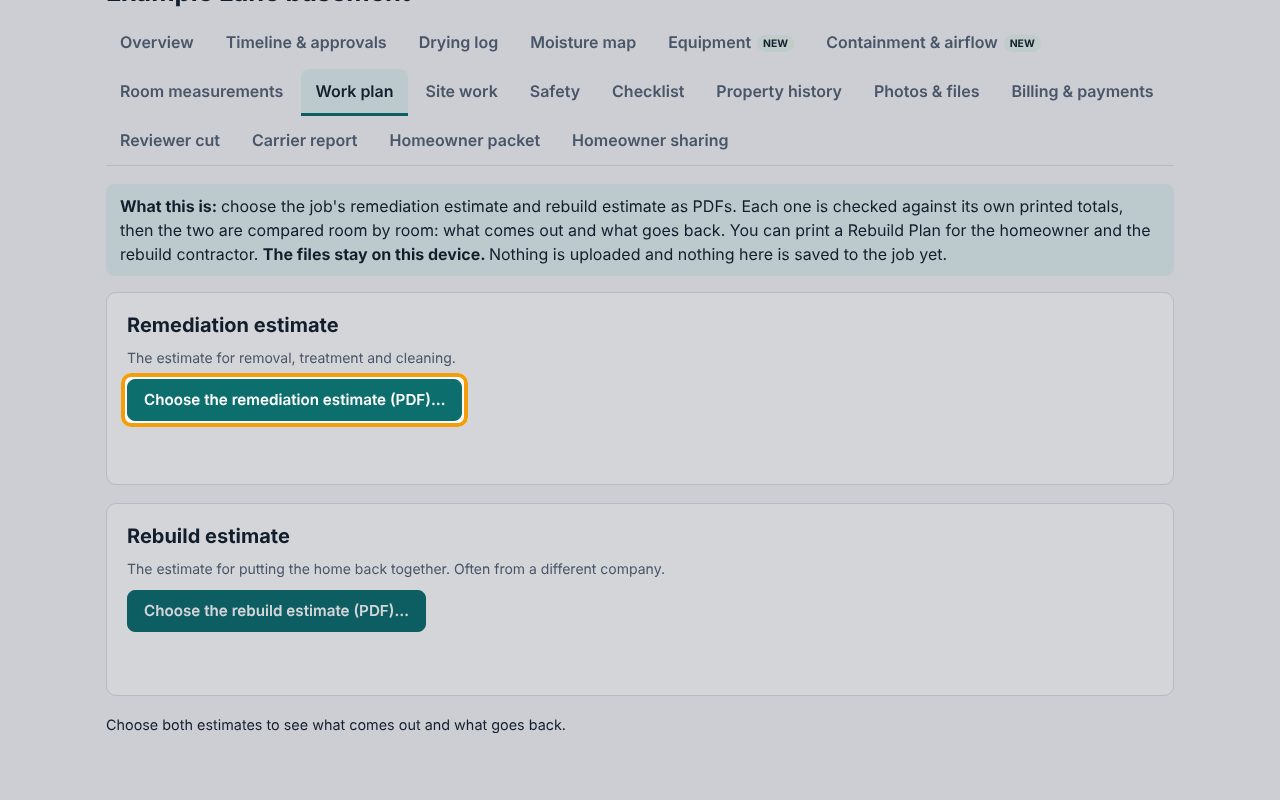
2Choose the remediation estimate
Click Choose the remediation estimate (PDF)… and pick the PDF of the estimate for removal, treatment and cleaning. The file is read on your device and isn't uploaded.
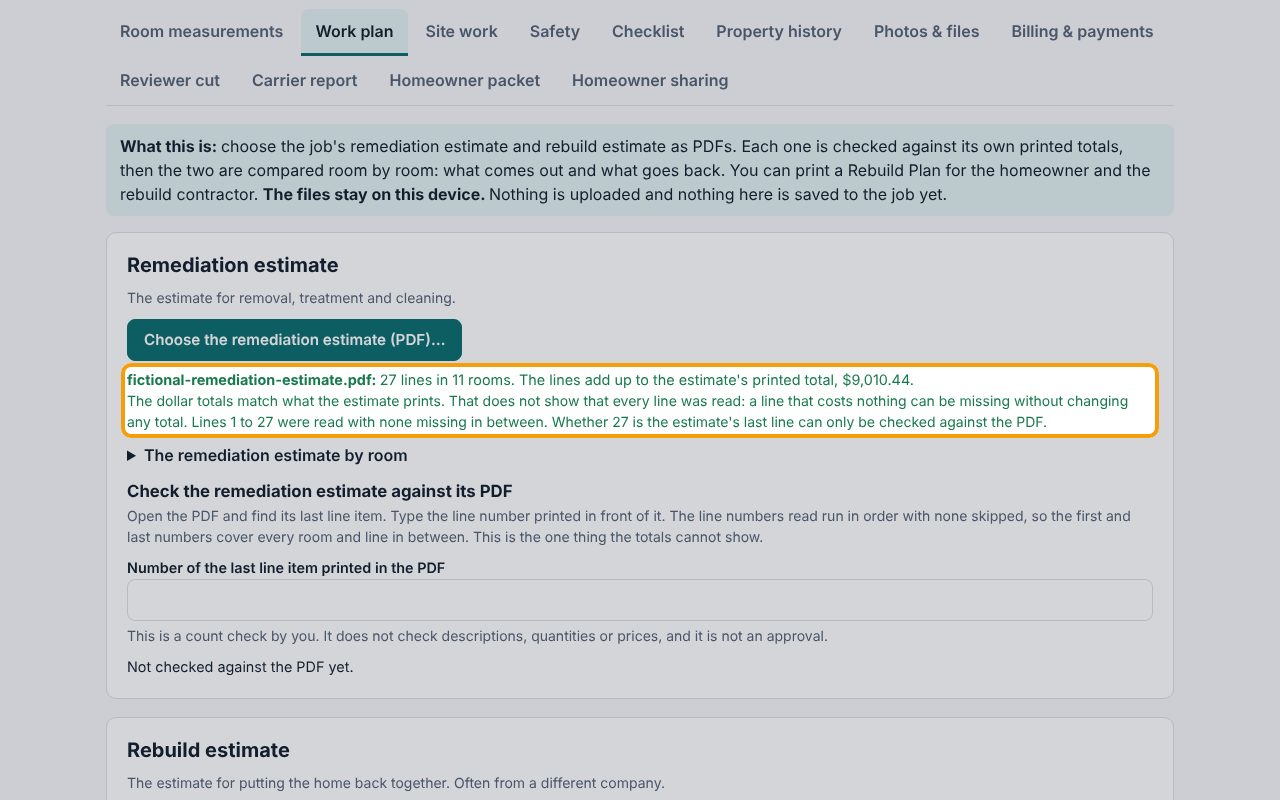
3Check that it adds up
A green line shows the file name, how many lines and rooms were read, and the estimate's printed total. CaseLens adds up every line and compares the sum with the totals the estimate prints for each room and for the whole estimate. Click The remediation estimate by room to see each room's total.
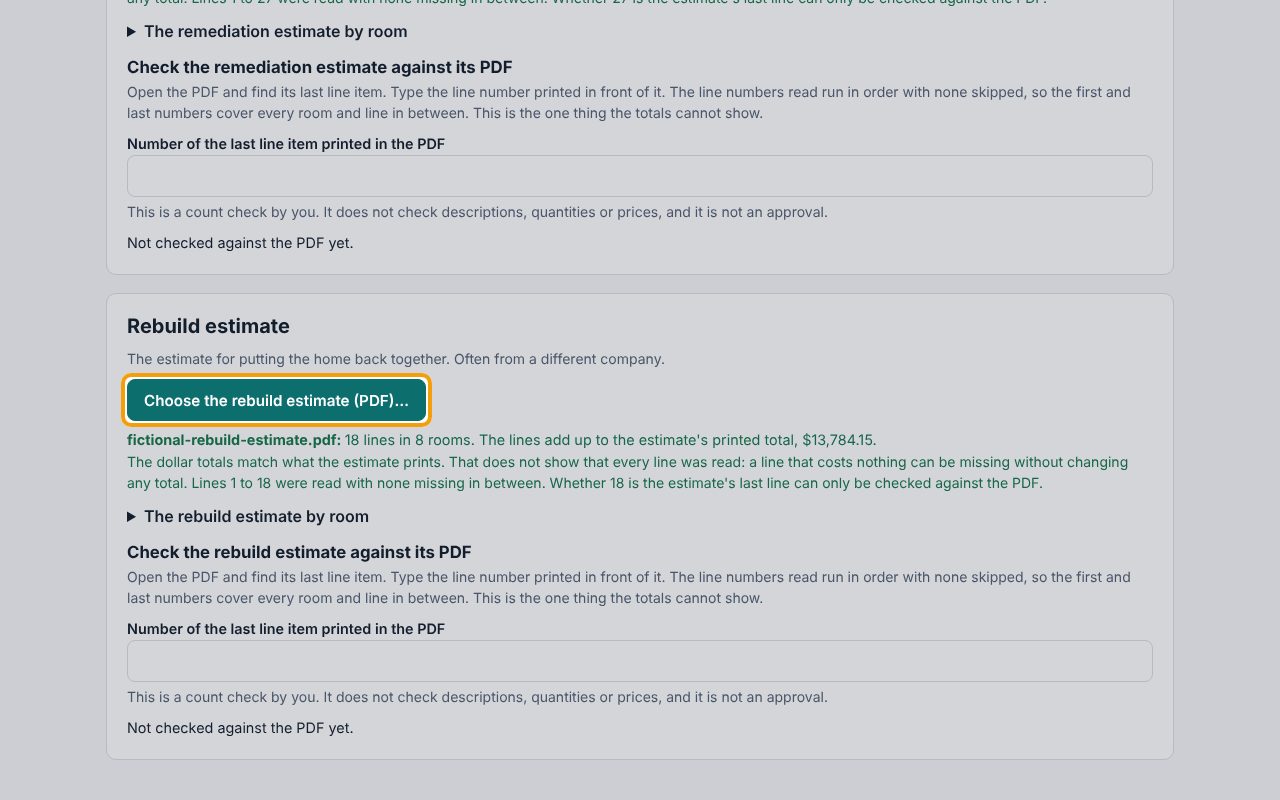
4Choose the rebuild estimate
Click Choose the rebuild estimate (PDF)… and pick the PDF of the estimate for putting the home back together. It is checked the same way. With both estimates read, the comparison appears below.
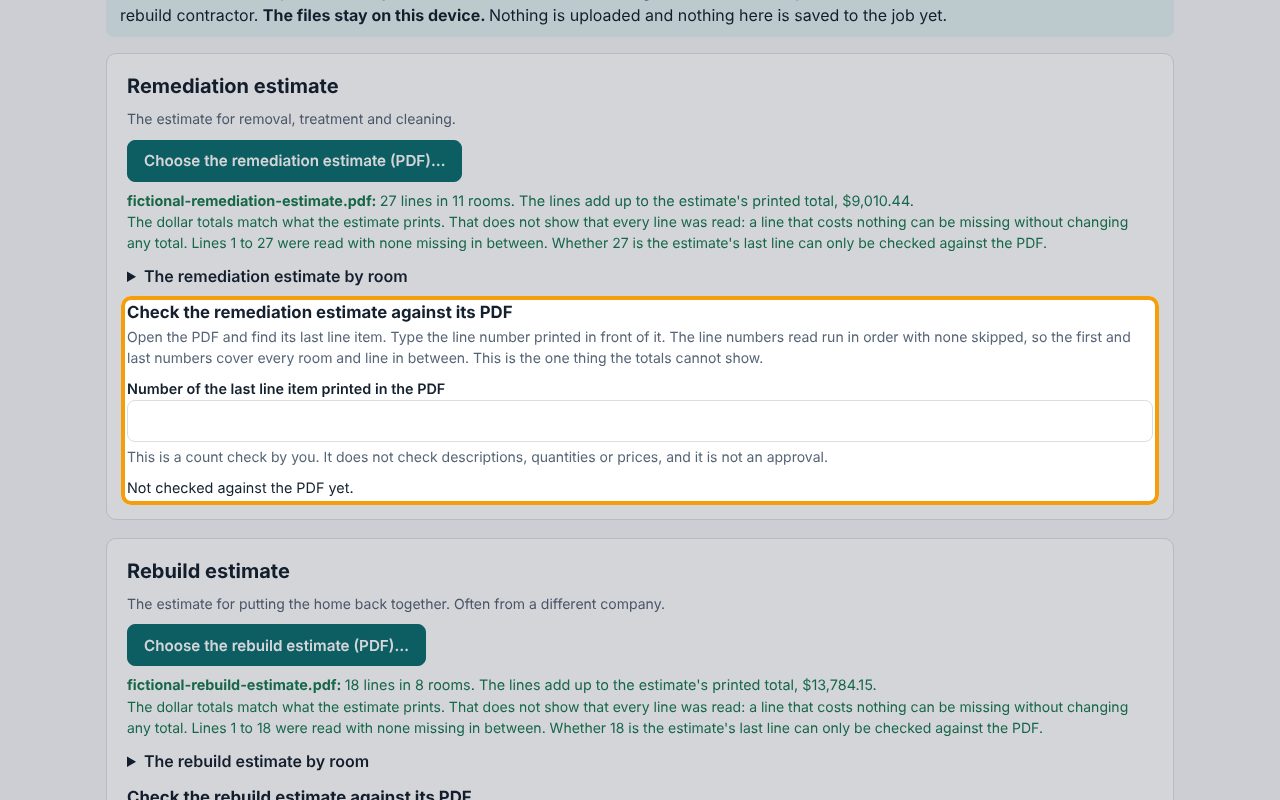
5Check each estimate against its PDF
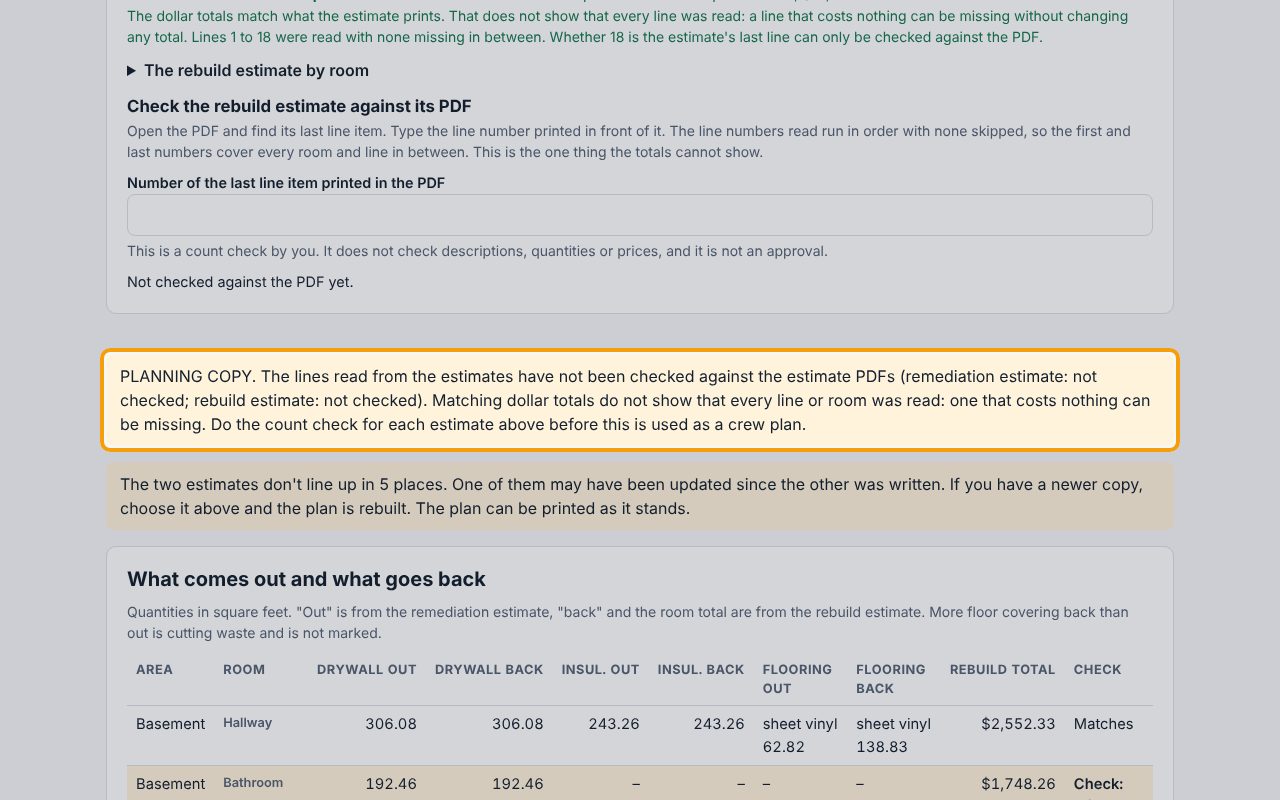
Totals that add up do not show that every line was read: a line that costs nothing can be missing from the PDF's text and change no total. Under each estimate, Check the estimate against its PDF asks for the number of the last line item printed in the PDF. Open the PDF, find its last line item, and type the number printed in front of it. If the lines read don't start at 1, it asks for the first line number too. If the estimate's line numbers aren't in order, it asks for two counts from the PDF itself, not from the screen: how many rooms or areas have line items under them, and how many line items there are in the whole PDF. A room that was not read isn't listed on the screen, so only your own count can show it. A number that doesn't match is called out with both numbers. Counts that match are shown as counts match; individual lines not verified: a plan from an estimate numbered out of order stays a planning copy, because matching counts can't show that each line is the right one. This is a count check by you: it does not check descriptions, quantities or prices.
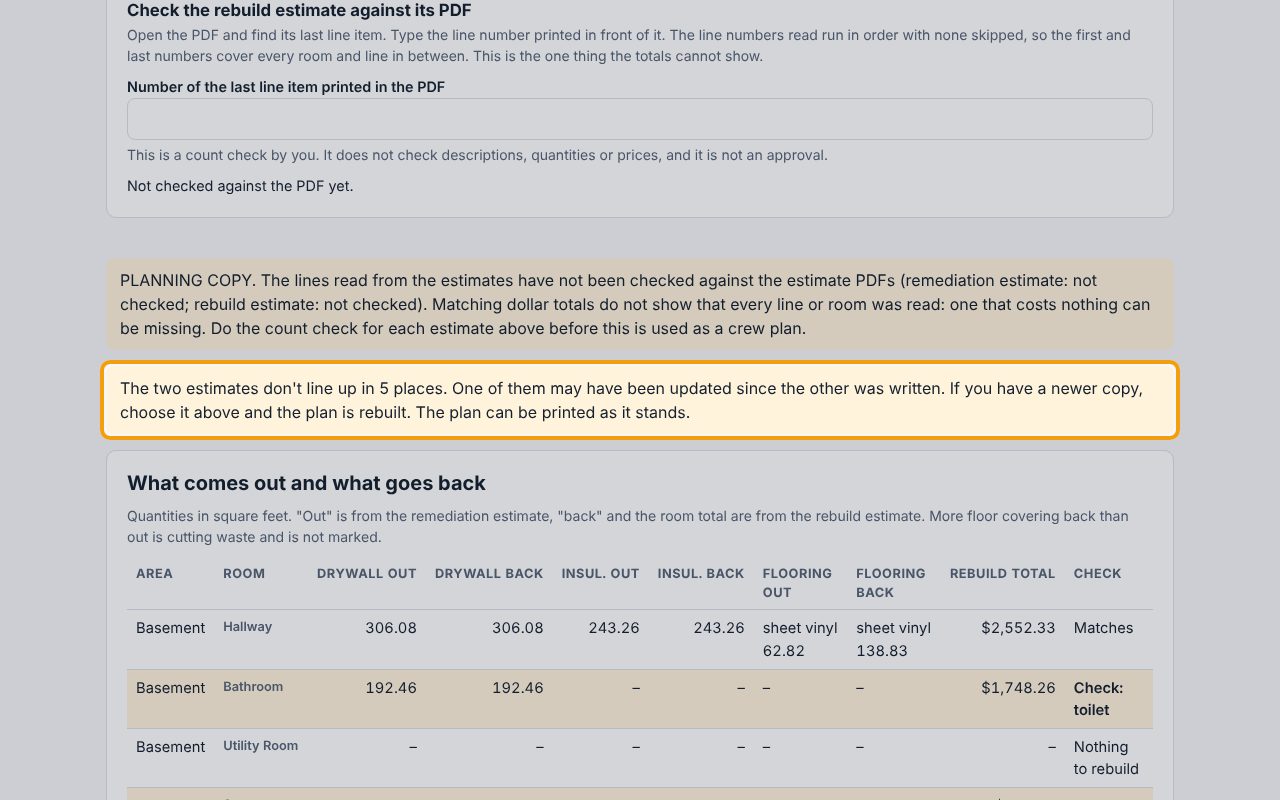
6Read the notice
A yellow box says in how many places the two estimates don't line up. One estimate may have been updated since the other was written. If you have a newer copy, choose it with the same button and everything below is worked out again. A green box means no differences were found.
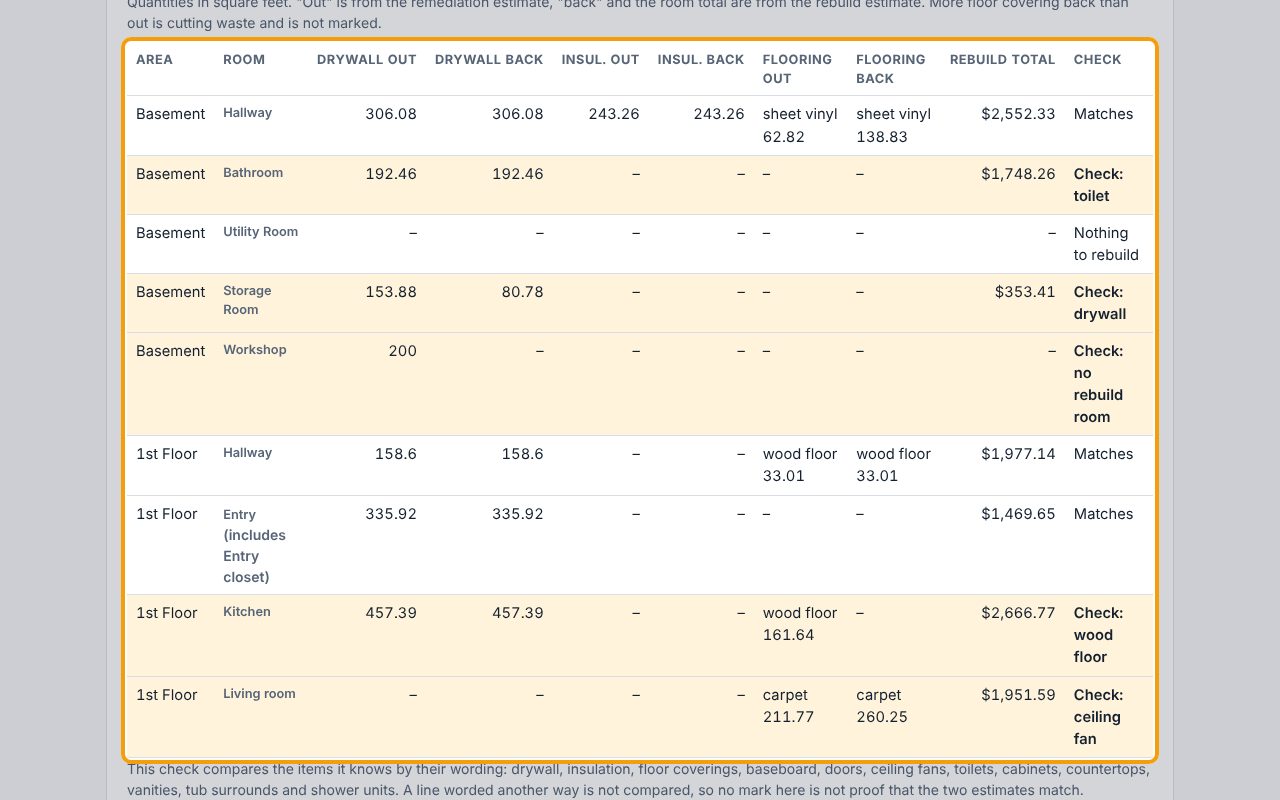
7Check each room
What comes out and what goes back has one row for each room: drywall, insulation and flooring taken out in the remediation estimate, the same put back in the rebuild estimate, and the room's rebuild total. The last column says Matches, Check with what to look at, or Nothing to rebuild for a room that was only cleaned. On a phone, swipe the table sideways.
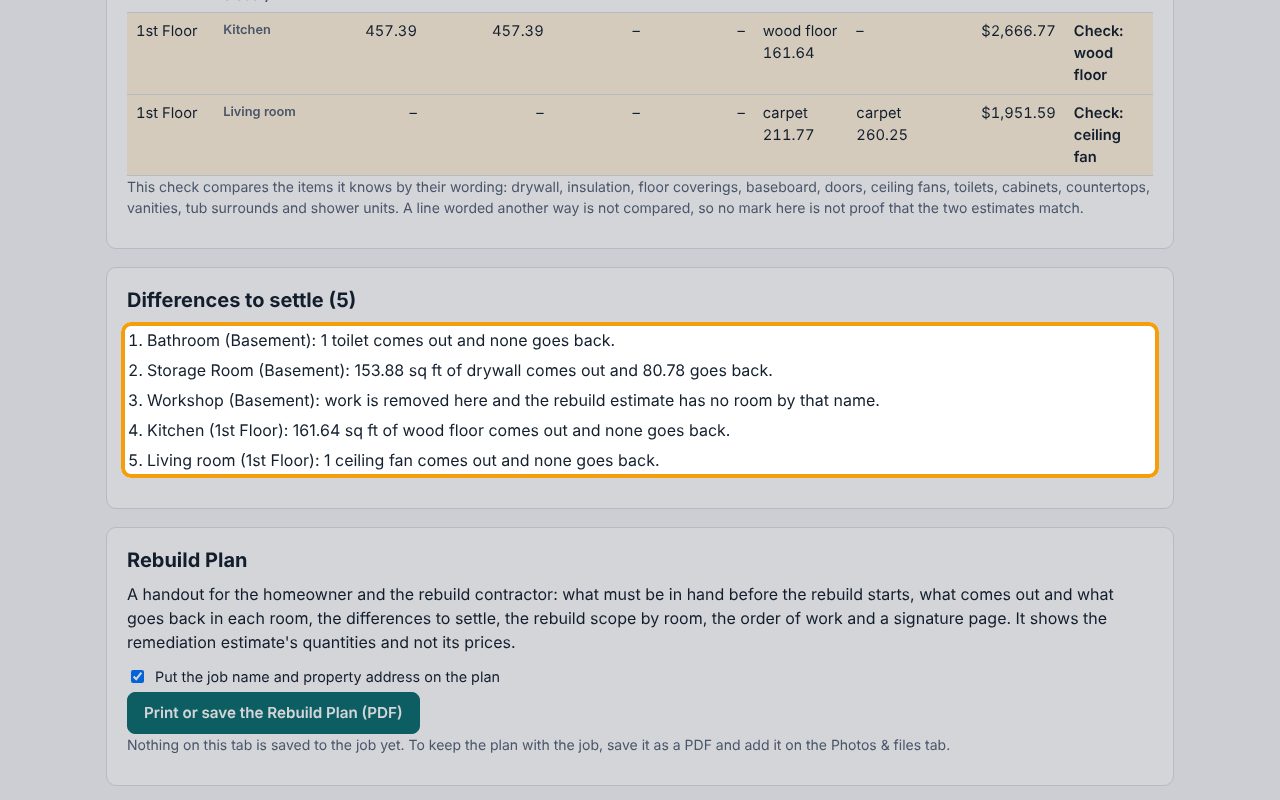
8Read the differences
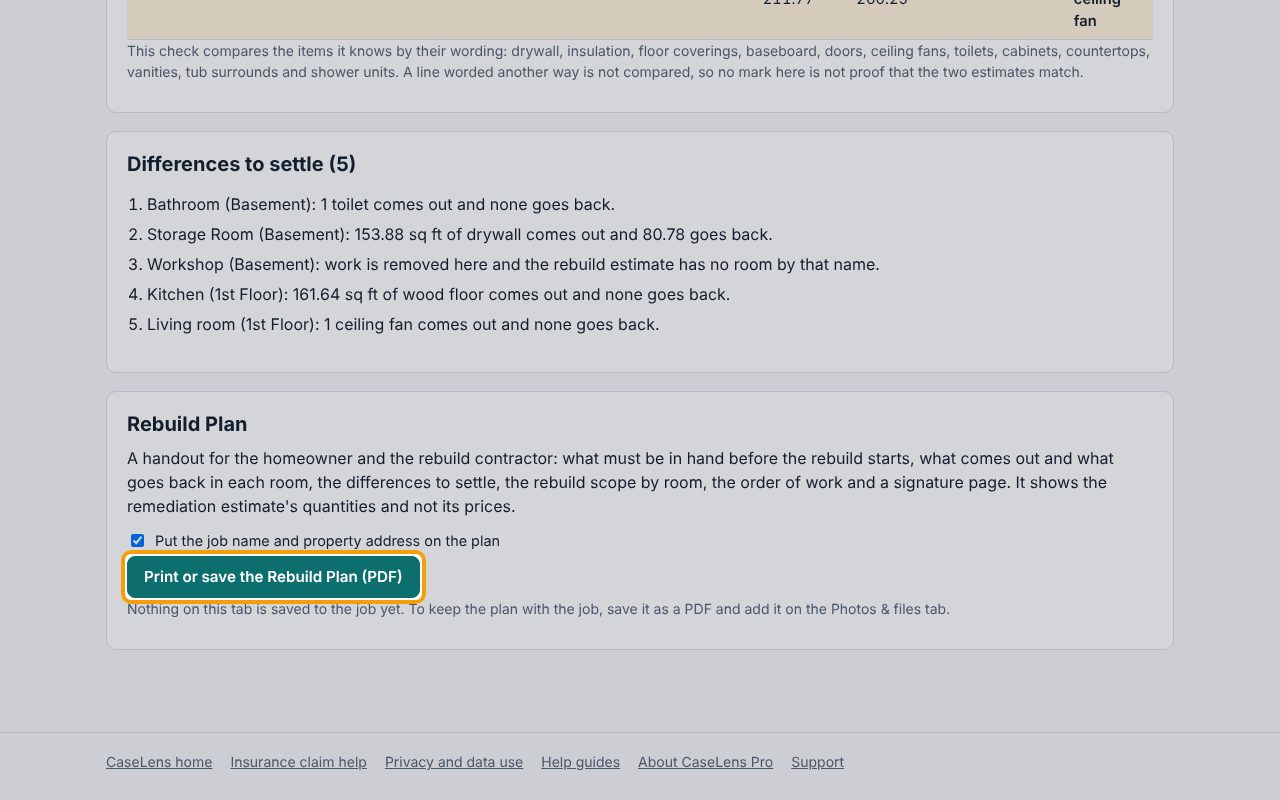
Differences to settle lists each difference in plain words with both figures, for example drywall that comes out with less going back, a floor that is removed and not replaced, or a room with no rebuild lines at all. Settle each one with the two contractors and the homeowner before the rebuild is priced final.
9See whether it is a planning copy
The box above the comparison says PLANNING COPY until both estimates have been checked against their PDFs, and the printed plan says the same at the top. If either estimate's line numbers are not in order it stays PLANNING COPY, and any line number read more than once is named. When both estimates are numbered in order and both are checked, it says who did the count check and when the check was made; the print date is shown separately. That note records your count check. Descriptions, quantities and prices are not checked, CaseLens does not read the PDFs a second time, and it does not approve the plan.
10Print the Rebuild Plan
Under Rebuild Plan, leave Put the job name and property address on the plan ticked, or untick it for a copy without them. Click Print or save the Rebuild Plan (PDF). The plan shows the remediation estimate's quantities and not its prices. Nothing on this tab is saved to the job yet, so save the plan as a PDF and add it on the Photos & files tab.
If something goes wrong
- "can't be used" with a room that doesn't add up
- The lines read from that estimate don't add up to a total it prints, so nothing from it is shown. Export the estimate again as a PDF and choose the new file. If it still fails, the estimate uses a layout CaseLens can't read yet: tell us with the file's program and version.
- "Line 2 is missing" or "Line number 2 is printed more than once"
- The estimate's line numbers go up as it is read and a number was skipped or repeated in what was read, so nothing from it is shown. Open the PDF and look at that line. Export the estimate again as a PDF and choose the new file.
- "The line numbers only go up but skip…"
- The estimate skips line numbers on purpose, or most of its lines were lost when the PDF's text was read. CaseLens can't tell which, and it can't read estimates numbered that way yet. Tell us with the name of the estimating program.
- "A row has a quantity and amounts but no line number" or "Line 9 could not be read"
- Part of a line was lost when the PDF's text was read, so the line can't be placed and nothing from the estimate is shown. Export the estimate again as a PDF and choose the new file.
- It says PLANNING COPY and I have checked
- Both estimates have to be checked, and each number has to match what was read. Choosing a file again clears its check. If an estimate's line numbers are not in order, the plan stays a planning copy even when your counts match: check its lines against the PDF by hand before a crew uses it.
- "Line number 282 was read more than once"
- In an estimate numbered out of order a repeated line number is shown, not refused. One of the two may be a different line that was read wrongly, so a line may be missing from the plan. Open the PDF, find that line number, and compare the lines around it.
- "The file has no readable text"
- The file is a scan or a photo. Choose the PDF as the estimating program exported it.
- "Couldn't read that file"
- The file isn't a PDF, or it is damaged. Choose the estimate as a PDF.
- "This looks like a rebuild estimate" (or a remediation estimate)
- The two files may be the wrong way round. Choose each one again under the right heading. The message doesn't stop you if the file is in the right place.
- A room says Matches but I know something is missing
- The check compares drywall, insulation, floor coverings, baseboard, doors, ceiling fans, toilets, cabinets, countertops, vanities, tub surrounds and shower units by their wording. A line worded another way isn't compared, so no mark is not proof that the two estimates match.
- Everything is gone when I come back
- This tab doesn't save anything to the job yet. Choose the two PDFs again, and keep the printed plan on the Photos & files tab.
What's next
- Upload photos and documents to a jobAdd job photos with their room and caption, plus reviewer reports, written approvals and receipts, so each one is dated and fingerprinted. About 5 minutes.
- Share a job with the homeowner's Claim DiaryInvite the homeowner to their free Claim Diary, choose exactly what they see, and withdraw or end access when you need to. About 5 minutes.