Share a job with the homeowner's Claim Diary
Invite the homeowner to their free Claim Diary, choose exactly what they see, and withdraw or end access when you need to. About 5 minutes.
Watch it (1:59, no sound)
- You must be the company owner or a project manager. Crew members can see what was shared but can't share.
- The homeowner's email address, and a way to send them a link yourself (text or email).
- Photos and readings already on the job.
Step by step
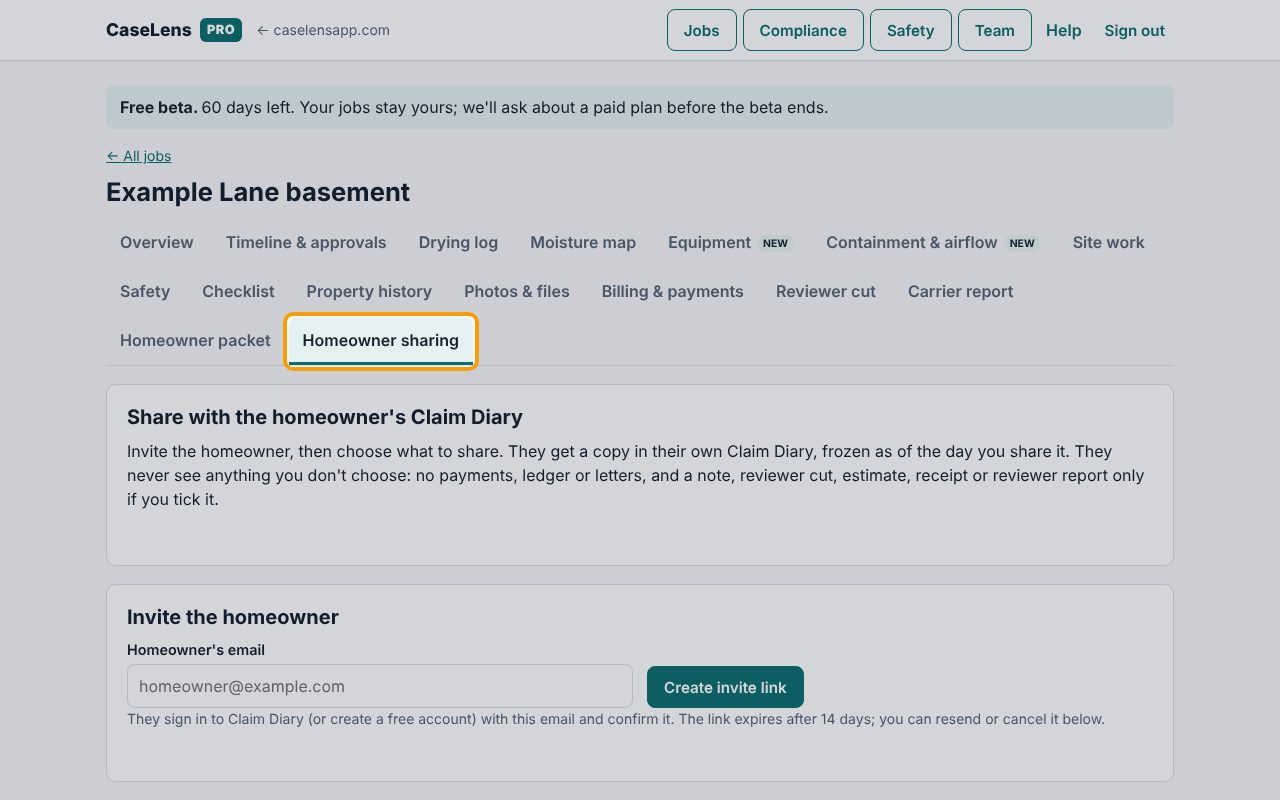
1Open Homeowner sharing
Open the job and click the Homeowner sharing tab, the last one. The homeowner gets a copy of only what you choose, frozen as of the day you share it: never payments, the ledger or letters, and a note, reviewer cut, estimate, receipt or reviewer report only if you tick it.
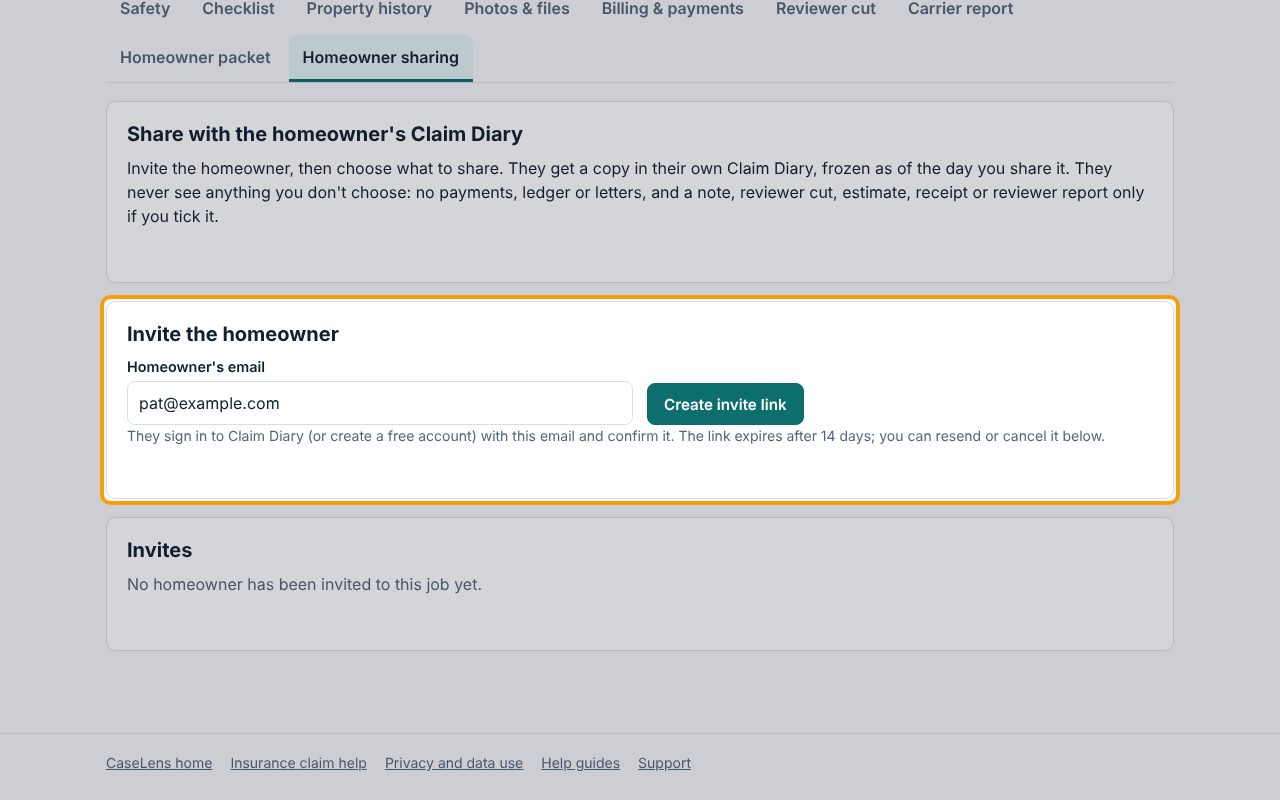
2Invite the homeowner
Under Invite the homeowner, type their email in Homeowner's email and click Create invite link. They'll sign in to Claim Diary (or create a free account) with that same email.
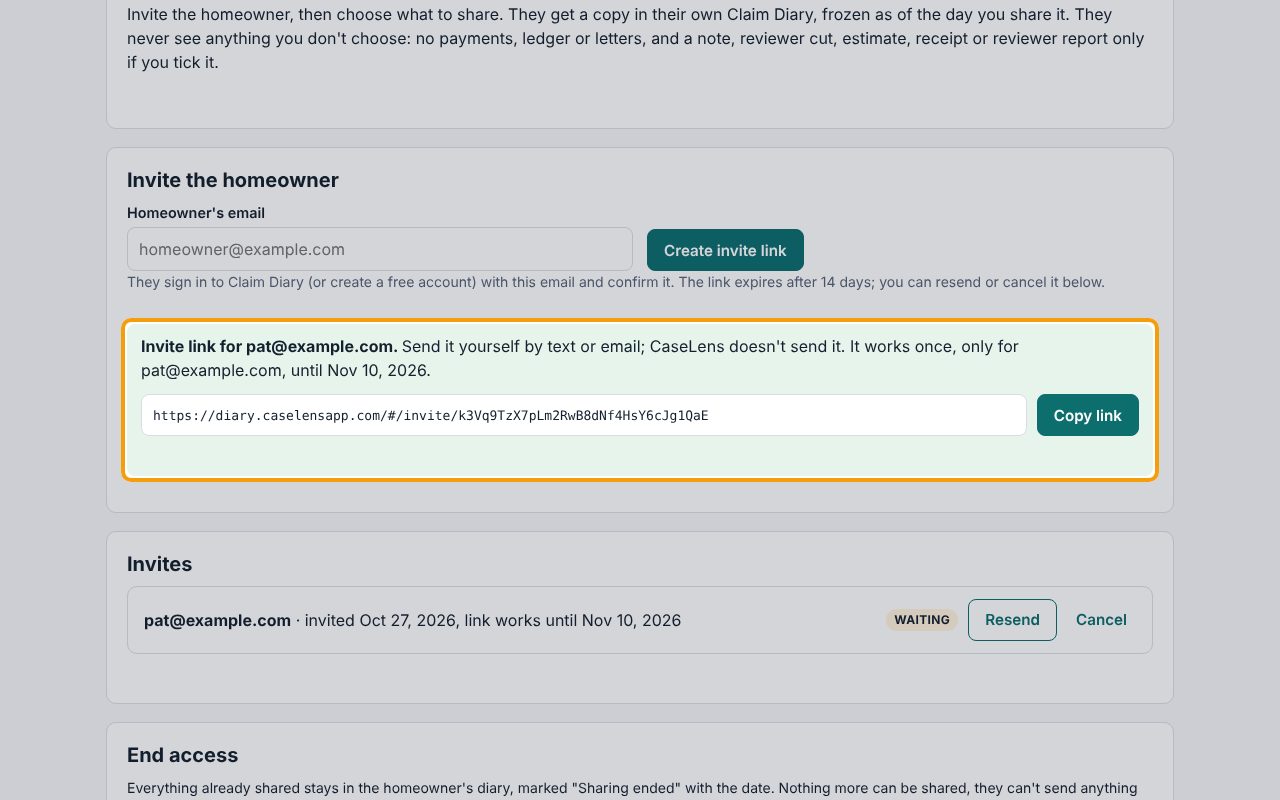
3Send them the link yourself
The invite link appears in a green box. Click Copy link and send it to the homeowner by text or email: CaseLens doesn't send it. It works once, only for that email, for 14 days. It's shown only now; if you lose it, click Resend under Invites for a new one.
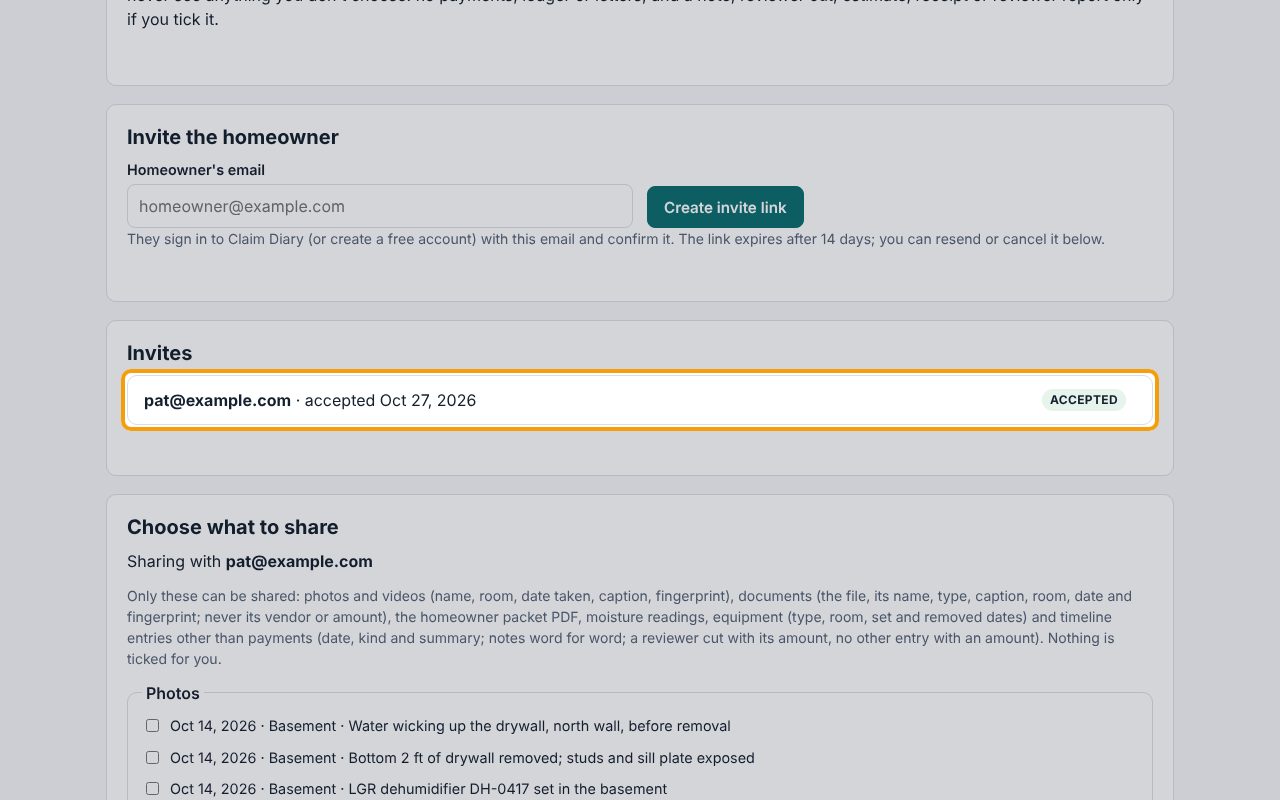
4Wait for them to accept
When the homeowner opens the link and confirms, their invite shows Accepted under Invites, and Choose what to share appears. Until then it shows Waiting; you can Resend or Cancel it.
5Choose what to share
Under Choose what to share, nothing is ticked for you. The items are grouped: Photos, Documents, Moisture readings, Equipment, Timeline entries and, if the job has any, Videos. Tick each item to share. Items marked Billing document (estimates, receipts, reviewer reports) are shared only if you tick them, and notes are shared word for word, so read them first.
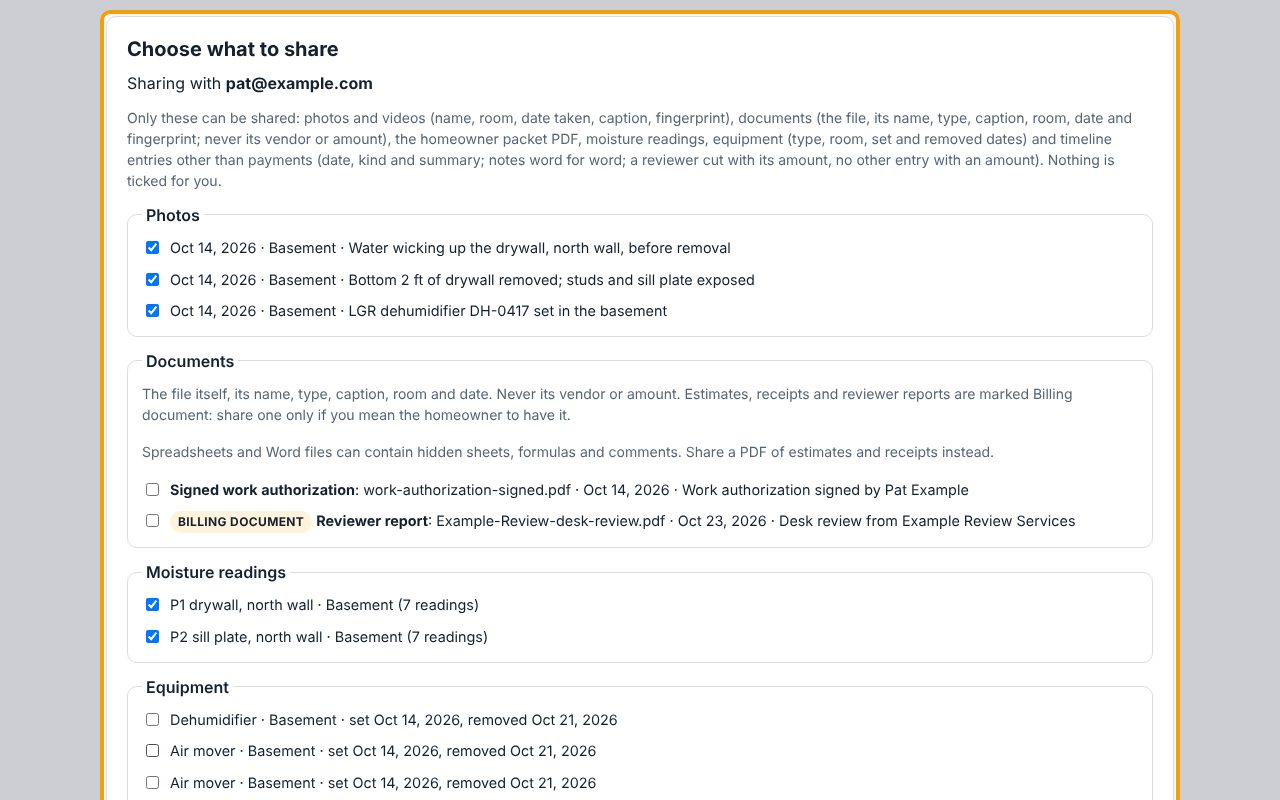
6Share what you ticked
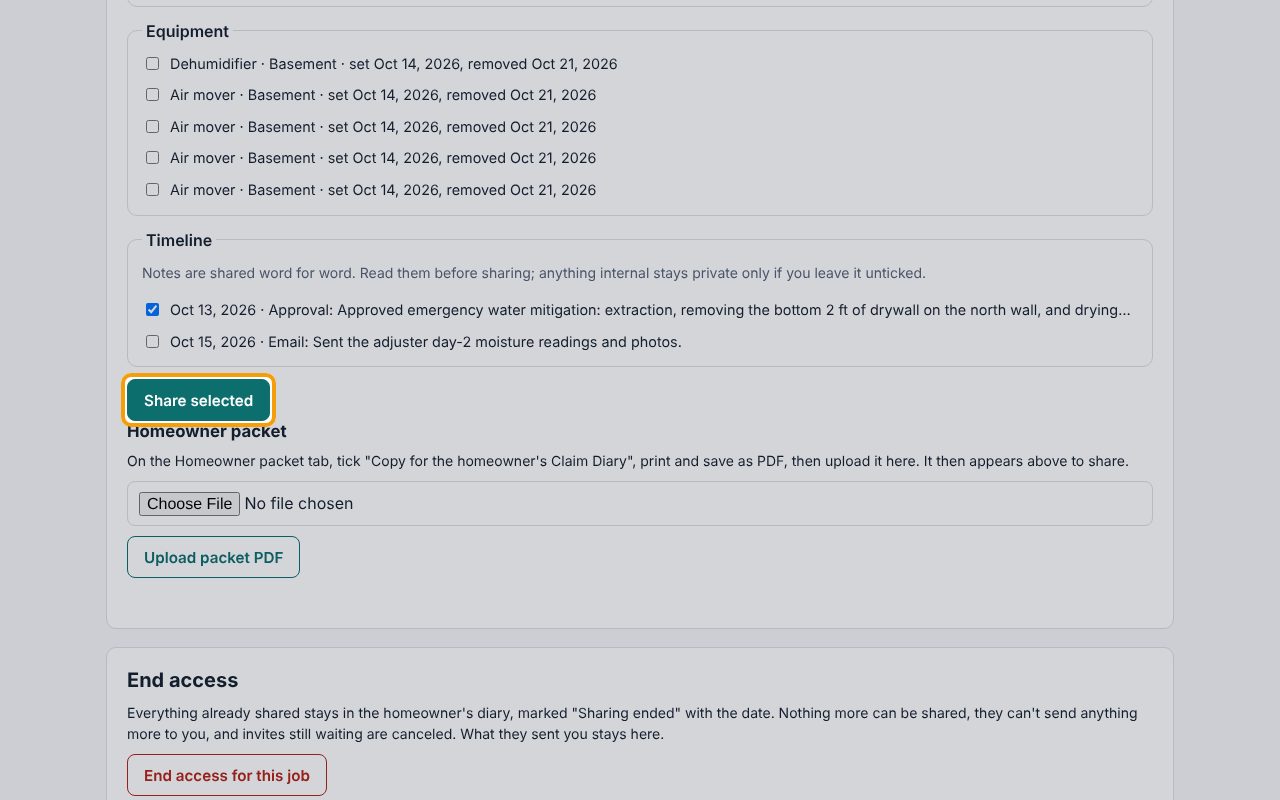
Scroll down to the end of the box: the Timeline entries are last (here the adjuster's approval is ticked). Check what's ticked, then click Share selected.
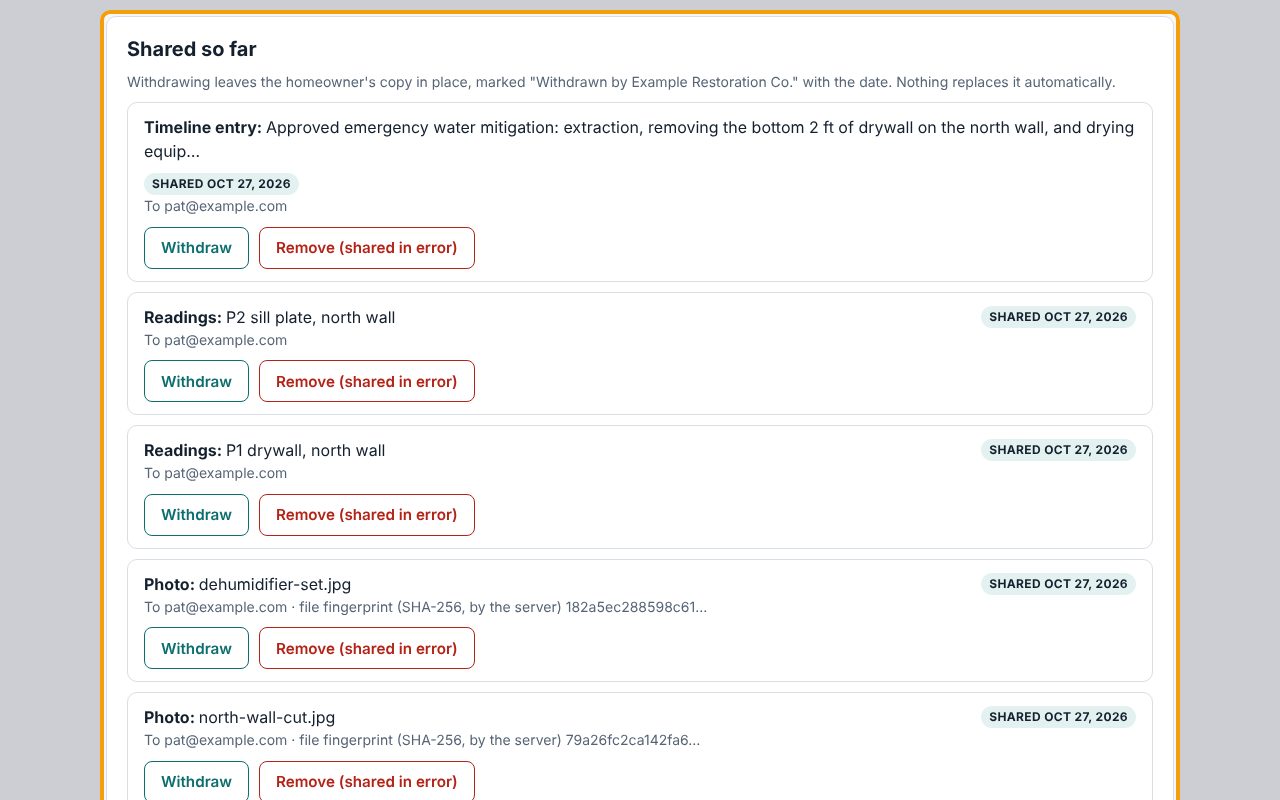
7Check what was shared
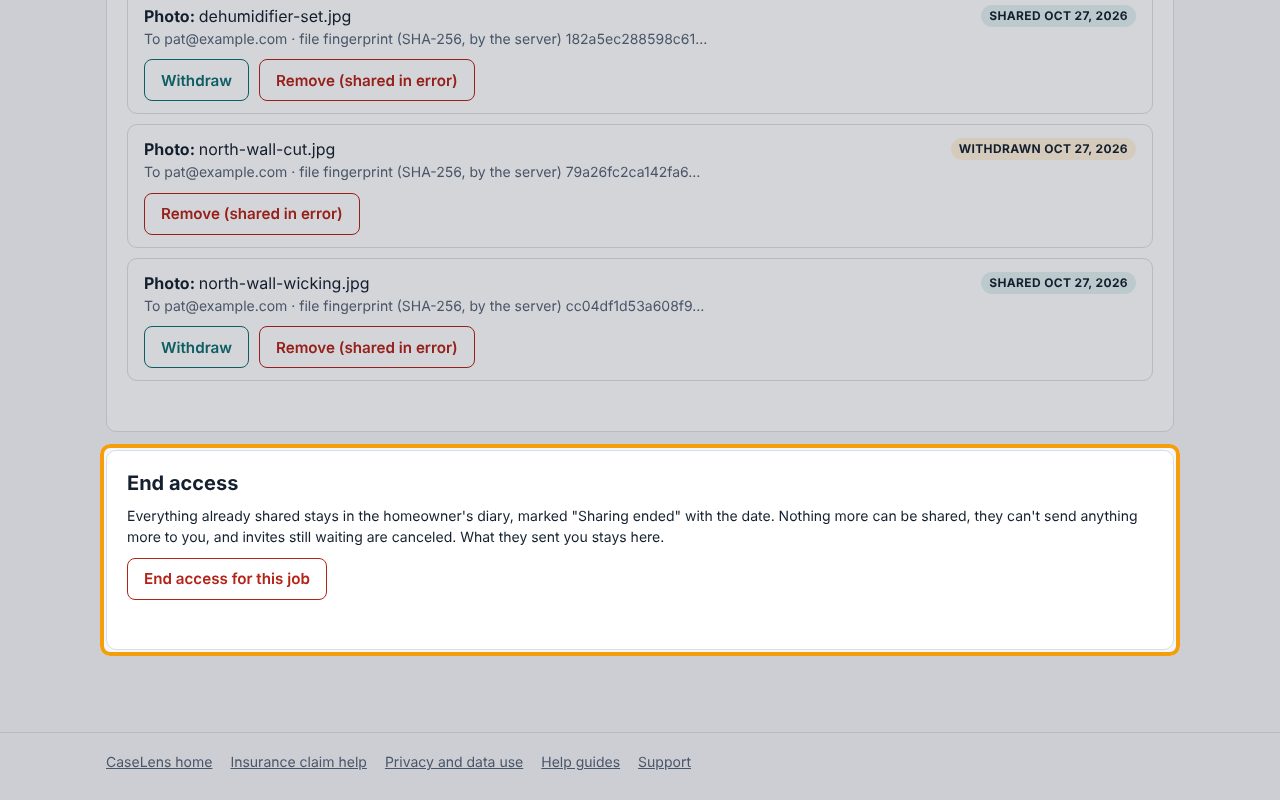
Under Shared so far, each item shows who it went to, the date, and for files the server's fingerprint. The homeowner sees these in their Claim Diary right away.
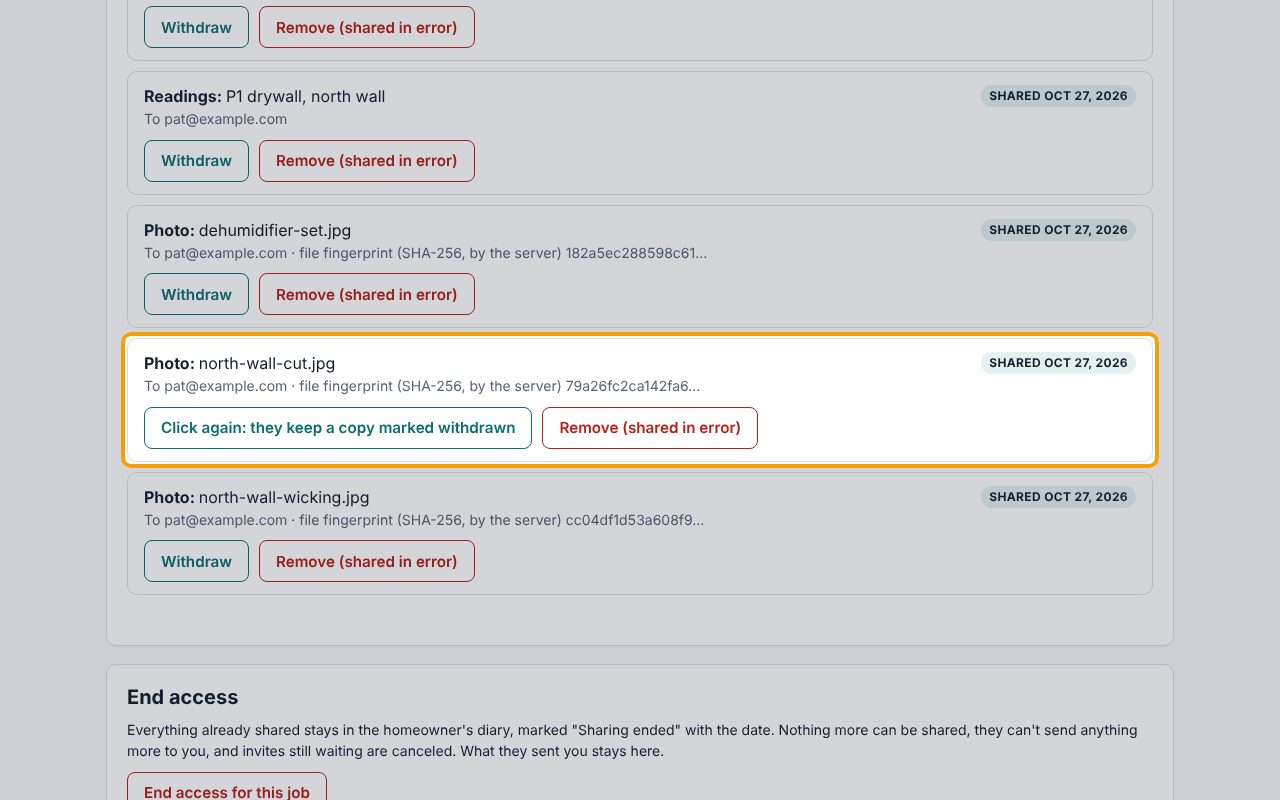
8Withdraw an item
To take something back, click Withdraw on it, then Click again: they keep a copy marked withdrawn. The homeowner's copy stays, marked "Withdrawn by" your company with the date. If you shared something by mistake (wrong job, another customer's information), use Remove (shared in error) instead and give the reason: their copy is deleted.
9End access when the job is over
When you're done sharing, click End access for this job, then click it again to confirm. What you already shared stays in the homeowner's diary marked Sharing ended, nothing more can be shared, they can't send you anything more, and invites still waiting are canceled.
If something goes wrong
- "Enter a valid email address."
- Check the homeowner's email for typos (it needs an @ and a domain such as example.com).
- The homeowner says the link doesn't work
- It works once, only for the invited email, for 14 days. Ask them to sign in to Claim Diary with exactly that email. If it expired or was lost, click Resend and send them the new link.
- "Only the company owner or a project manager can invite, share, withdraw or end access."
- Ask the owner to make you a project manager on the Team page, or to share for you.
- "Claim Diary can't store this type of file; save it as a PDF to share it"
- Save the document as a PDF, upload it on Photos & files, then share the PDF.