Get started with CaseLens Pro
Create your account, set up your company and invite your team. About 5 minutes.
Watch it (1:56, no sound)
- An email address you can open now (CaseLens sends a link to confirm it).
- Your company's name and the state you mostly work in.
Step by step
1Open CaseLens Pro
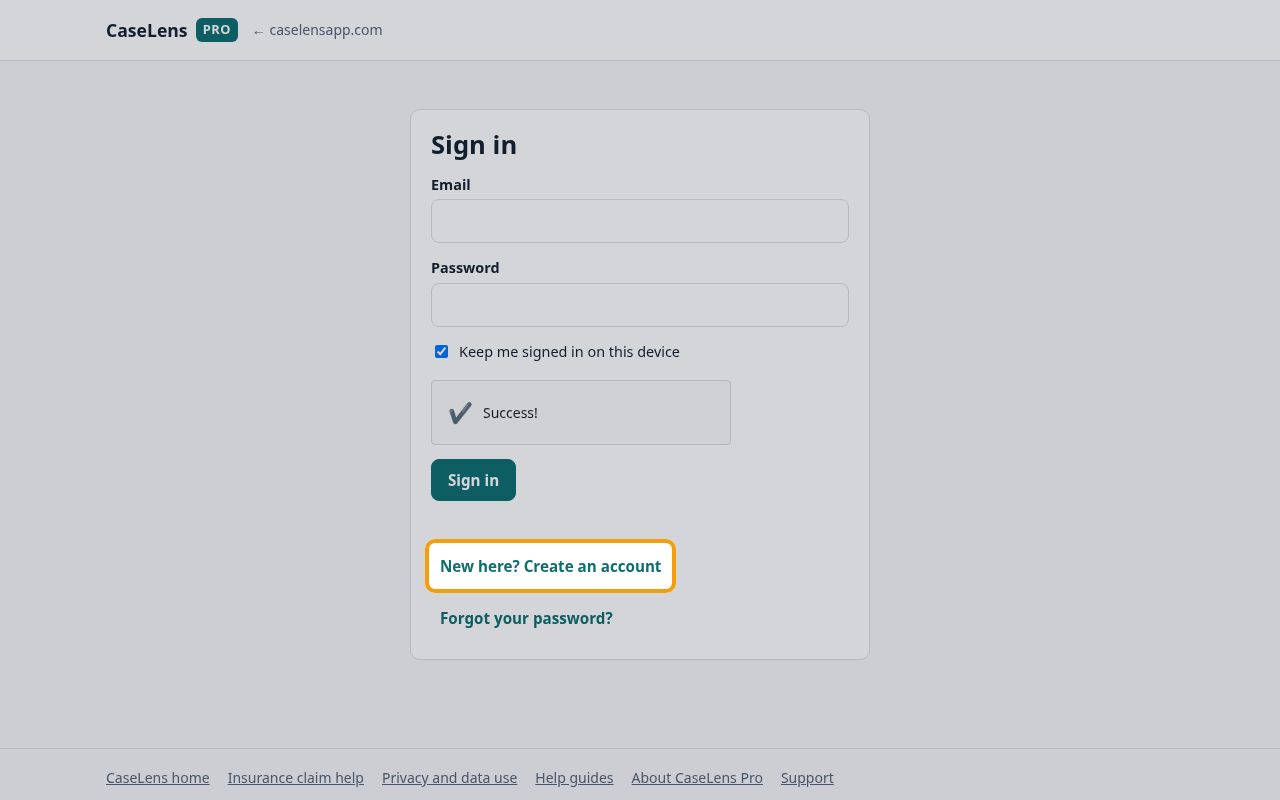
Go to pro.caselensapp.com on your computer, tablet or phone. You'll see the Sign in page. To read the product explanation, choose About CaseLens Pro in the footer; it stays outside sign-in. If you don't have an account yet, click New here? Create an account.
2Create your account
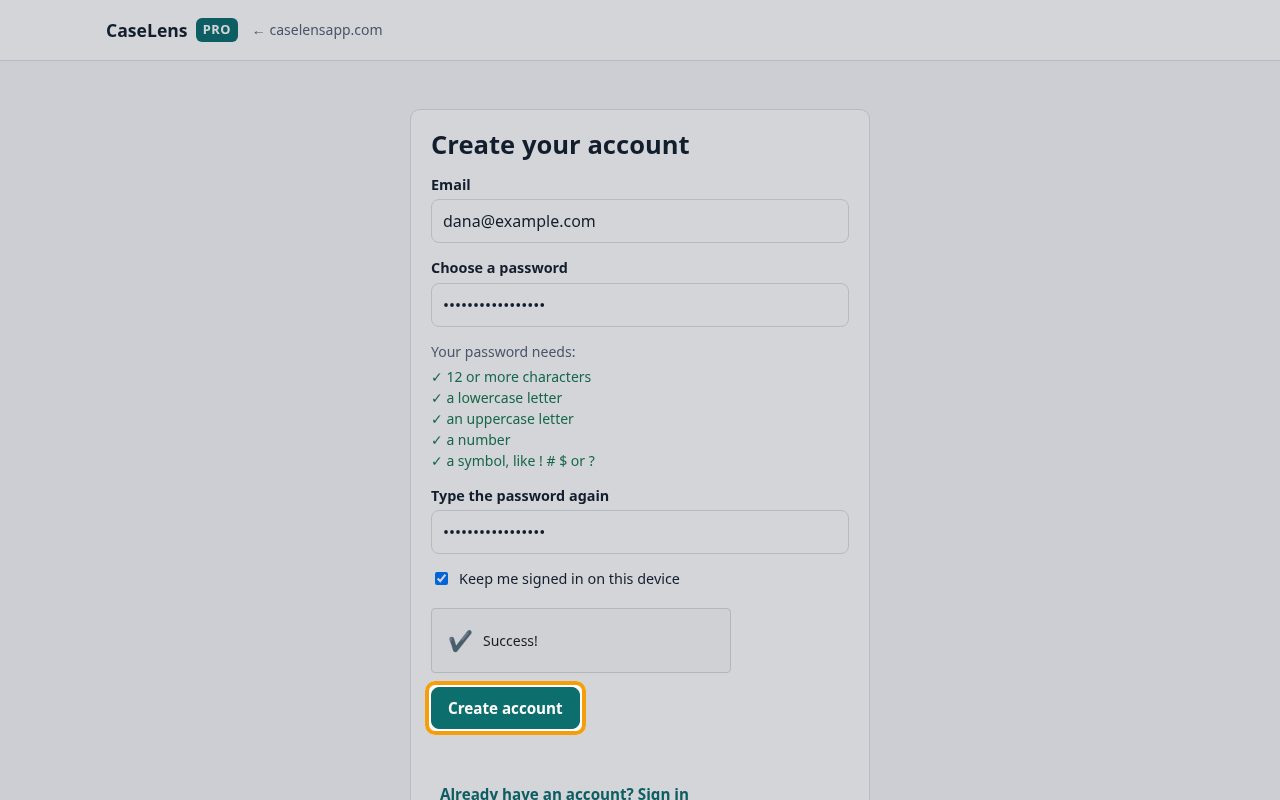
Enter your Email, type a password under Choose a password and type it again under Type the password again. The list under the password box shows what it needs: 12 or more characters, a lowercase letter, an uppercase letter, a number and a symbol. Wait for the security check above the button to say Success! (a few seconds), then click Create account.
3Confirm your email
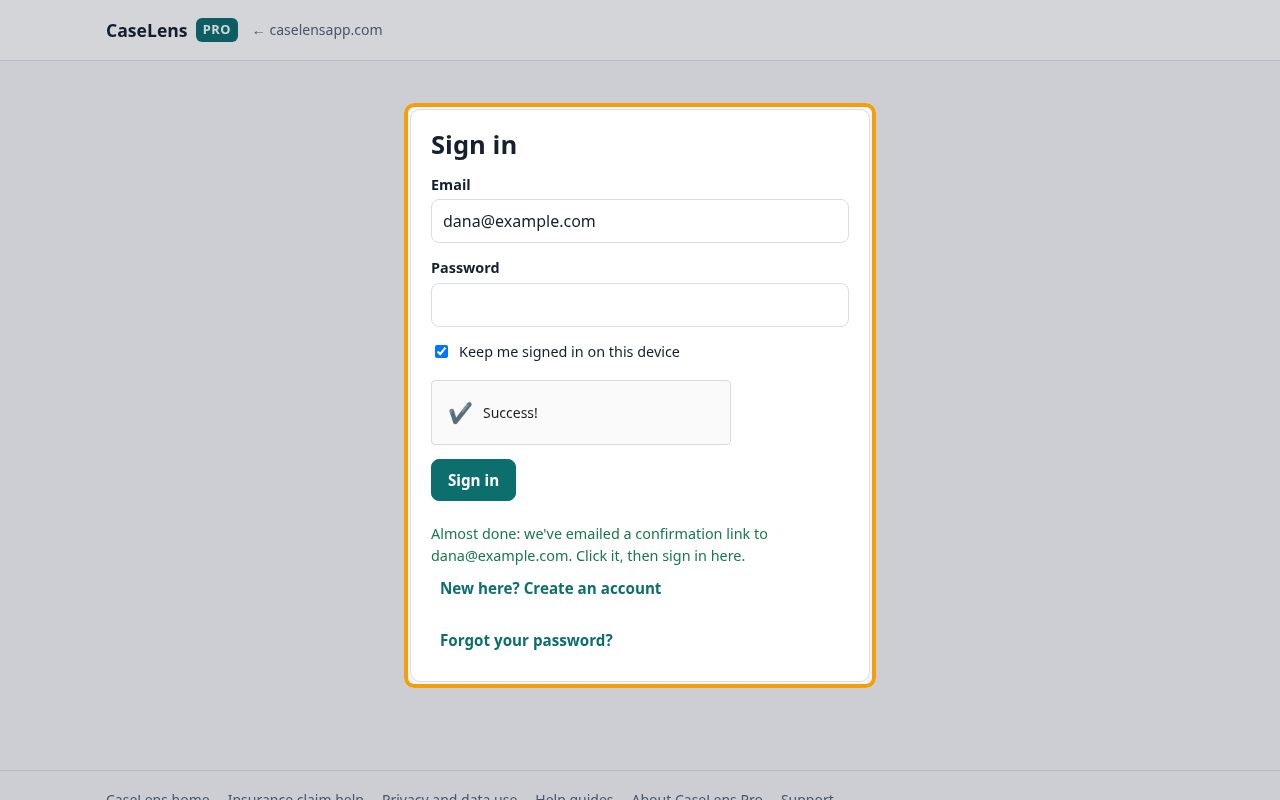
Right after you click Create account, the page switches back to Sign in with your email filled in and says Almost done: we've emailed a confirmation link. Open that email and click the link (on the same device is easiest), then come back to this page. If the email hasn't arrived in a few minutes, check your spam or junk folder.
4Sign in
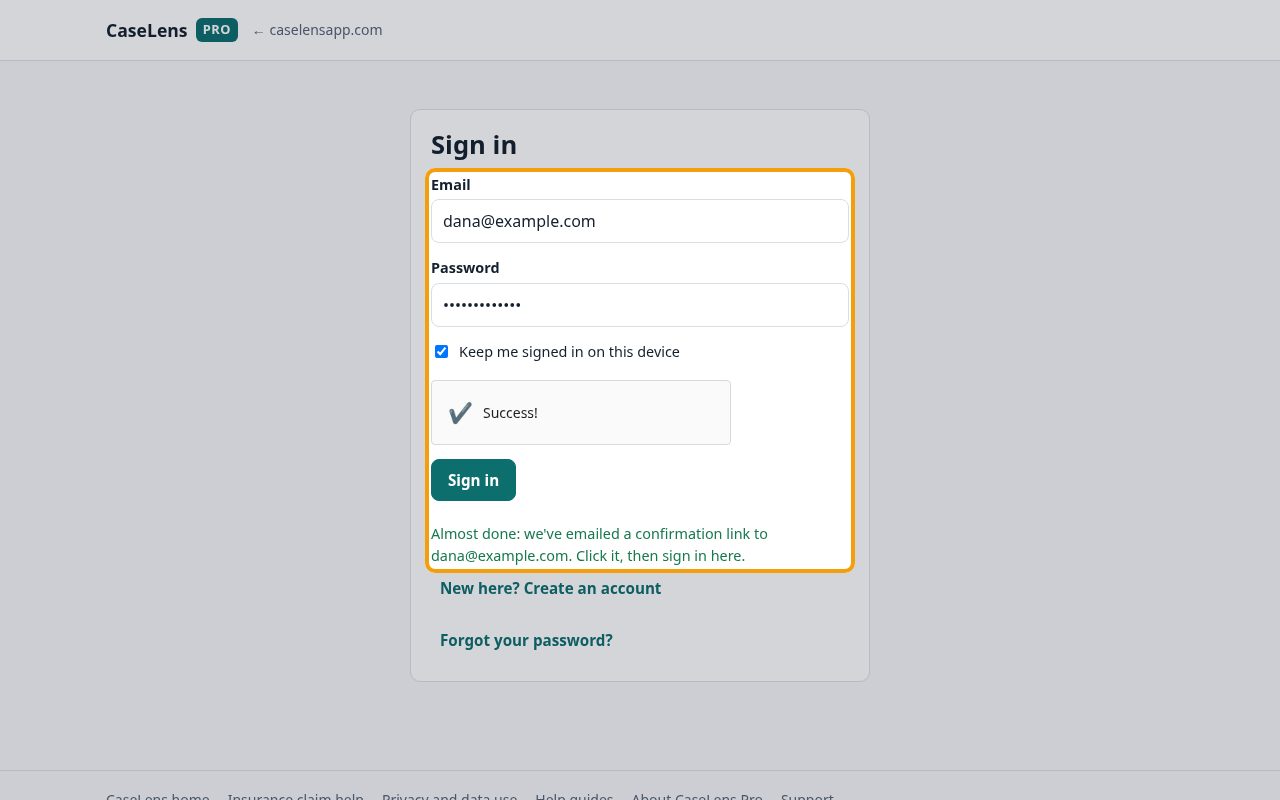
Once you've clicked the link in the email, enter your password and click Sign in. Keep me signed in on this device is ticked to start, so you don't have to sign in every time; untick it on a shared computer.
5Set up your company
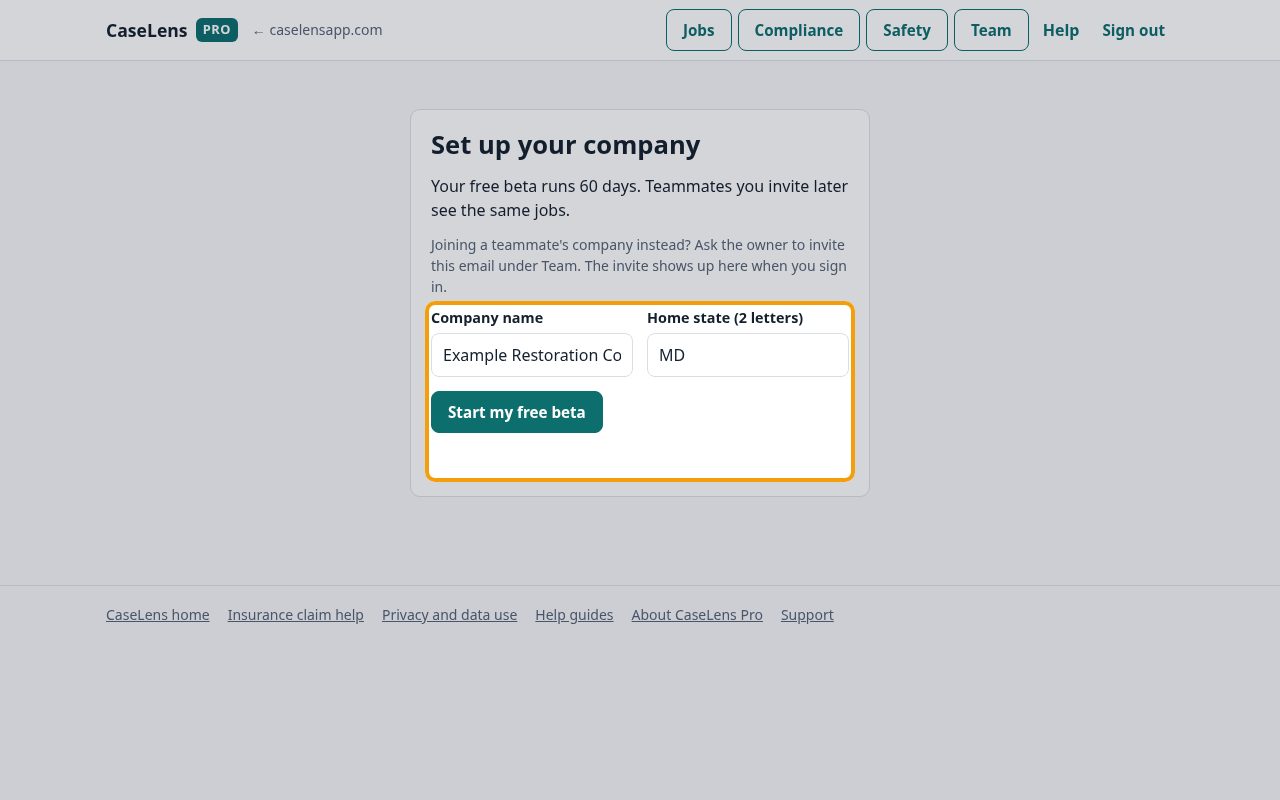
The first time you sign in, CaseLens asks for your Company name and Home state (two letters, for example MD). Click Start my free beta. You become the company's owner. If a teammate already invited you to their company, you'll see You've been invited here instead: click Join and the company's name (the button says, for example, Join Example Restoration Co.) rather than setting up a new company.
6Your Jobs page
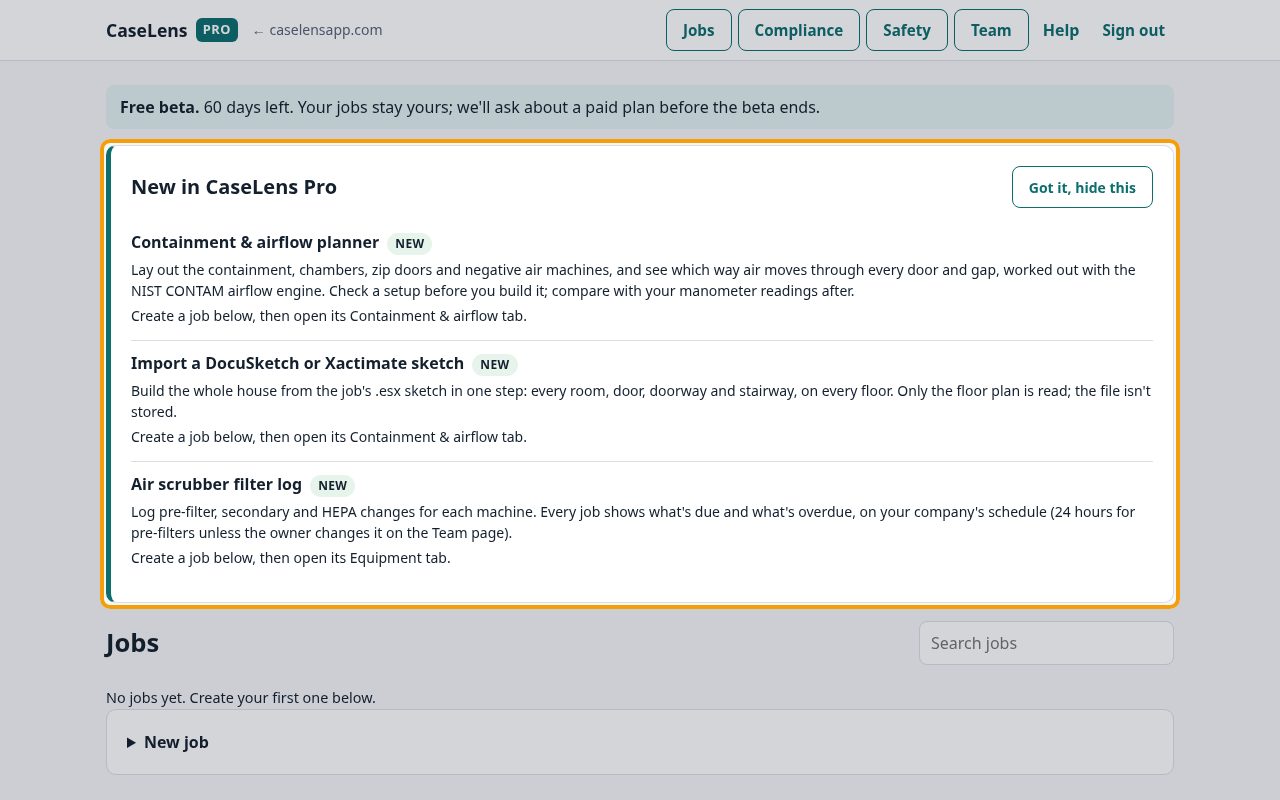
You land on Jobs, your list of every job. It's empty to start. The New in CaseLens Pro card points to recent features; click Got it, hide this once you've seen it. The menu at the top takes you to Compliance (licenses and insurance), Safety (written safety programs) and Team; Help opens these step-by-step guides.
7Invite a teammate
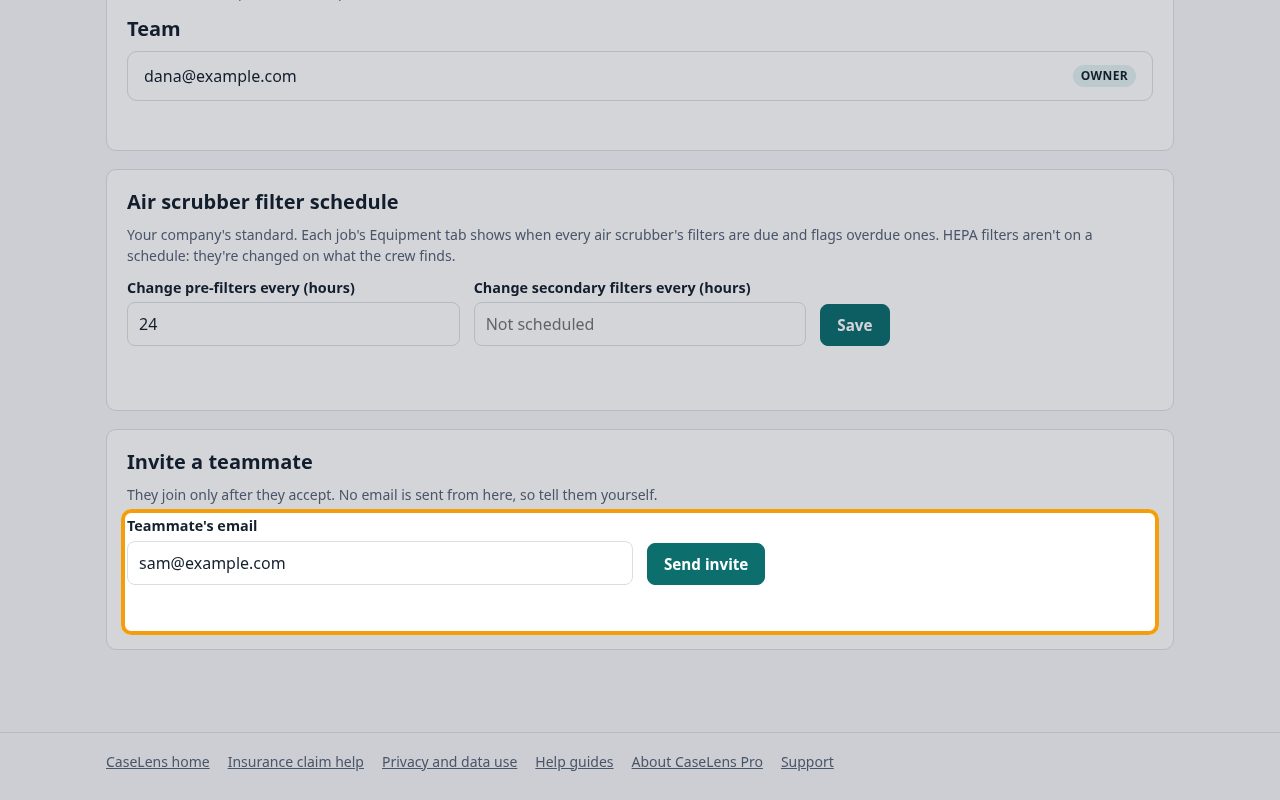
Click Team at the top. You're listed under Team as the Owner. Under Invite a teammate, enter their email under Teammate's email and click Send invite. CaseLens doesn't email them: tell them yourself to sign in (or create an account) at pro.caselensapp.com with that same email, and the invite will be waiting.
8Set your air scrubber filter schedule
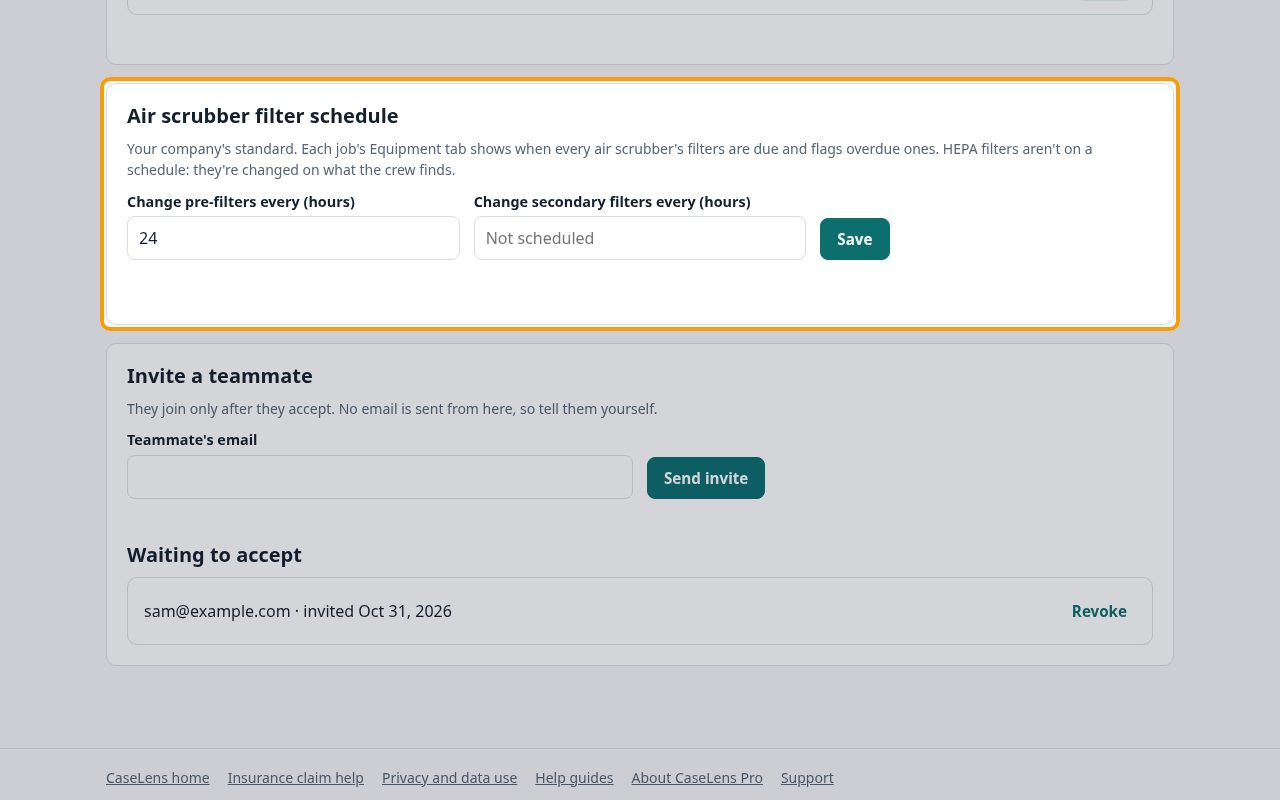
Also on Team, the owner sets the company's Air scrubber filter schedule: how often pre-filters (24 hours to start) and secondary filters must be changed. Each job's Equipment tab then shows what's due and flags anything overdue. Click Save after changing it.
If something goes wrong
- I didn't get the confirmation email
- Wait a few minutes and check spam or junk. Make sure you typed the email correctly; if not, create the account again with the right one.
- The security check won't finish
- Refresh the page. If it keeps failing, turn off ad blockers or privacy extensions for pro.caselensapp.com, or try a private window.
- My teammate can't see the company
- They must sign in with exactly the email you invited. They'll see You've been invited on the setup screen and click Join and the company's name.
What's next
- Start a job and keep the claim in writingCreate a job, then log every call, approval and adjuster change so nothing is lost. About 5 minutes.
- Start an inspection jobCreate an inspection job in CaseLens Pro with the client, the property owner, the inspection and the scope you agreed, kept separate. About 3 minutes.