Log equipment on a job
Record each dehumidifier, air mover and other unit when it's set, moved and removed, so the job's equipment days add up from the record. About 5 minutes.
Watch it (2:16, no sound)
- A job already created in CaseLens Pro.
- For each unit: its type, the room it's in and when it was set. Make, model, serial number and capacity (pints a day, CFM or kW) from the unit's label, if you have them.
Step by step
1Open the Equipment tab
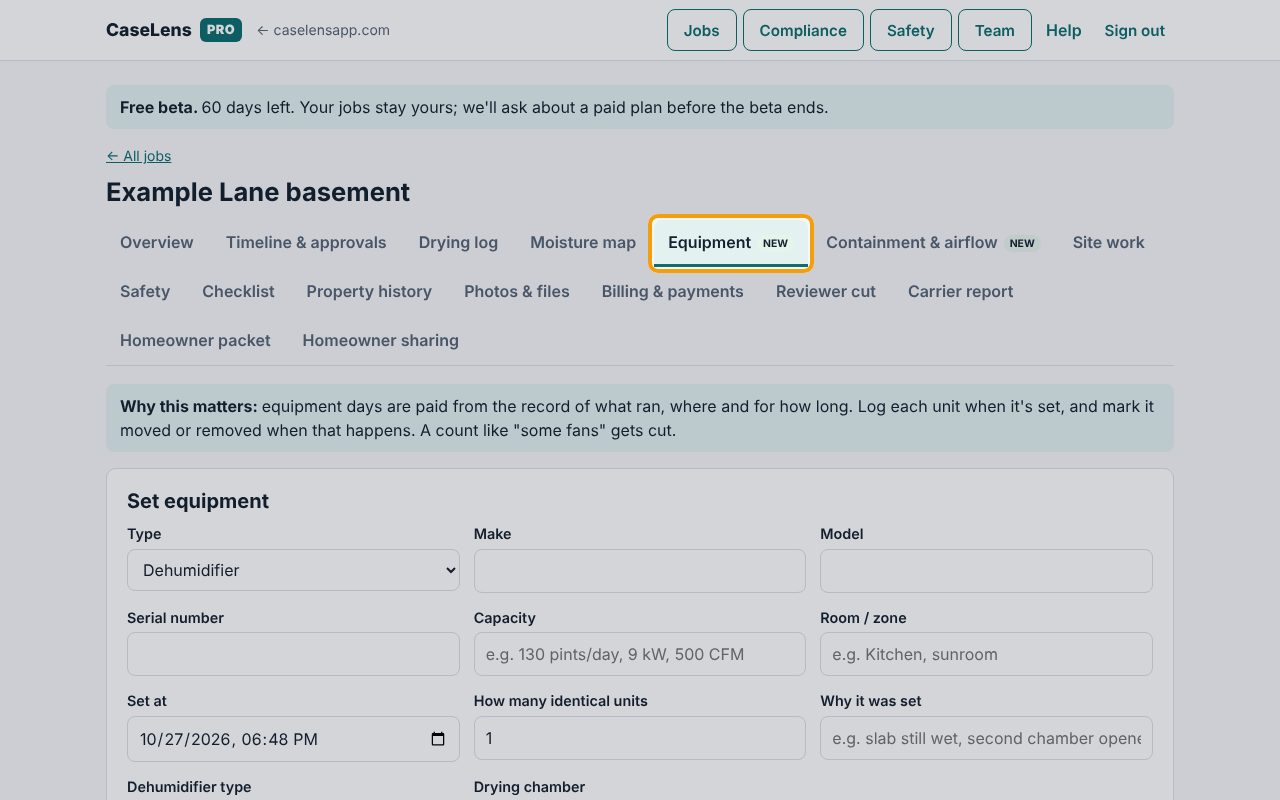
Open the job and click Equipment in the row of tabs. The Set equipment form is at the top. Enter units as you set them, the day you set them.
2Enter the dehumidifier
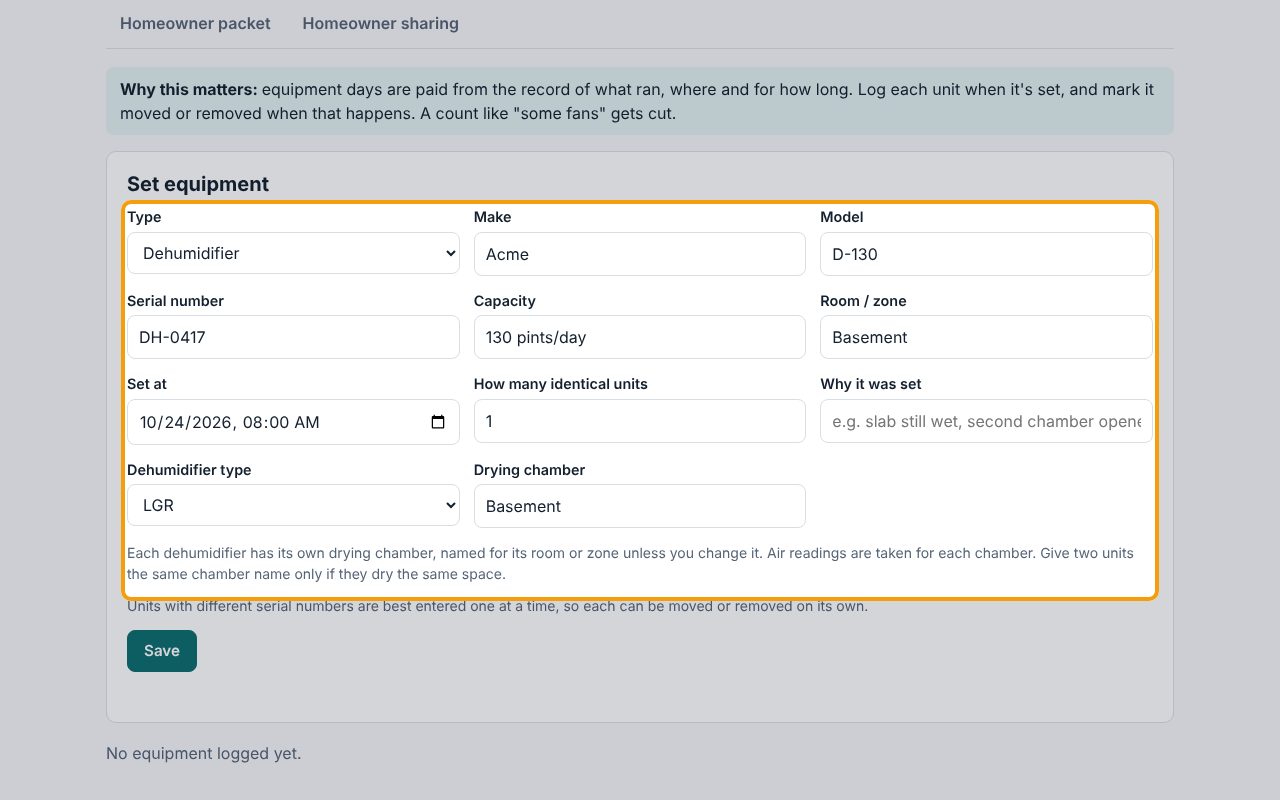
Under Type, choose Dehumidifier. Fill in Make, Model, Serial number and Capacity from the unit's label (for example 130 pints/day). Under Room / zone, type where it's running, and pick the Dehumidifier type (LGR, Conventional or Desiccant).
3Check the time and save
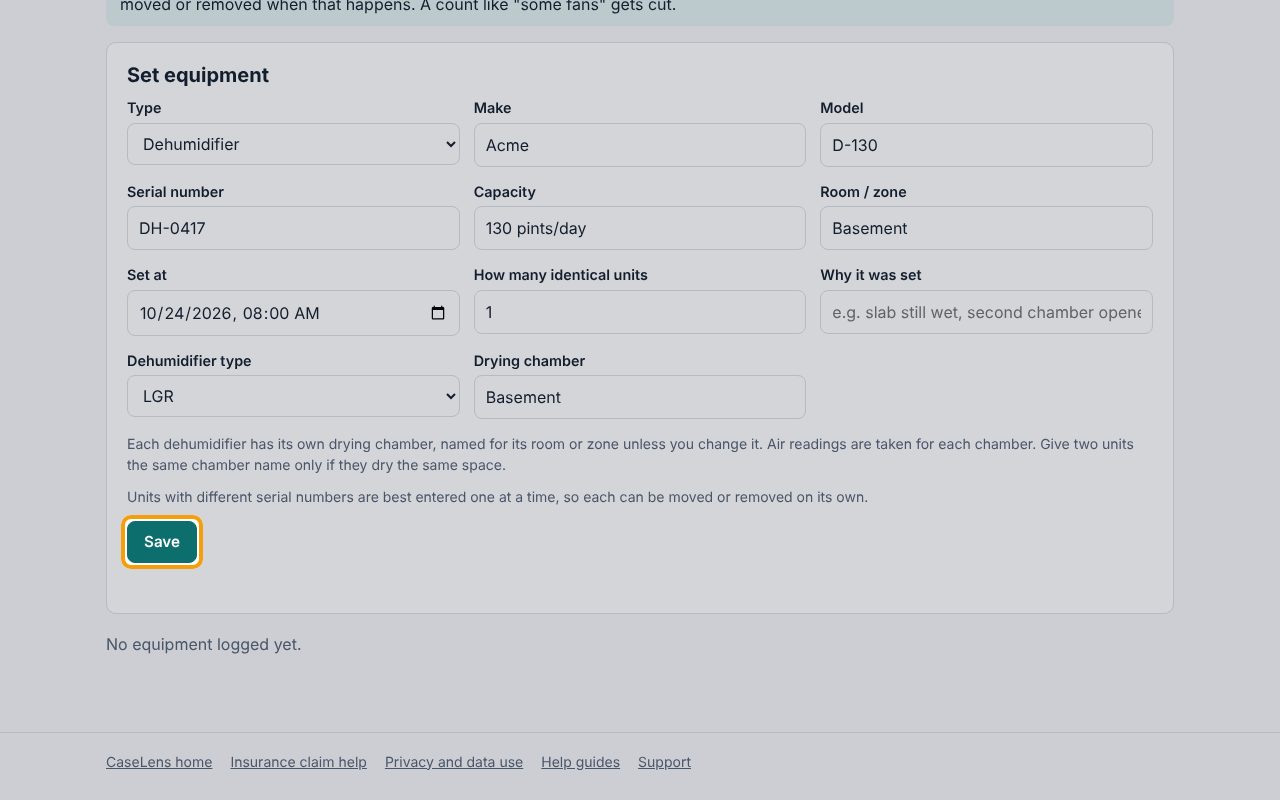
Set at starts at the current time: change it if you set the unit earlier. Drying chamber fills in with the room name; leave it unless two dehumidifiers dry the same space. Click Save.
4The unit is on site
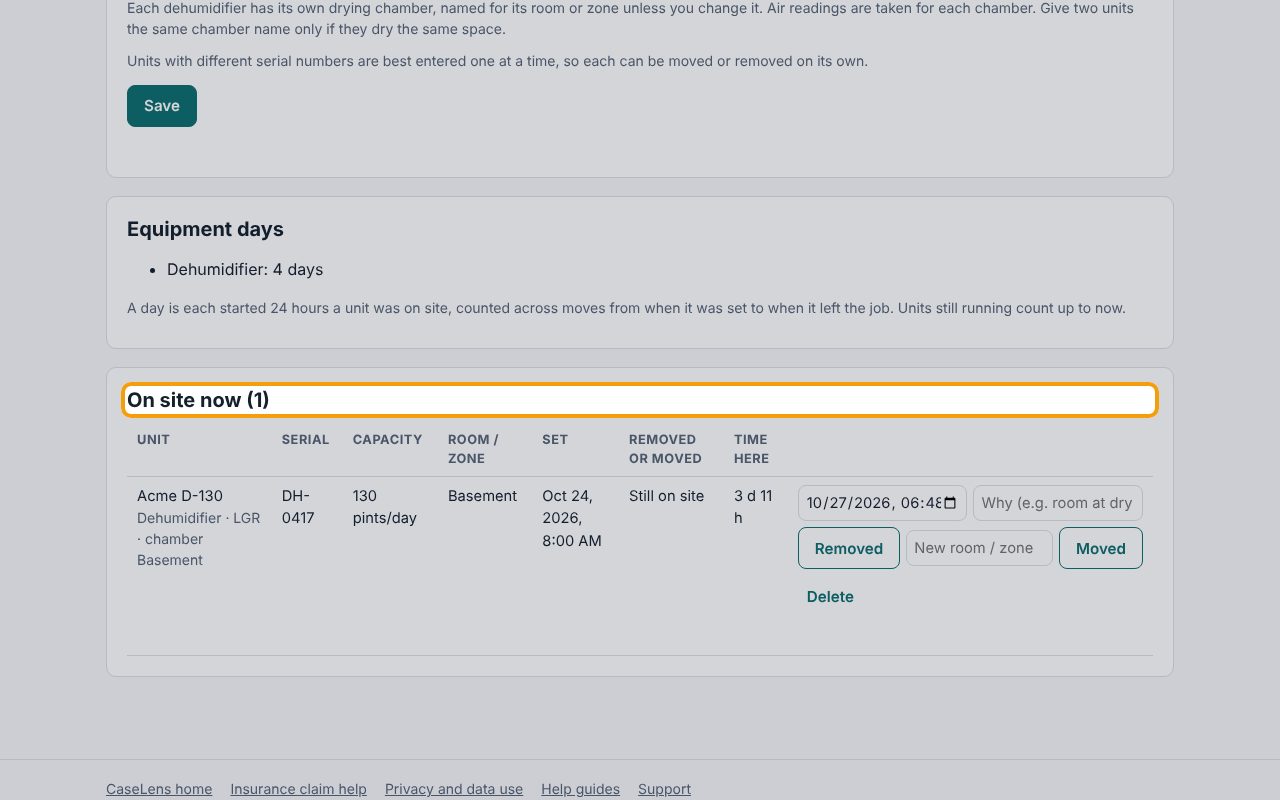
The unit appears under On site now with its serial number, capacity, room and the time it was set. Time here counts up until you mark it moved or removed.
5Add several identical air movers at once
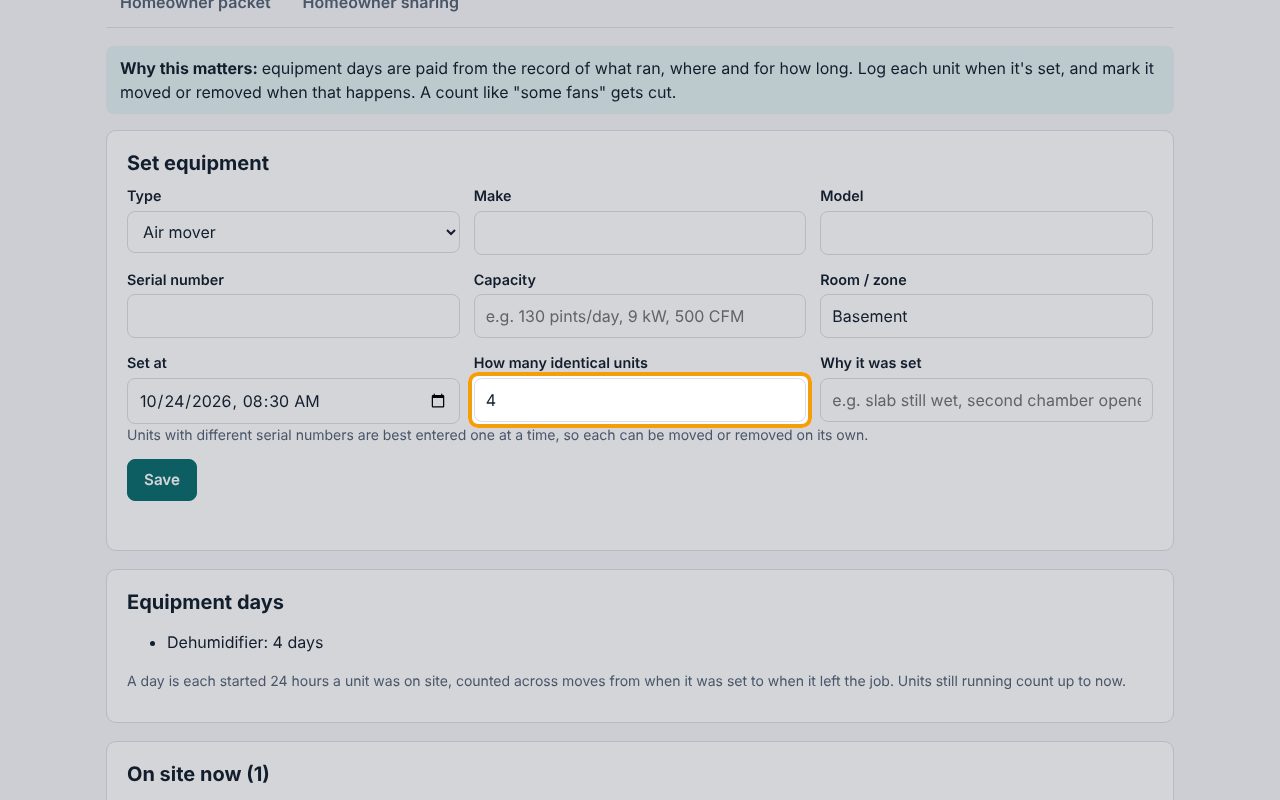
For identical units with no serial numbers recorded, choose the Type (here Air mover), the Room / zone and Set at, and put the count in How many identical units (here 4). Leave Serial number empty: a serial number belongs to one unit. Click Save.
6Each unit gets its own row
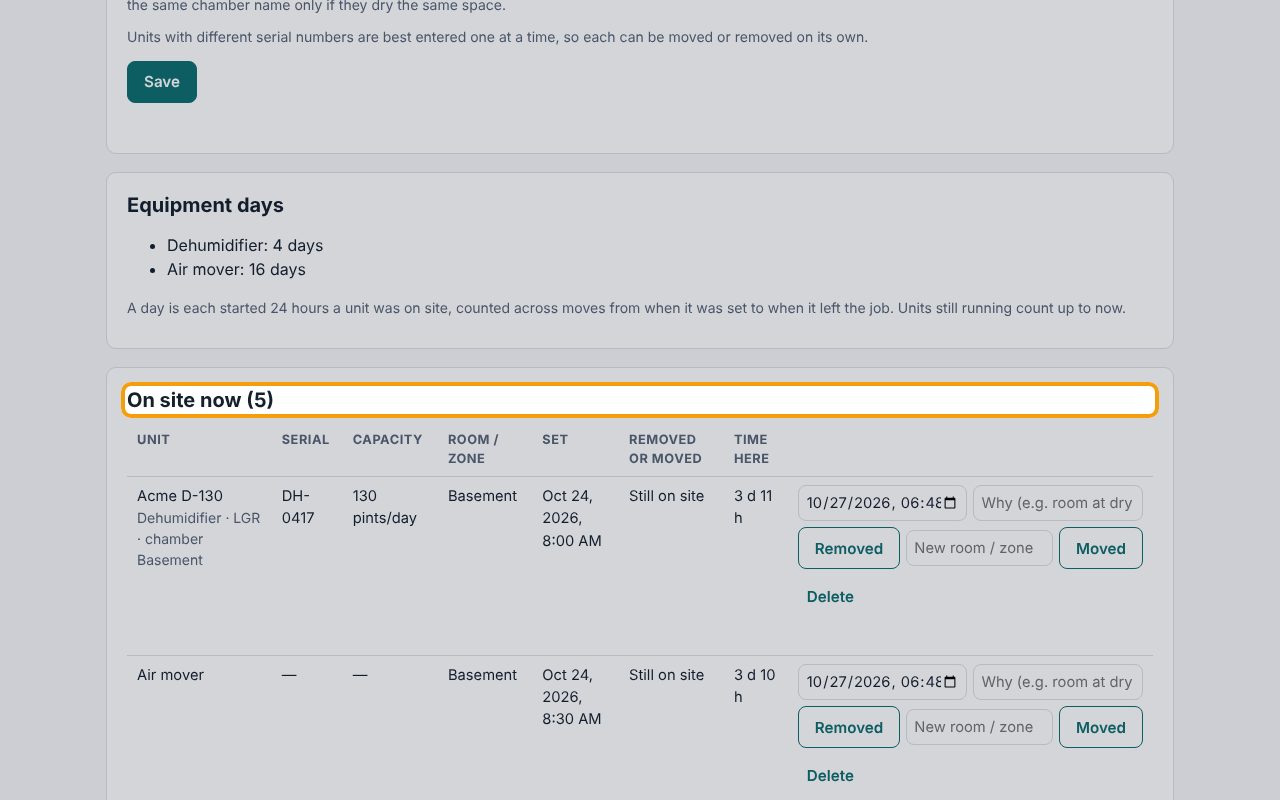
On site now (5): the 4 air movers are saved as 4 separate units, so you can move or remove any one of them later on its own.
7Move a unit to another room
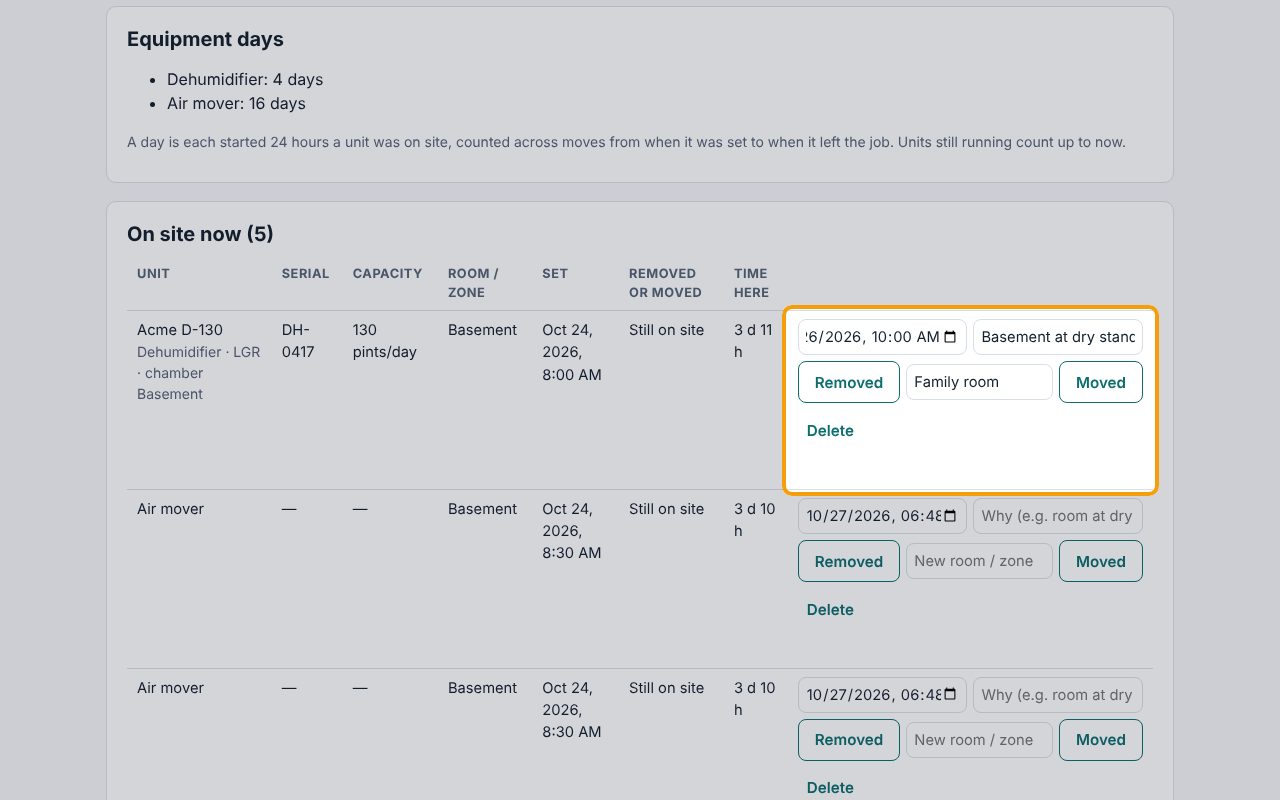
In the unit's row, set the date and time it was moved in the box beside Removed, type the new room in New room / zone, say why it moved in the Why box (for example, the basement reached its dry standard), and click Moved. A move or removal won't save without a reason: a reviewer asks why each unit left. Don't delete and re-add a moved unit: a move keeps its days counting without a break.
8The move is on the record
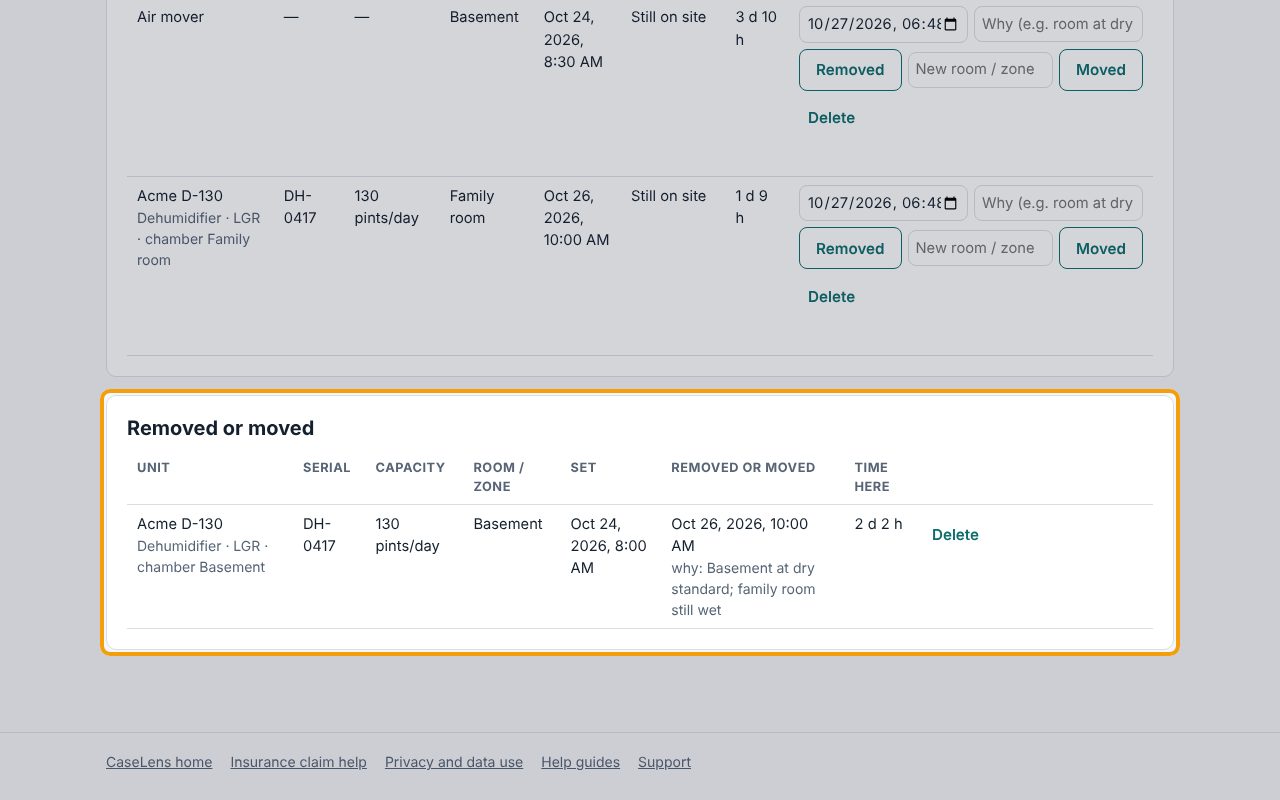
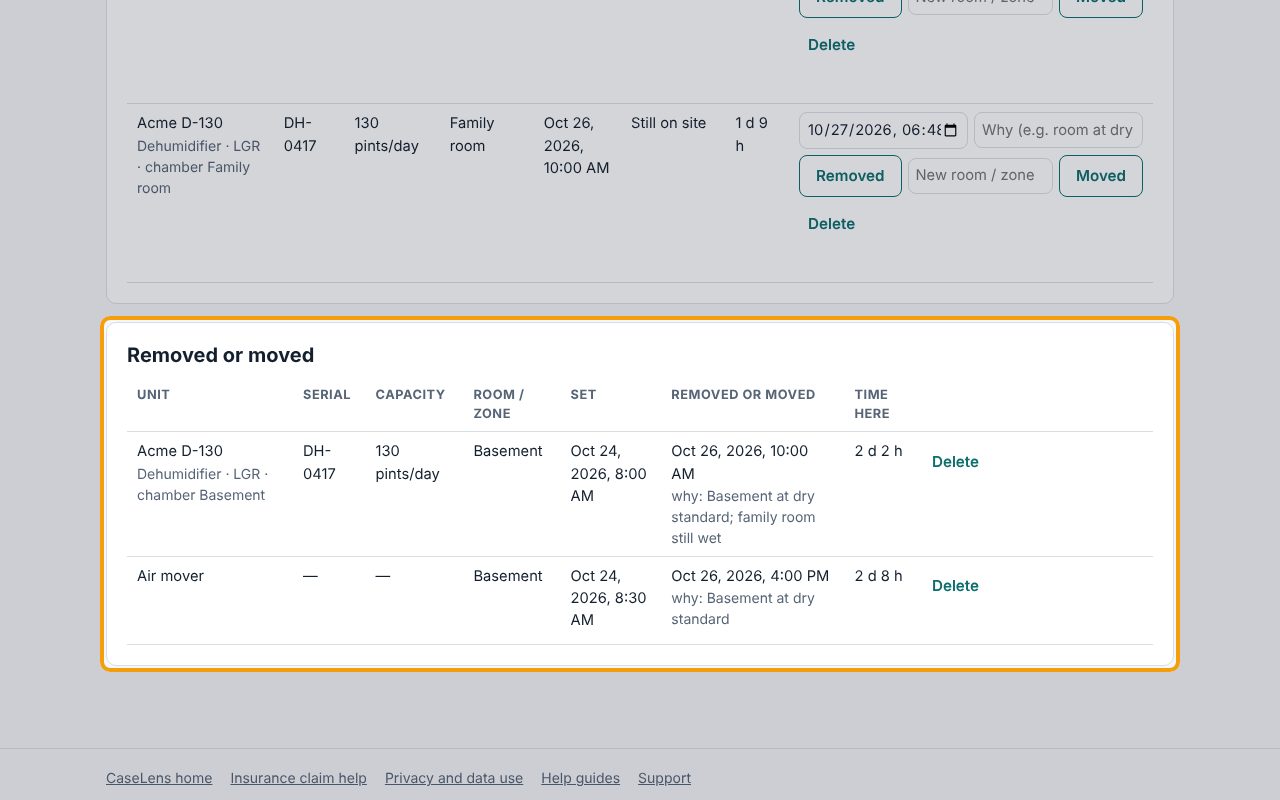
The unit now shows in Family room under On site now, still marked LGR, with its drying chamber now Family room. Its time in the basement is listed under Removed or moved, with the time it left.
9Mark a unit removed
When a unit leaves the job, set the date and time it was picked up in the box beside Removed in its row, say why in the Why box, and click Removed. It moves to Removed or moved, shown here with the time it left and why, and stops counting days.
10Read the equipment days
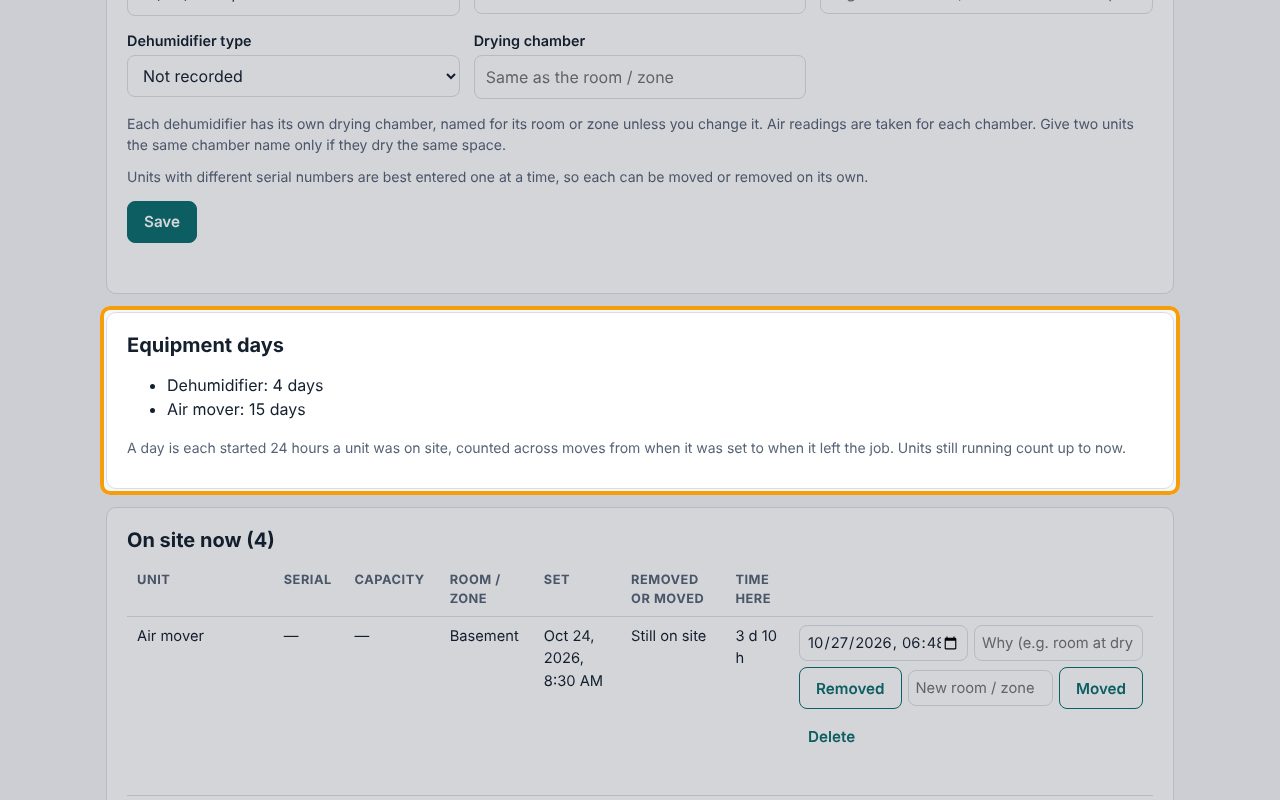
Equipment days totals each type: a day is each started 24 hours a unit was on site, counted across moves from when it was set until it left. Units still running count up to now, so the totals grow each day until you mark them removed. These are the numbers that go on the carrier report.
If something goes wrong
- "A serial number belongs to one unit. Enter units with serial numbers one at a time."
- You entered a serial number with How many identical units above 1. Clear the serial number, or set the count to 1 and save each unit with its own serial.
- "That's before it was set."
- The moved or removed time is earlier than the unit's Set at time. Check the date in the row and try again.
- "Pick when, and the room it moved to."
- To move a unit, fill in both the time and New room / zone before clicking Moved.
- I entered a unit by mistake
- Click Delete in its row, then Click again (entered by mistake). Only do this for a mistake: a unit that was really on site should be marked Removed, not deleted.