Build, print and finalize the carrier report
Make the drying report for the carrier or reviewer, print it or save it as a PDF, finalize it, and add a dated addendum if something needs correcting. Also: the homeowner packet. About 10 minutes.
Watch it (2:23, no sound)
- A job with its drying log, equipment, site visits and photos entered.
- The name and title or certification of the person signing (for example the owner, or a WRT).
- To finalize: you must be the company owner. Finalizing locks the job's existing records against changes and deletion, so do it when the record is complete.
Step by step
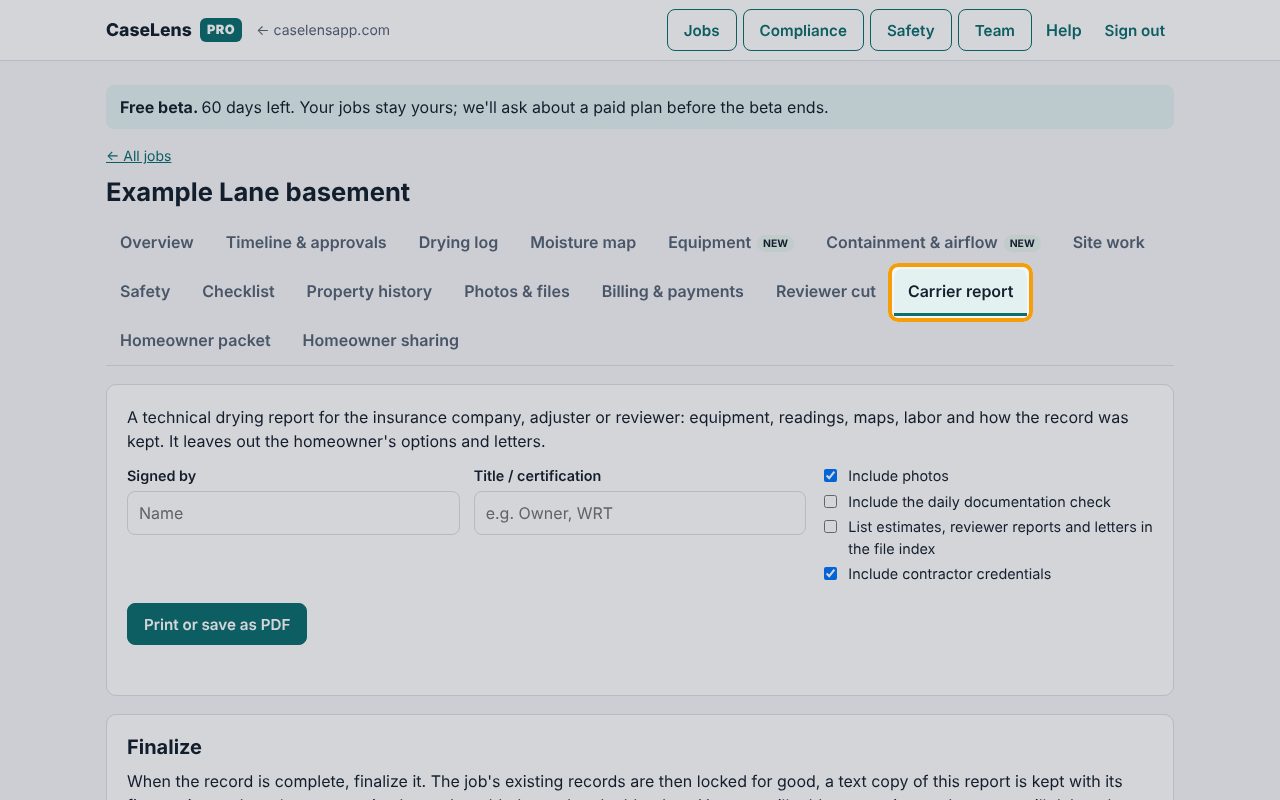
1Open the Carrier report tab
Open the job and click Carrier report. CaseLens builds the report from everything on the job: equipment, readings, moisture maps, air readings, labor, approvals and photos. It leaves out the homeowner's options and letters, which go in the homeowner packet instead.
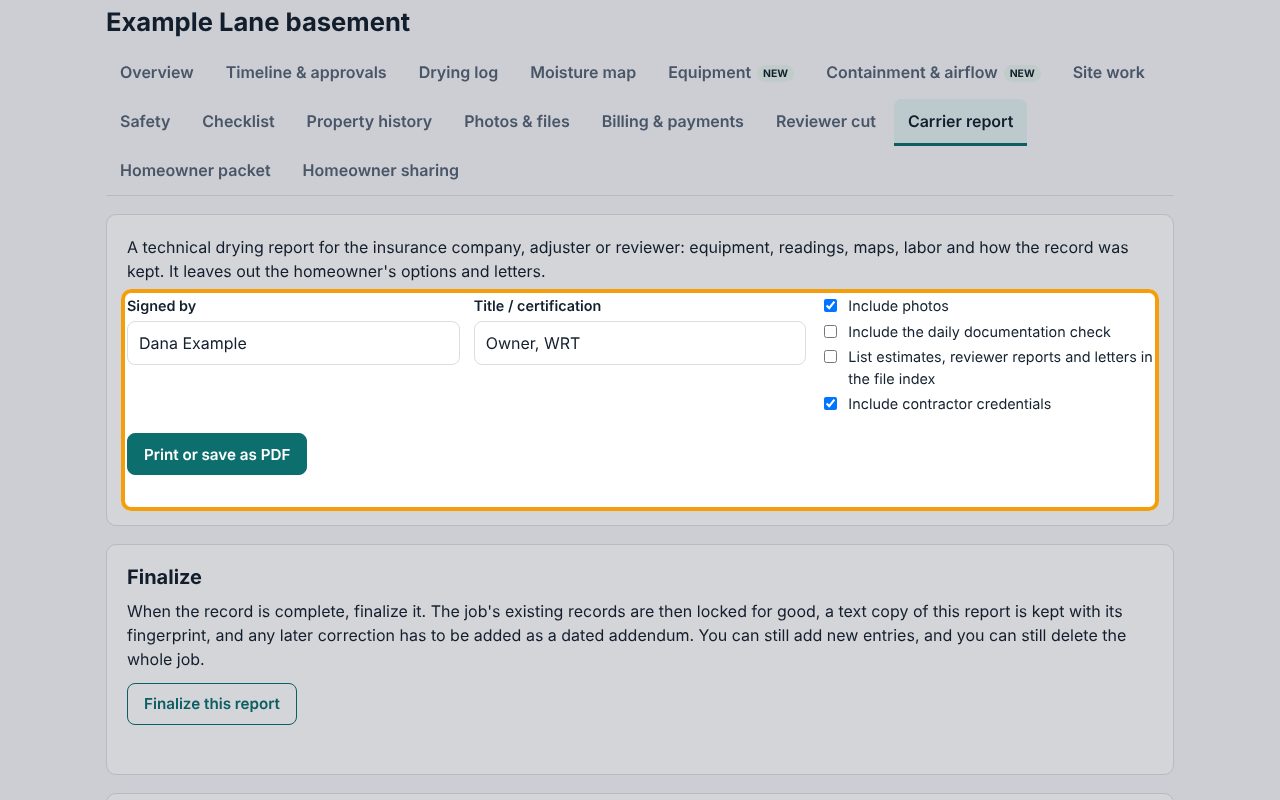
2Enter who signs it
Type the name under Signed by and their role under Title / certification (for example "Owner, WRT"). Both appear on the certification at the end of the report, with lines for the signature and date.
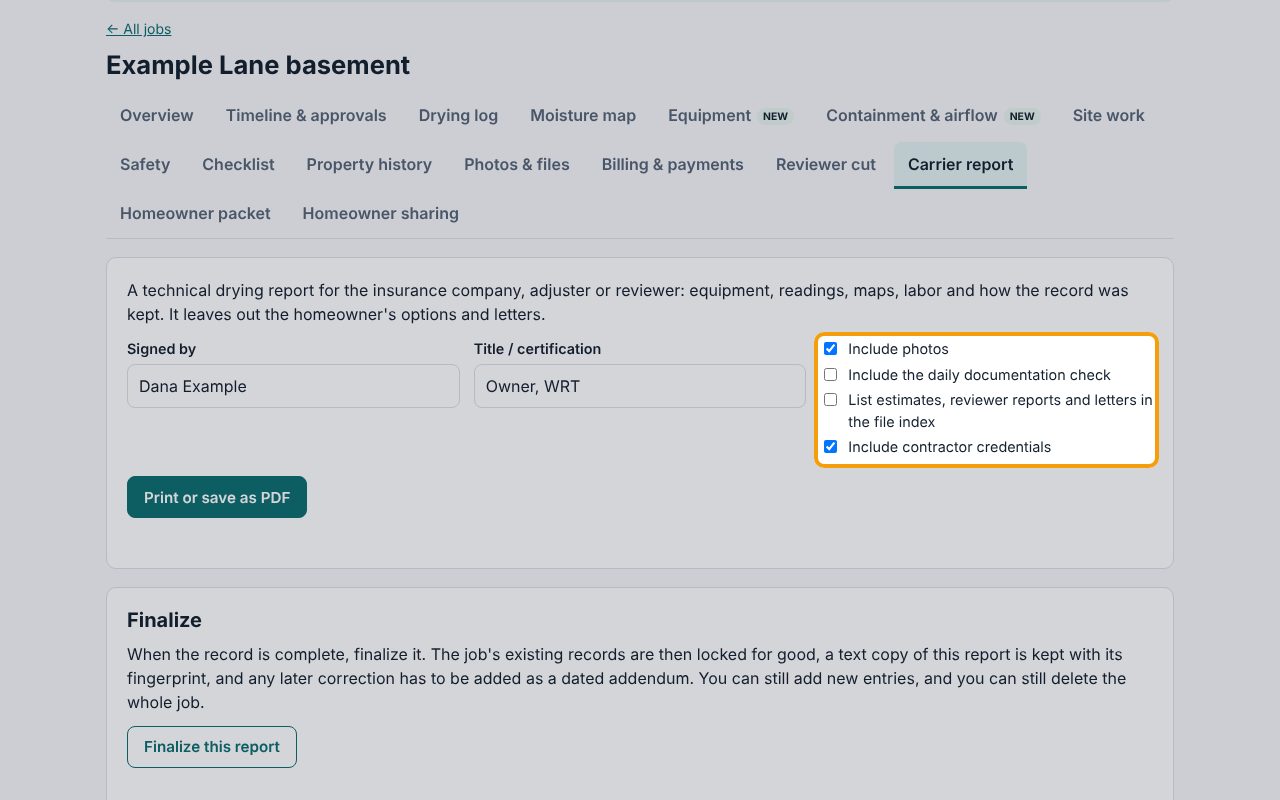
3Choose what to include
Tick or untick the boxes: Include photos, Include the daily documentation check (a day-by-day list of what was and wasn't recorded), List estimates, reviewer reports and letters in the file index and Include contractor credentials (from Compliance). The report below updates as you click.
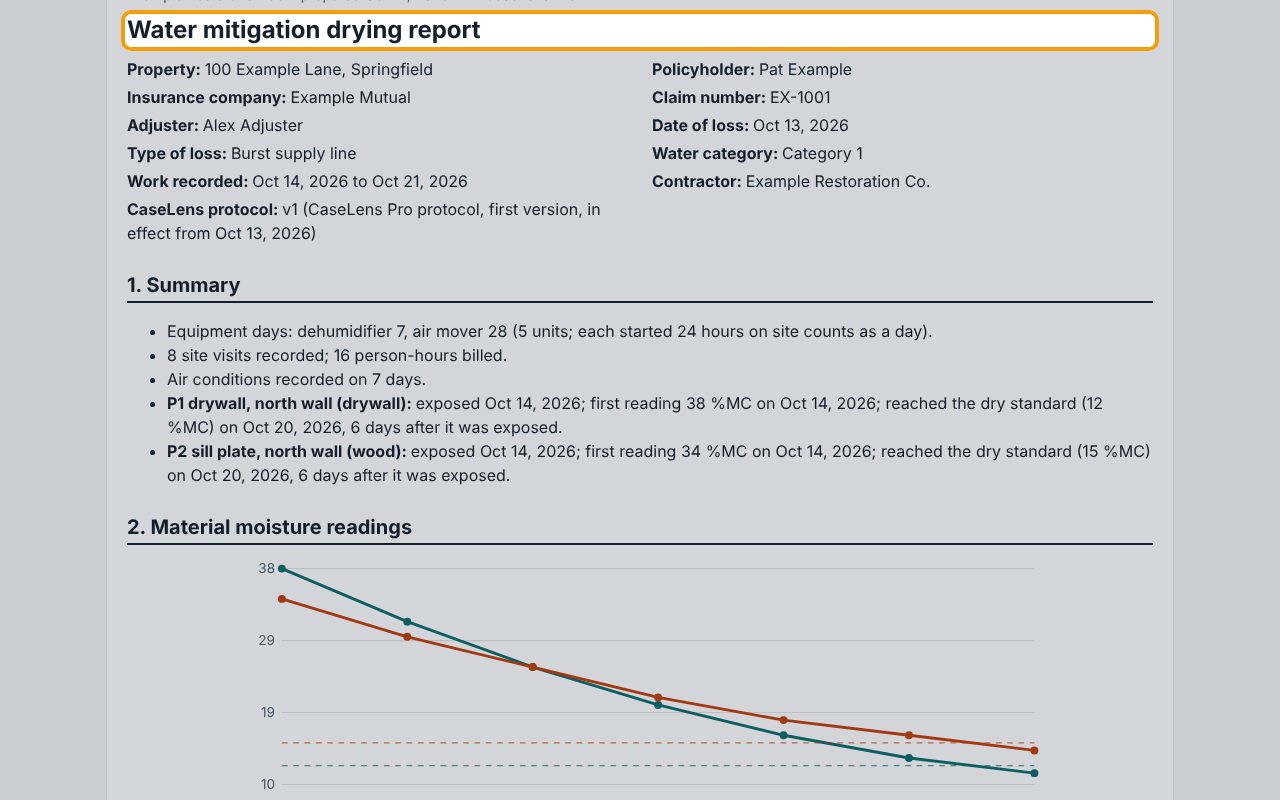
4Read the report through
Scroll down and read the report before you send it. It opens with the property, claim and work dates, then a numbered summary and sections for moisture readings, air conditions, equipment, site visits, approvals, the photo index and how the record was kept. Anything missing from the job is missing here too, so fill gaps on the job's tabs first.
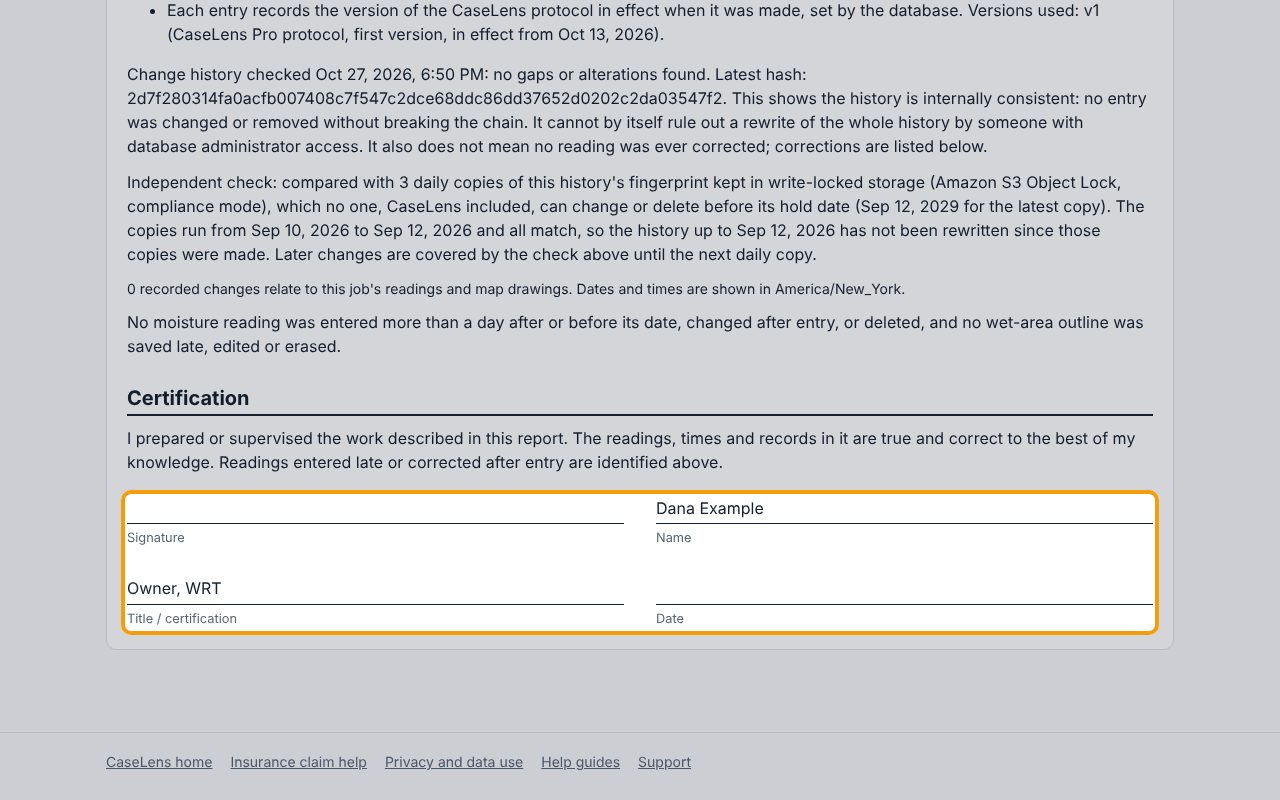
5Check the signature block
At the bottom, Certification shows the name and title you entered. The person signing confirms the readings and records are true to the best of their knowledge, so they should be someone who did or supervised the work.
6Print or save it as a PDF
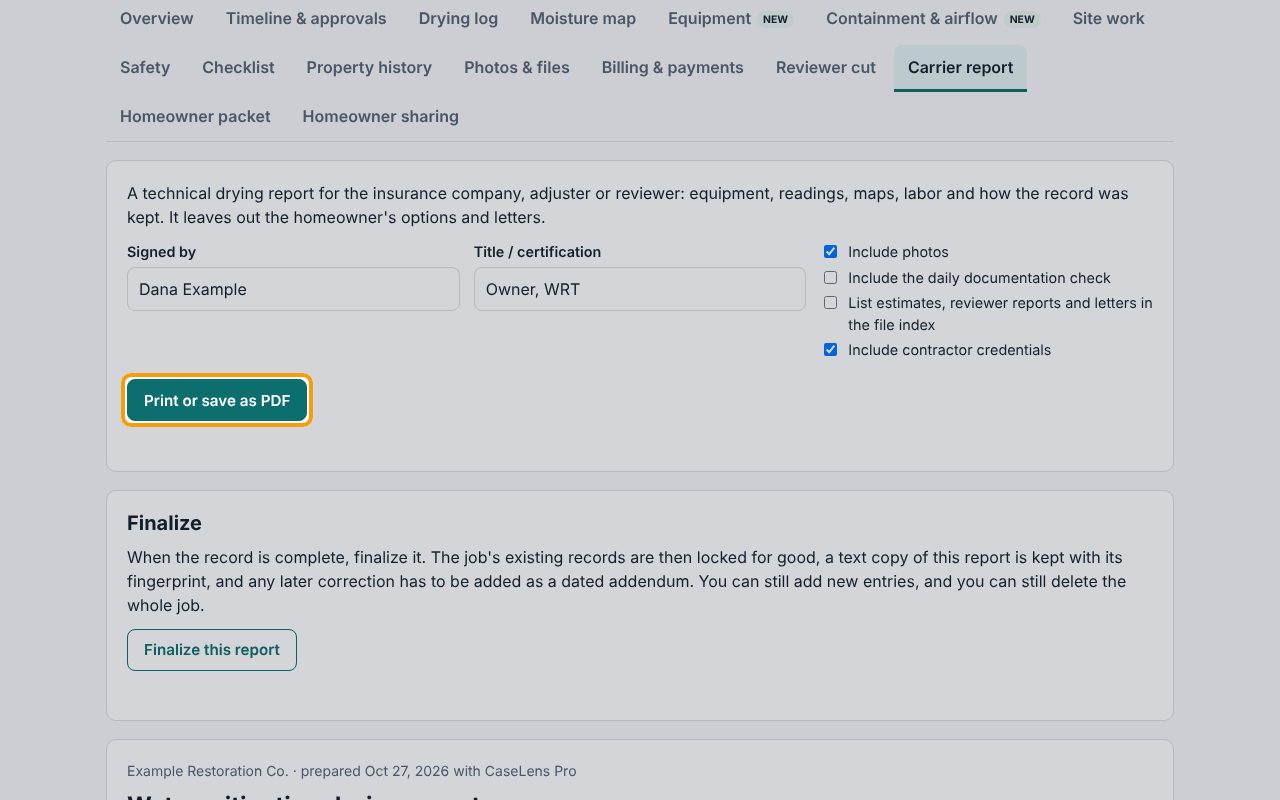
Scroll back up and click Print or save as PDF. CaseLens loads the photos first, then your browser's print window opens. To email it, choose Save as PDF as the printer (the wording depends on your browser) and save the file. Only the report prints; the buttons and tabs don't.
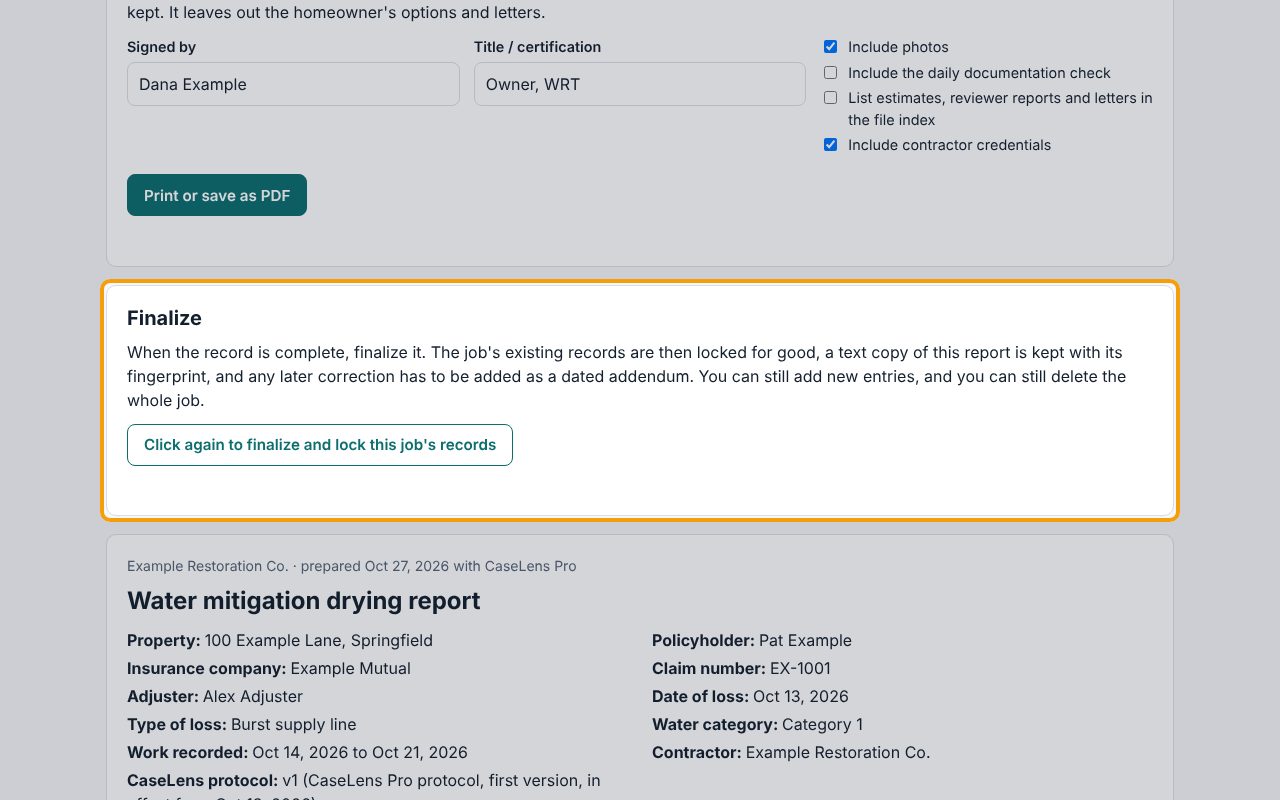
7Finalize the report
When the record is complete, click Finalize this report in the Finalize box, then Click again to finalize and lock this job's records within a few seconds. The job's existing records are locked: they can't be changed or deleted, and the job itself can't be deleted. A text copy of the report is kept with its fingerprint. You can still add new entries; they're dated after the finalize and aren't part of the kept copy.
Tip: Finalize once the job is done and before you send the report. After that, corrections can only be added as addenda.
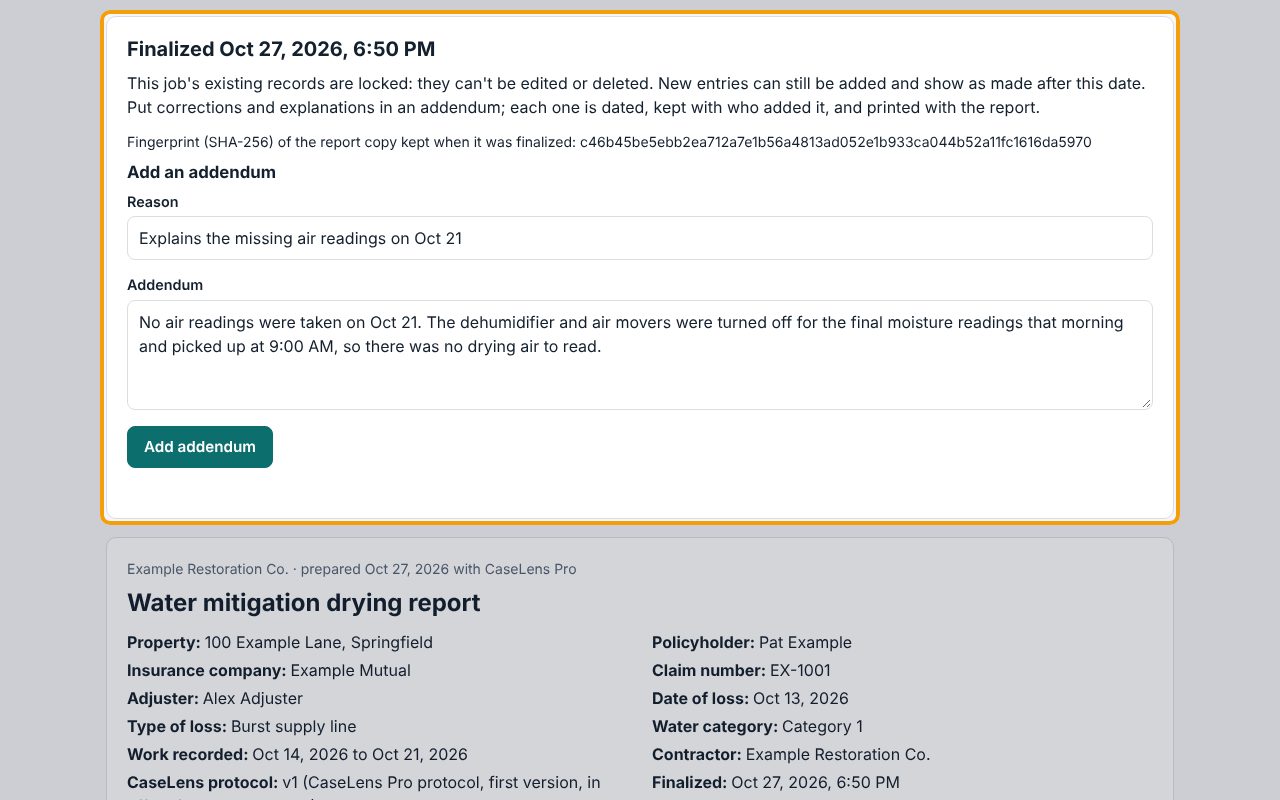
8Add an addendum to correct something
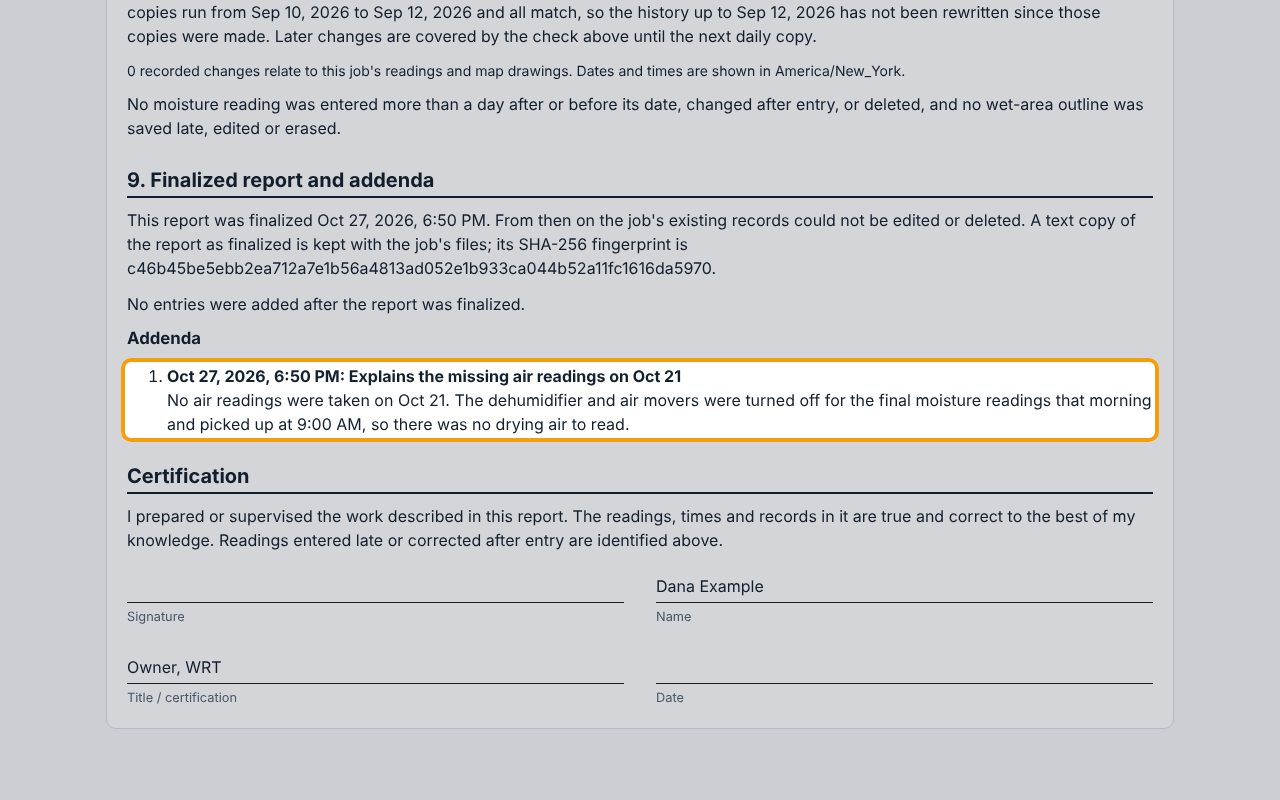
The box now says Finalized with the date and the fingerprint of the kept copy. To correct or explain something later, fill in Reason and Addendum under Add an addendum and click Add addendum. Each addendum is dated, kept with who added it, and printed with the report.
9The addendum prints with the report
The report now has a Finalized report and addenda section with the date it was finalized, the fingerprint, and each addendum under Addenda. Check Signed by and Title / certification (they're remembered on this device), then print or save the PDF again so the carrier gets the version with the addendum.
10The homeowner packet is a separate tab
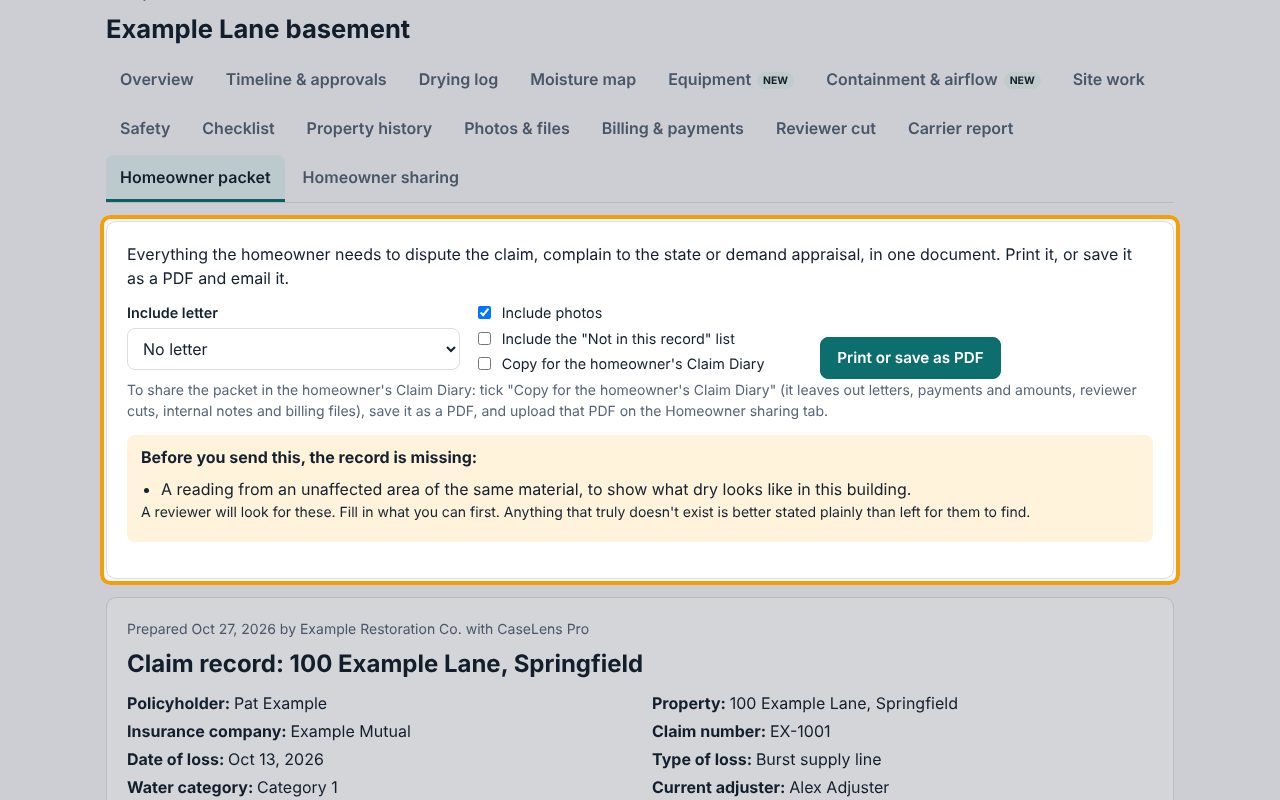
For the homeowner, click the Homeowner packet tab: everything they need to dispute the claim, complain to the state or demand appraisal, in one document. Pick a saved rebuttal letter under Include letter and tick Include photos. Include the "Not in this record" list adds a page listing what the record doesn't have, so the homeowner isn't caught out; check the Before you send this, the record is missing list either way. Click Print or save as PDF. To put it in the homeowner's Claim Diary, tick Copy for the homeowner's Claim Diary (it leaves out letters, payments and amounts, reviewer cuts, internal notes and billing files), save it as a PDF and upload that PDF on the Homeowner sharing tab.
If something goes wrong
- There's no Finalize this report button
- Only the company owner can finalize. Others see "The company owner can finalize this report". Ask the owner to sign in and do it.
- Photos are missing from the PDF
- Make sure Include photos is ticked, wait for the page to finish loading, and use Print or save as PDF (not the browser's own print menu) so the photos are loaded first. Only files with the Photo type are shown.
- "Give the reason for the addendum." or "Write what the addendum says."
- An addendum needs both a Reason and the Addendum text. Fill in both boxes and click Add addendum again.
- I need to change a reading after finalizing
- You can't change it: existing records are locked once the report is finalized. Add an addendum that states the correct value and why.
What's next
- Download the full job recordSave the job's records and every original file as one or more numbered .zip parts, check each part's exceptions, and confirm every part actually saved, for an attorney, appraisal or your own records. About 5 minutes.
- Share a job with the homeowner's Claim DiaryInvite the homeowner to their free Claim Diary, choose exactly what they see, and withdraw or end access when you need to. About 5 minutes.