Download the full job record
Save the job's records and every original file as one or more numbered .zip parts, check each part's exceptions, and confirm every part actually saved, for an attorney, appraisal or your own records. About 5 minutes.
Watch it (2:06, no sound)
- A computer is easiest: you'll open .zip files and spreadsheets.
- A good connection and room on the computer for the whole job (each part holds up to about 600 MB of originals; on a phone or tablet, about 250 MB).
- Time to keep the page open until every part has saved.
Step by step
1Open the job's Overview
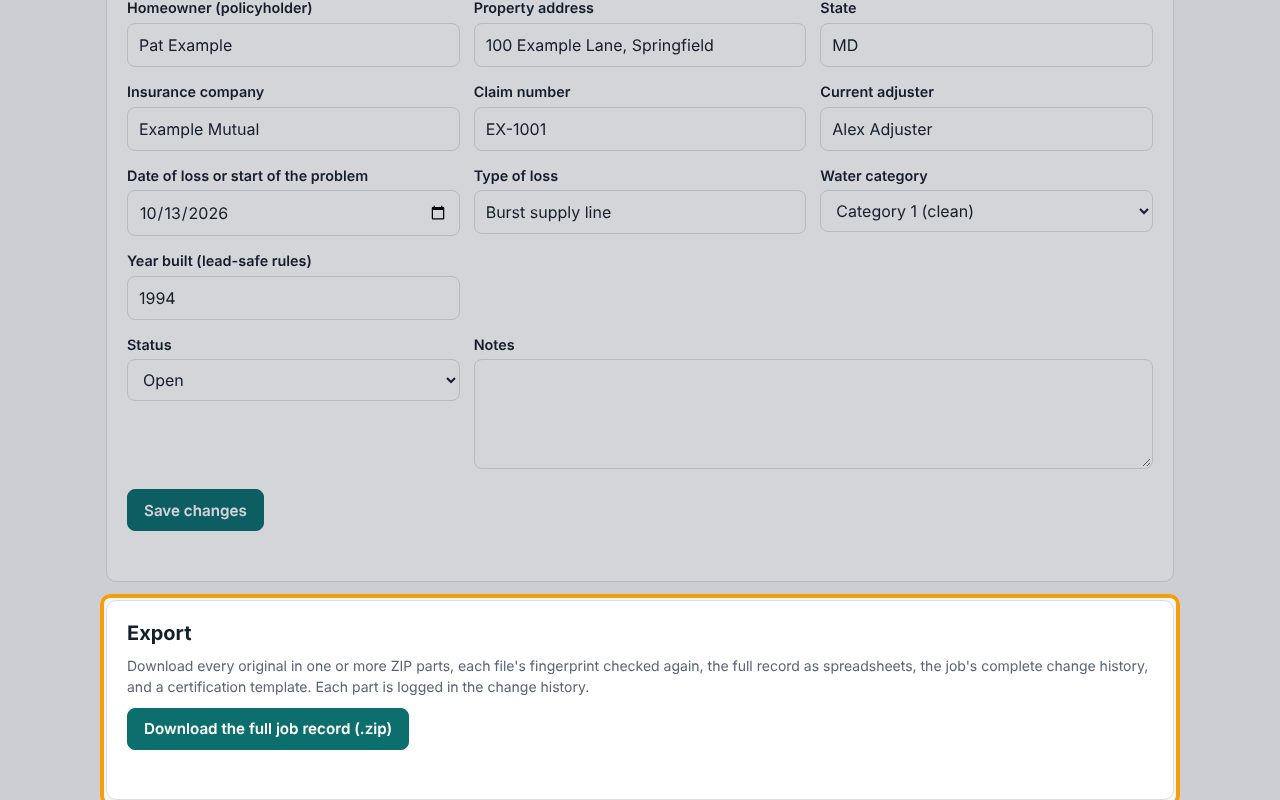
Open the job. It opens on Overview (or click Overview in the tabs). Scroll down past the claim details form (Save changes) to the Export box.
2Start the export
Click Download the full job record (.zip). CaseLens reads the latest record and works out how many parts the job needs. A small job is one part and downloads straight away. A larger one is split into numbered parts, with a Save part 1 of 2 button for each, and the box says Save every part.
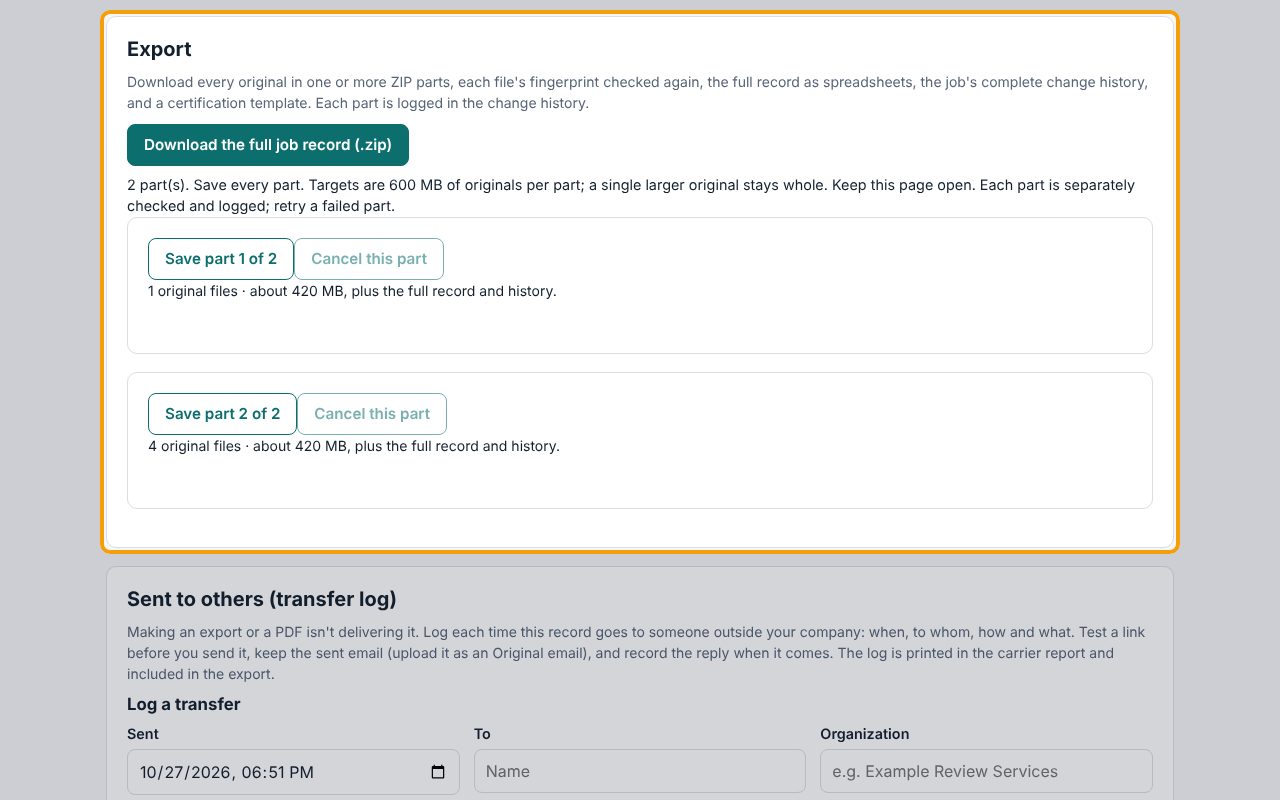
3Save part 1
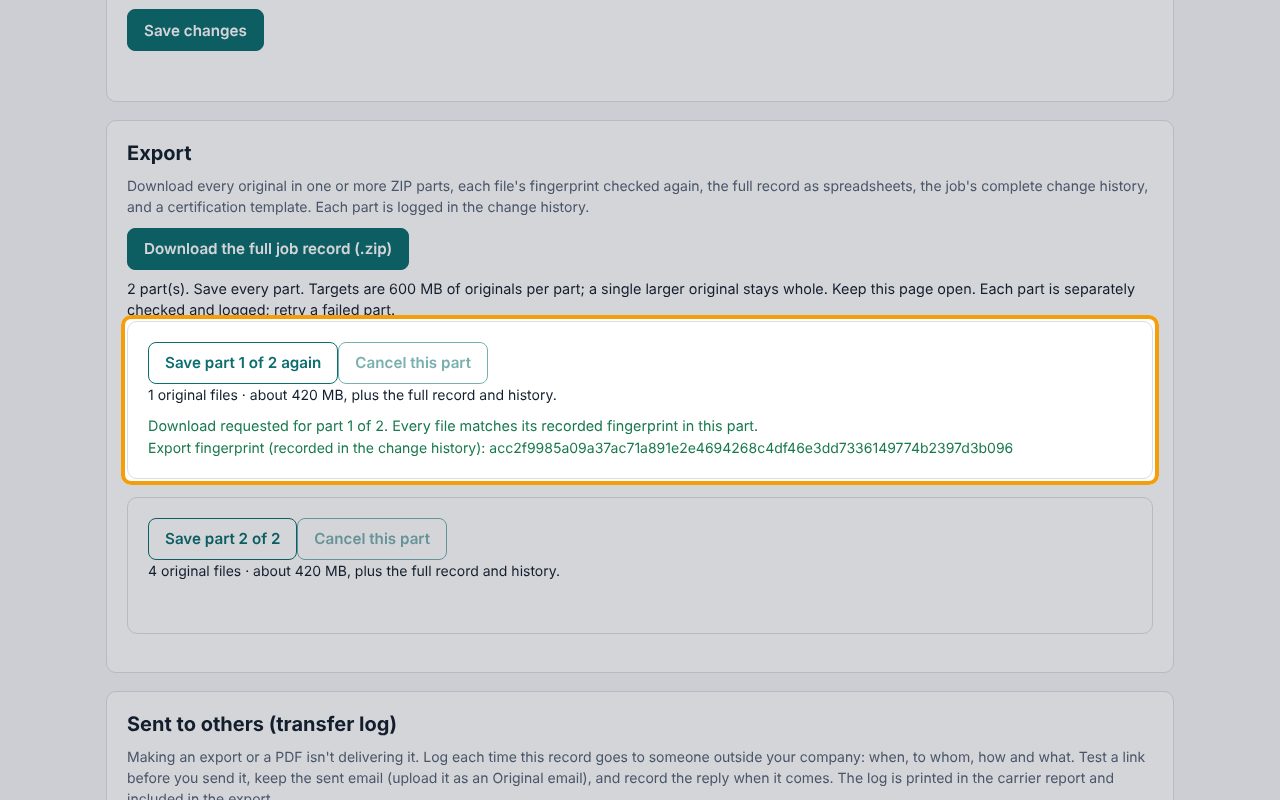
Click Save part 1 of 2 and keep the page open. The part shows its progress, then Download requested for part 1 of 2, with any files that didn't match or couldn't be read, and the part's Export fingerprint, which is saved in the job's change history. If a part stops, click its button again; Cancel this part stops a part that's still being made.
4Save every part
Click Save part 2 of 2, and so on until every part says Download requested. A part's button then reads Save part 1 of 2 again, for a part that didn't save. Every part holds the full record and change history; only the original files are split between them.
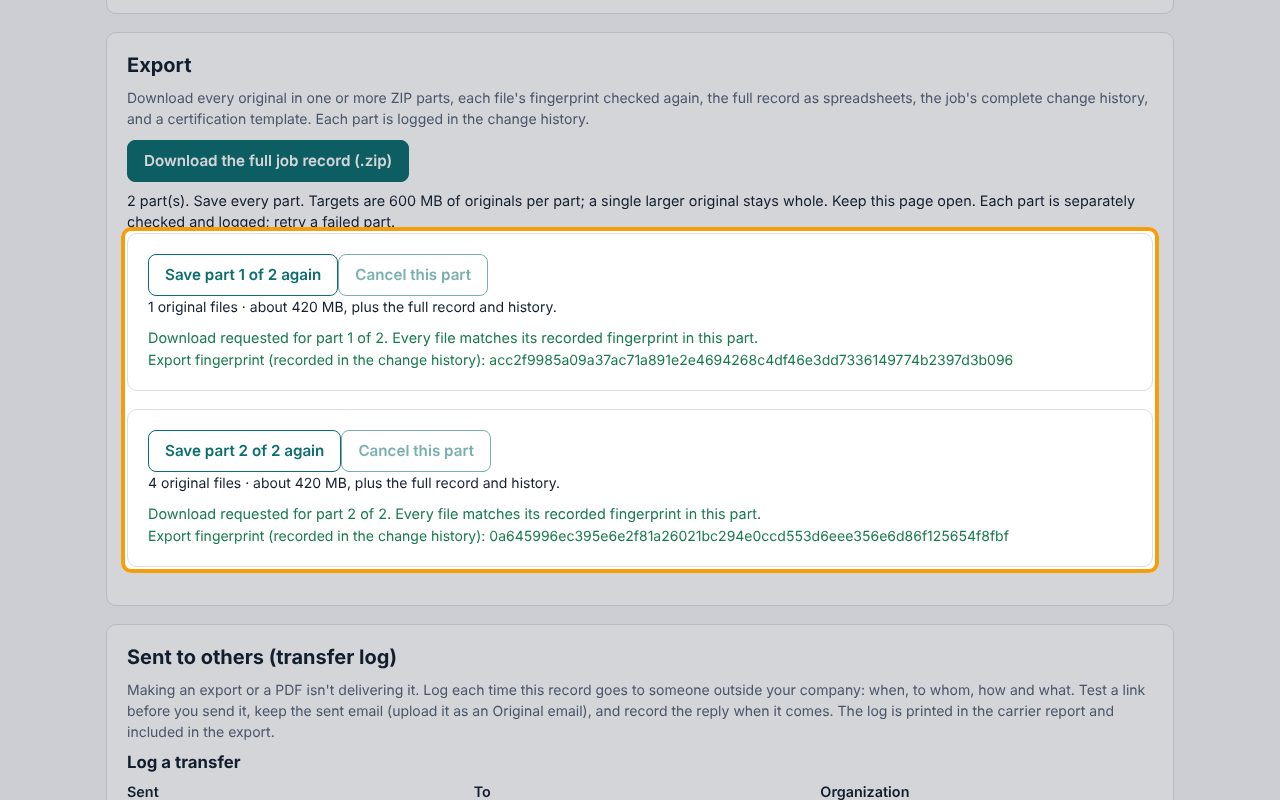
5Check that every part saved
Download requested means CaseLens handed the file to your browser, not that it finished saving. Open your Downloads folder and check that every part is there, named CaseLens- with the job name, the date and part-1-of-2, part-2-of-2 and so on, and that none is still downloading or shows 0 bytes. Save any missing part again.
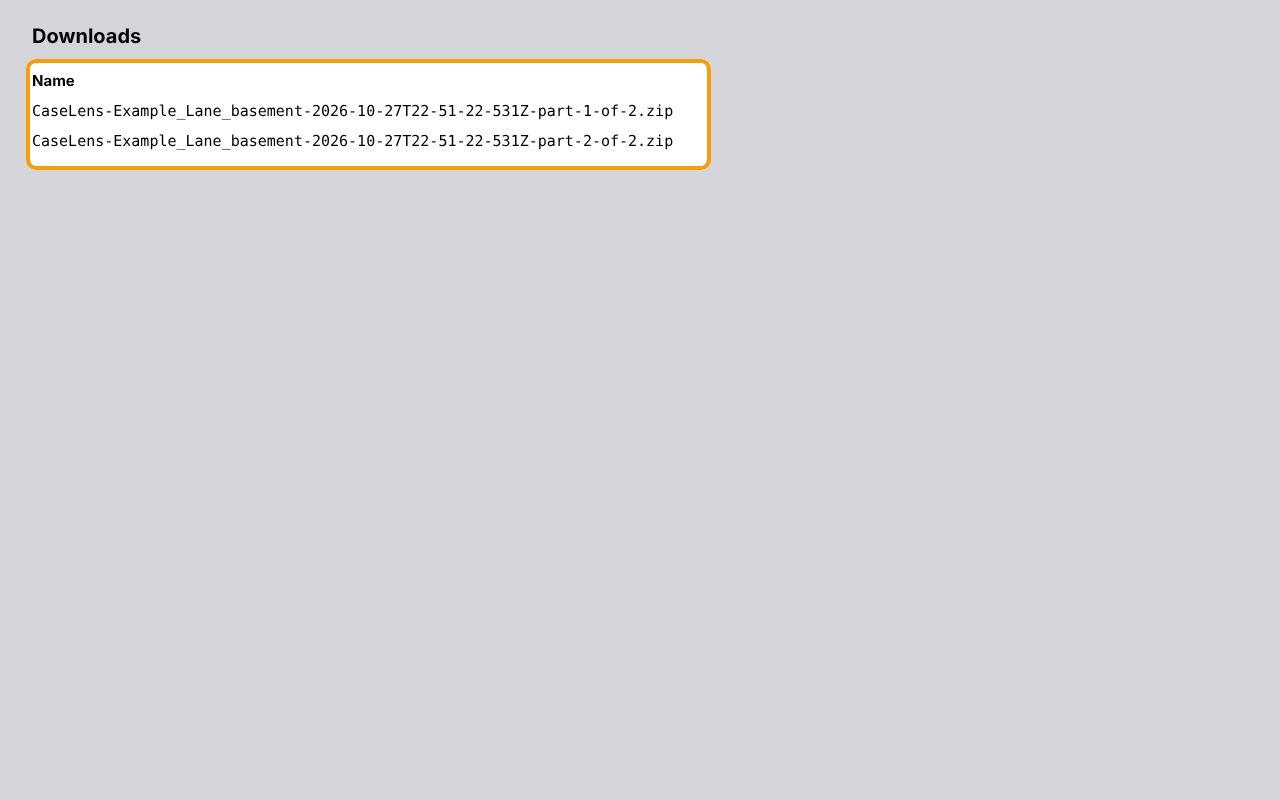
6Open each part in its own folder
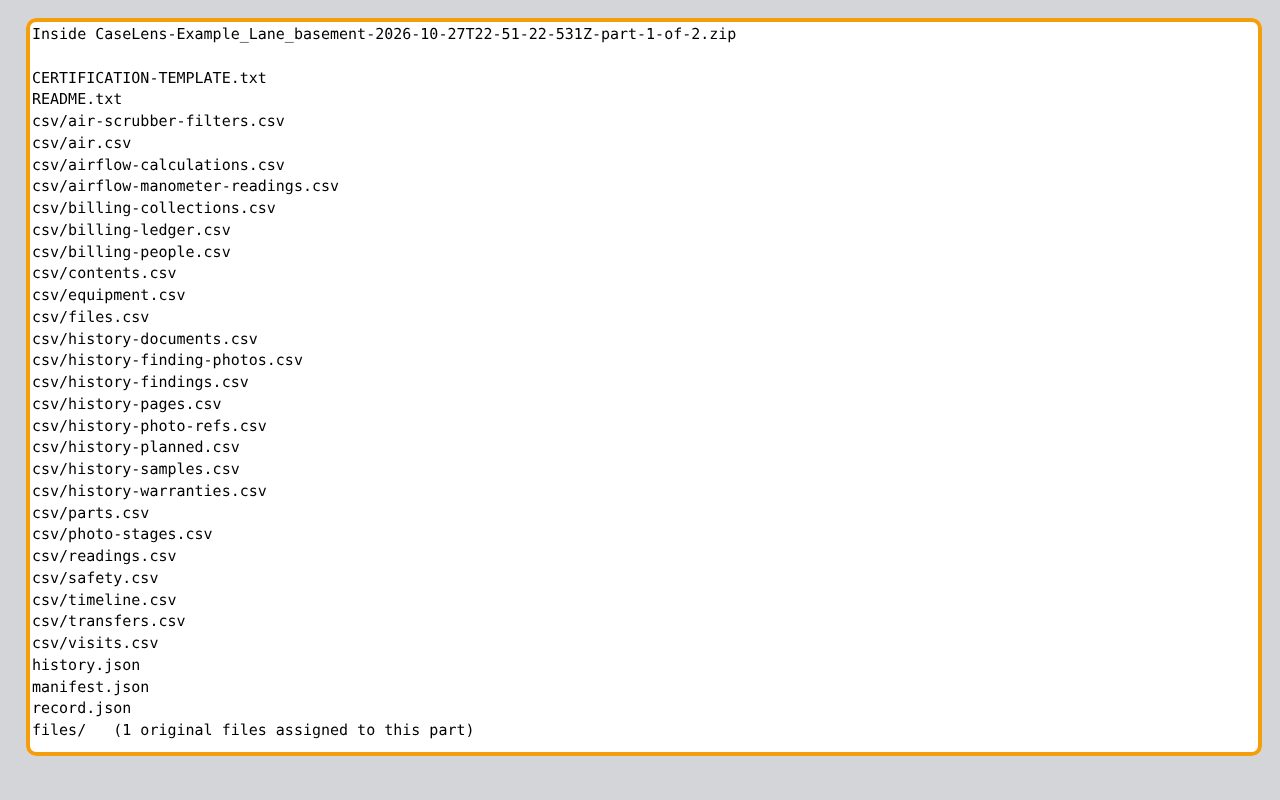
Unzip each part into its own folder: on a Mac, double-click it; on Windows, right-click it and choose Extract All. Inside: README.txt, manifest.json, record.json, history.json, CERTIFICATION-TEMPLATE.txt, a csv folder of spreadsheets and a files folder with the original files assigned to that part. csv/parts.csv lists every original file and which part holds it.
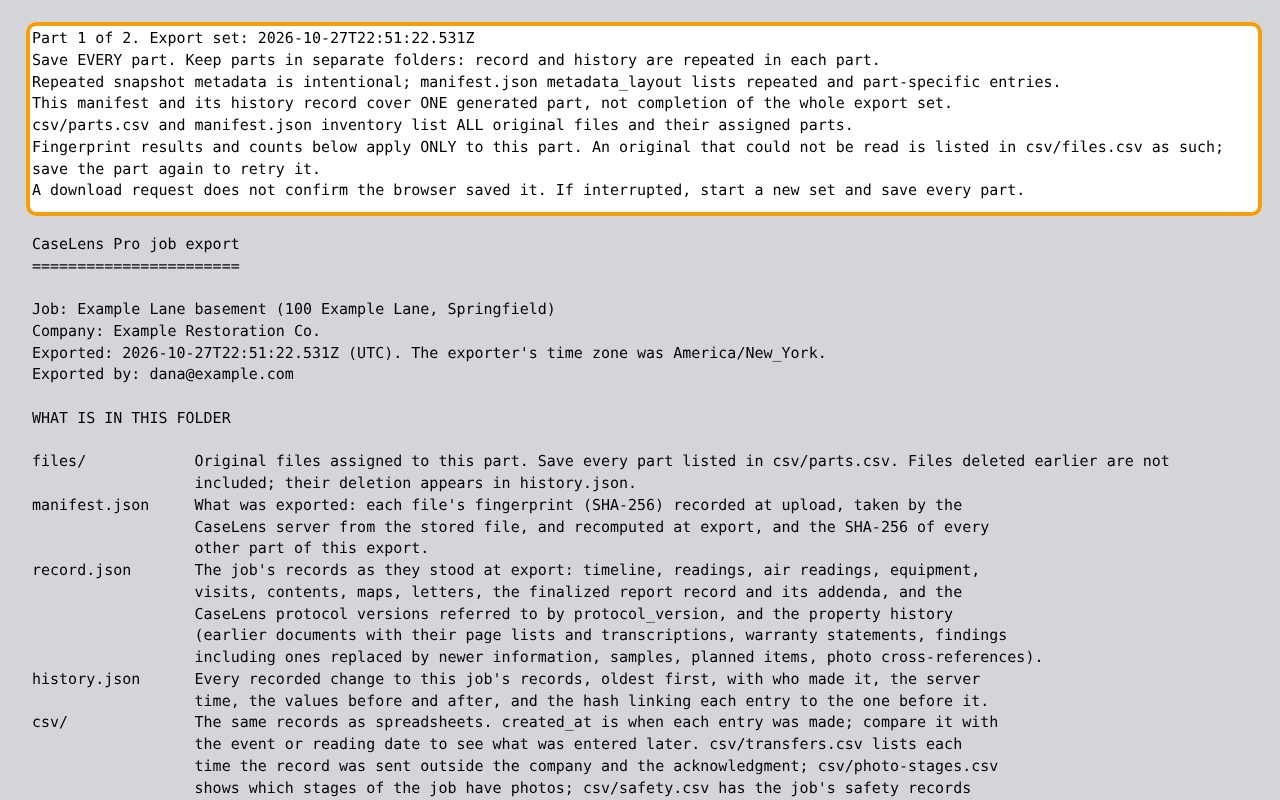
7Read README.txt first
The top of README.txt says which part this is and repeats the rules: save every part, keep parts in separate folders, and a download request doesn't confirm the browser saved it. Below, WHAT IS IN THIS FOLDER explains each file in plain words. CERTIFICATION-TEMPLATE.txt is a template for a lawyer to adapt.
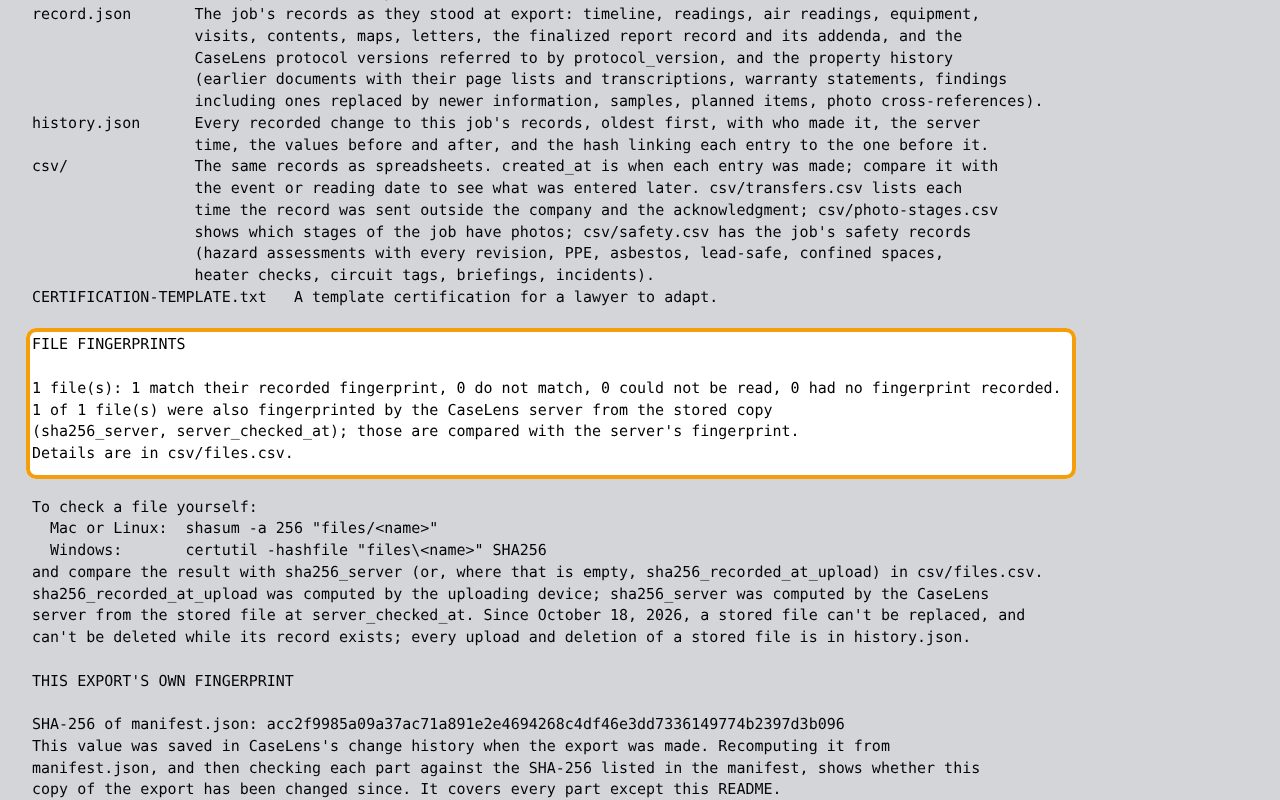
8Check the exceptions
Under FILE FINGERPRINTS, README.txt counts this part's files that match their recorded fingerprint, don't match, couldn't be read, or had no fingerprint. Anything other than a match is listed in csv/files.csv. Write down any exception and keep it with the export; don't describe a part with exceptions, or a missing part, as complete.
9Check a file's fingerprint yourself
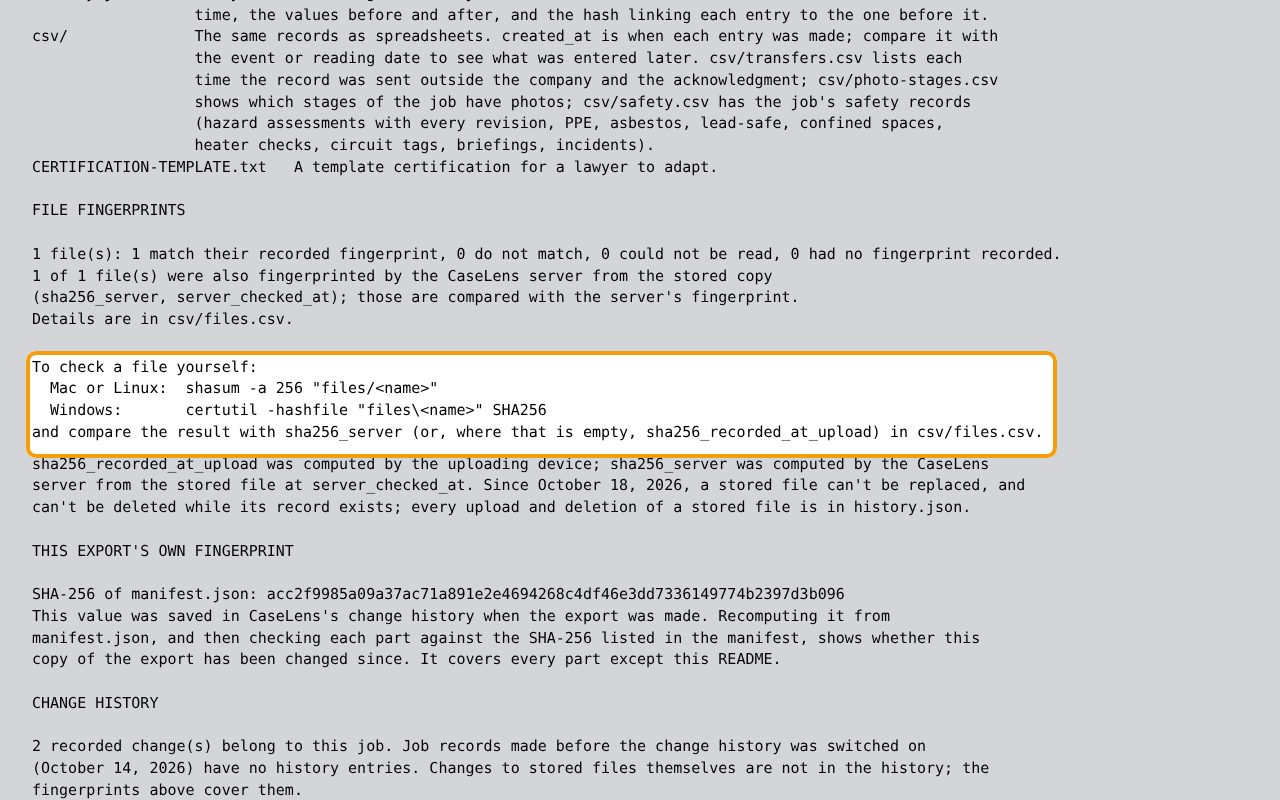
A fingerprint (SHA-256) shows whether a copy has exactly the same contents as the file CaseLens stored. Open Terminal on a Mac (in Applications, then Utilities) or Command Prompt on Windows (type cmd in the Start menu). Type cd and a space (on Windows, cd /d and a space), drag the part's folder into the window and press Enter. Type the command shown for your computer, with the file's name from the files folder in place of <name>, and press Enter. If the code it prints matches sha256_server in csv/files.csv (or, where that's empty, sha256_recorded_at_upload), the contents are unchanged since upload.
If something goes wrong
- "Download requested for part 1 of 2. Note: 1 file does not match the fingerprint recorded at upload…"
- That file's contents changed after it was uploaded. Don't rely on it; keep the part as it is and contact CaseLens support with the job name and the file name from csv/files.csv.
- "…uploaded before fingerprints were recorded, so it can't be checked"
- Older uploads have no fingerprint. They're still in the export; they just can't be checked against one.
- "This part did not finish. Retry it."
- Check your connection and click that part's button again. Parts already saved stay as they are. If the export was interrupted for a long time, start a new export and save every part of it.
- A part is missing from my Downloads folder
- Click that part's button (Save part … again) while the page is still open. If you closed the page, click Download the full job record (.zip) again and save every part of the new set.
- I'm sending the export to an attorney, appraiser or reviewer
- Send copies of every part and keep your own unchanged. On the job's Overview, under Sent to others (transfer log), log when it was sent, who it went to, how, what was sent and the Export fingerprint, then click Log transfer. When they confirm they got it, click Record acknowledgment on that row. Keep the sent email too (upload it as an Original email (.eml or .msg, kept unchanged)). The log prints in the carrier report and goes in the export. CaseLens records that each part was made, not that anyone received it.