Write your safety programs
Answer a few questions to see which written safety programs your company needs, have CaseLens write each one from your answers, then read it, adapt it and approve it to put it on file. About 15 minutes per program.
Watch it (1:26, no sound)
- You're an owner of the company in CaseLens Pro (only an owner can approve a program; anyone can write and print a draft).
- Your company's state set in CaseLens (state rules, like a state heat standard, depend on it).
- For hazard communication: the products your crews use (antimicrobials, cleaners, coatings, fuels) and where their safety data sheets are kept.
Step by step
1Answer the Start here questions
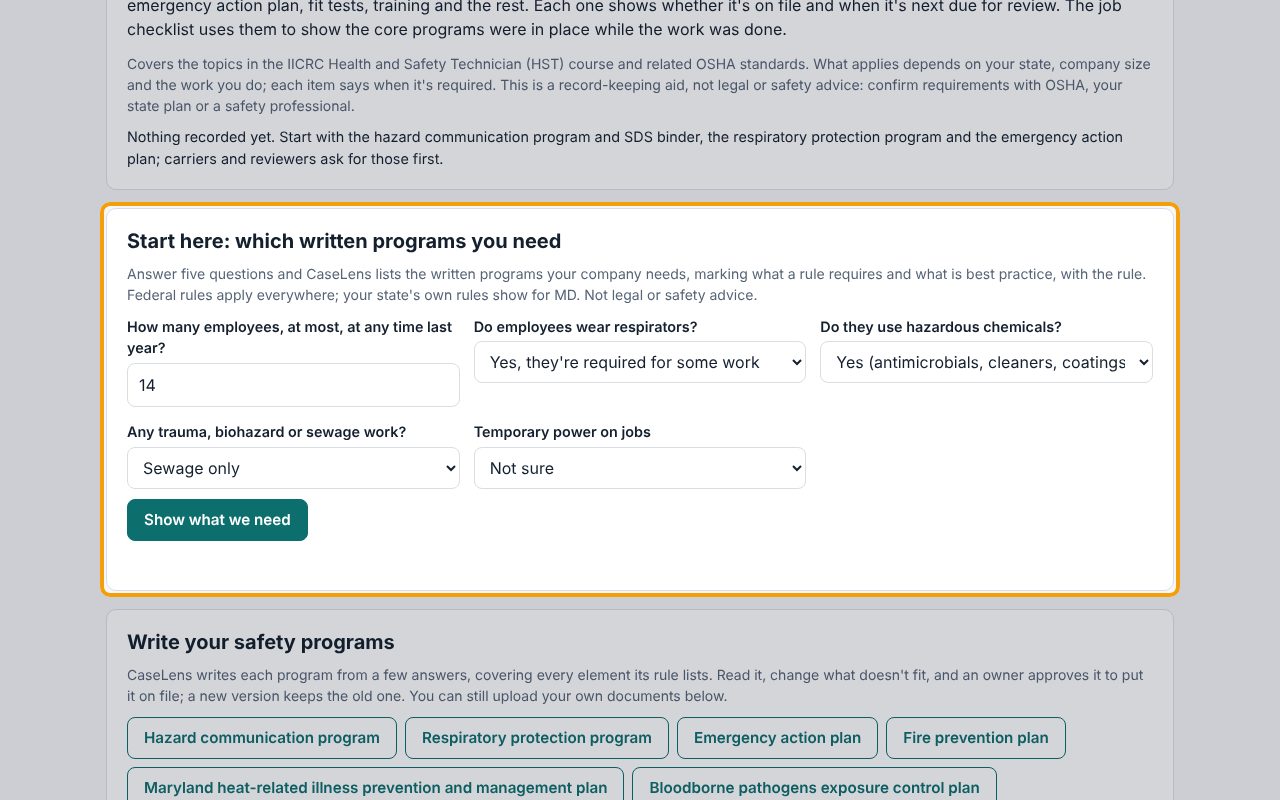
Click Safety in the top menu. Under Start here: which written programs you need, answer the five questions: the most employees you had at any time last year, whether they wear respirators, use hazardous chemicals, do trauma, biohazard or sewage work, and whether every temporary circuit has a GFCI.
2See what you need
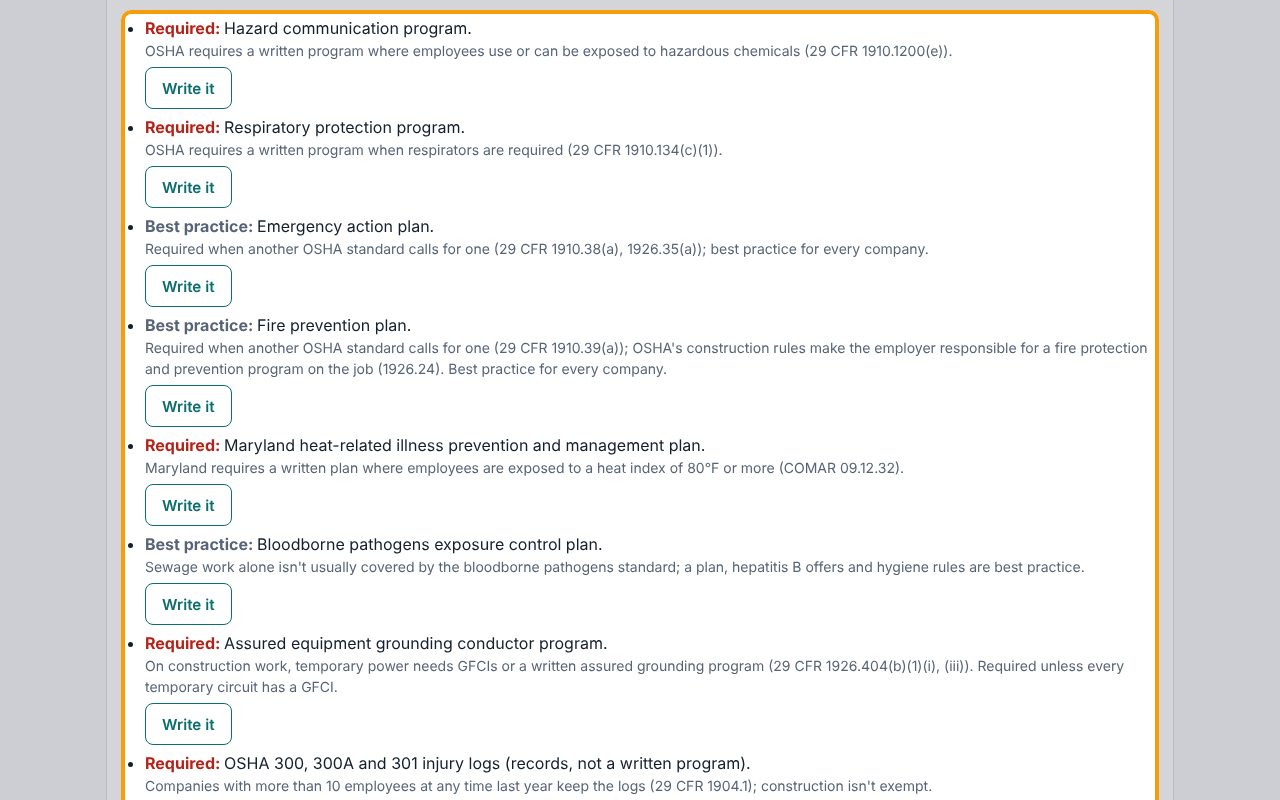
Click Show what we need. Each program is marked Required, Best practice or Not needed, with the rule and a plain reason. Federal rules apply everywhere; a state's own rule (like a heat standard) shows only for your company's state. What's already on file is shown under each one.
3Answer the program's questions
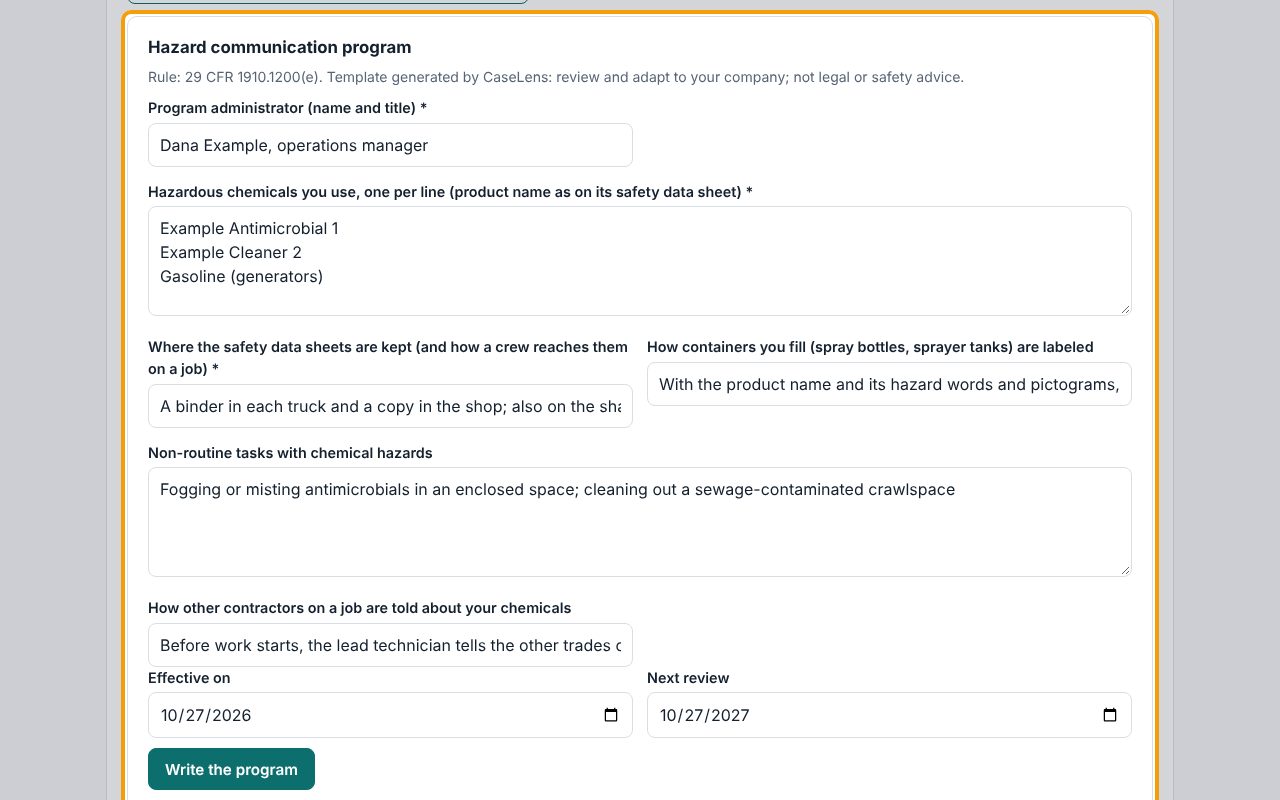
Click Write it on a program, for example Hazard communication program. Fill in its questions; the ones marked with * are needed. Most have a suggested answer to start from: change it to what your company actually does. Check Effective on and Next review.
4Read the program
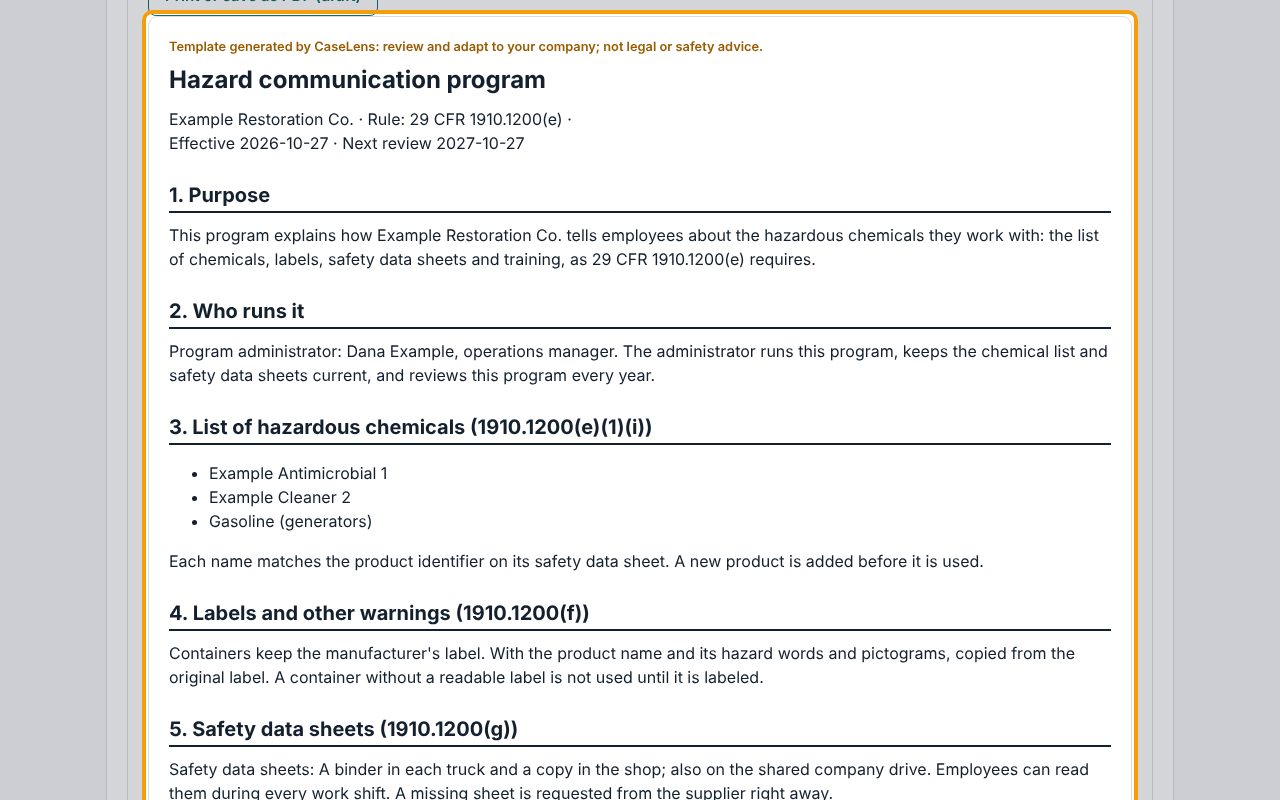
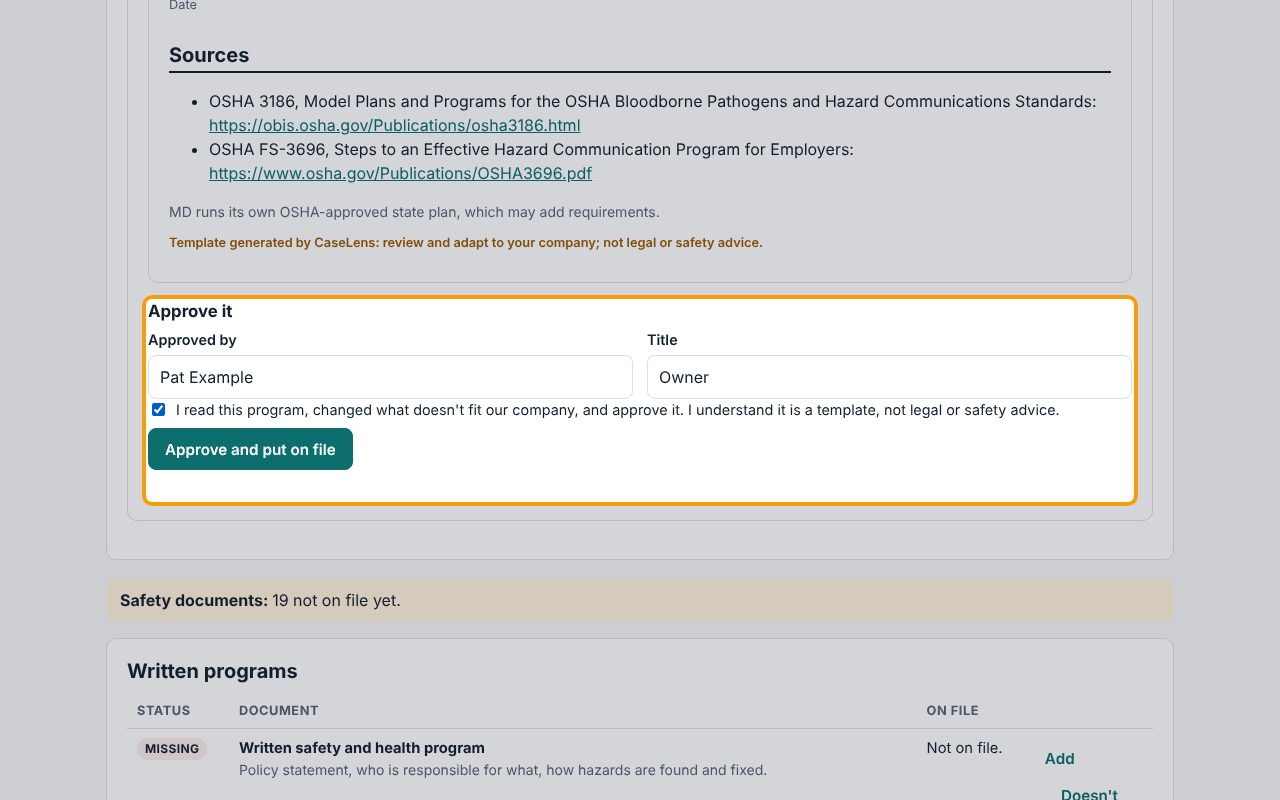
Click Write the program. The program appears below with every element its rule lists, each section labeled with the rule it covers, an approval line, and its sources. It's marked as a template generated by CaseLens: read it, and change your answers above and write it again until it fits your company. Print or save as PDF (draft) prints it for others to review.
5Approve it
Under Approve it, enter your name under Approved by and your Title, tick the box to confirm you read it, adapted it and approve it, and click Approve and put on file.
6It's on file
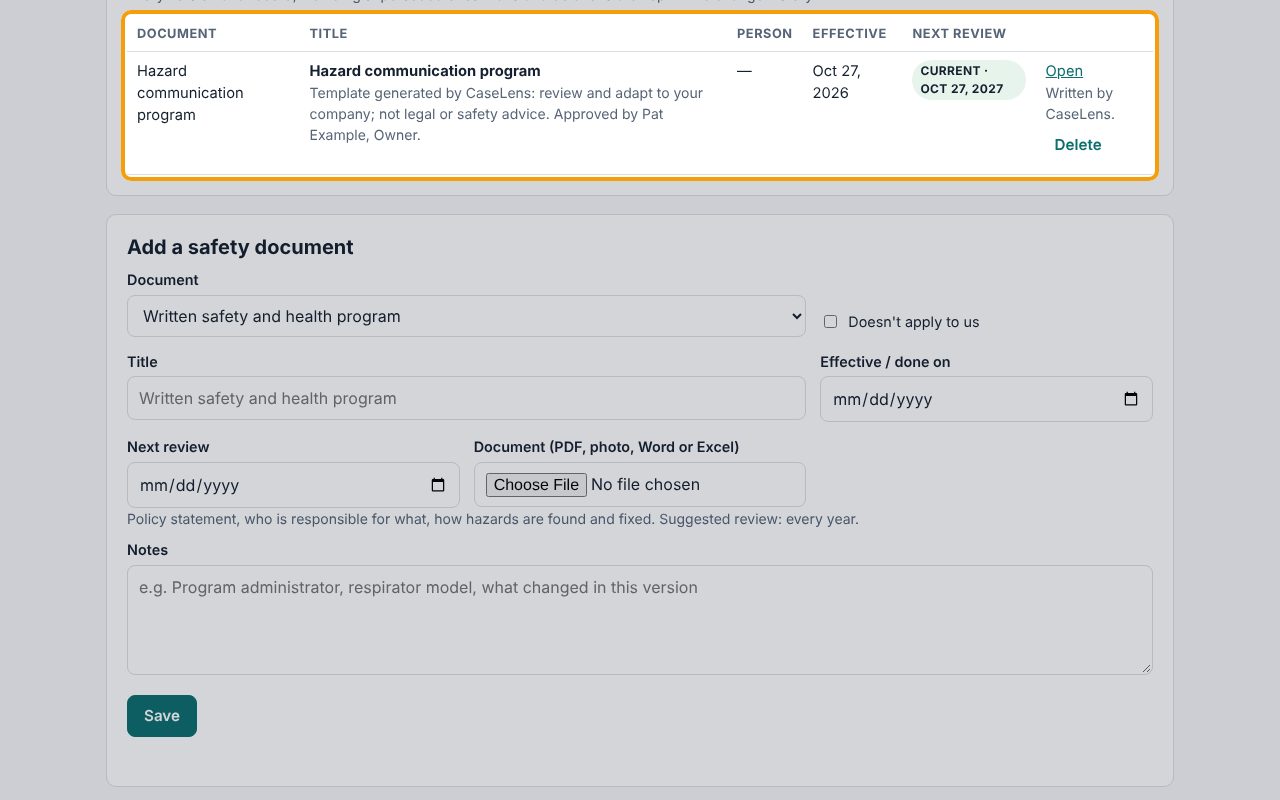
The program is saved as a document on your Safety page with its effective date and next review, and Written by CaseLens with the date it was approved. Open shows the saved copy. To change it later, click the program's button under Write your safety programs again: your last answers fill in, and approving saves a new version while the old one stays on file.
If something goes wrong
- "Answer every question."
- Each of the five Start here questions needs an answer before Show what we need.
- "Fill in: …"
- A question marked with * is empty. Fill it in, then click Write the program again.
- "Tick the box to confirm you reviewed and adapted it."
- Read the program, change what doesn't fit, then tick the box above Approve and put on file.
- "Only an owner of the company can approve a program."
- Print the draft for an owner to review, or ask an owner to sign in and approve it.