Keep a job's safety records
Write and certify the pre-job hazard assessment and site safety plan, log each day's safety briefing and the PPE each person wore, see whose fit test or medical evaluation is missing and which forms the job still needs, have the crew sign, and print the forms. About 15 minutes.
Watch it (2:22, no sound)
- A job already created in CaseLens Pro.
- The crew's fit tests, medical evaluations and training entered on the Safety page (top of the screen), with each person's name typed the same way you'll type it on the job.
- For the assessment: a walk-through of the site before work starts.
Step by step
1Open the Safety tab
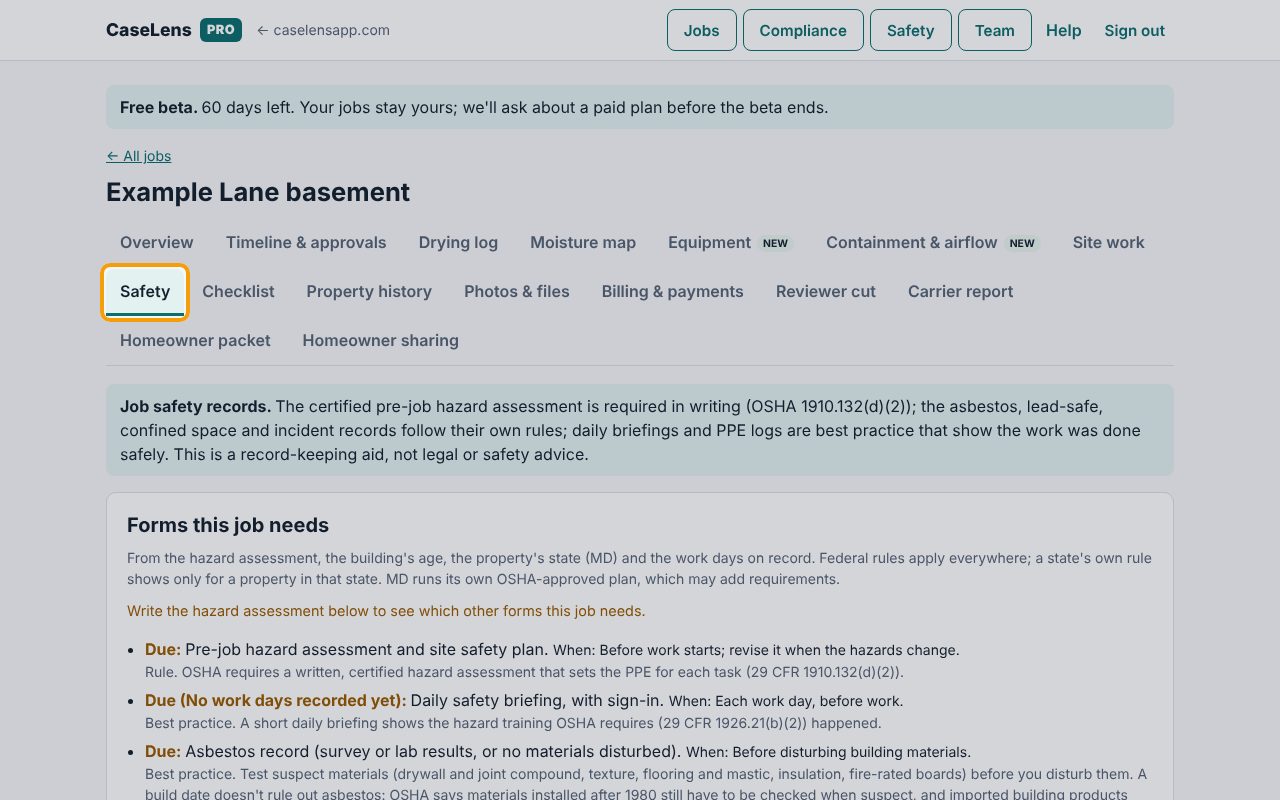
Open the job and click Safety. The banner at the top says which records are required by law and which are best practice. The certified pre-job hazard assessment is the one OSHA requires in writing.
2Answer every hazard
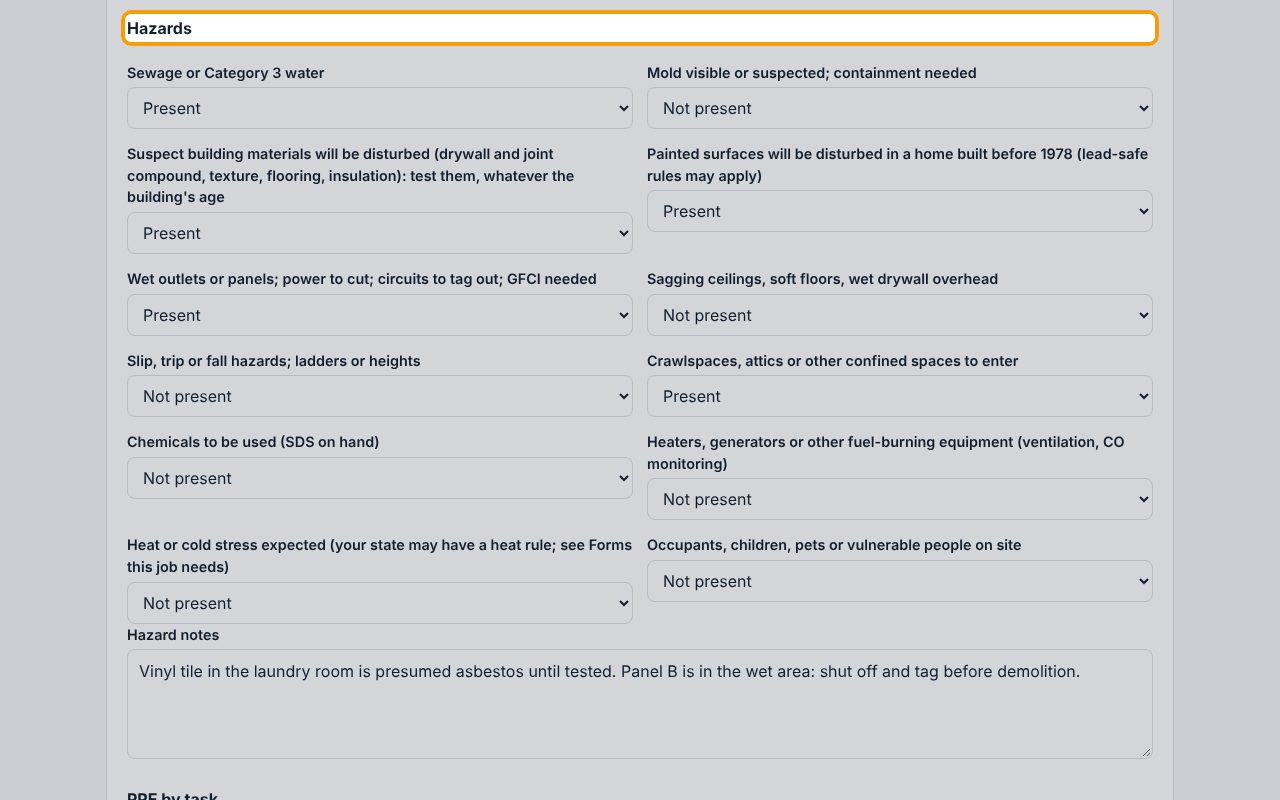
Under Write the assessment, enter who assessed the site (Assessed and certified by) and the Workplace evaluated. Under Hazards, choose Present, Not present or Doesn't apply for every line; CaseLens won't save until all are answered. Add anything specific under Hazard notes.
3List the PPE for each task, then certify
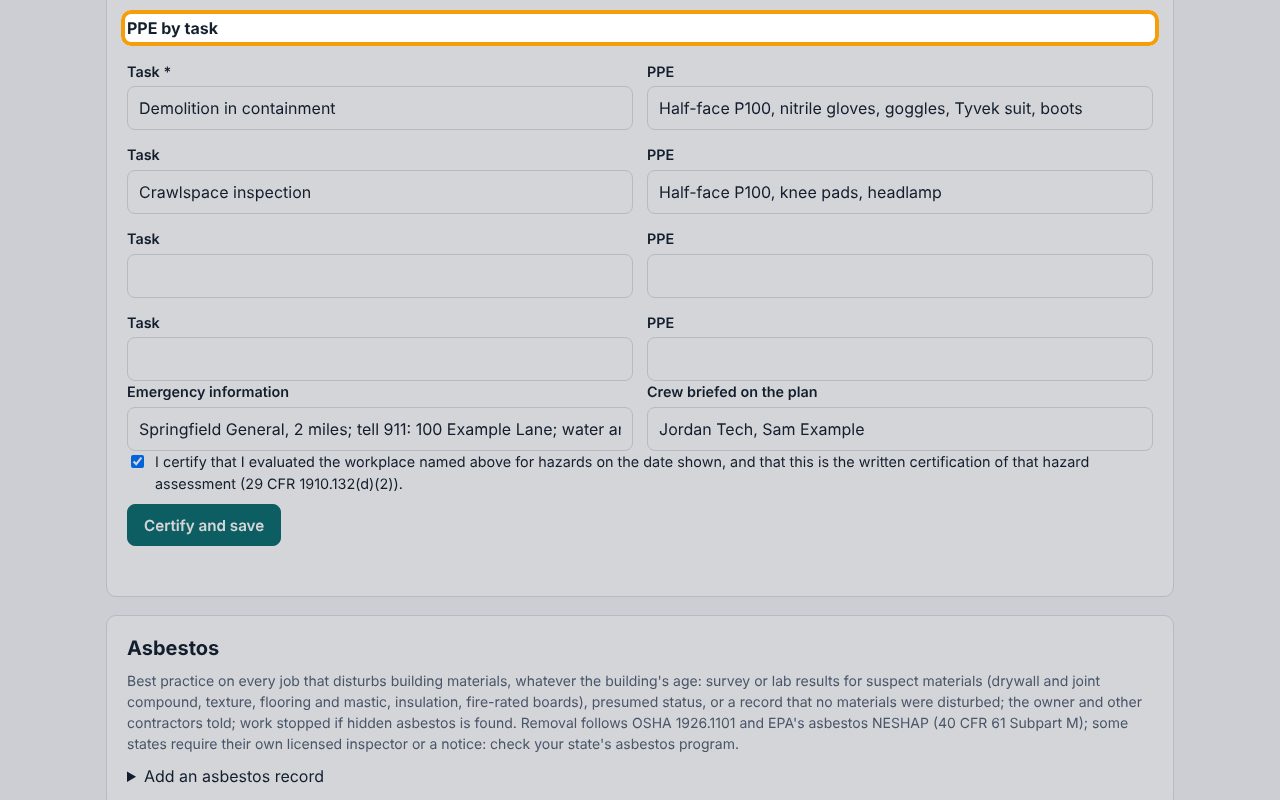
Under PPE by task, put each task and the PPE it needs on its own line. Add the Emergency information and who was briefed on the plan. Tick the certification statement (that's the written certification OSHA asks for) and click Certify and save.
4The certified assessment
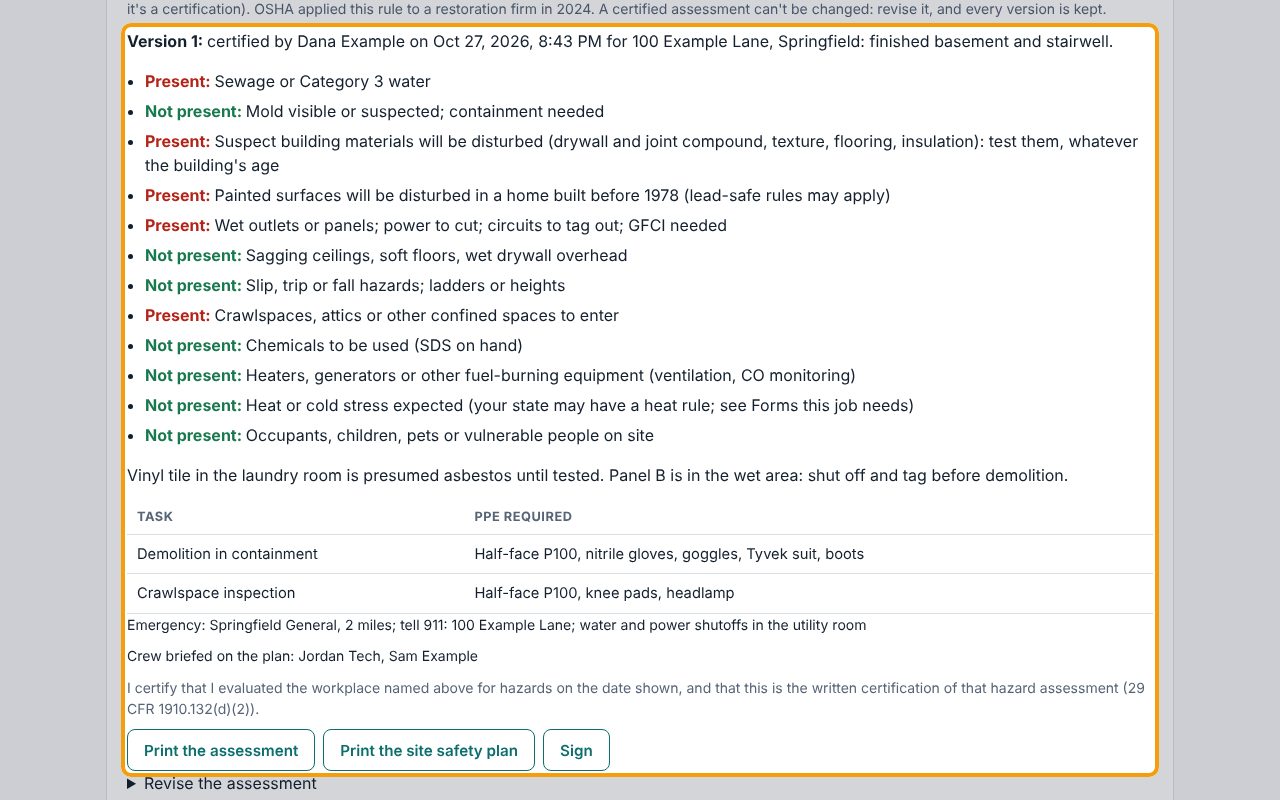
The assessment shows as Version 1 with who certified it and when, every hazard answer, and the PPE by task. It can't be edited. If something changes (for example the asbestos results come back), click Revise the assessment, give the reason, and certify again: every version is kept.
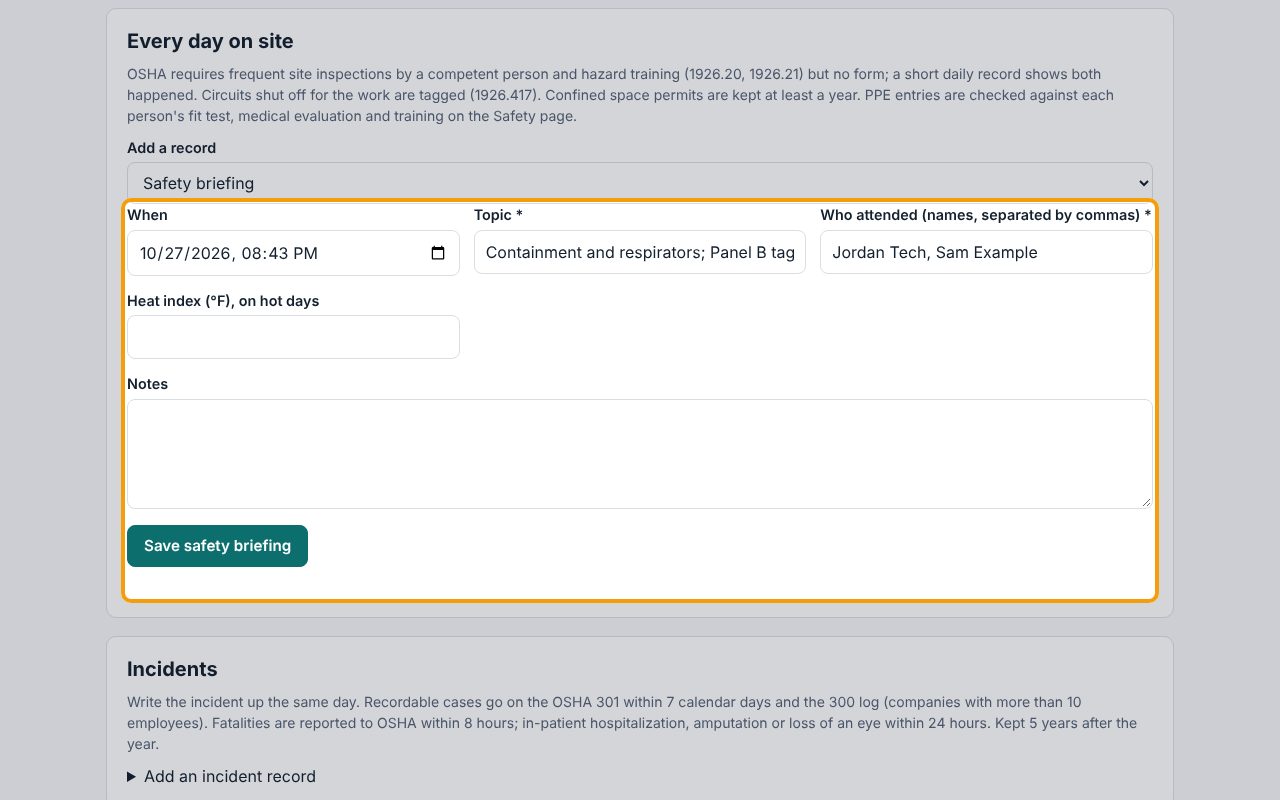
5Log the day's safety briefing
Under Every day on site, choose Safety briefing in Add a record. Enter the Topic and Who attended, and the Heat index on hot days. Click Save safety briefing. The same list adds heater and generator checks, circuit tagging and confined space entries.
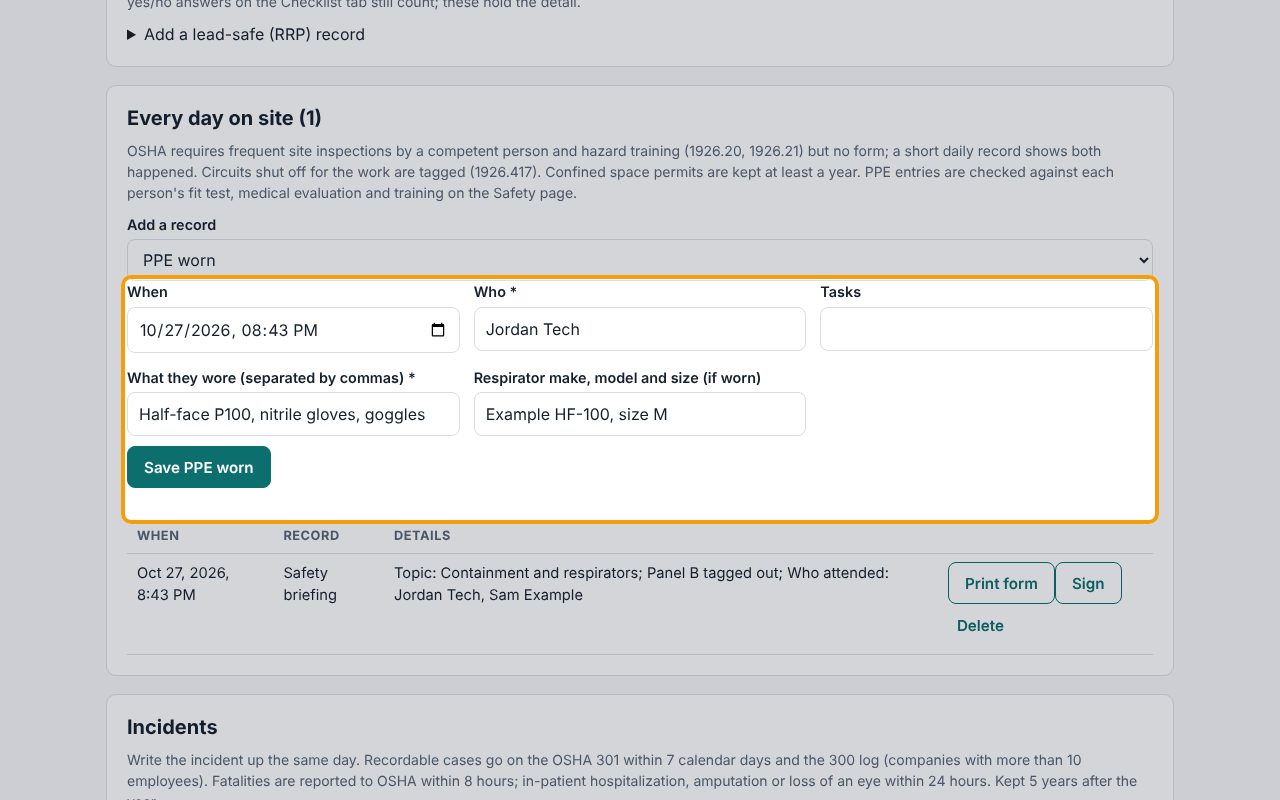
6Log the PPE each person wore
Choose PPE worn. Enter Who, What they wore and the Respirator make, model and size if they wore one. Type the name exactly as it is on the Safety page. Click Save PPE worn.
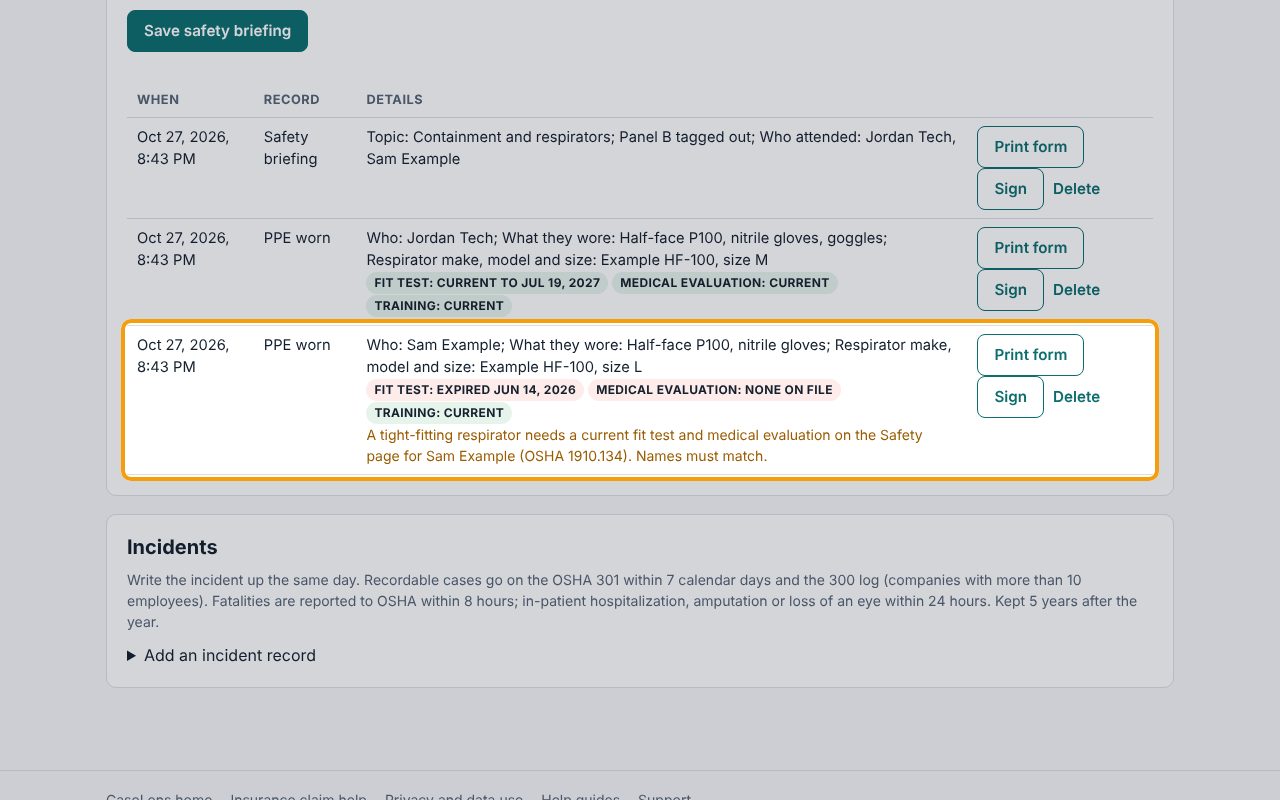
7See whose records are missing
Each PPE entry is checked against that person's records on the Safety page for that day. Green means current. Here Sam Example's fit test has expired and there's no medical evaluation, so CaseLens says a tight-fitting respirator needs both. Fix it on the Safety page before Sam wears one again.
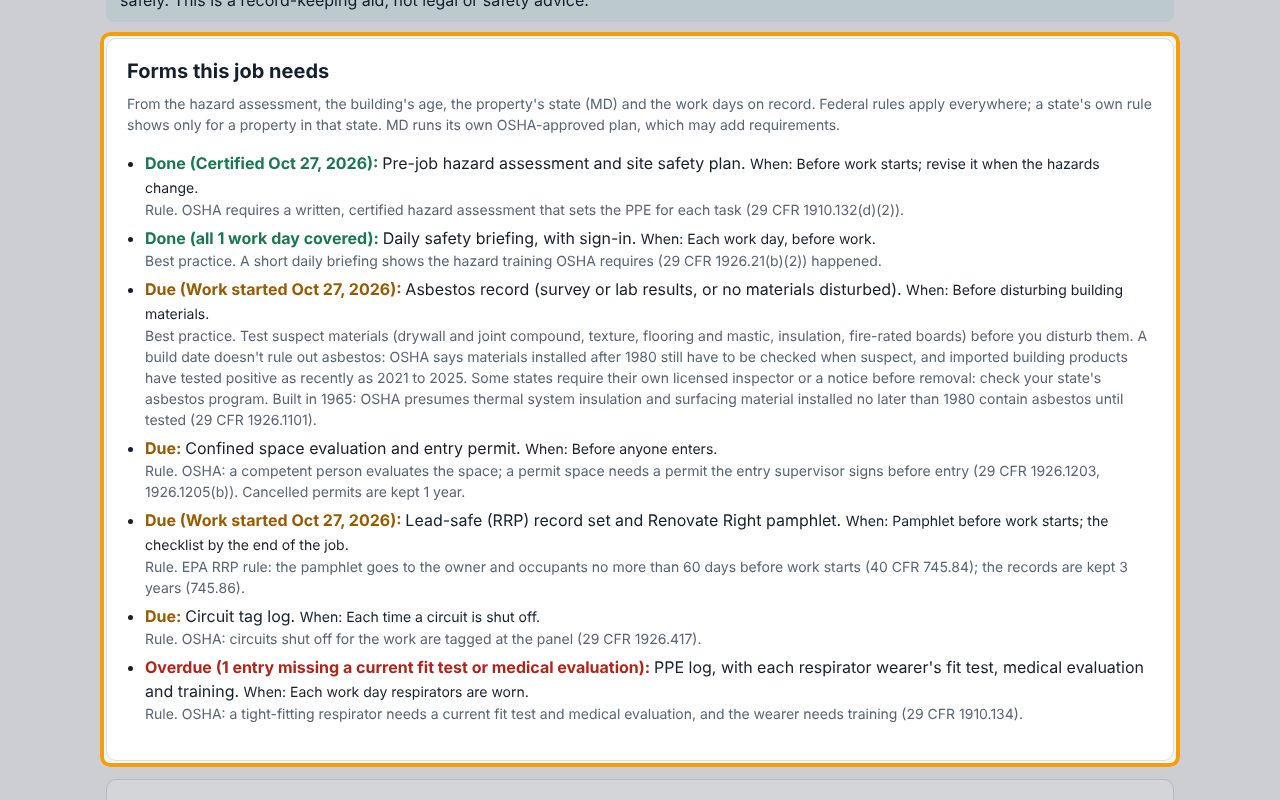
8See which forms the job still needs
Forms this job needs, at the top of the tab, comes from your hazard answers, the building's age and the property's state. Each line says Done, Due or Overdue, when the form is needed, and whether it's a rule or best practice. Here the crawlspace needs a confined space permit before anyone goes in.
9Have the crew sign in
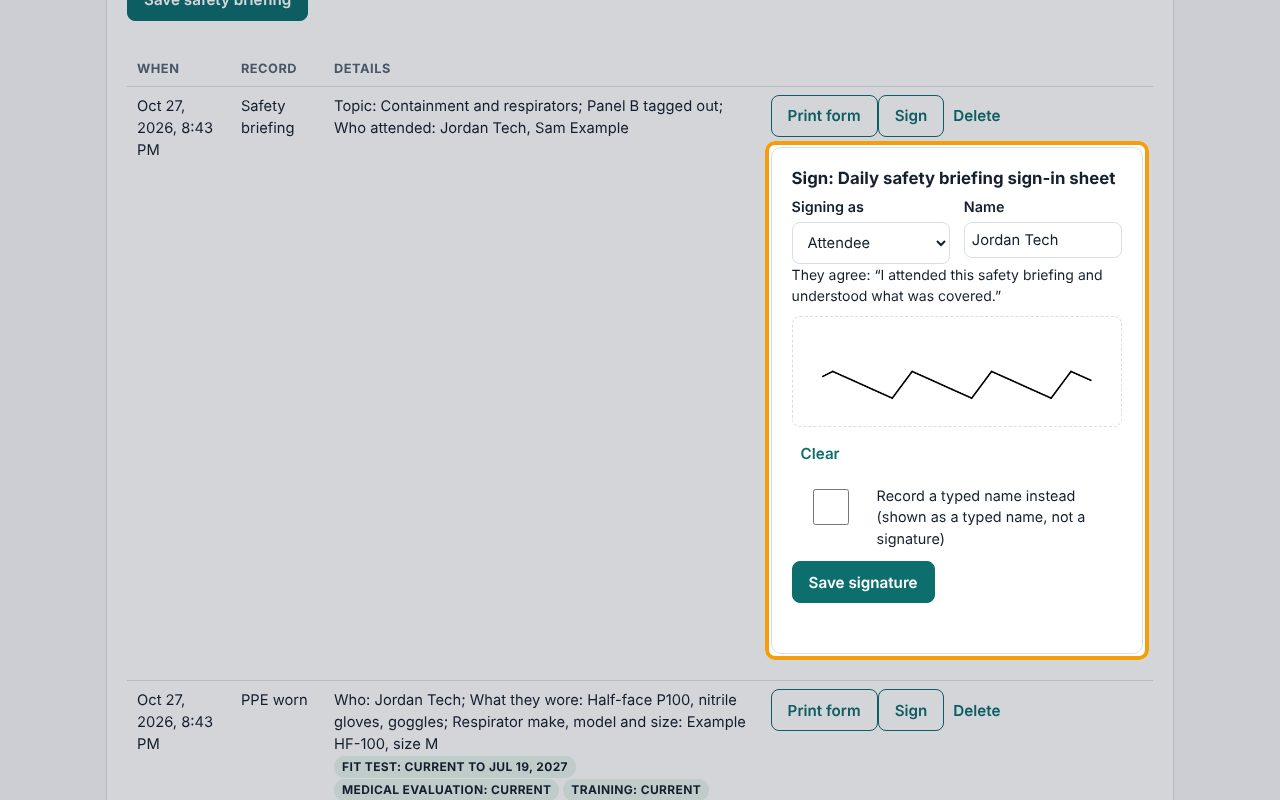
On the briefing's row, click Sign. Pick the person's Name, hand them the phone and have them sign in the box with a finger. If they can't, tick Record a typed name instead: it's kept as a typed name, never shown as a signature. Click Save signature.
10Print a form or the Job Safety Packet
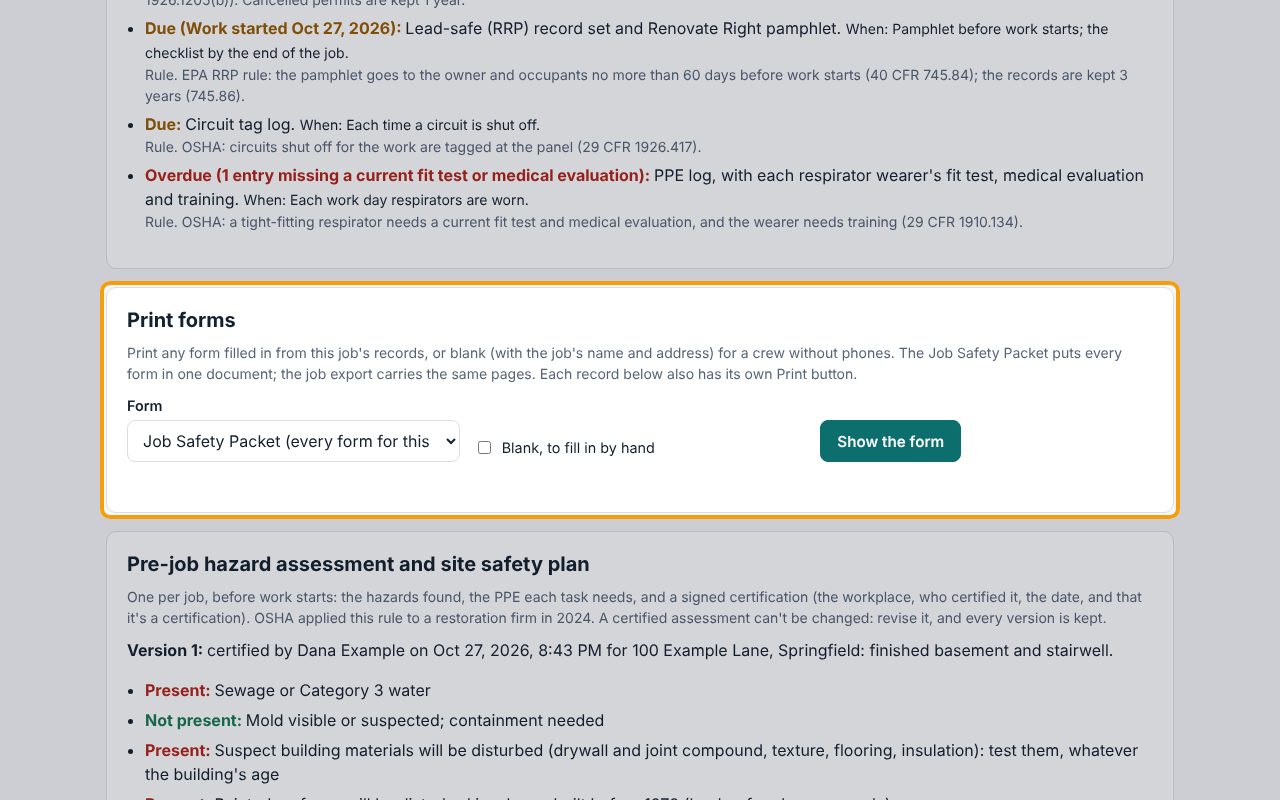
Under Print forms, pick a Form and click Show the form, then Print or save as PDF. Tick Blank, to fill in by hand to print an empty form with the job's name and address for a crew without phones. Job Safety Packet puts every safety form for the job in one document; each record's Print form button prints just that one.
If something goes wrong
- "Answer every hazard (… left, starting with: …)"
- Every hazard needs an answer, even if it's Doesn't apply.
- "Tick the certification to sign it."
- The assessment is only saved once it's certified. Tick the statement above Certify and save.
- A PPE check says "none on file" for someone who has a fit test
- The name on the job must match the name on the Safety page. Check the spelling on both.
- "Have them draw their signature, or tick “Record a typed name instead”."
- Nothing was drawn in the box. Have the person sign, or tick Record a typed name instead.
- A record can't be deleted
- Asbestos, lead-safe (RRP), confined space and incident records must be kept for a set time (shown as Kept until), and nothing can be deleted after the job's report is finalized.