Answer a reviewer's cut
Log a desk reviewer's cut, have CaseLens draft a line-by-line rebuttal from the job's record, edit it and save it for the homeowner to send. About 10 minutes.
Watch it (1:52, no sound)
- The reviewer's report, uploaded on the job's Photos & files tab with the type Reviewer report.
- The job's drying log, equipment and approvals entered: the draft is built from them.
- What was cut, in a sentence or two (for example "dehumidifier cut from 7 days to 4").
Step by step
1Log the cut on the timeline
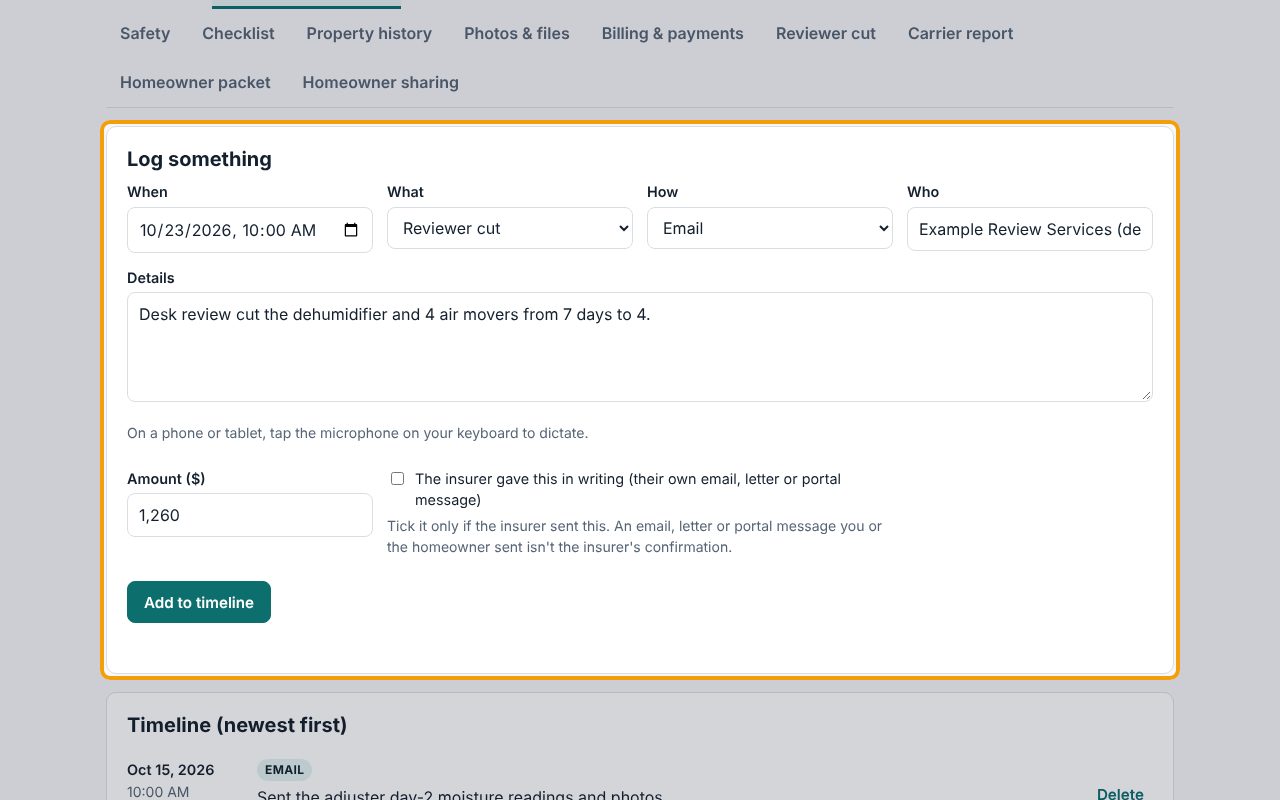
On the job's Timeline & approvals tab, under Log something: set When to the date of the review, choose Reviewer cut under What, choose How it came, and put the review company under Who. Describe the cut under Details and enter the amount cut in Amount ($). Click Add to timeline. The cut doesn't change your invoices: it's a record of what the reviewer proposed.
2Open the Reviewer cut tab
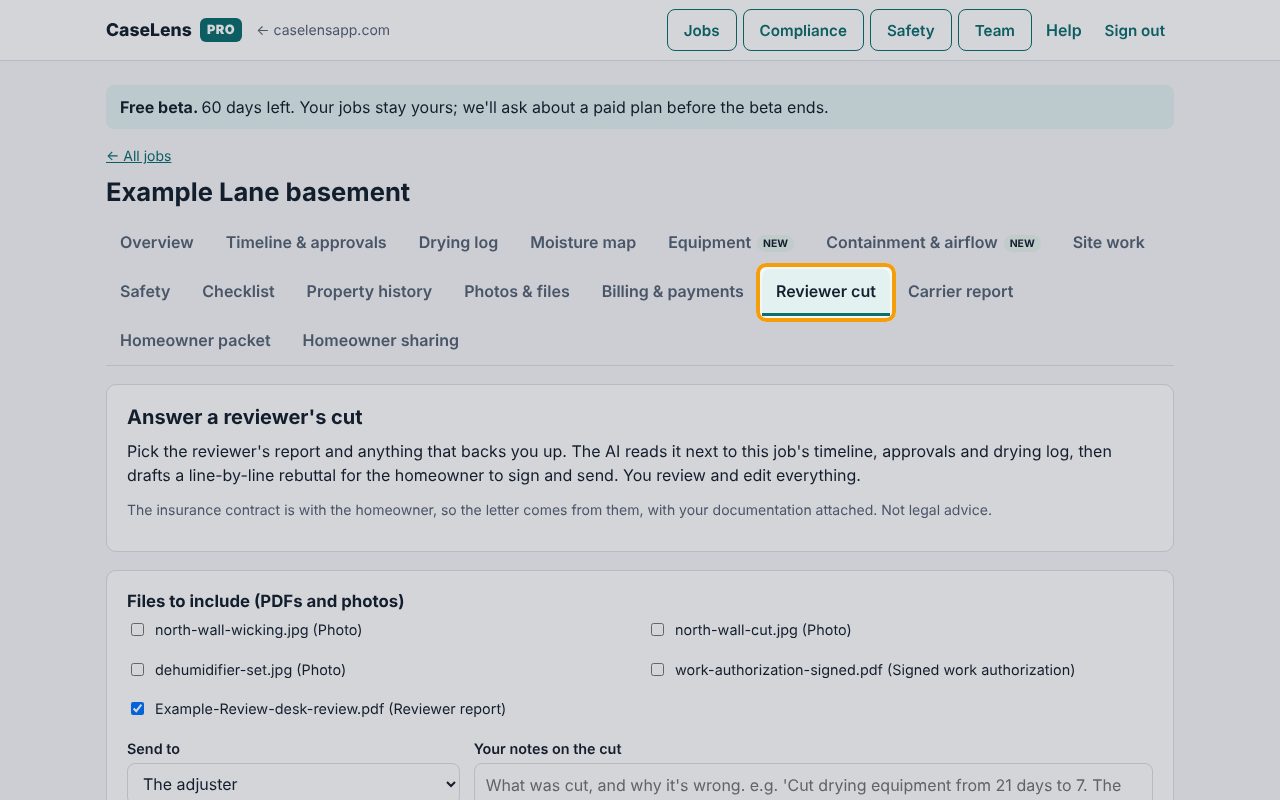
Click the Reviewer cut tab. Under Answer a reviewer's cut, CaseLens explains what happens: the AI reads the files you pick next to the job's timeline, approvals and drying log, and drafts a rebuttal. The letter is written for the homeowner to sign and send, because the insurance contract is with them. You review and edit everything.
3Pick the files to include
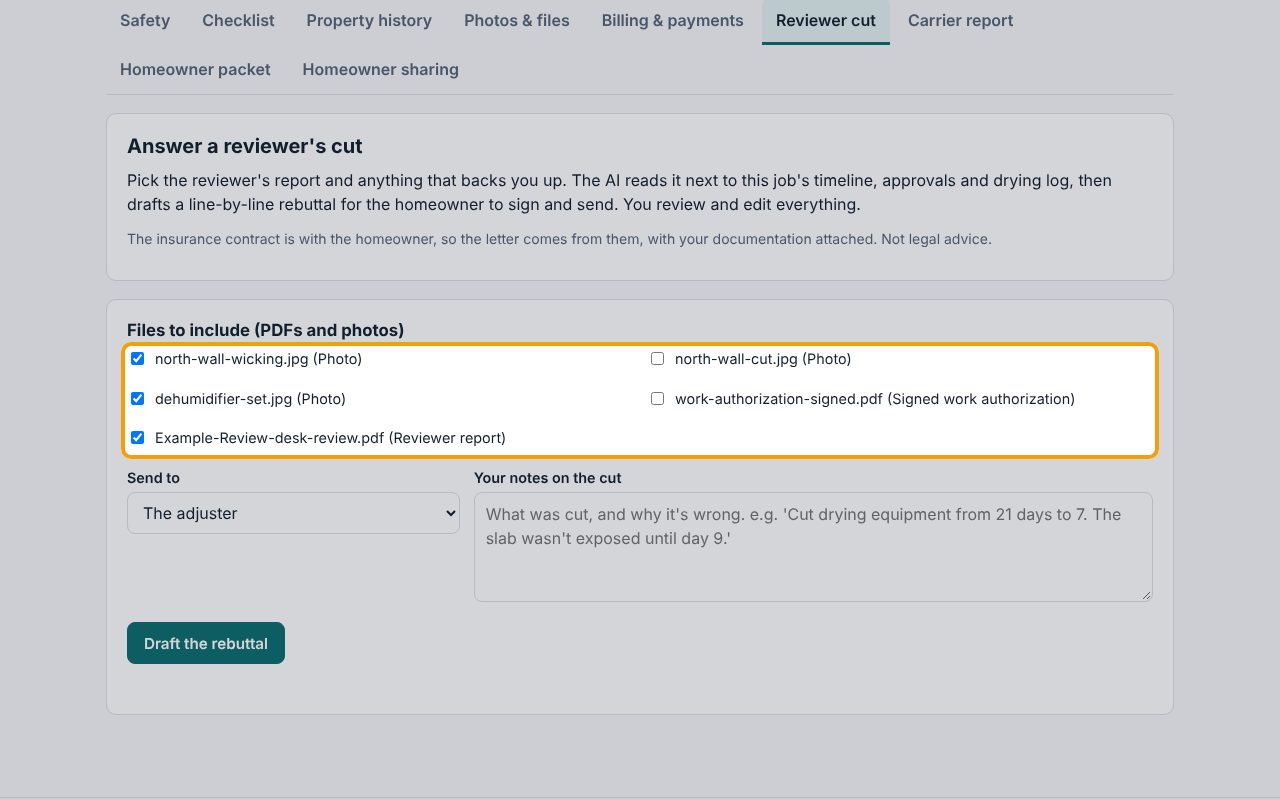
Under Files to include (PDFs and photos), files with the type Reviewer report or Written approval are already ticked. Tick any photos that back you up (here the wet wall before removal and the dehumidifier on site). You can pick up to 10.
4Say who it's for and what was cut
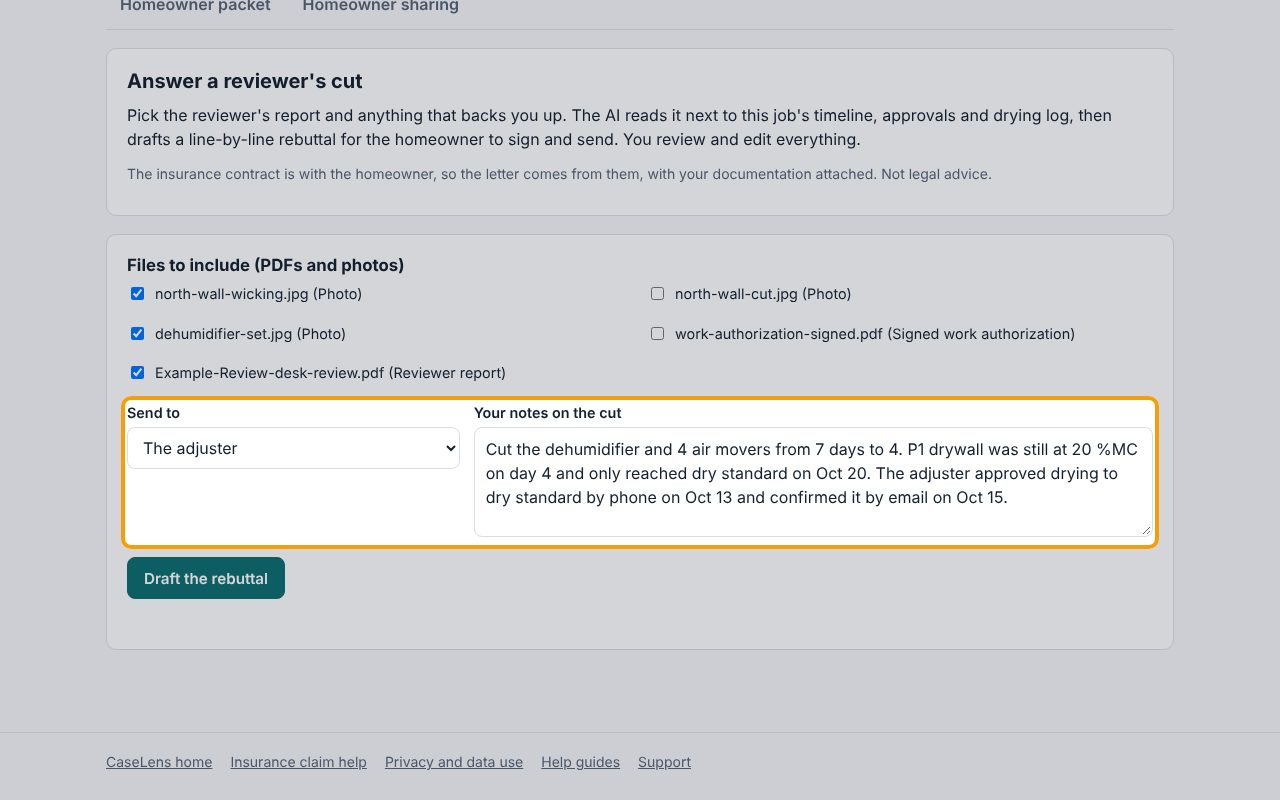
Under Send to, choose who the letter is addressed to: The adjuster, The adjuster's manager or The review company (copy the adjuster). Under Your notes on the cut, say what was cut and why it's wrong, with dates and readings if you have them. Click Draft the rebuttal.
5Read what the AI found
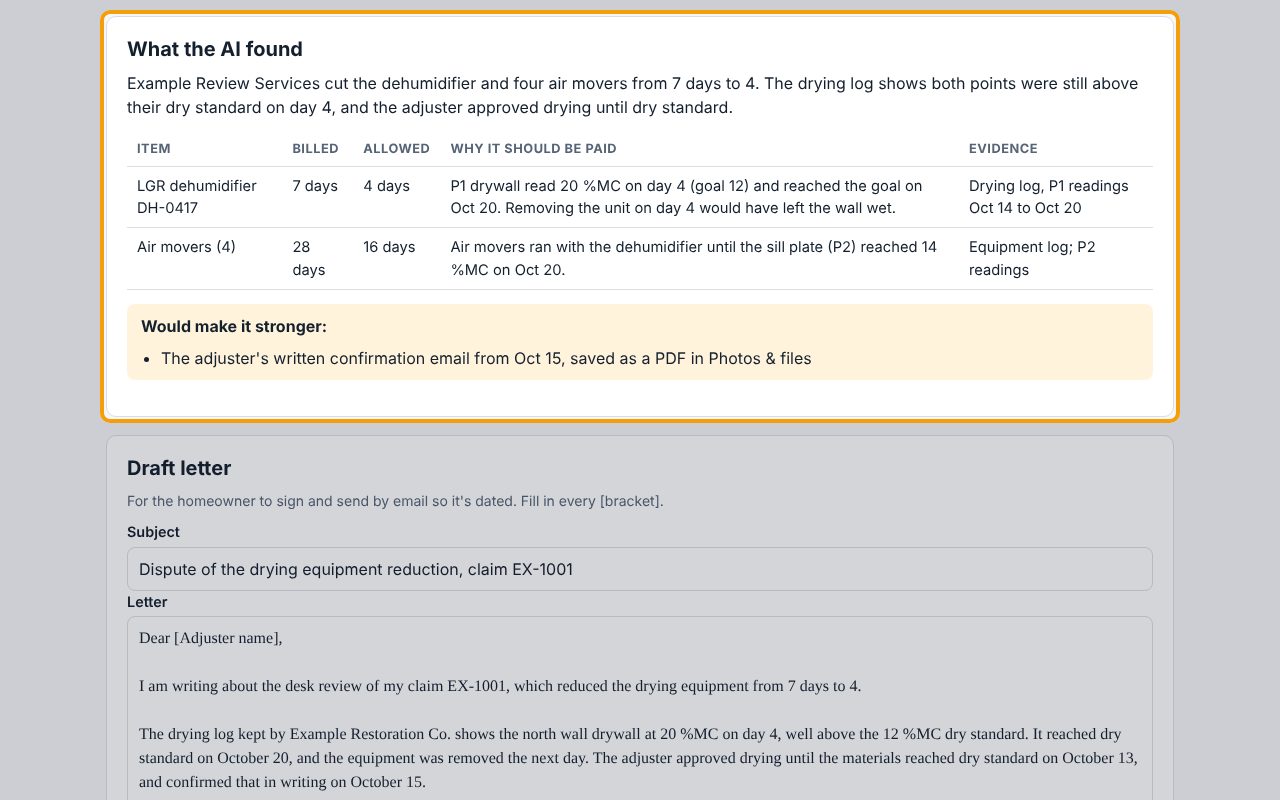
The draft usually takes 30 to 90 seconds; the page shows Writing… while it works. When it says Draft ready. Review it carefully before anyone sends it., read What the AI found: one row per cut item with what was billed, what was allowed, why it should be paid and the evidence. Would make it stronger lists records that would help; add them to the job if you have them.
6Edit the letter
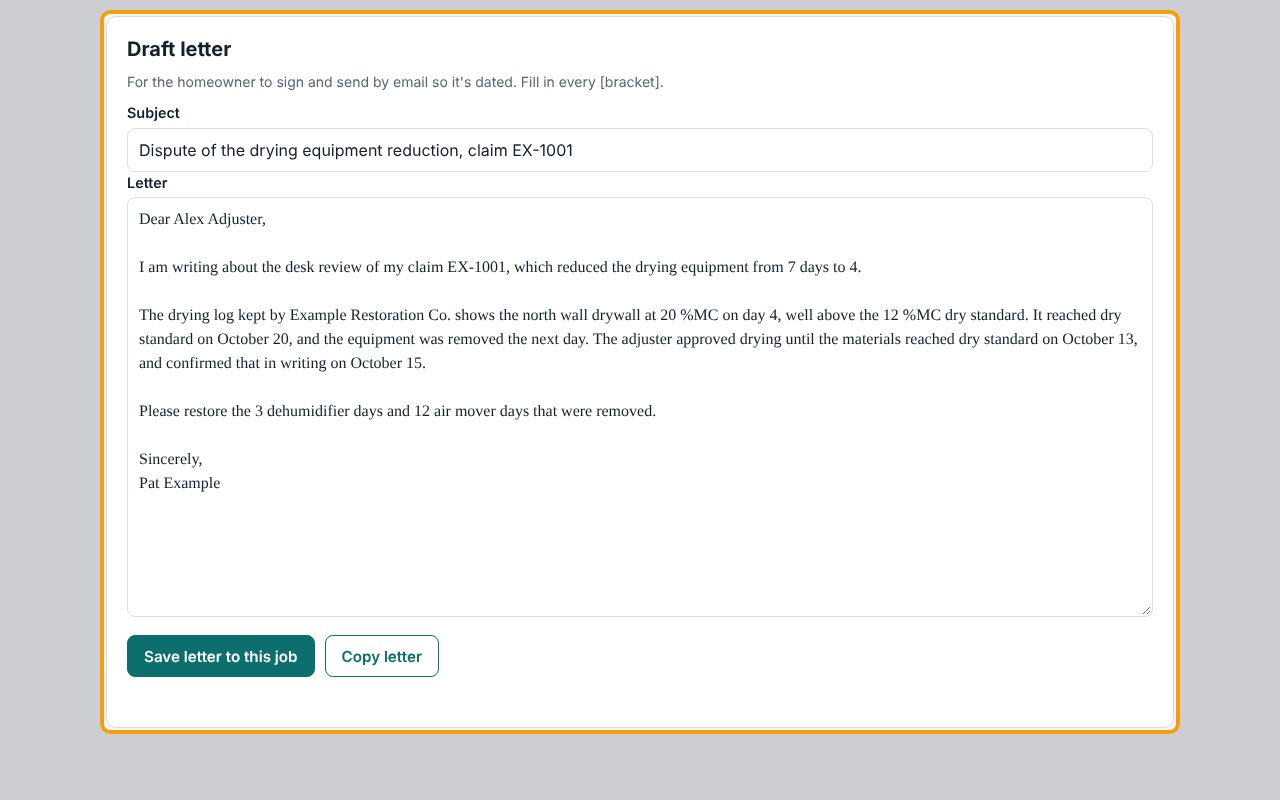
Under Draft letter, check the Subject and the Letter word for word. Fill in every [bracket], such as the adjuster's name and the homeowner's name, and correct anything the record doesn't support. Nothing is sent from here.
7Save it to the job
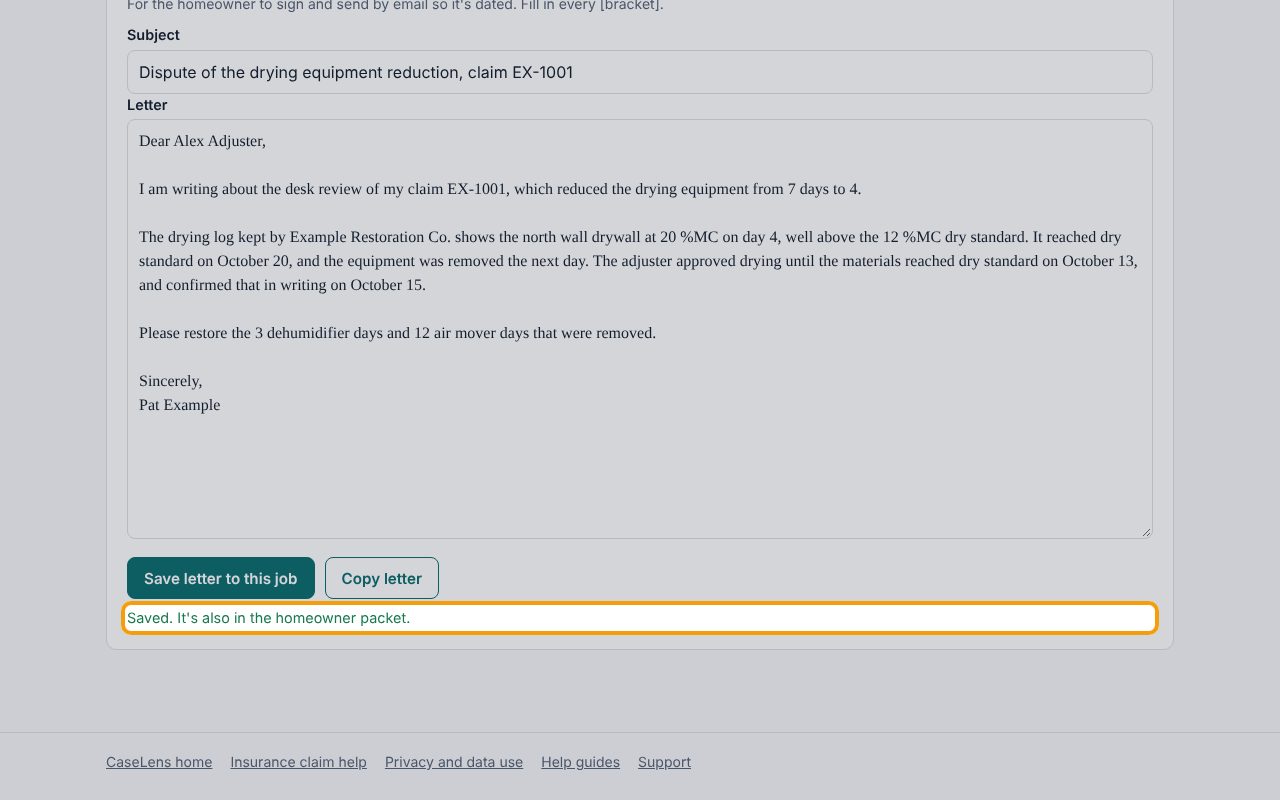
Click Save letter to this job. You'll see Saved. It's also in the homeowner packet. Use Copy letter to paste it into an email for the homeowner.
8Get it to the homeowner to send
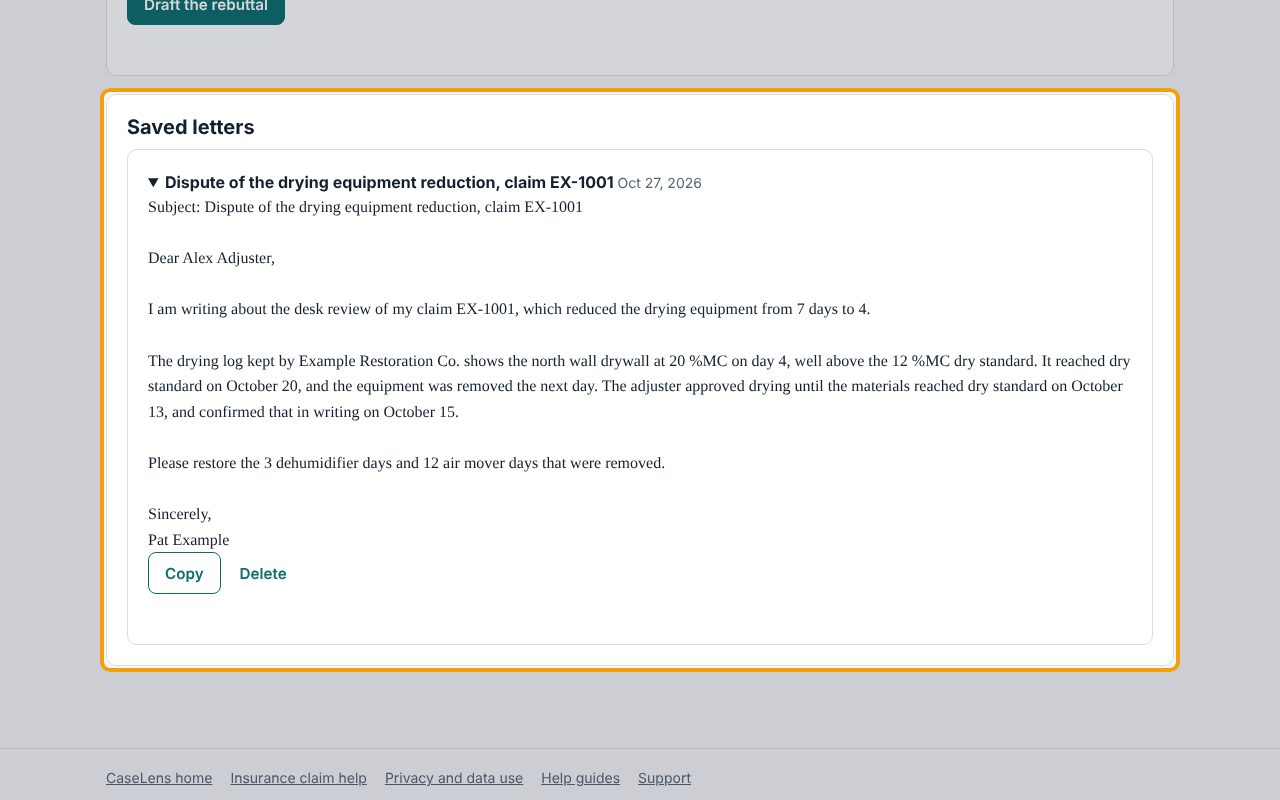
Saved letters stay under Saved letters at the bottom of the tab; click one to open it and Copy it. The homeowner signs and sends it by email so it's dated, with your documentation attached: on the Homeowner packet tab, choose the letter under Include letter and print or save the packet as a PDF for them. Log the date they sent it on the timeline.
If something goes wrong
- "Pick the reviewer's report, or describe the cut in more detail."
- Tick at least one file, or write a fuller description of the cut (a sentence or two) under Your notes on the cut.
- "Pick 10 files or fewer."
- Untick photos until 10 or fewer are ticked; the reviewer's report and the key photos are enough.
- "The AI stopped partway through. Please try again in a few minutes." or "The draft came back incomplete."
- Wait a few minutes and click Draft the rebuttal again. Your notes and ticked files are still there.
- No files are listed to pick
- Only PDFs, photos (JPEG, PNG, WebP) and text files can be read. Upload the reviewer's report as a PDF on Photos & files, with the type Reviewer report.