Work with no signal in CaseLens Pro (in a browser)
Get a job ready before you lose signal, add findings, photos and readings with no connection, then upload them, sort out anything refused and confirm everything arrived. This guide is for CaseLens Pro in a web browser; the CaseLens phone app has its own guides, marked Phone app. About 10 minutes.
Watch it (1:42, no sound)
- A connection now, before you go to the site.
- Signed in with Keep me signed in on this device ticked. Without it, no copy of your jobs is kept on the device.
- The device you'll use on site (phone, tablet or laptop), in the browser you'll use there.
Step by step
1Open each job before you go
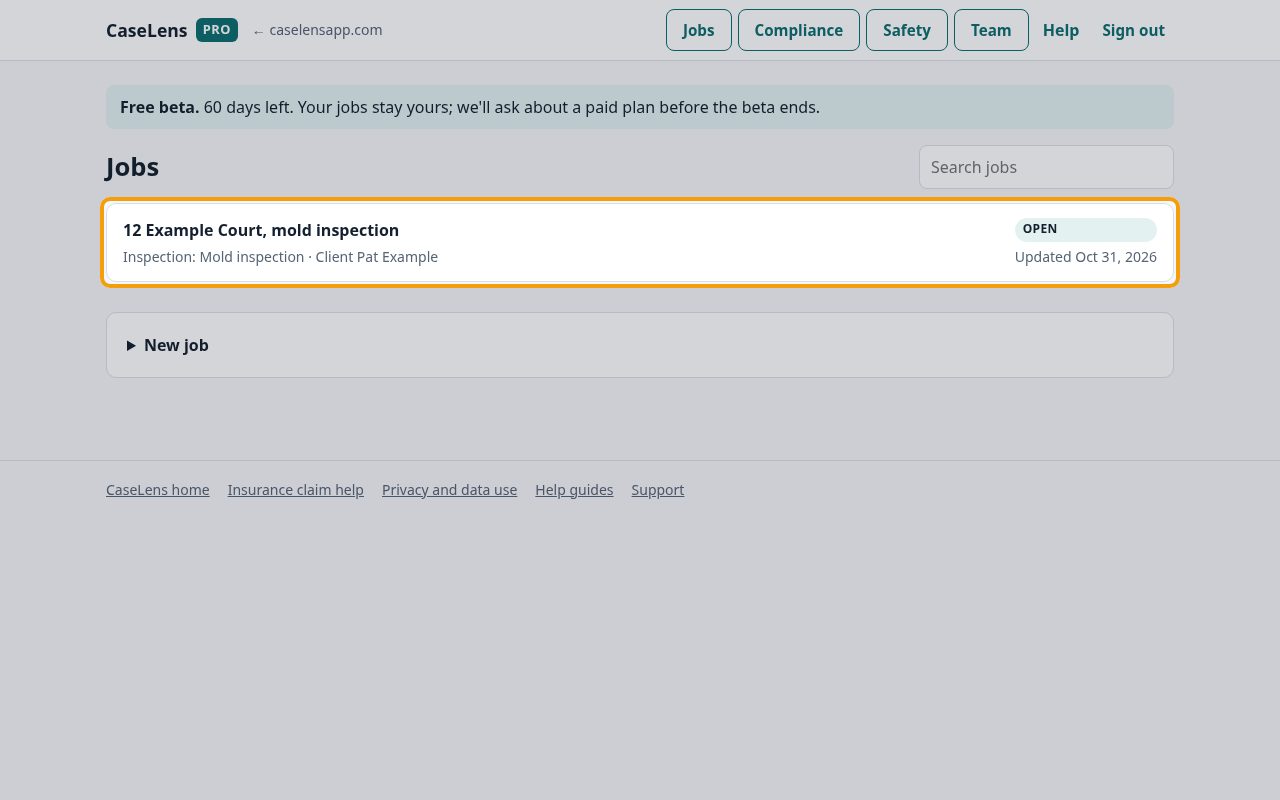
While you still have a connection, open every job you'll work on from Jobs. Each job you open is saved on this device, so it opens on site with no signal. Jobs you haven't opened on this device won't be there, and new jobs can't be created without a connection.
2No signal: the saved copy opens
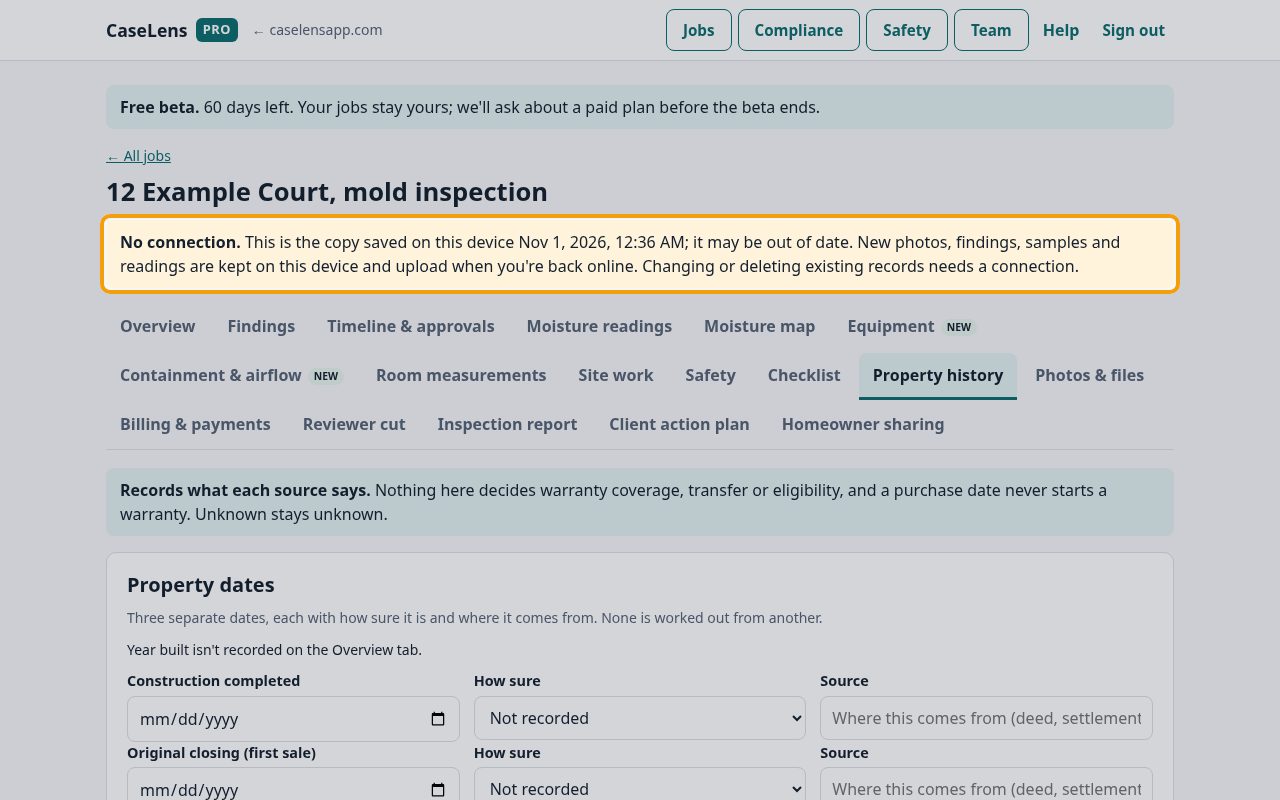
With no connection, the job opens from the copy saved on this device. A yellow No connection. banner says when the copy was saved. You can add new photos, findings, samples and readings; changing or deleting records that already exist needs a connection.
3Add entries as usual
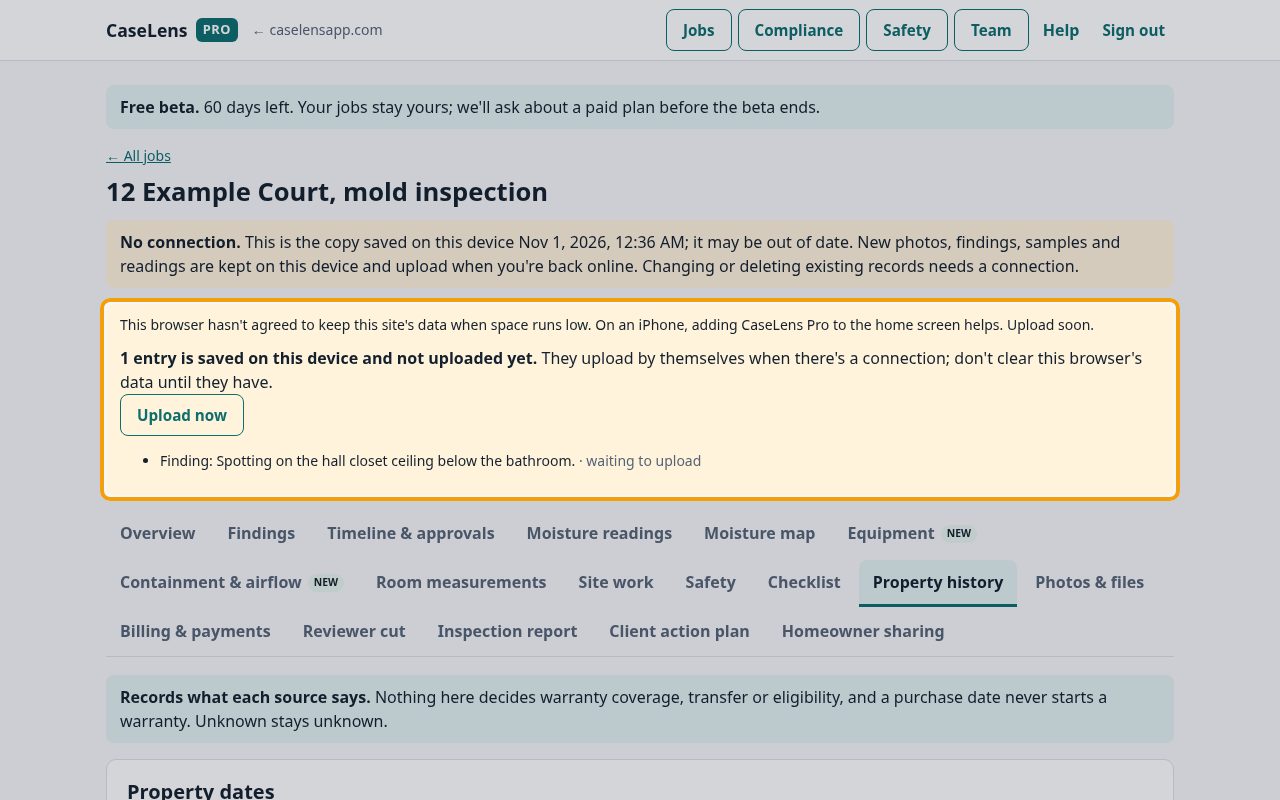
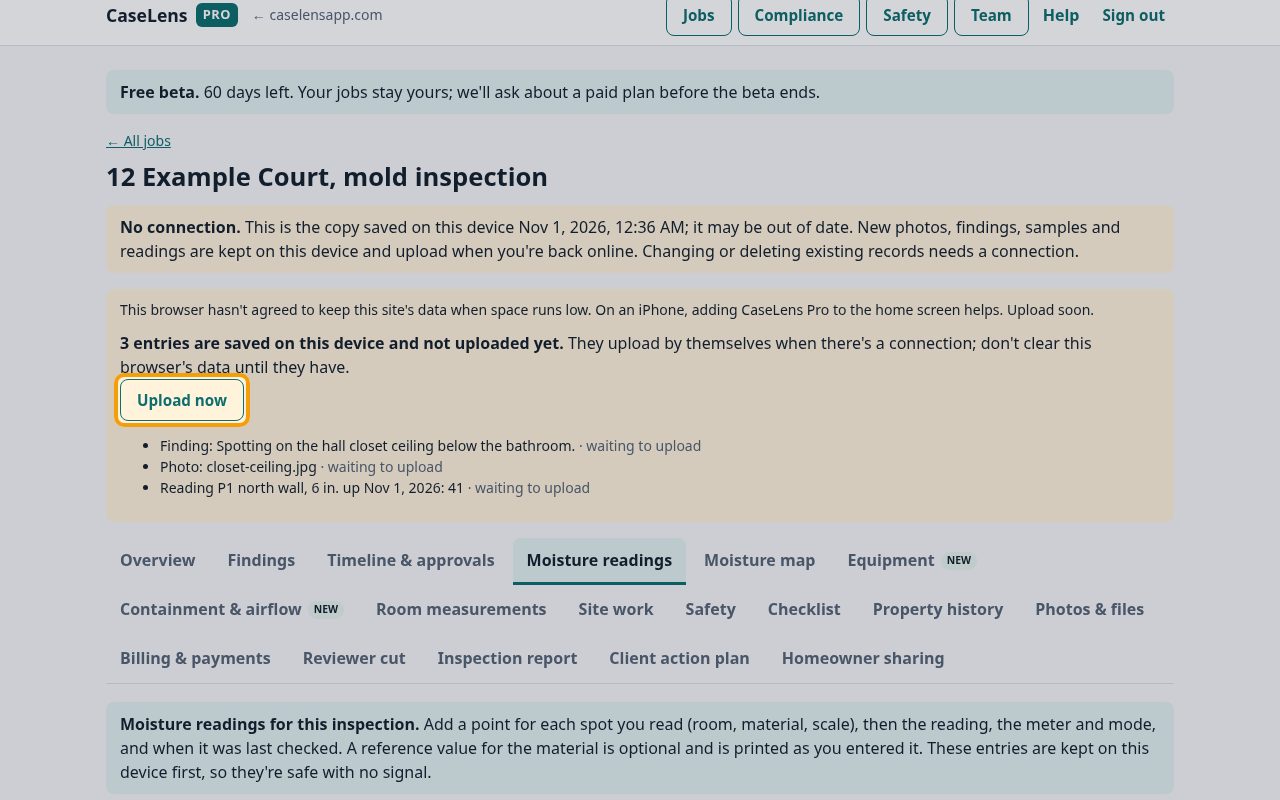
Add findings, samples, readings and photos the same way you would with a connection. Each one is saved on this device and shows on this device; not uploaded yet. A banner near the top counts them: 1 entry is saved on this device and not uploaded yet. If it also says the browser hasn't agreed to keep this site's data, upload as soon as you can.
4Photos wait on the device too
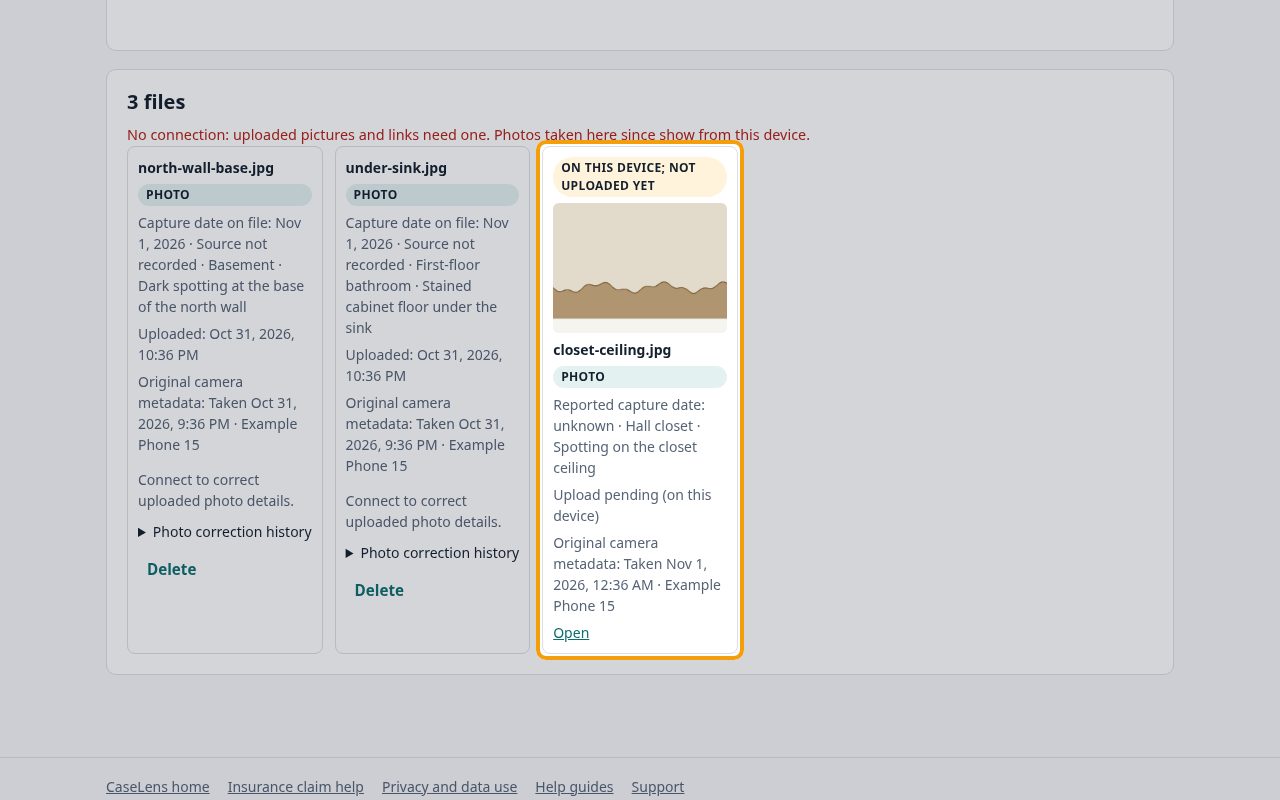
Photos are kept on the device with their fingerprint and camera details, and show in the list as on this device; not uploaded yet. Don't clear the browser's data, use a private window, or sign out while entries are waiting.
5Upload when you're back online
Back in range, waiting entries upload on their own, oldest first. To start it yourself, click Upload now in the banner; with no connection yet it says Still no connection. Everything stays on this device. Each entry is sent once: sending it again after a dropped connection doesn't make a second copy.
6Sort out anything refused
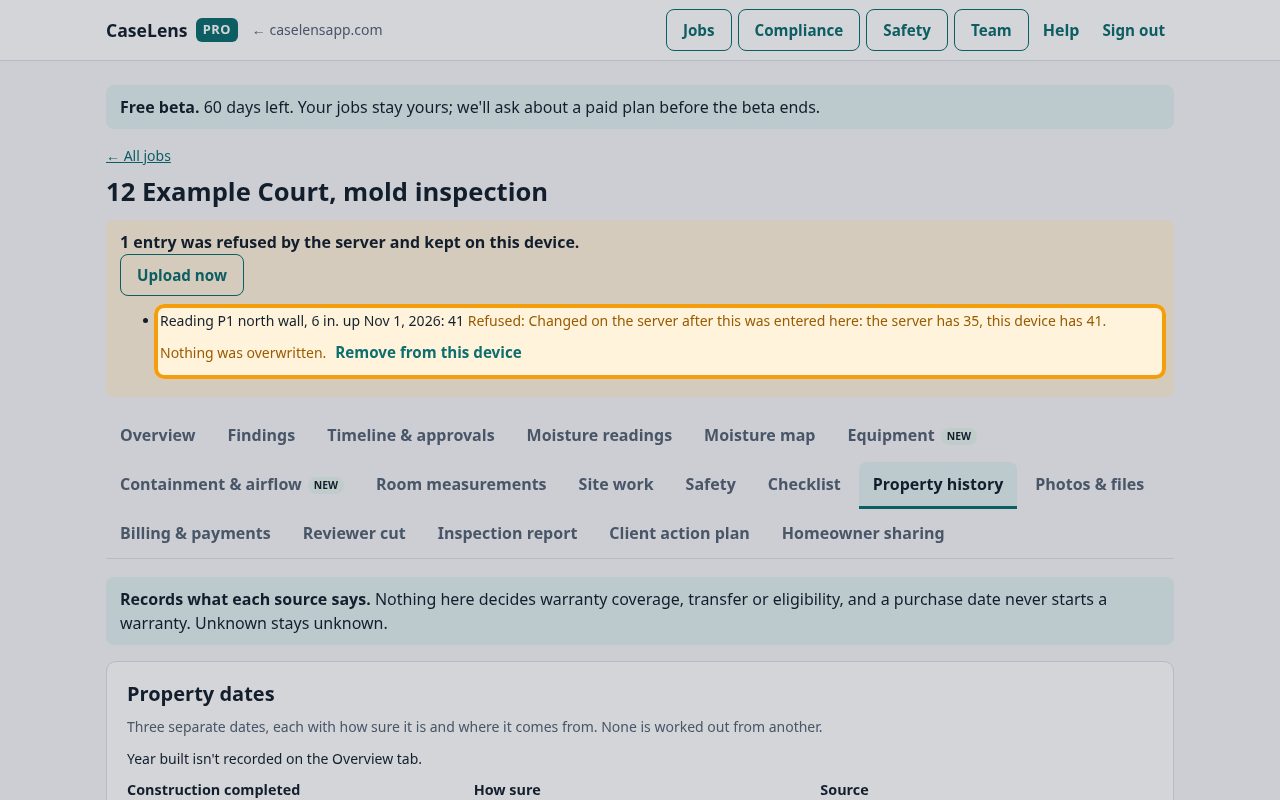
If the server refuses an entry, it stays on this device under Refused, with the reason. Here the reading was changed by someone else while you were offline, so CaseLens kept both values instead of overwriting theirs (server has 35, this device has 41). Decide which is right, enter the correct reading again if needed, then click Remove from this device and click again.
7Confirm everything arrived
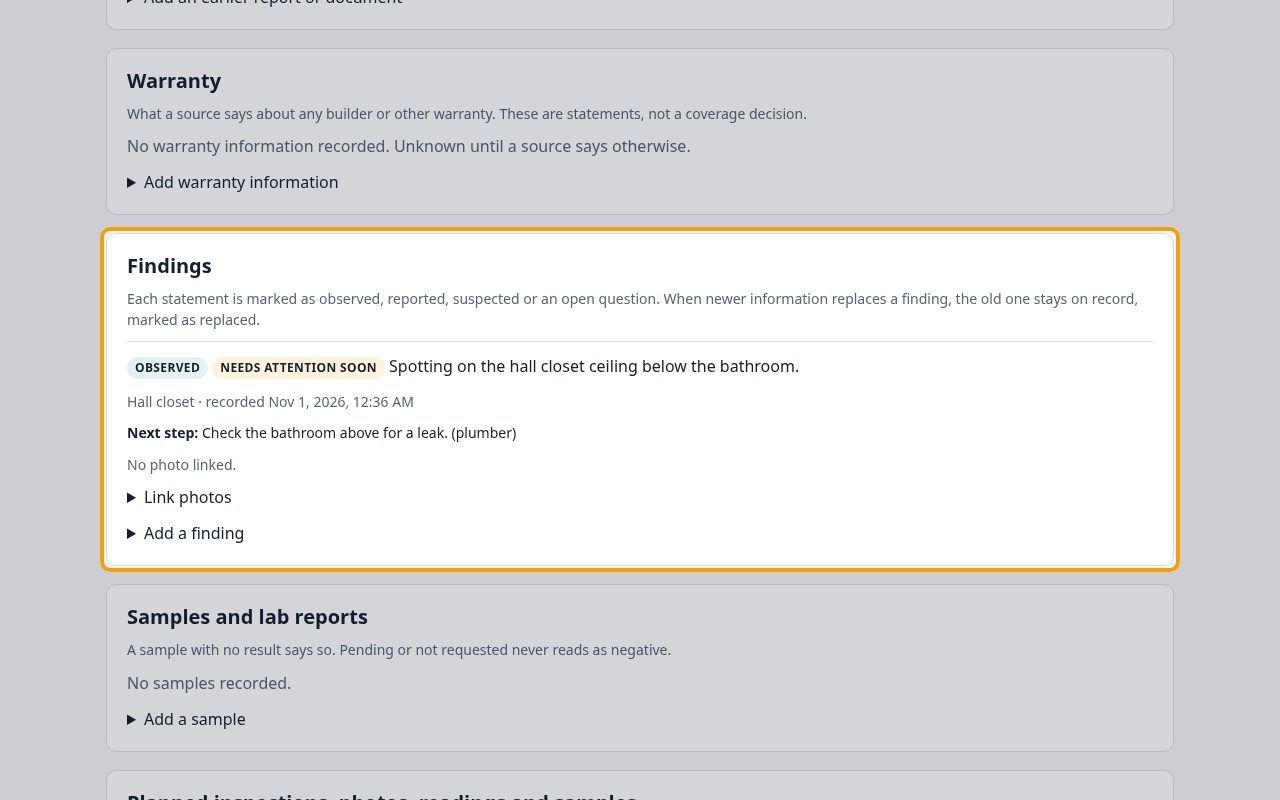
When nothing is waiting, the banner is gone and the on this device labels are gone from the entries. Reload the job and check that your findings and photos are there. Do this before you sign out, clear the browser or issue a report: the report can't be issued while this device still has entries waiting.
If something goes wrong
- "No connection. Nothing was changed; try again when you're back online."
- You tried to change or delete something that already exists, which needs a connection. New photos, findings, samples and readings can still be added.
- The job isn't there with no signal
- Only jobs you opened on this device while connected, with Keep me signed in on this device ticked, are saved. Connect, open the job, then go.
- "The oldest entry has waited … days"
- Connect and upload soon. A browser can clear data for a site that hasn't been used for a while. On an iPhone, adding CaseLens Pro to the home screen helps keep it.
- I signed out with entries waiting
- They stay on this device for your account and upload the next time you sign in here with the same account. Nobody else signing in on this device can see or send them.