Keep licenses, insurance and safety programs current
Record your licenses, certifications and insurance with their expiry dates, and your written safety programs with their review dates, so CaseLens warns you before anything lapses. About 10 minutes.
Watch it (2:19, no sound)
- Your licenses, certifications and insurance certificates, with their numbers and effective and expiry dates (a PDF or photo of each, if you have one).
- Your written safety programs (hazard communication, respiratory protection, emergency action plan and so on) and fit-test and training records.
Step by step
1Open Compliance
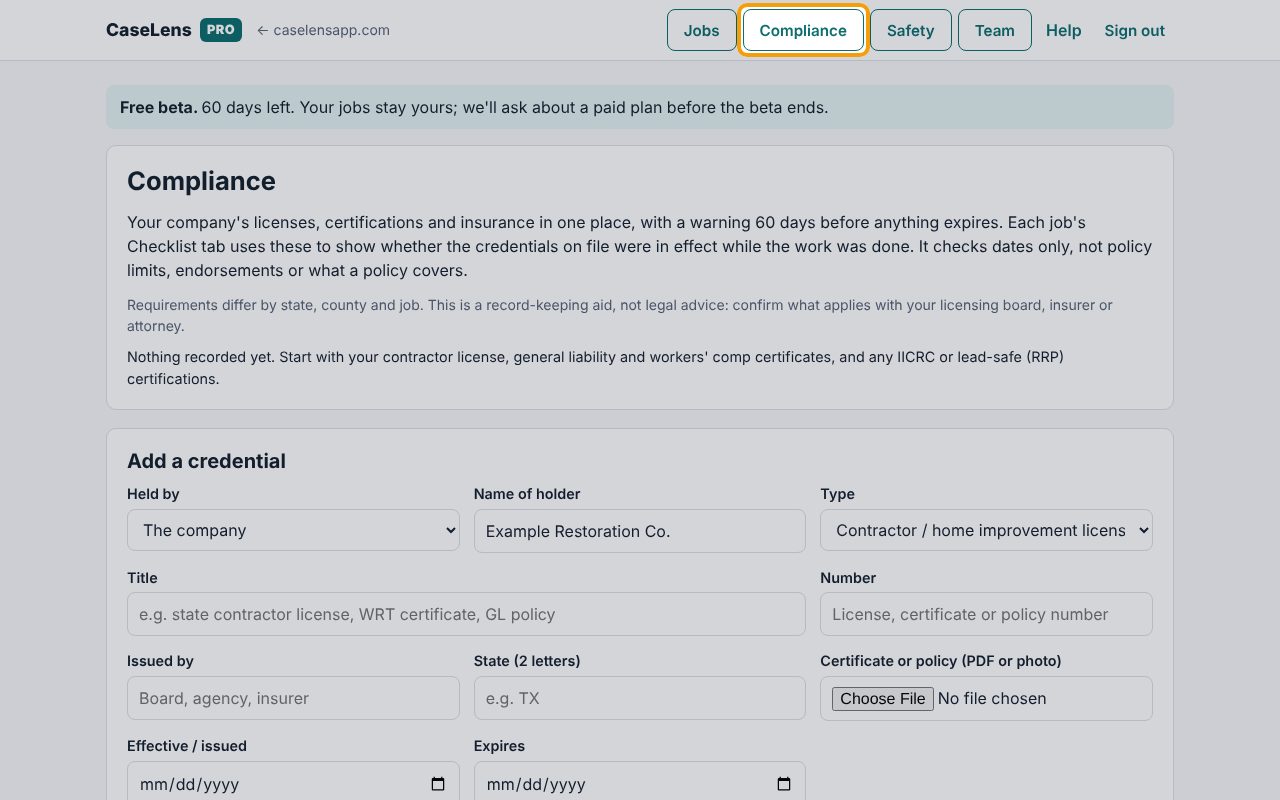
Click Compliance in the menu at the top. It keeps your company's licenses, certifications and insurance in one place and warns you 60 days before anything expires. It checks dates only, not policy limits or what a policy covers, and it isn't legal advice.
2Add a credential
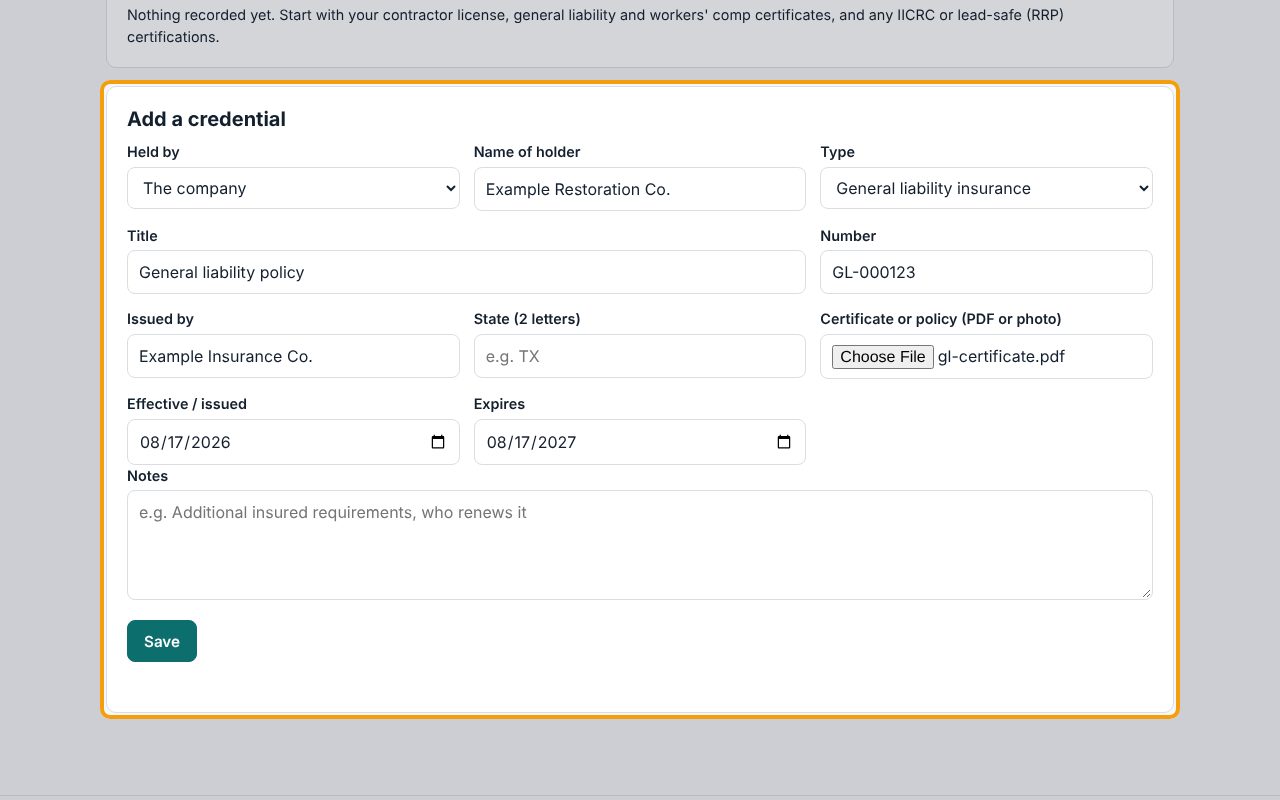
Under Add a credential: Held by is The company or A person on the team. Choose the Type (license, IICRC certification, general liability, workers' comp…), give it a Title, and fill in Number, Issued by, State (2 letters) for a license, Effective / issued and Expires. Attach the certificate under Certificate or policy (PDF or photo). Click Save.
3Check the warnings
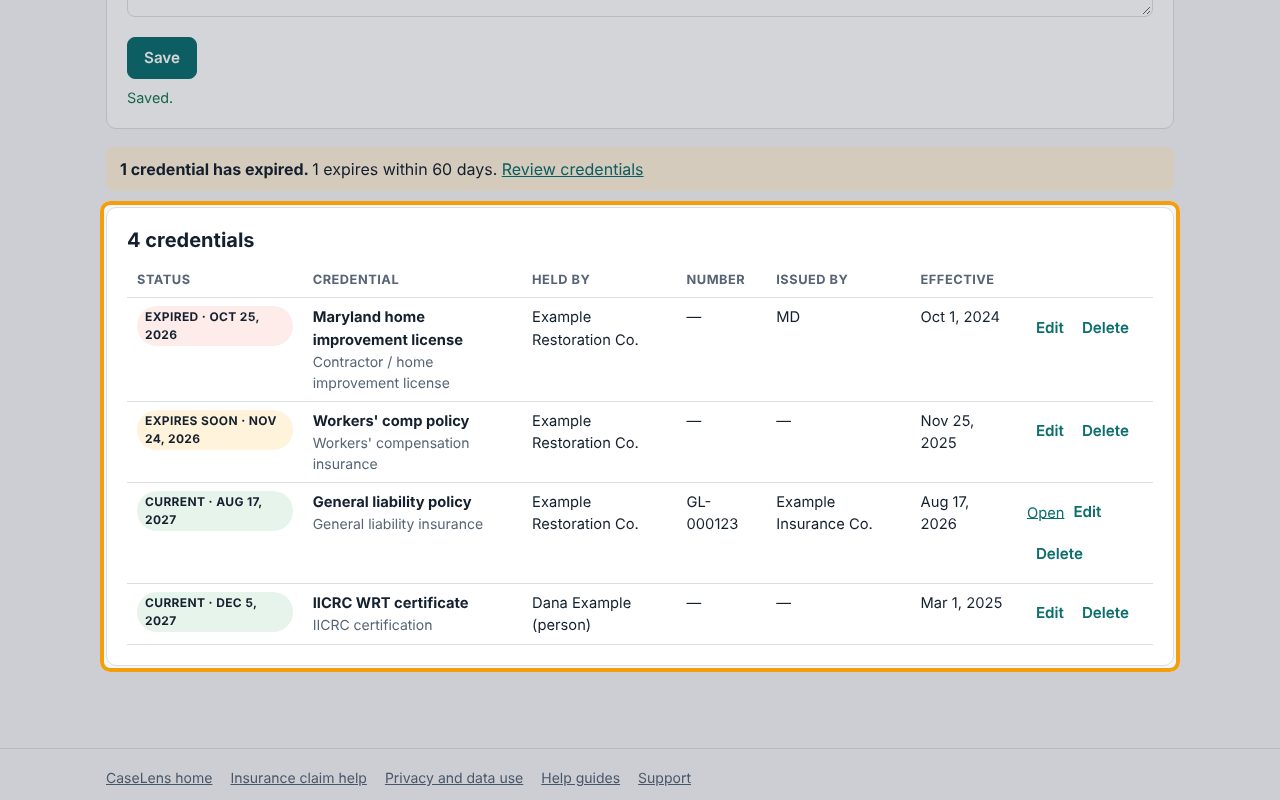
Add each credential the same way. Here the workers' comp policy and the Maryland home improvement license were added for the company, and Dana Example's IICRC WRT certificate with Held by set to A person on the team, since a certificate belongs to the person who earned it. Each credential gets a status: Expired, Expires soon (within 60 days), Current or No expiry date. The banner above the list counts what has expired and what expires soon. Each job's Checklist tab and the carrier report use these to show your coverage was in effect while the work was done.
4Renew it when it's renewed
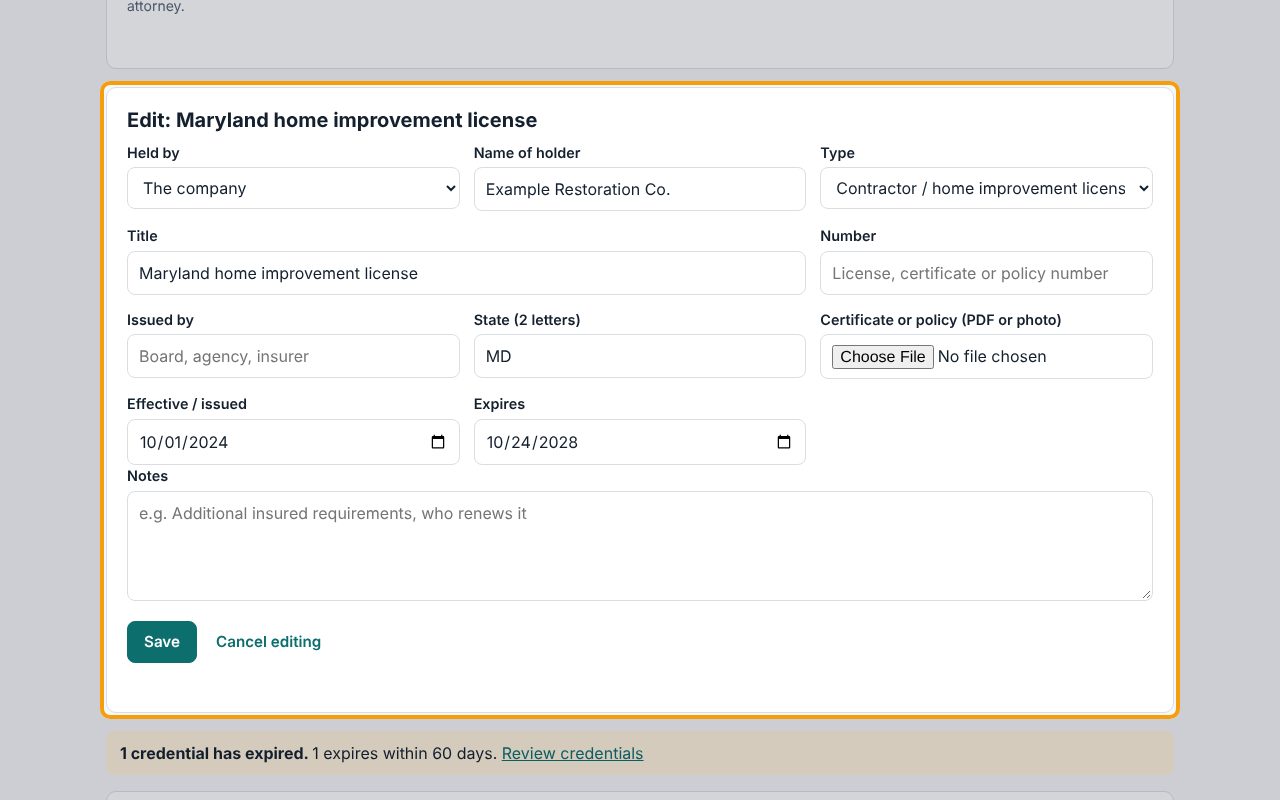
When a license or policy is renewed, click Edit on its row. The form at the top changes to Edit: and the credential's name. Change Expires (and attach the new certificate if you have it), then click Save. Don't add it again as a new credential.
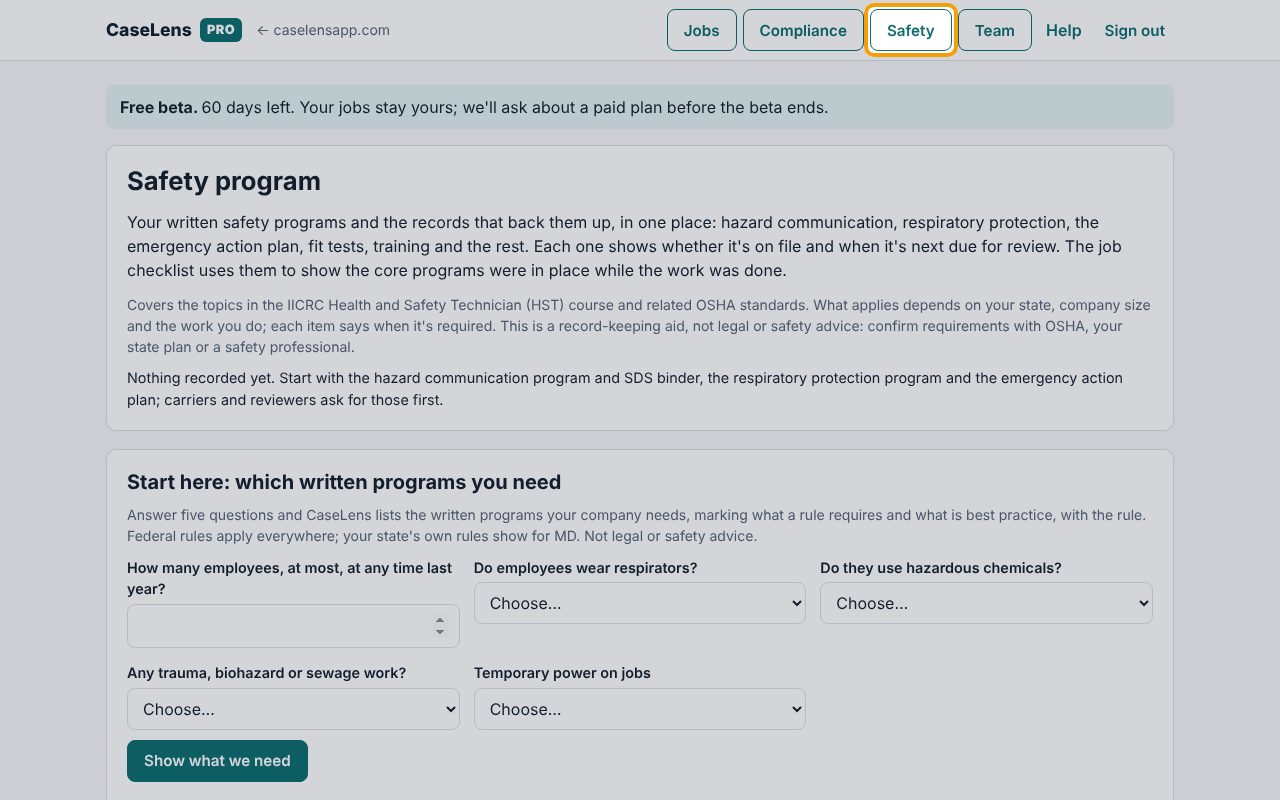
5Open Safety
Click Safety in the top menu. Below the Safety program box, under Written programs, Records and Job-site procedures, every document a restoration company usually keeps is listed with its status: Missing, Recommended, Not needed, On file, Current, Review due soon, Review overdue or Doesn't apply. Answer the five Start here questions first: they decide which documents your company needs, so Missing means required for you. It's a record-keeping aid, not legal or safety advice.
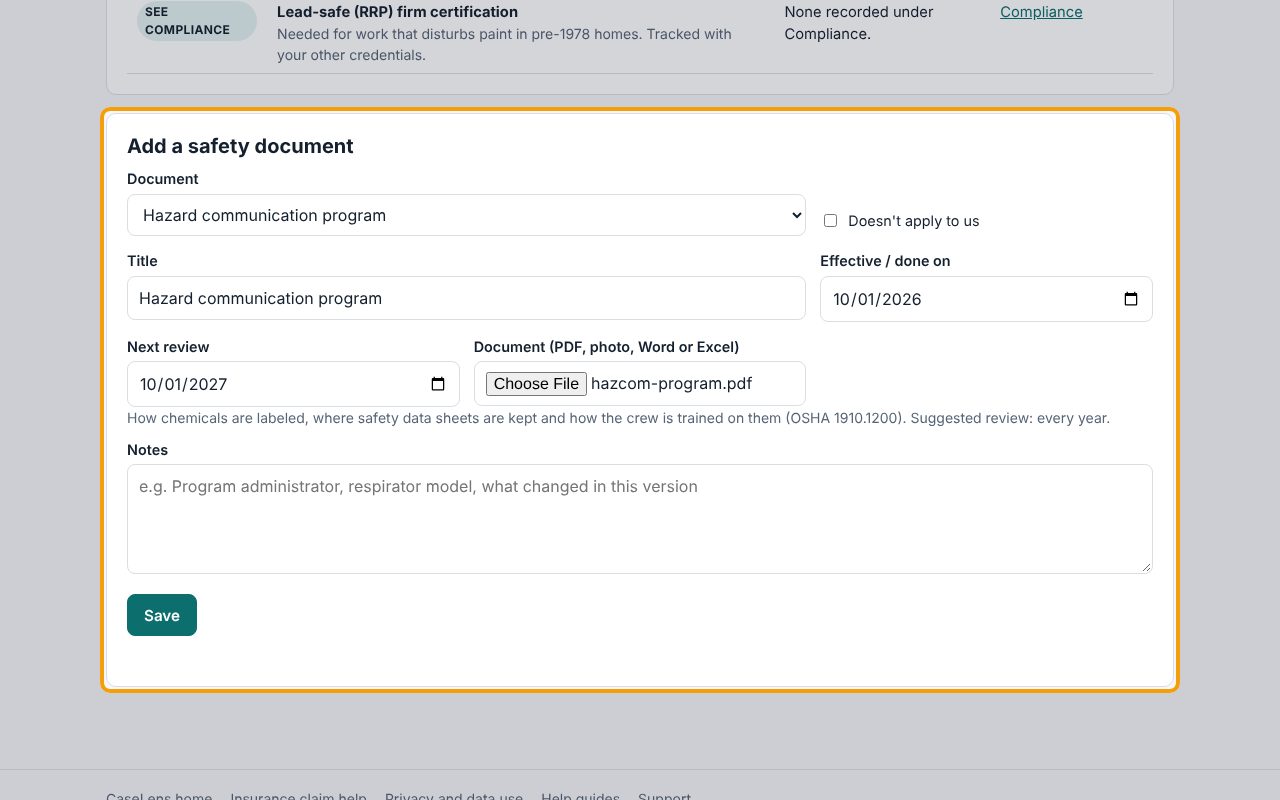
6Add a written program
To upload a program you already have, click Upload your own on its row, for example Hazard communication program. (To have CaseLens write one, click Write it instead.) The form below fills in the Document and Title. Enter Effective / done on; Next review is suggested for you (a year later for most programs). Attach the program under Document (PDF, photo, Word or Excel) and click Save.
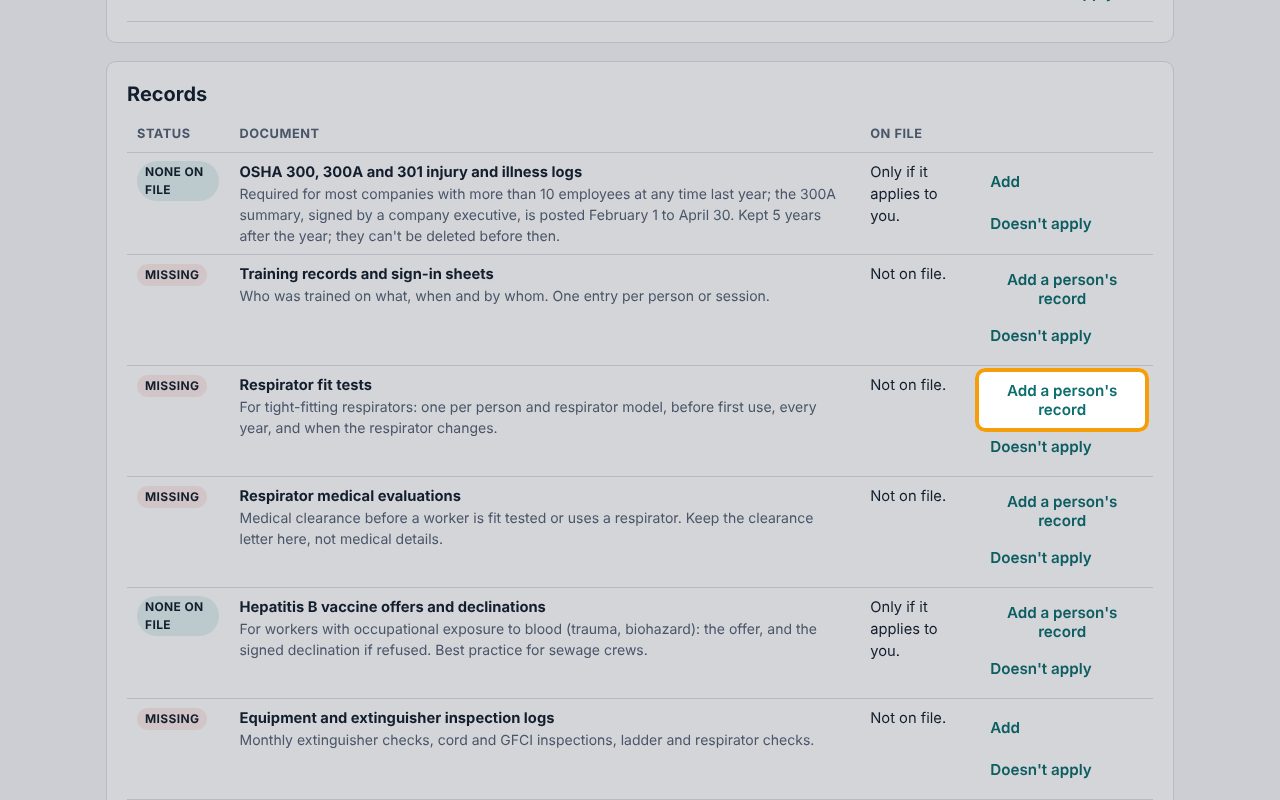
7Start a record for a person
Fit tests, training and medical evaluations are kept per person. Under Records, find the row (for example Respirator fit tests) and click Add a person's record.
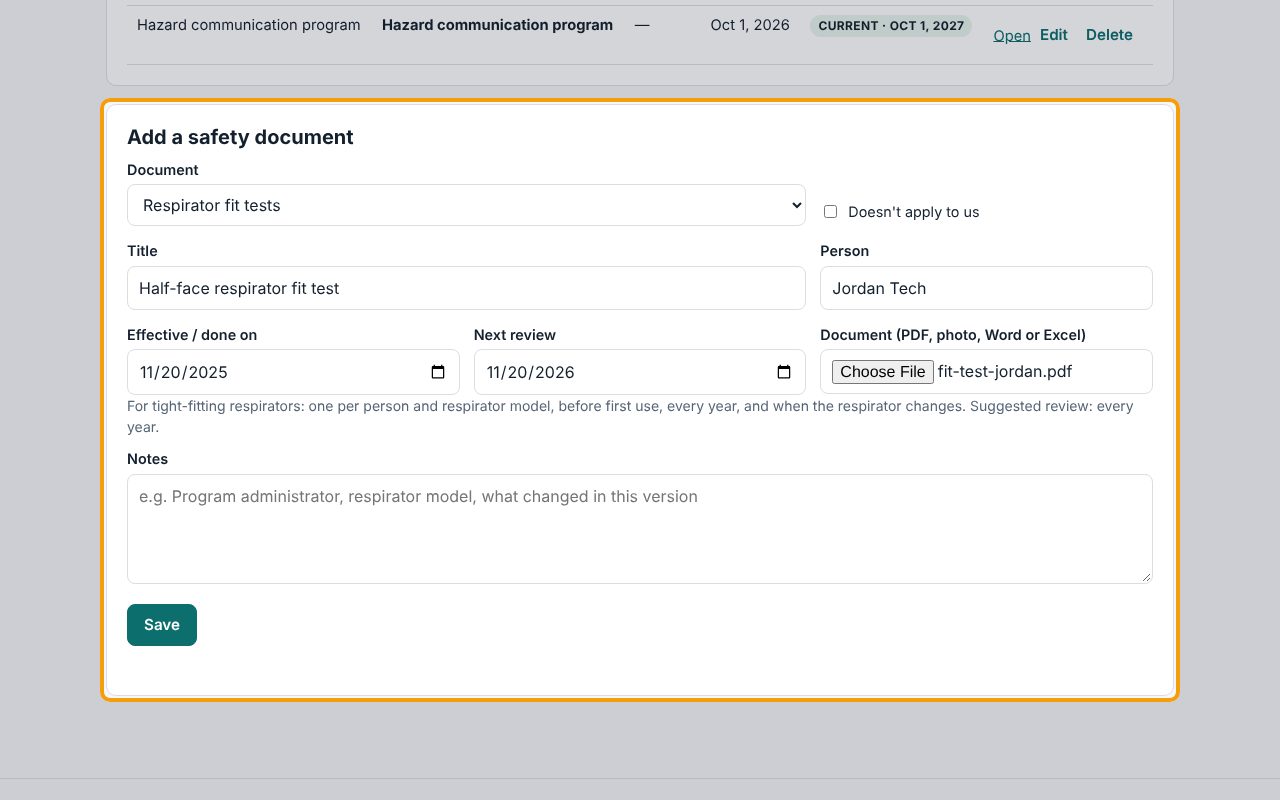
8Add a record for a person
The form below opens for that record. Type the worker's name under Person, the date under Effective / done on, attach the record and click Save. Fit tests are due again a year later, and the row shows Review due soon as that date gets close.
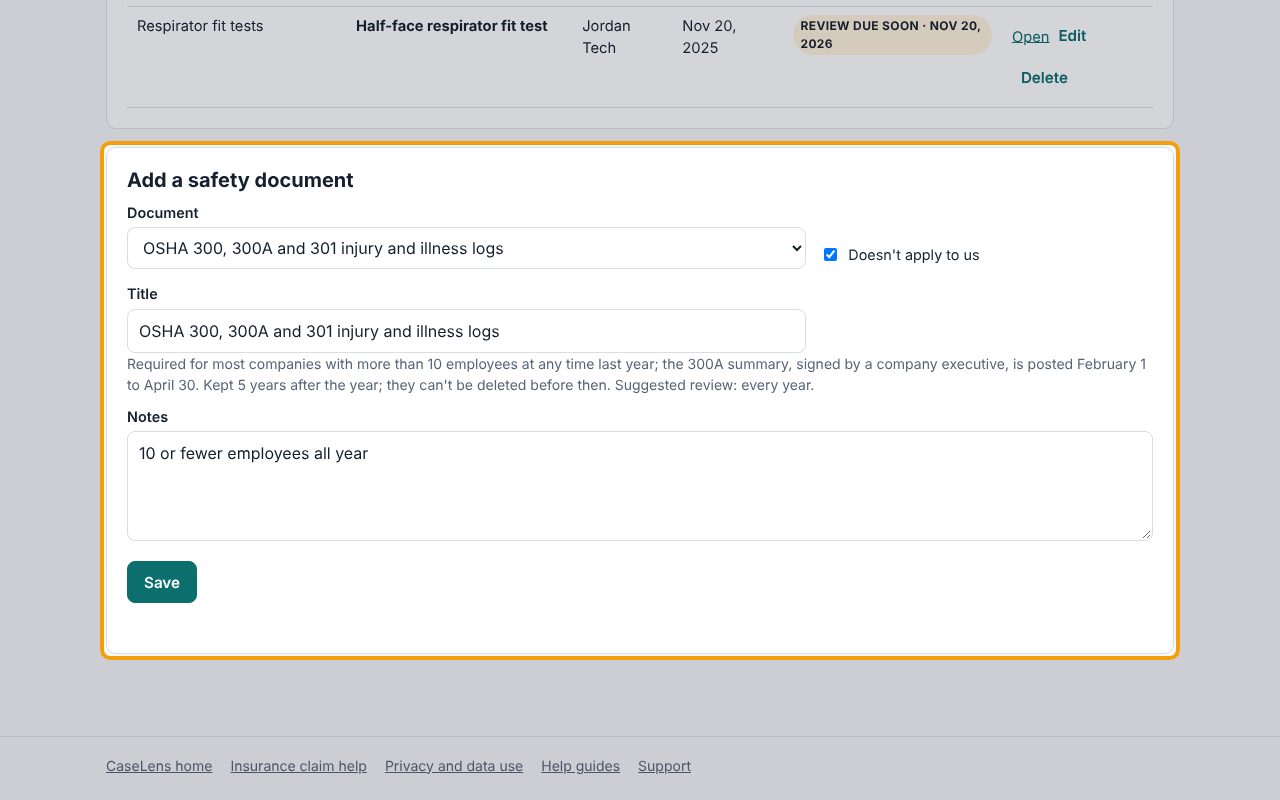
9Mark what doesn't apply
If a document doesn't apply to your company, click Doesn't apply on its row. Doesn't apply to us is ticked; write why in Notes (for example "10 or fewer employees all year") and click Save.
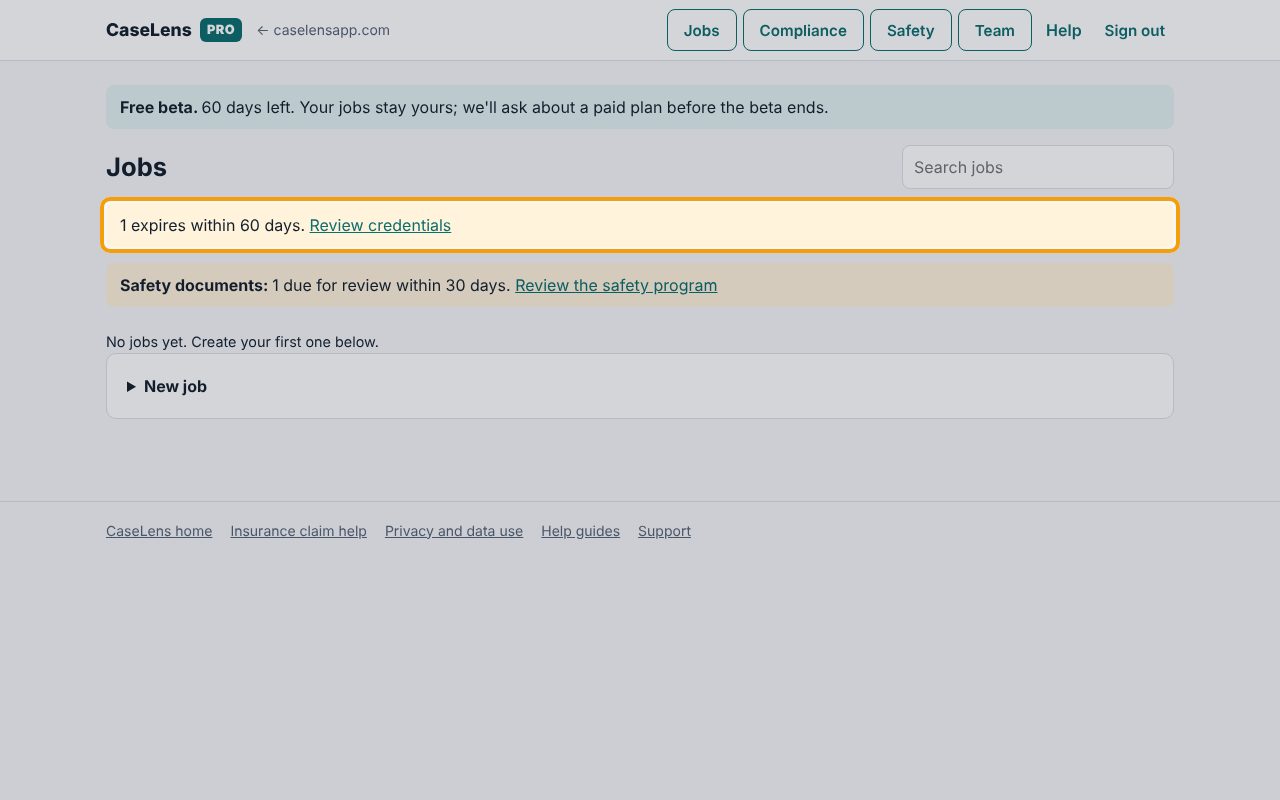
10Warnings show on your Jobs page
On Jobs, banners warn you about any credential that has expired or expires within 60 days, and any safety document overdue or due for review within 30 days. Click Review credentials or Review the safety program to fix them.
If something goes wrong
- "It can't expire before it takes effect."
- Check the Effective / issued and Expires dates; Expires must be later.
- "Use the 2-letter state code, like MD."
- Type the state as two letters in State (2 letters), or leave it empty for insurance.
- "Name the person this record is for."
- Per-person records (fit tests, training, medical evaluations, hepatitis B offers) need the worker's name under Person.
- "Say why it doesn't apply, in the notes."
- When Doesn't apply to us is ticked, write the reason in Notes before you click Save.