Log site visits, labor and contents
Record who was on site, when, where and what they did, see the labor hours add up, and log contents moved or stored. About 5 minutes.
Watch it (1:27, no sound)
- A job already created in CaseLens Pro.
- For each visit: when the crew arrived and left, who was there, the rooms and the work done.
Step by step
1Open the Site work tab
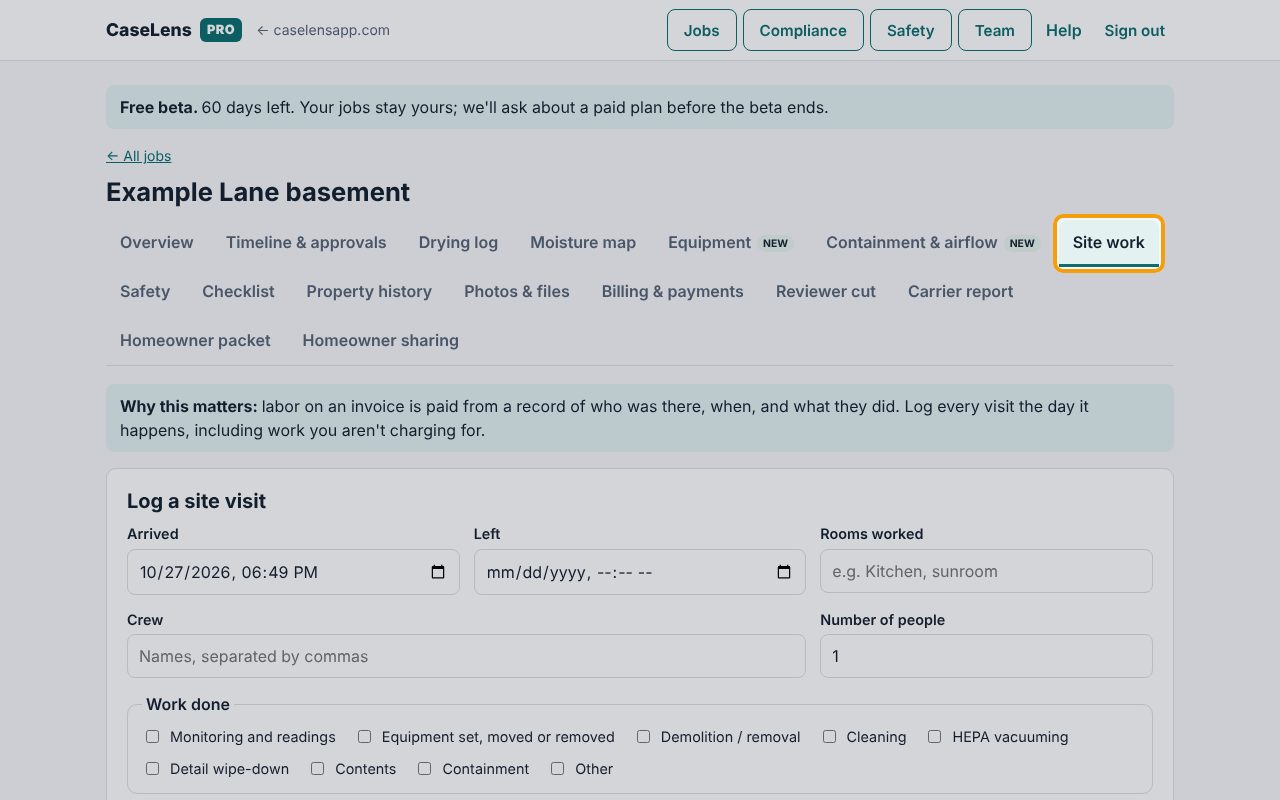
Open the job and click Site work. Log a site visit is at the top. Log every visit the day it happens, including work you aren't charging for.
2Enter who was there and when
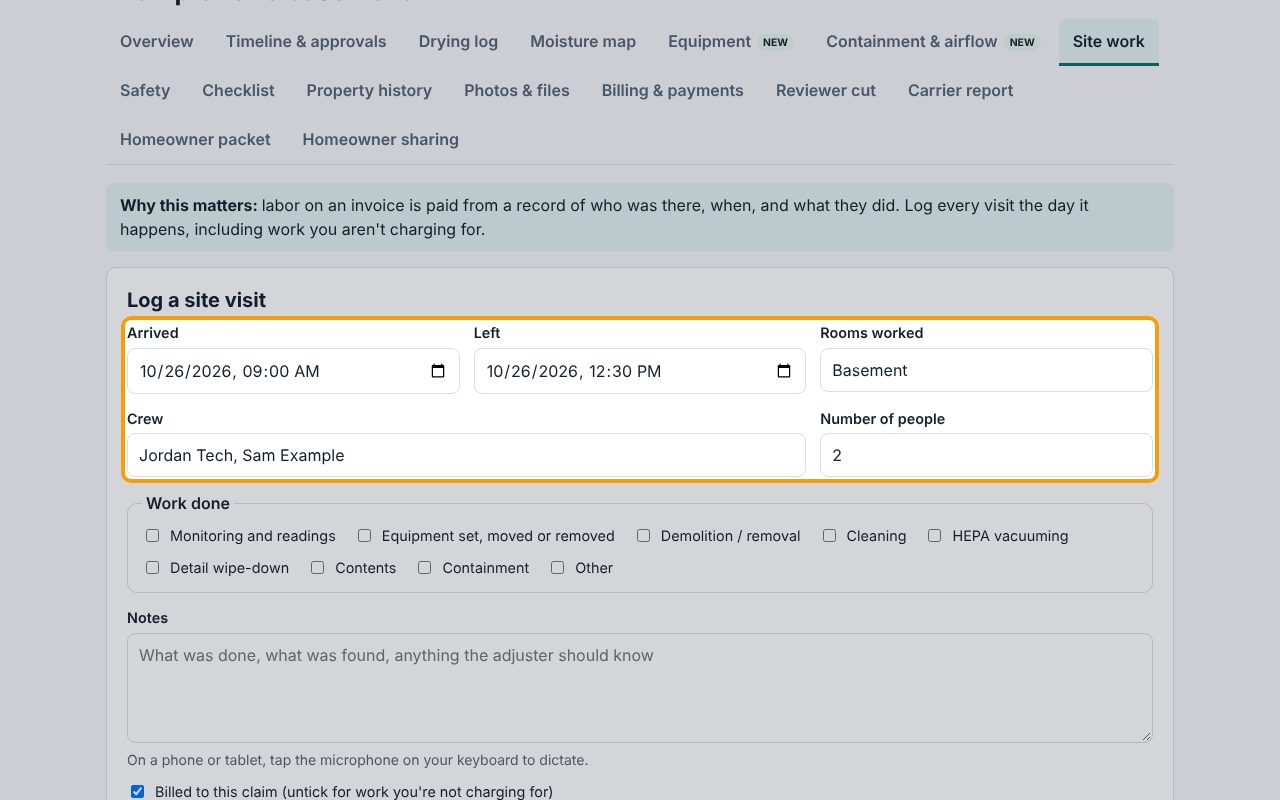
Set Arrived and Left. Under Crew, type the names separated by commas: Number of people counts them for you (change it if you'd rather list a crew name, like "Sam's crew"). Fill in Rooms worked.
3Tick the work done
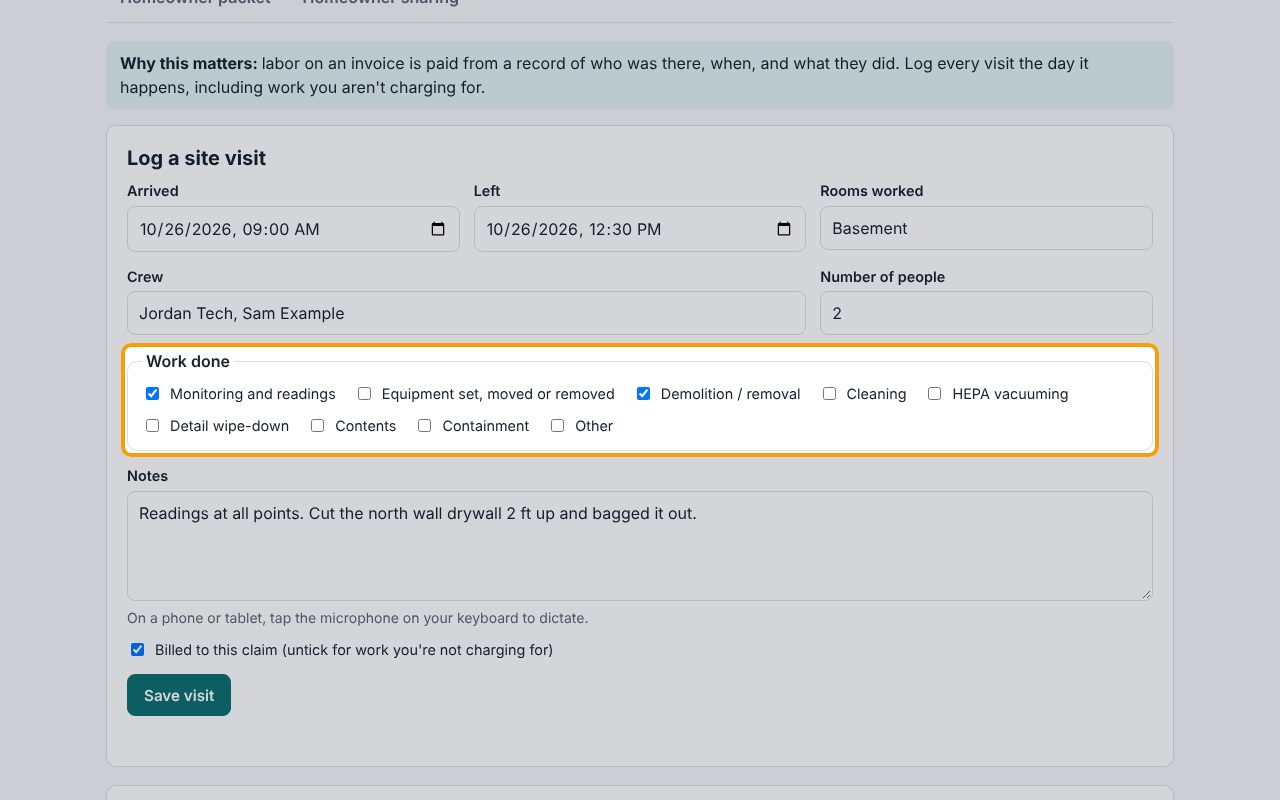
Under Work done, tick everything the crew did, and write the details under Notes: what was done, what you found, anything the adjuster should know.
4Save the visit
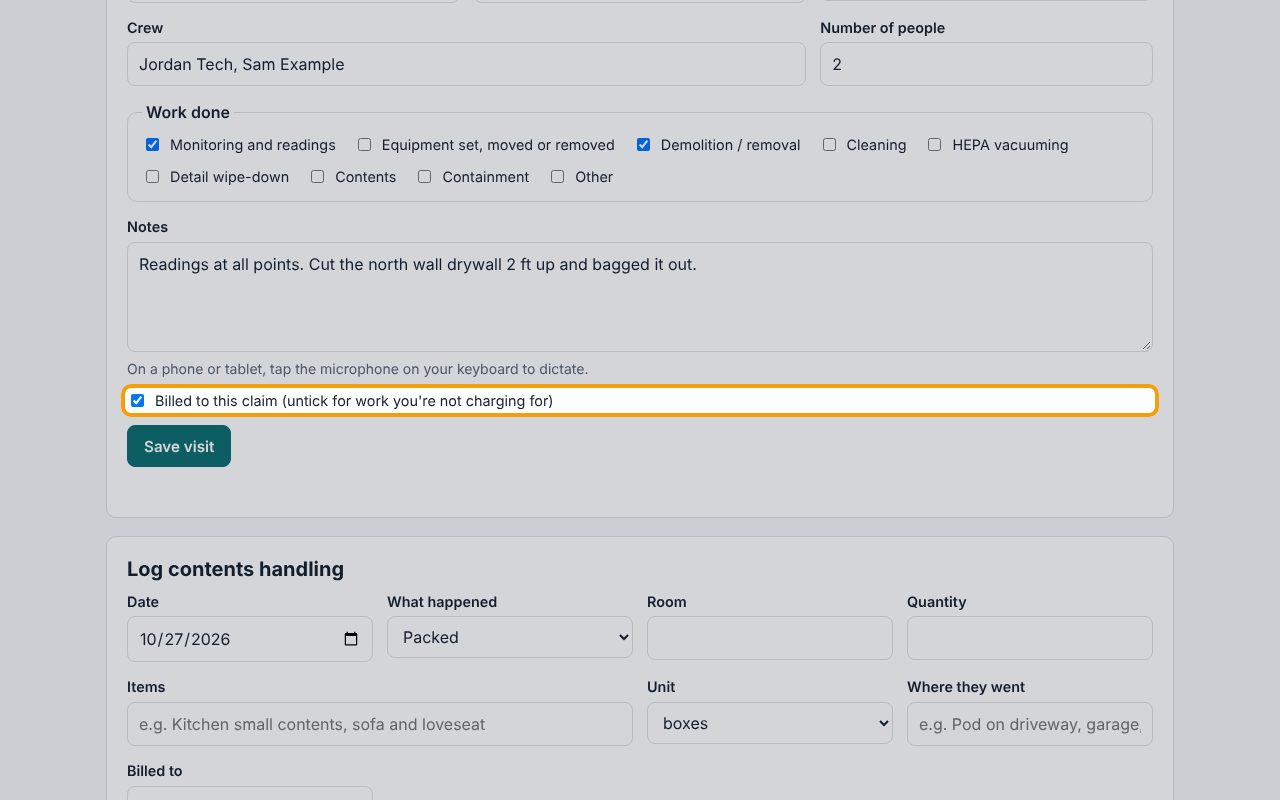
Leave Billed to this claim ticked for work you're charging. Untick it for work you aren't charging, so it's still on the record. Click Save visit.
5Read the labor totals
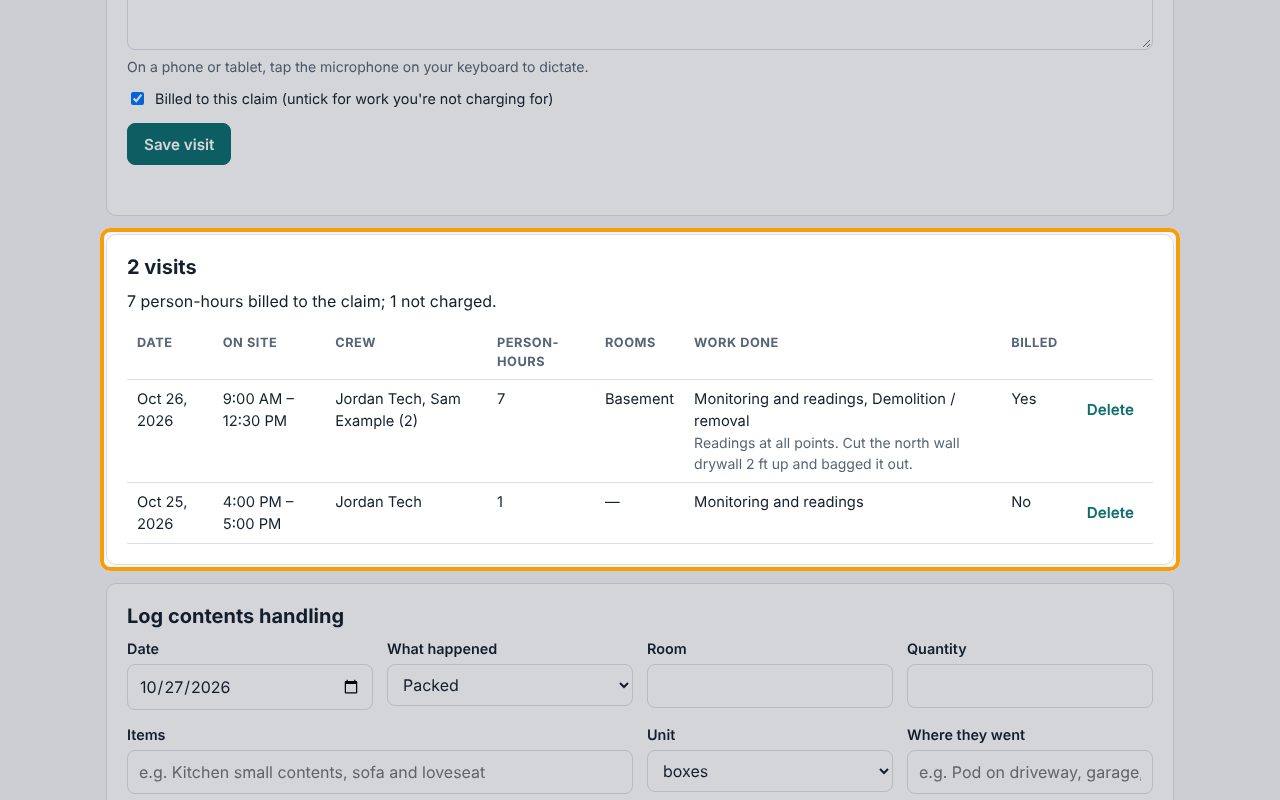
Each visit is listed with its person-hours: hours on site times the number of people (3.5 hours × 2 people = 7). The line above the list totals what's billed to the claim and what's not charged: the second visit here was saved with Billed to this claim unticked.
6Log contents moved or stored
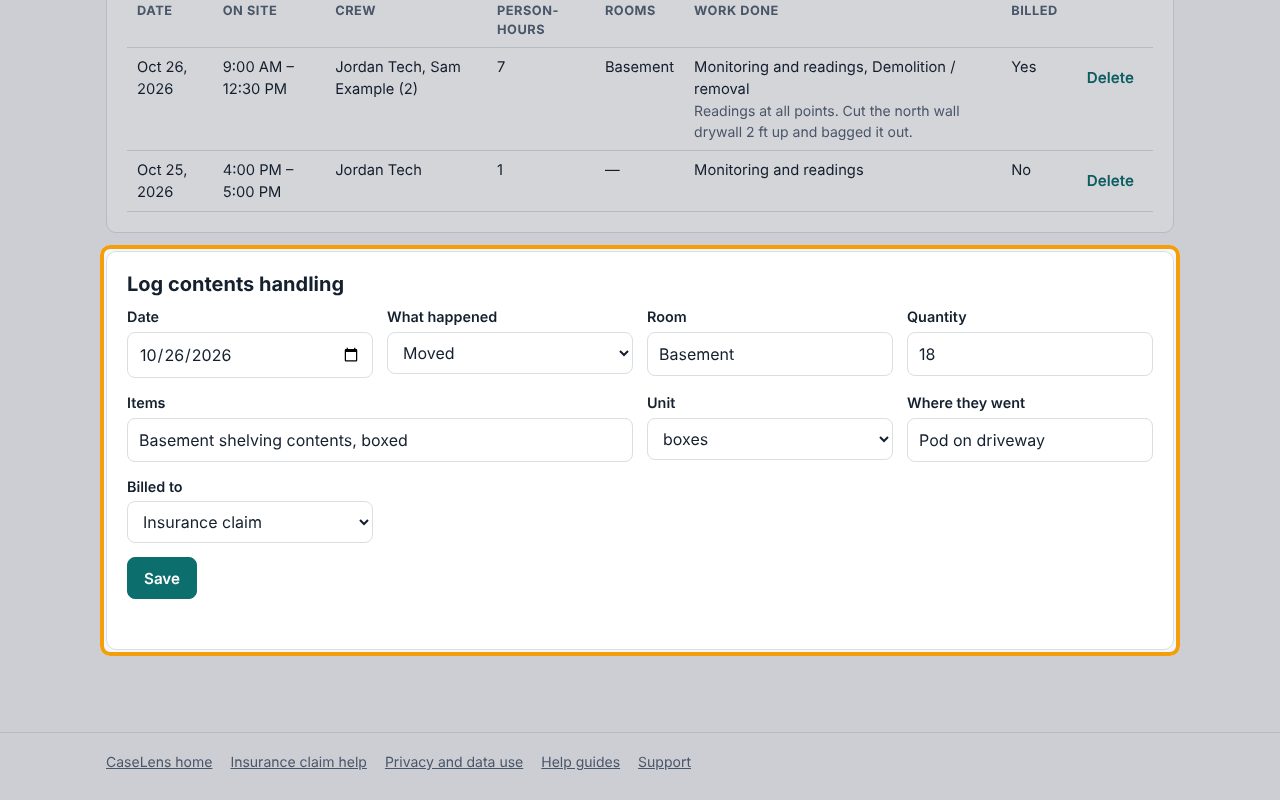
Under Log contents handling, set the Date, choose What happened (Packed, Moved, Stored, Cleaned, Returned or Disposed of), and fill in Room, Quantity, Items, Unit, Where they went and Billed to. Click Save.
7The contents log
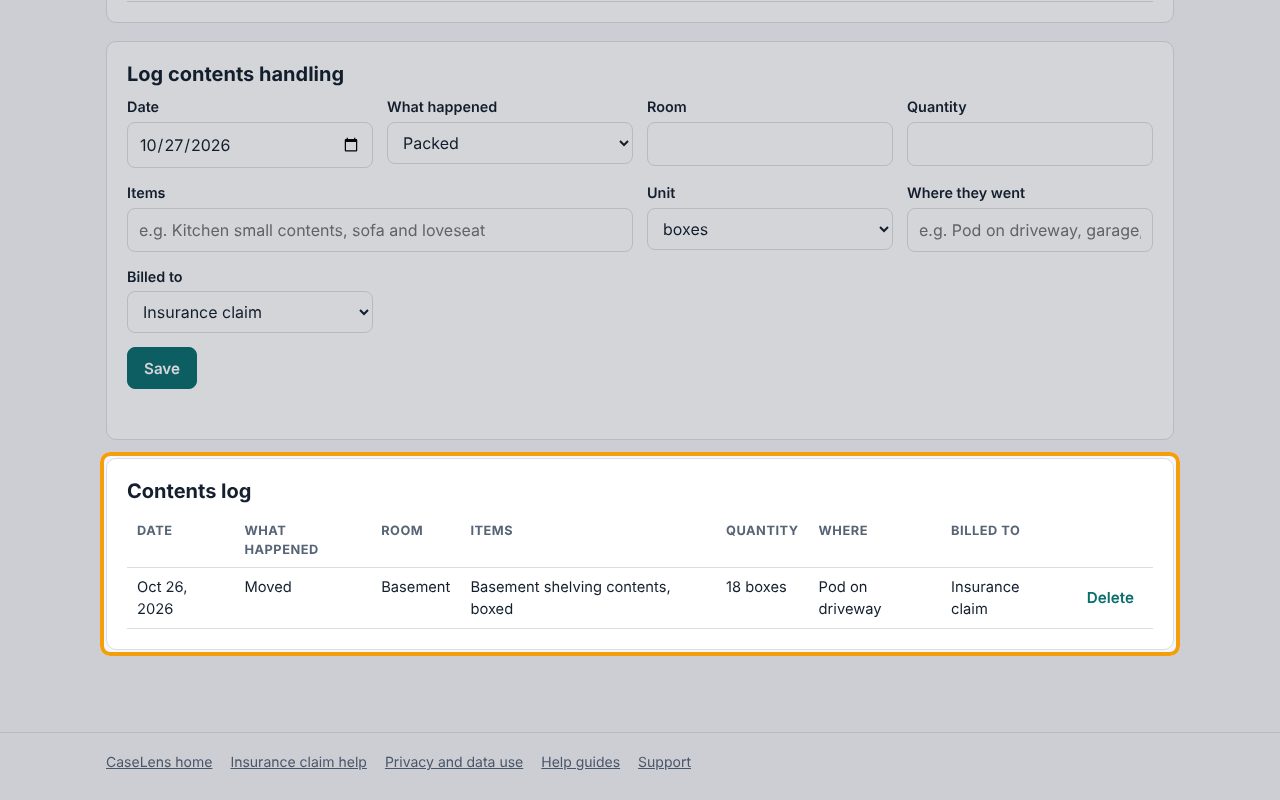
Each entry is listed in the Contents log. Log each step as it happens (packed, moved, stored, returned), so you can show where the customer's belongings were at any time.
If something goes wrong
- "They can't leave before they arrive."
- Left is earlier than Arrived. Check the dates as well as the times.
- "A visit can't be longer than 24 hours. Log separate days separately."
- Log each day as its own visit.
- "That time is in the future."
- Visits are logged after they happen. Set Arrived and Left to the real times.
- A visit was logged by mistake
- Click Delete on its row, then Click again.