Track billing, payments and what's owed
Record how the job is paid, each invoice and payment, send a balance reminder and keep an eye on lien dates. About 10 minutes.
Watch it (2:24, no sound)
- The job's contract or authorization amount, and each invoice: its date, amount, who it's billed to and the due date you agreed.
- Each payment: the date, amount, who paid, how (check, card, insurance check…) and the check or reference number.
- Your role on the job (direct contractor or subcontractor) and the last day of work, for lien reminders.
Step by step
1Open Billing & payments
Open the job and click the Billing & payments tab. The four boxes at the top total the contract, what's invoiced, what's unpaid and anything received but not applied to an invoice. They're all $0.00 until you add entries below.
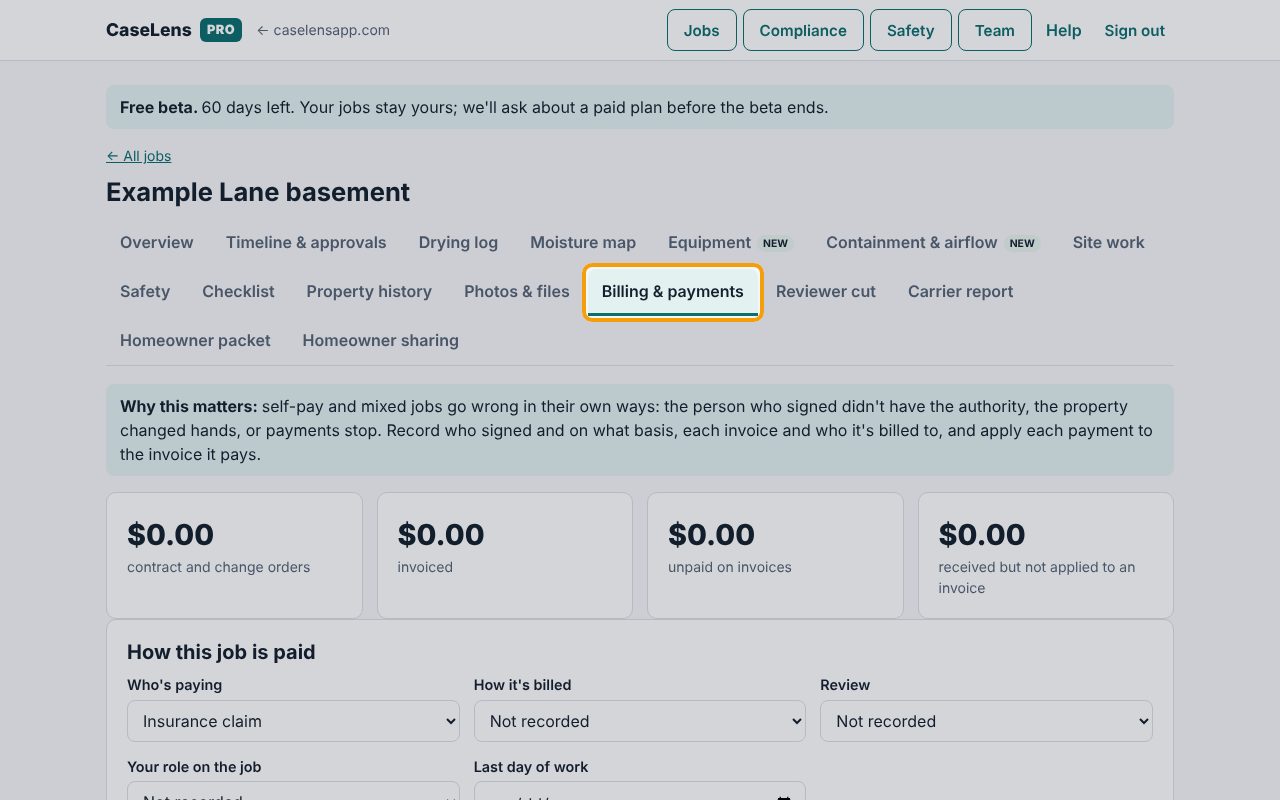
2Say how the job is paid
Under How this job is paid, check Who's paying (it comes from the job), then choose How it's billed, the Review status, Your role on the job and the Last day of work. Click Save. Your role and the last day of work are what the lien reminders count from.
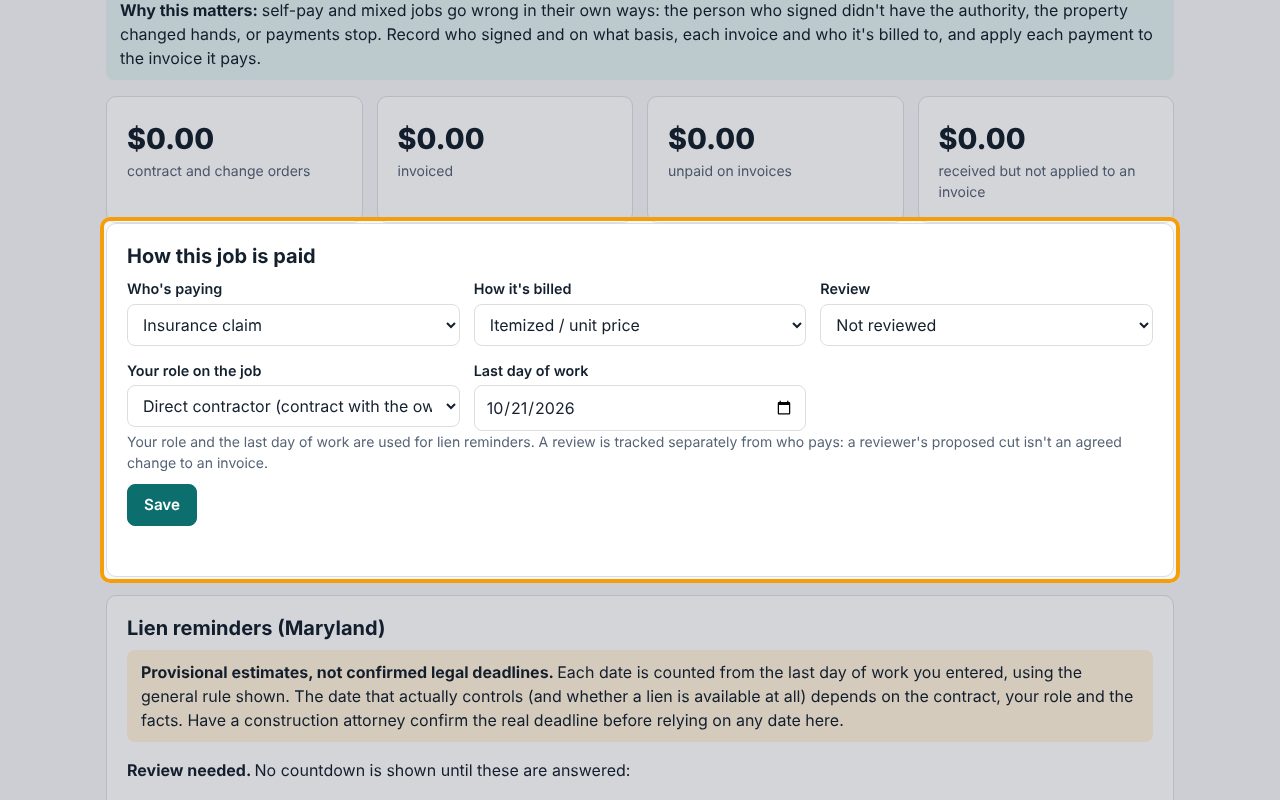
3Read the lien reminders, with their cautions
Lien reminders shows the estimated dates from the general rule for the property's state, counted from the last day of work. They are Provisional estimates, not confirmed legal deadlines: the date that really controls depends on the contract, your role and the facts. CaseLens doesn't send notices or file liens. If money is owed, talk to a construction attorney well before the earliest date.
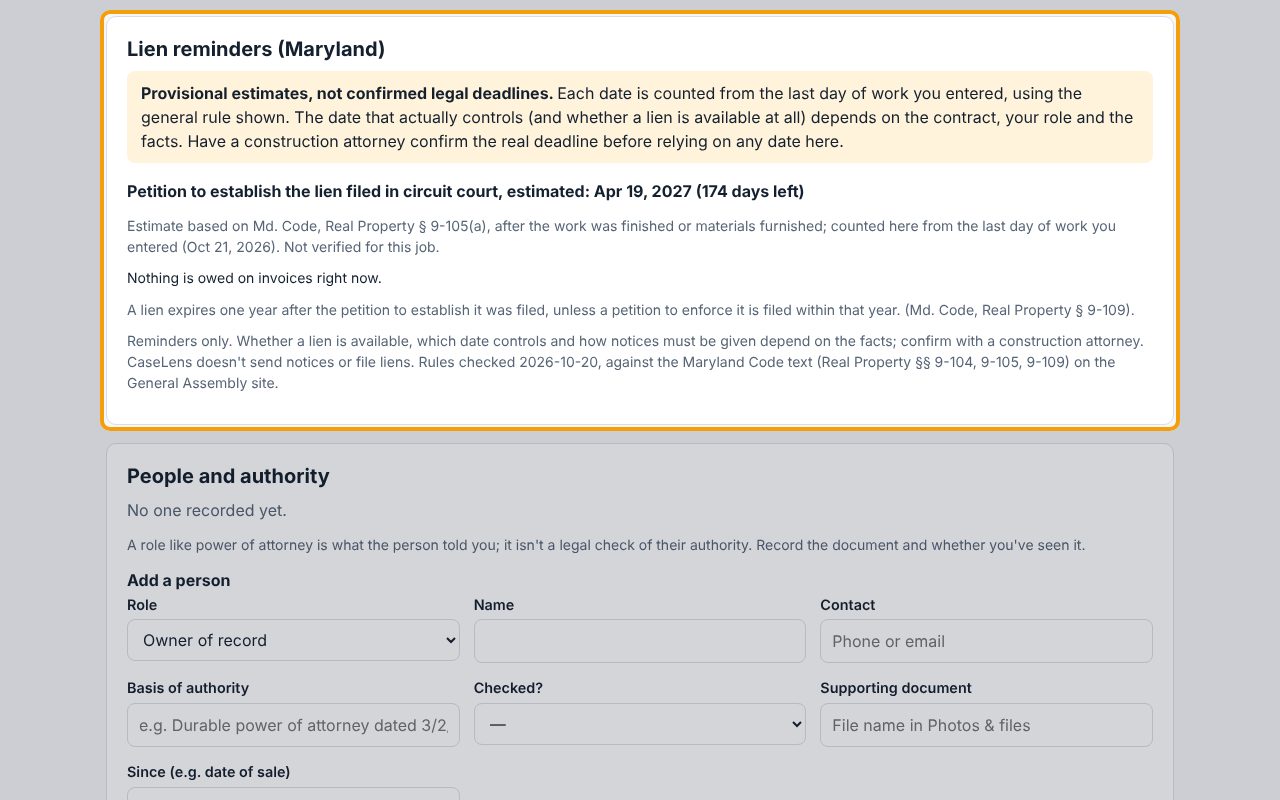
4Record who owns the property and who signed
Under People and authority, Add a person: choose the Role (for example Owner of record, Signed the contract or Power of attorney), type the Name and Contact, and click Add. If someone signed who isn't the owner, fill in Basis of authority and Checked?: CaseLens flags a signer with no basis recorded.
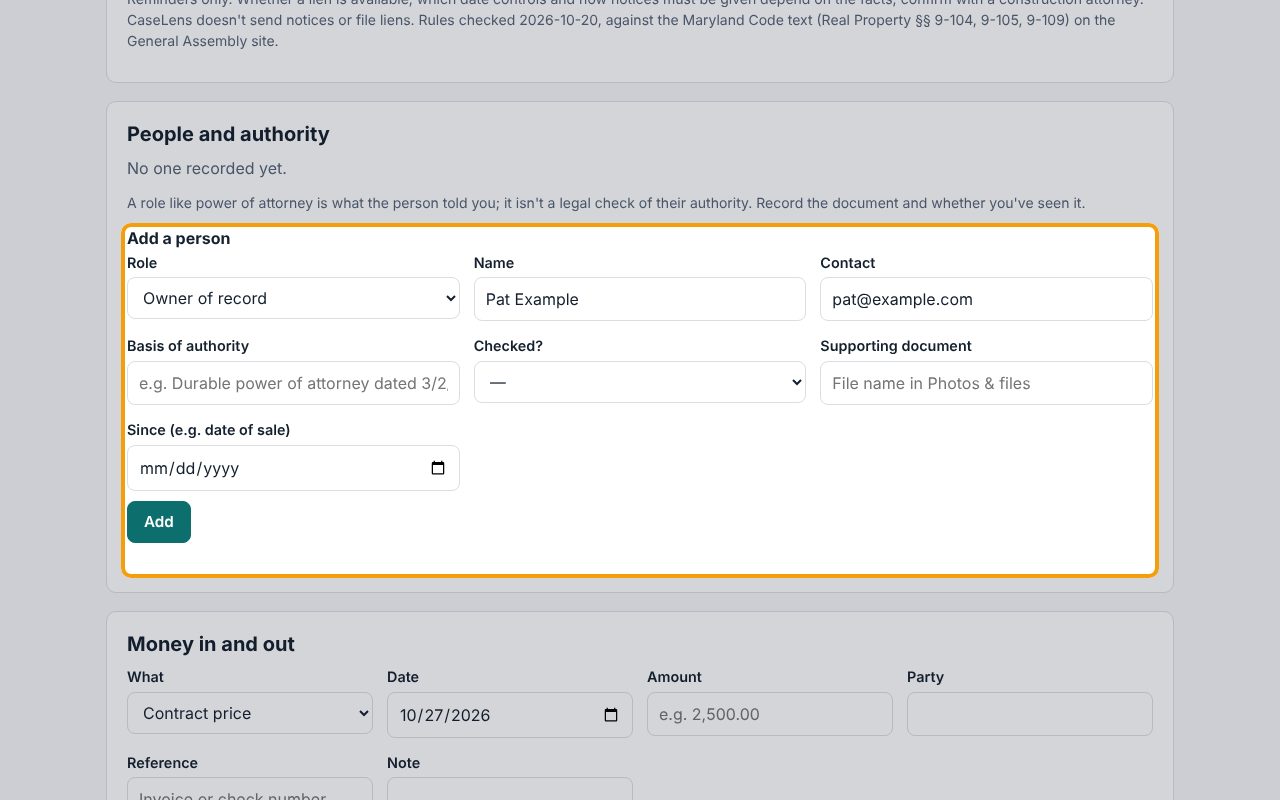
5Add each invoice
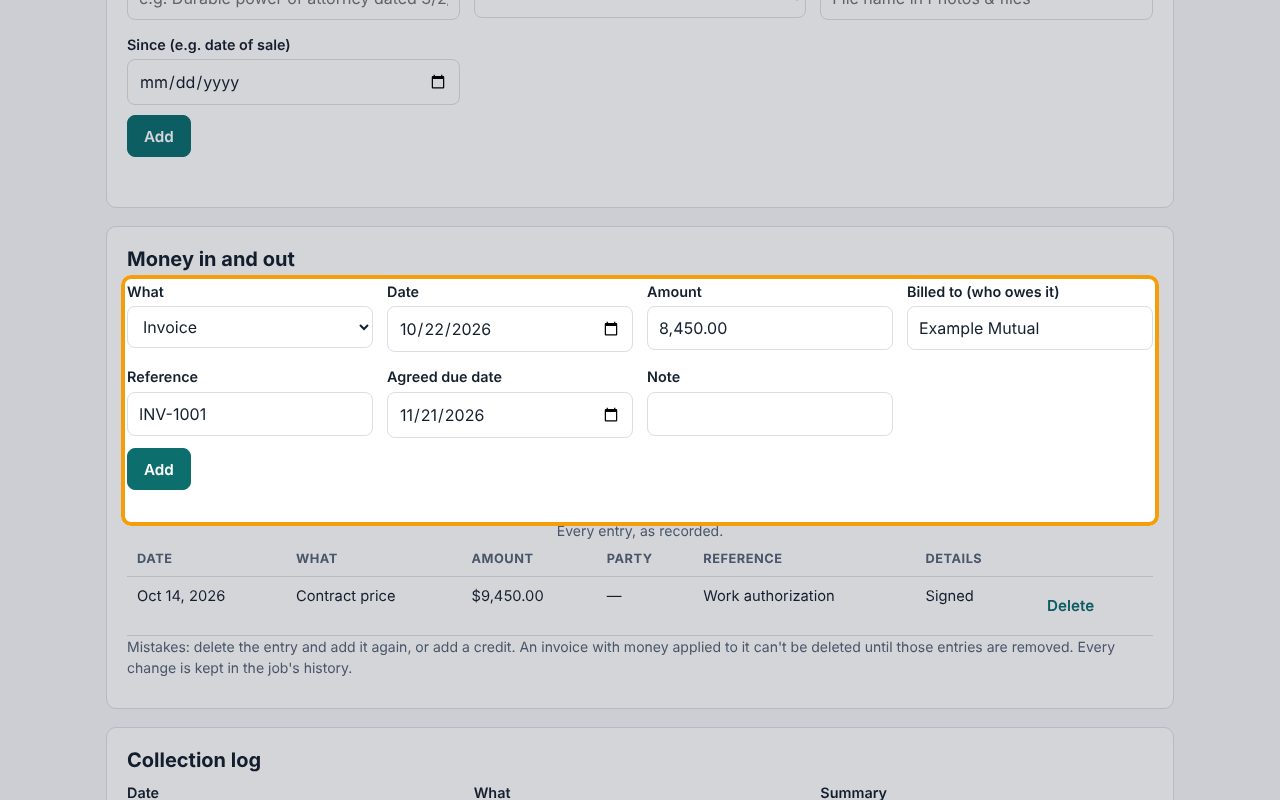
Under Money in and out, start with the contract price: choose Contract price under What, enter the Date and Amount, and tick Signed by the customer if it was signed (that box shows only for a contract price). Then for each invoice choose Invoice, enter the Date, Amount, Billed to (who owes it), the invoice number under Reference and the Agreed due date. Click Add.
6Record a payment and apply it
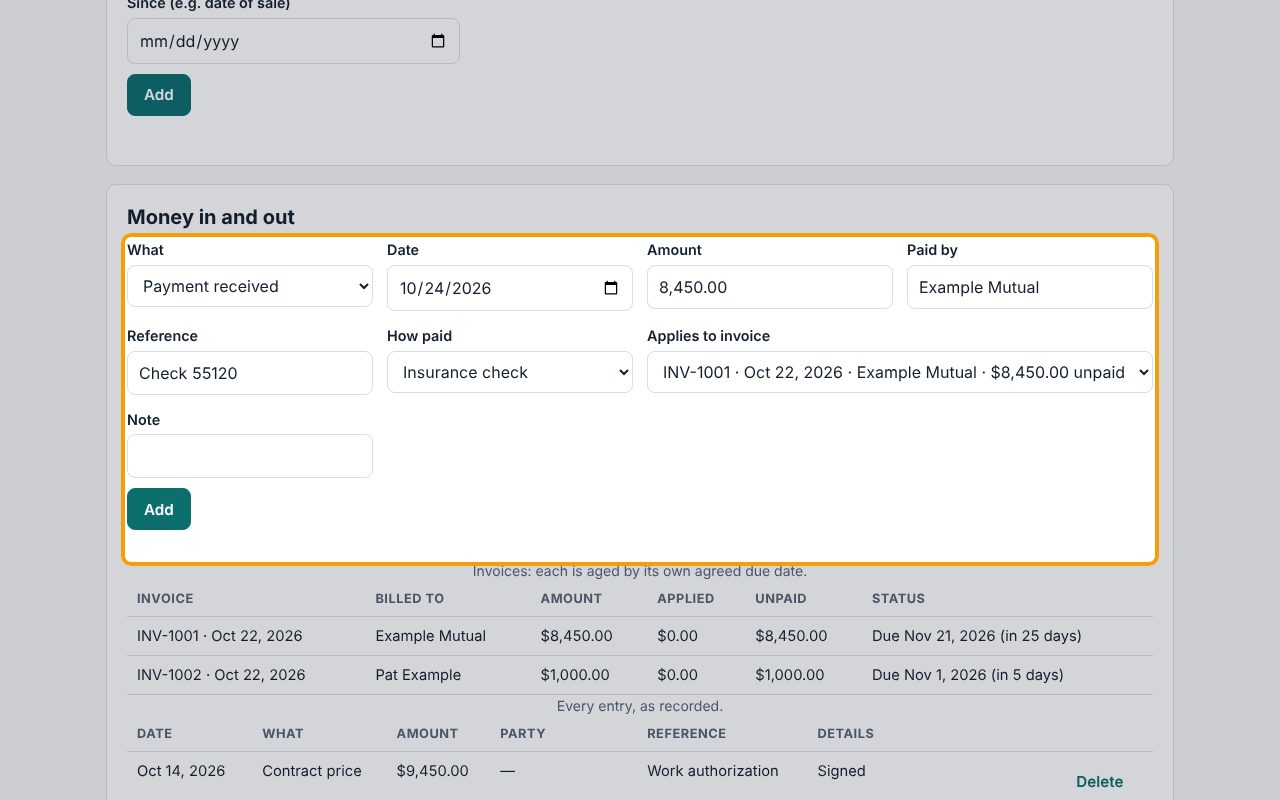
The homeowner's deductible is its own invoice, added the same way: here INV-1002 for $1,000.00, billed to Pat Example, with "Deductible" under Note. When a payment comes in, choose Payment received, enter the Date and Amount, who it was Paid by, How paid and the check number under Reference. Under Applies to invoice, pick the invoice it pays. Click Add. A payment left as Not applied yet (unapplied money) doesn't lower anyone's balance.
7See what's paid and what's owed
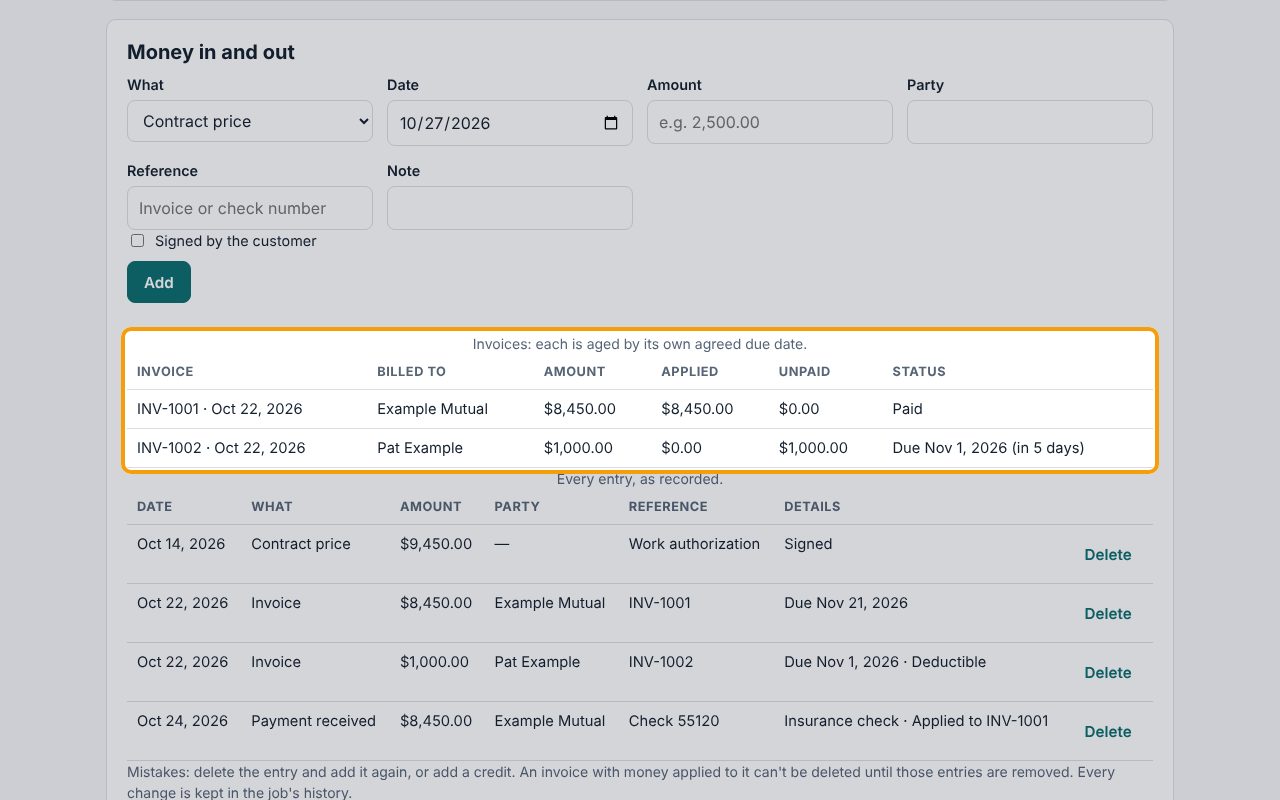
The invoice table shows each invoice's status, aged by its own agreed due date: Paid, Due, or Overdue with the number of days. Here the insurer's INV-1001 is Paid and the homeowner's deductible, INV-1002, is Due. The four boxes at the top of the tab update too: what's invoiced, what's unpaid on invoices and anything received but not applied.
8Send a balance reminder
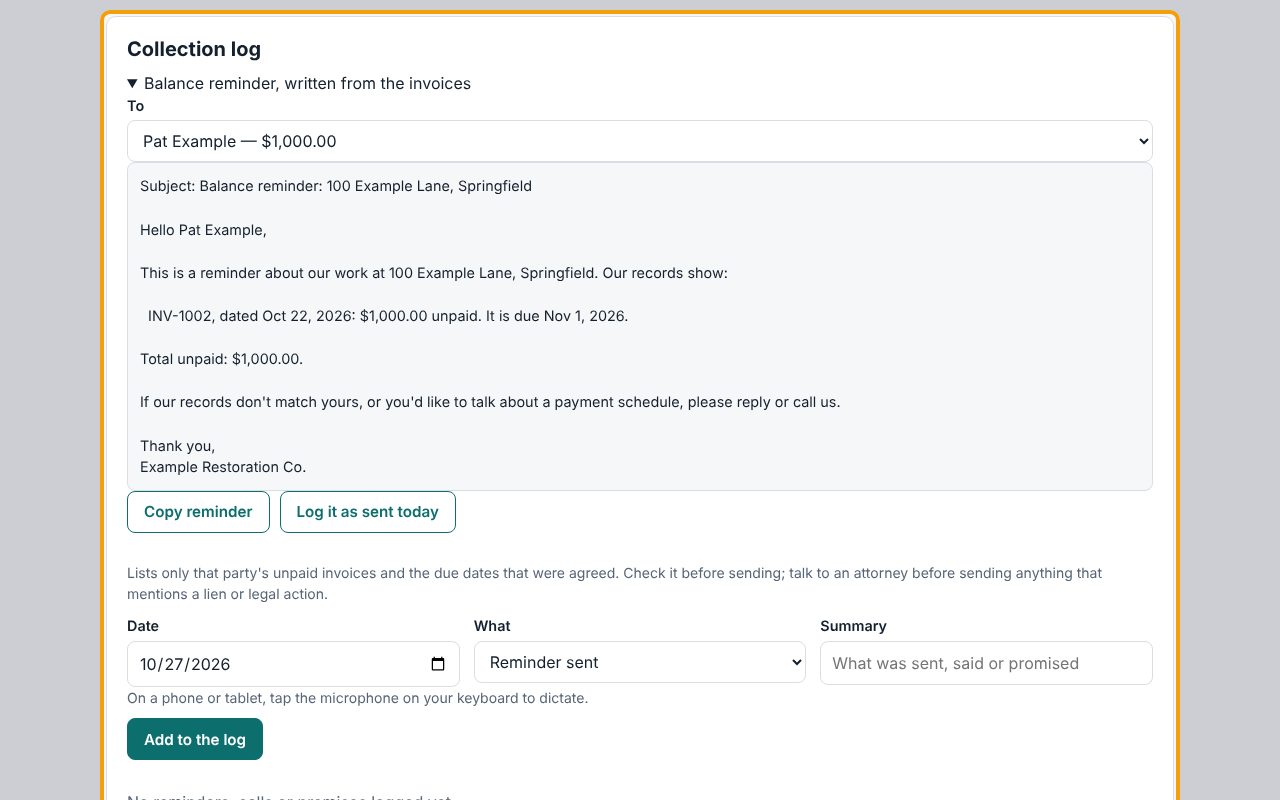
Under Collection log, open Balance reminder, written from the invoices and choose who it's To. CaseLens writes a reminder that lists only that person's unpaid invoices and the due dates that were agreed. Click Copy reminder, check it, paste it into your own email or text, and send it. Then click Log it as sent today. Talk to an attorney before sending anything that mentions a lien or legal action.
9Log calls and payment promises
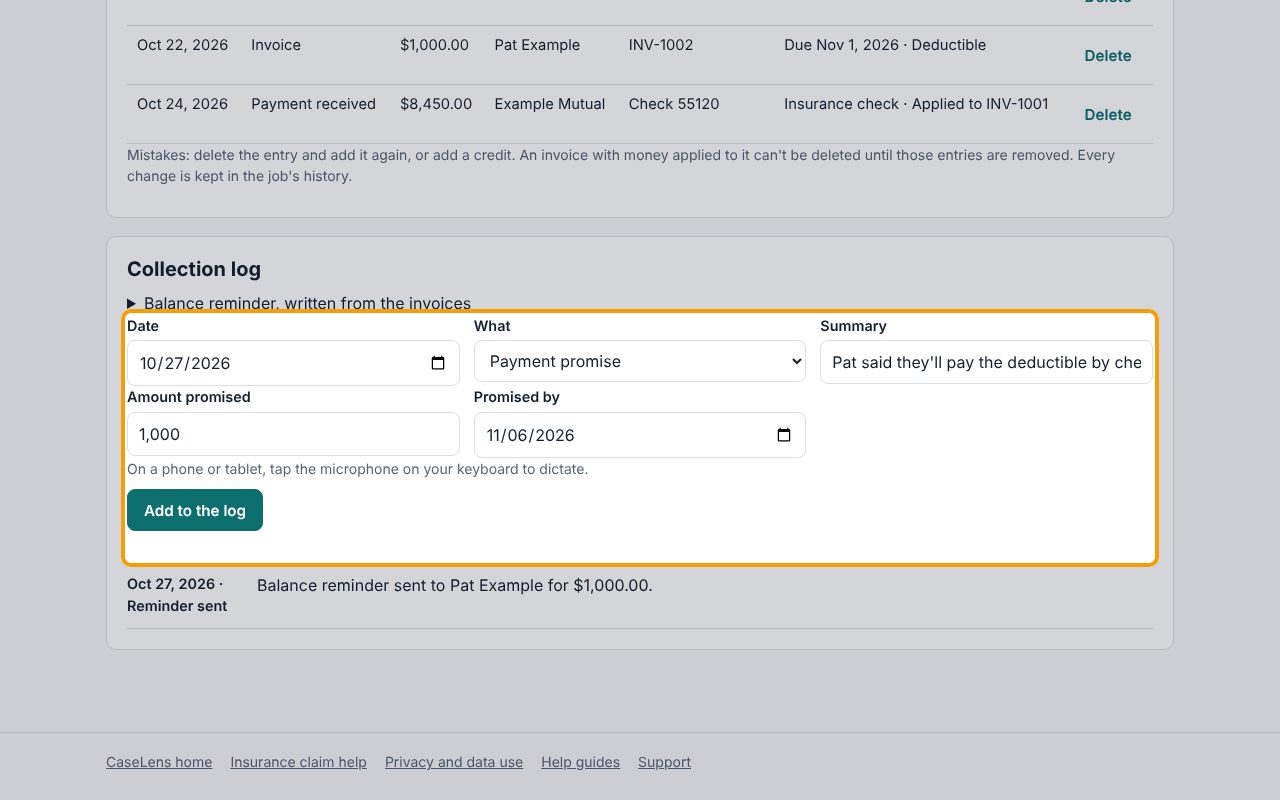
Log every reminder, call, letter and promise in the same box: choose What (for example Payment promise), write a Summary, and for a promise fill in Amount promised and Promised by. Click Add to the log. When the date comes, click Mark kept or Mark broken on the entry.
10Money owed shows on your Jobs page
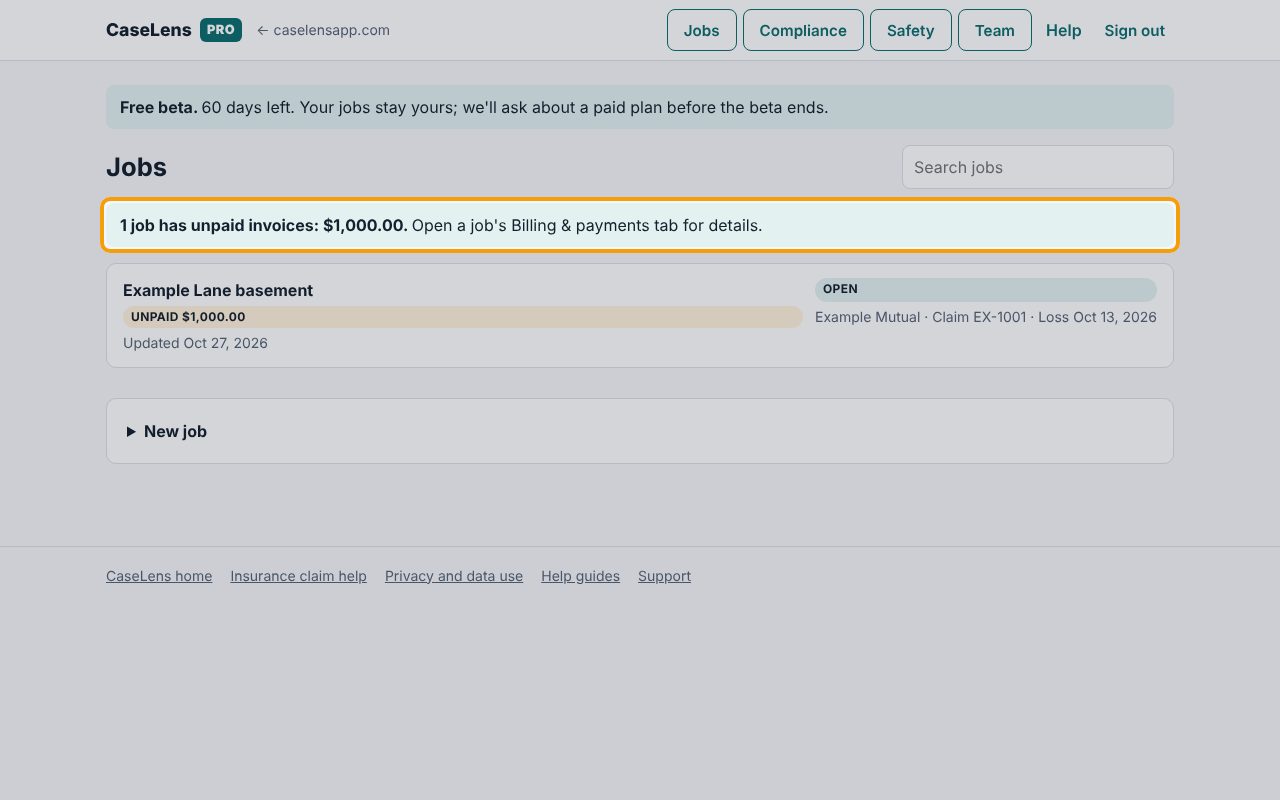
Back on Jobs, a banner sums up the jobs with unpaid invoices and any estimated lien date coming up within 45 days, and each job in the list shows what's owed. Click a job to open it.
If something goes wrong
- "Enter who the invoice is billed to."
- Fill in Billed to (who owes it) with the insurer or the person who owes the invoice.
- "The due date can't be before the invoice date."
- Check the Agreed due date; it must be on or after the invoice Date.
- "… received is not applied to an invoice" and no reminder
- A payment was added without Applies to invoice. Delete it (click Delete, then Click again) and add it again with the invoice picked. Reminders are held until every payment and refund is applied.
- Lien reminders say Review needed
- Choose Your role on the job and enter the Last day of work under How this job is paid, then click Save. The dates are estimates only; have a construction attorney confirm them.