Keep the air scrubber filter log
Log each air scrubber's filters when it's set, record every pre-filter change and HEPA check, and see what's due or overdue. About 5 minutes.
Watch it (2:19, no sound)
- A job already created in CaseLens Pro.
- The air scrubber's make, model, serial number and airflow (CFM), and whether you put in a new pre-filter and HEPA when you set it.
- The pre-filter schedule is the company's, set by the owner on the Team page (24 hours to start).
Step by step
1Enter the air scrubber
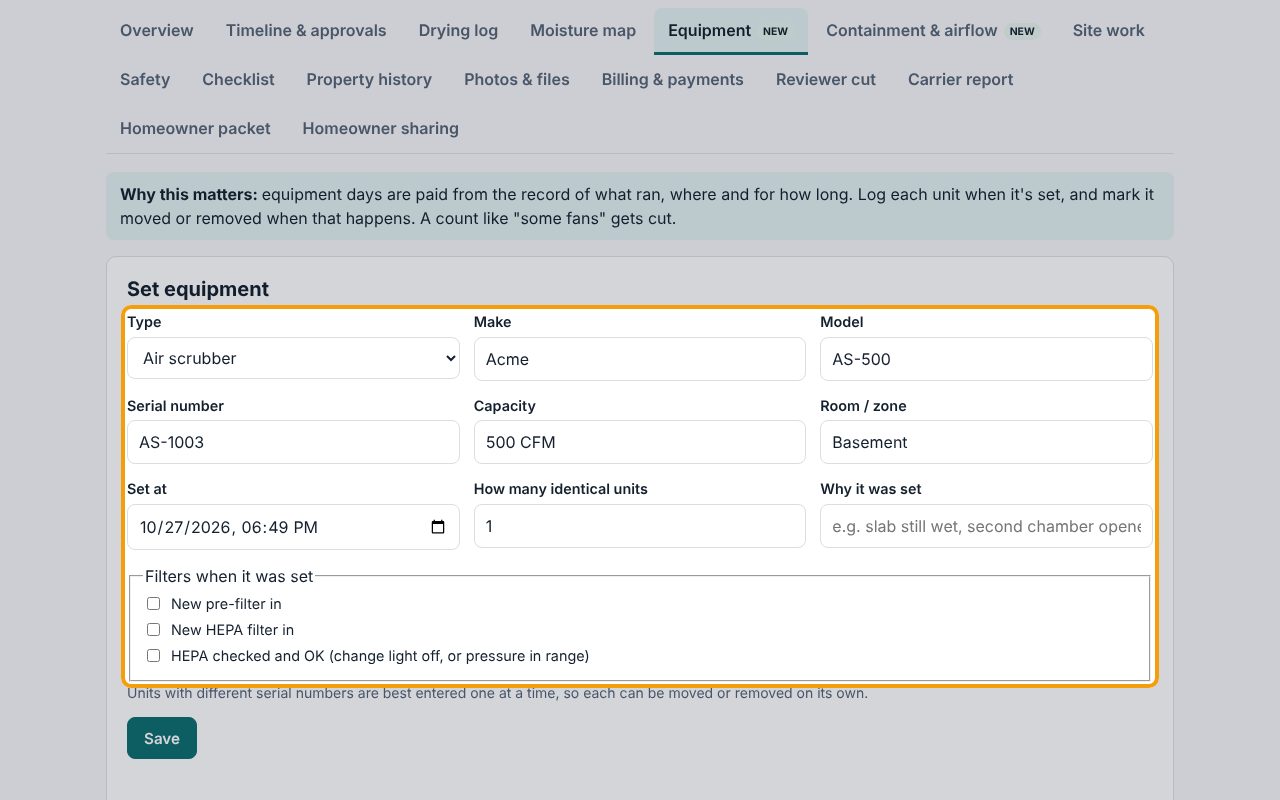
Open the job's Equipment tab. Under Set equipment, choose Air scrubber under Type. Fill in Make, Model, Serial number, and Capacity with its airflow in CFM (for example 500 CFM), then the Room / zone and Set at.
2Record the filters it went in with
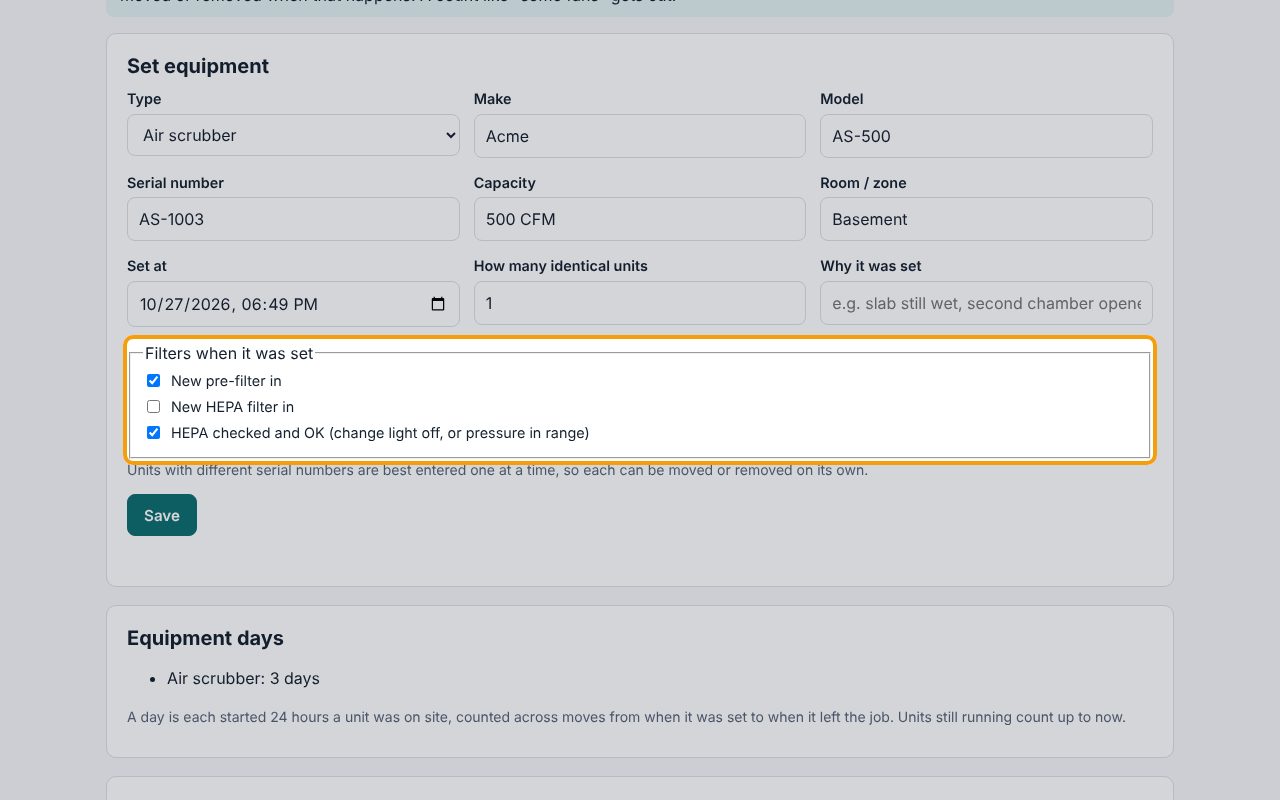
Under Filters when it was set, tick what's true: New pre-filter in, New HEPA filter in, or HEPA checked and OK if you kept the HEPA after checking it. If you don't tick New pre-filter in, CaseLens counts the pre-filter as due right away. Click Save.
3Read what's due
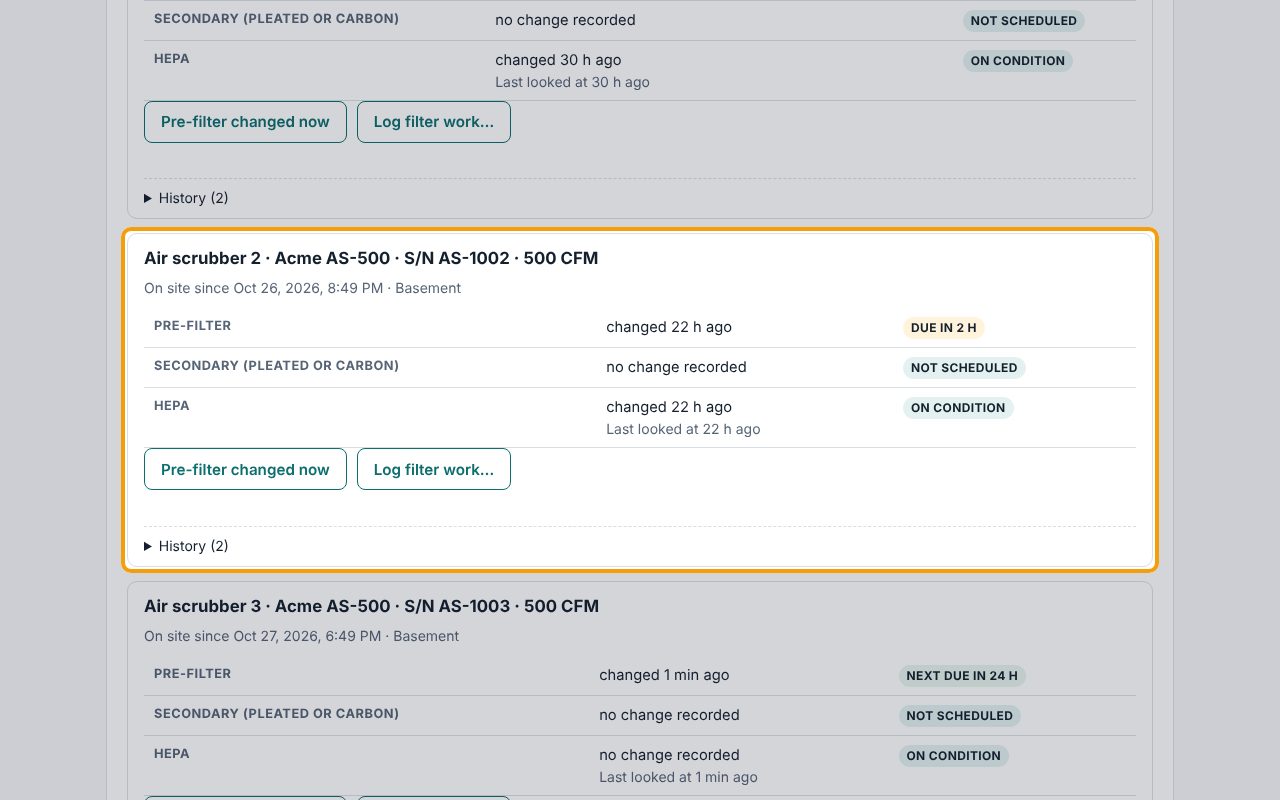
Scroll down to Air scrubber filters: one box per unit, numbered in the order they were set, each with its Pre-filter, Secondary and HEPA filters. Next due in… is fine (the unit you just added, Air scrubber 3, reads Next due in 24 h). Due in… or Due now, like Air scrubber 2 here (Due in 2 h), means change it on this visit.
4Spot an overdue filter
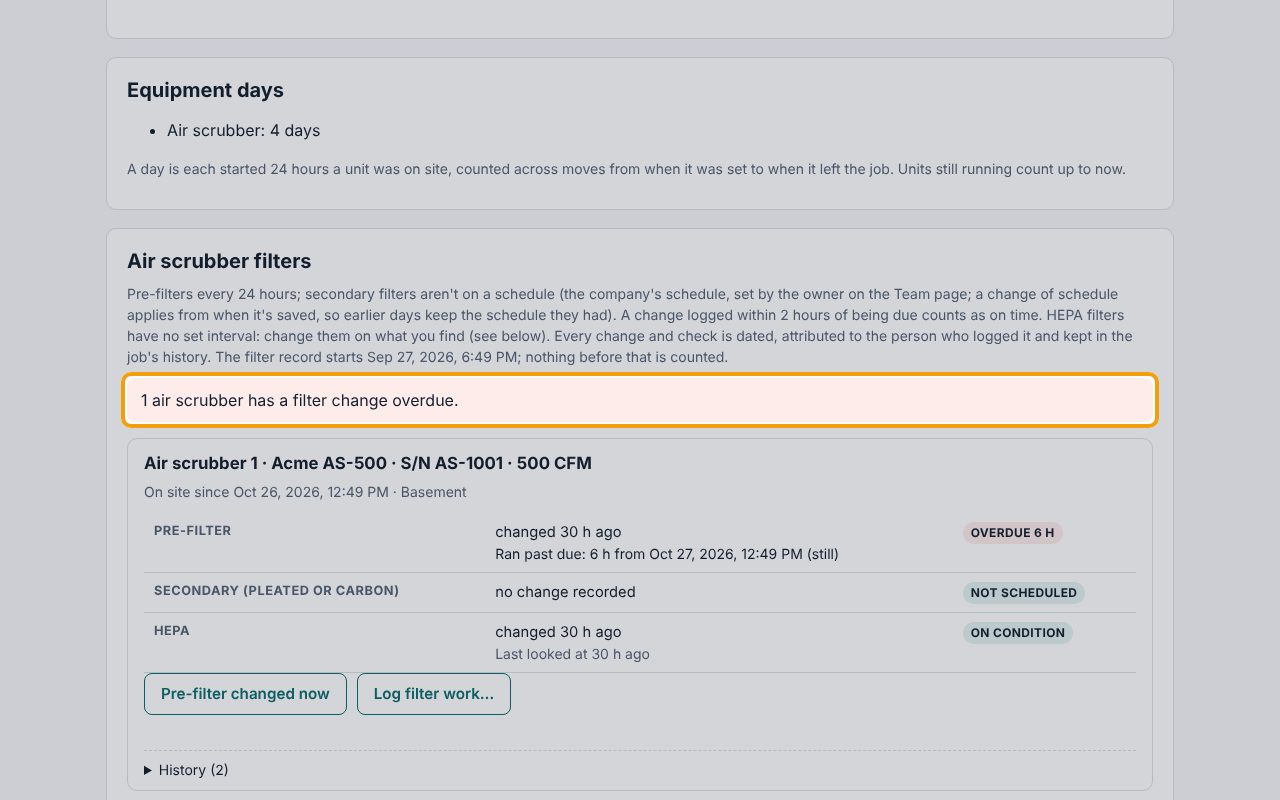
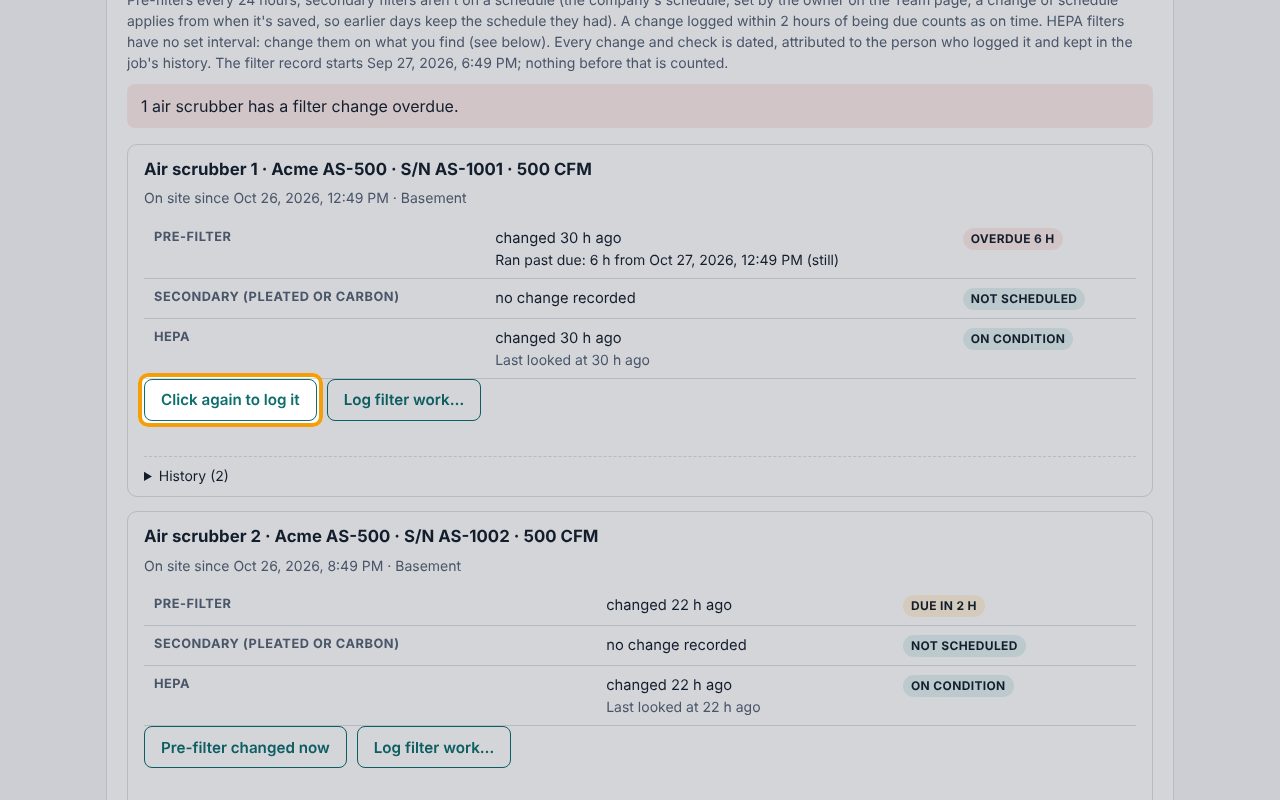
A filter past its time shows red Overdue… with how long it Ran past due, and a red banner at the top of the card says how many air scrubbers have a change overdue. The job's Overview shows the same warning with a link back here. The schedule above it (Pre-filters every 24 hours) is the company's, set by the owner on the Team page.
5Log a pre-filter change
After you change the pre-filter, click Pre-filter changed now under that unit, then Click again to log it (the second click is there so a stray tap doesn't log a change). It's saved with the current time and your name.
6The overdue warning clears
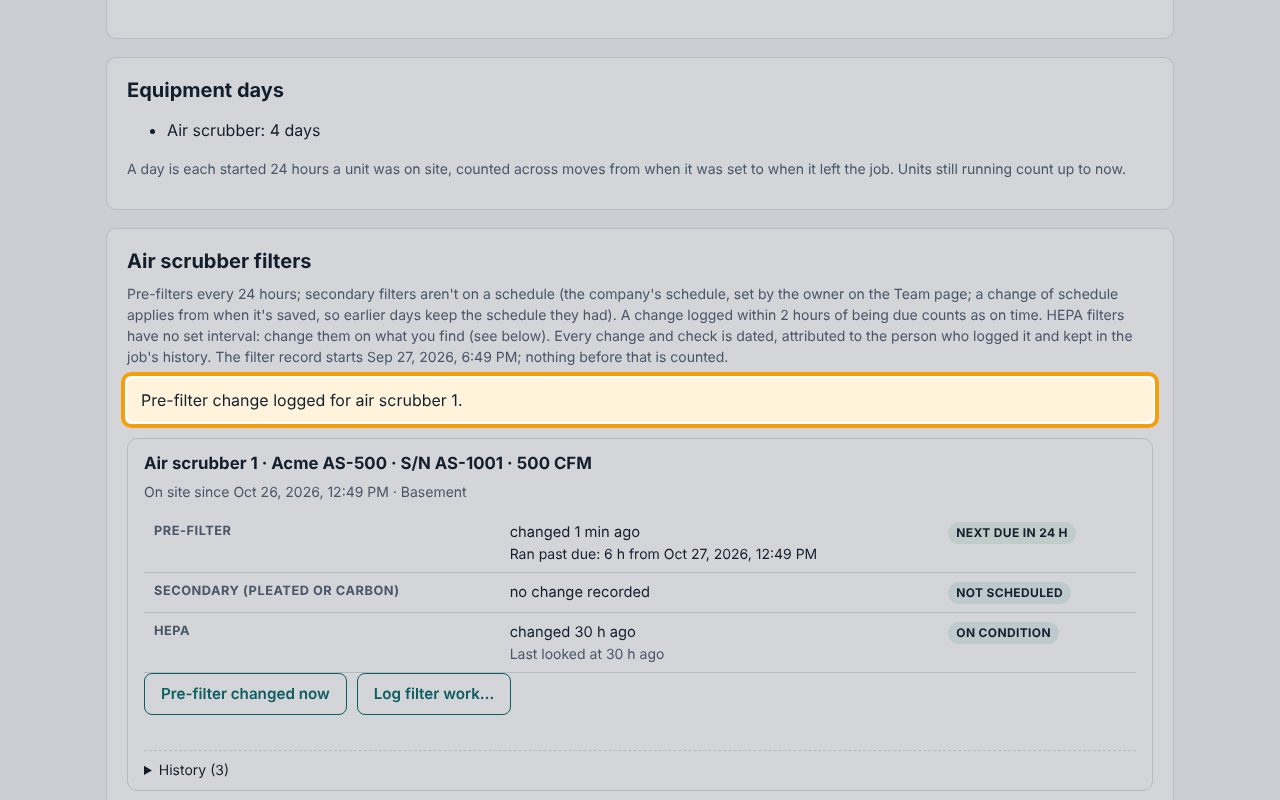
The card says Pre-filter change logged for air scrubber 1. The pre-filter now reads Next due in 24 h and the red banner is gone. The Ran past due line stays: it's the record of the time it was late. If the change happened earlier than now, use Log filter work… instead and set When.
7Log a HEPA check
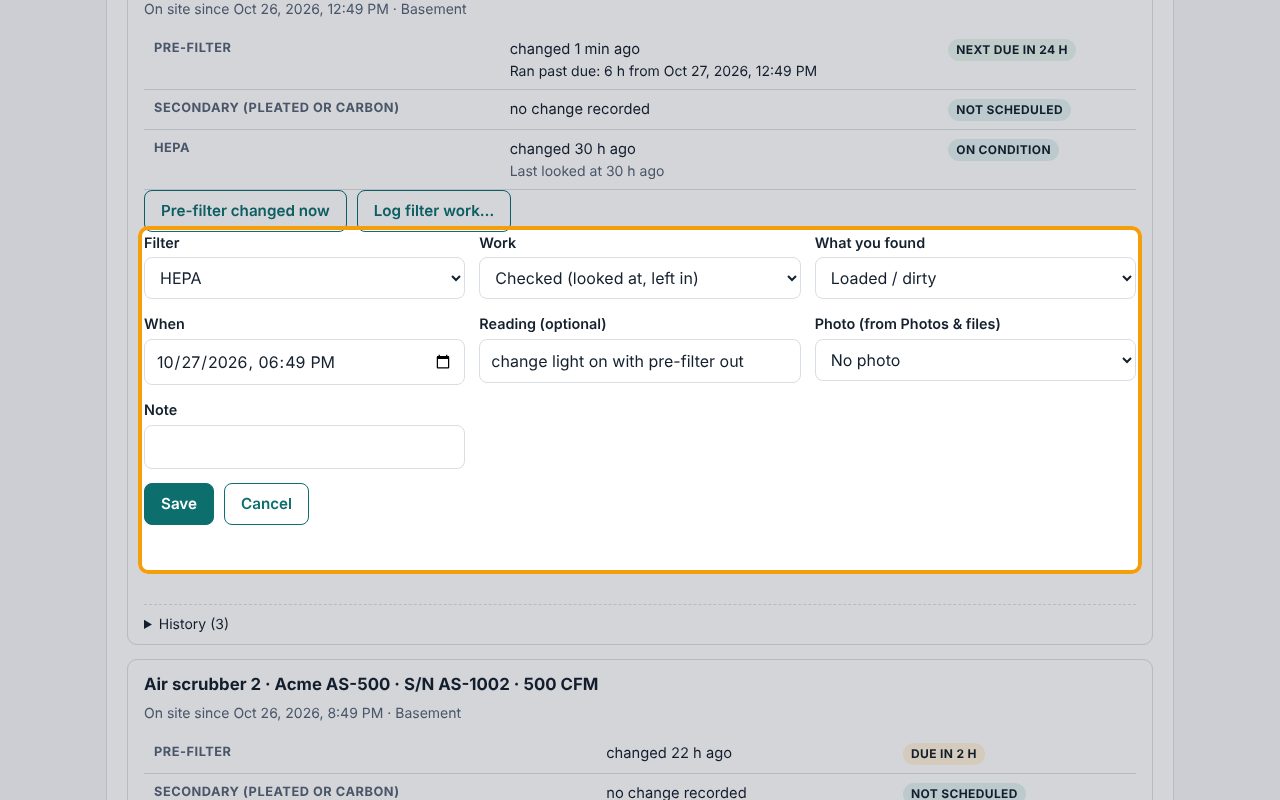
HEPA filters have no set interval: you change them on what you find. Click Log filter work…, choose Filter: HEPA and Work: Checked (looked at, left in). Pick What you found, and under Reading (optional) type what showed it (the change light, or a pressure reading). You can attach a photo you've uploaded on Photos & files. Click Save.
8A loaded HEPA left in is flagged
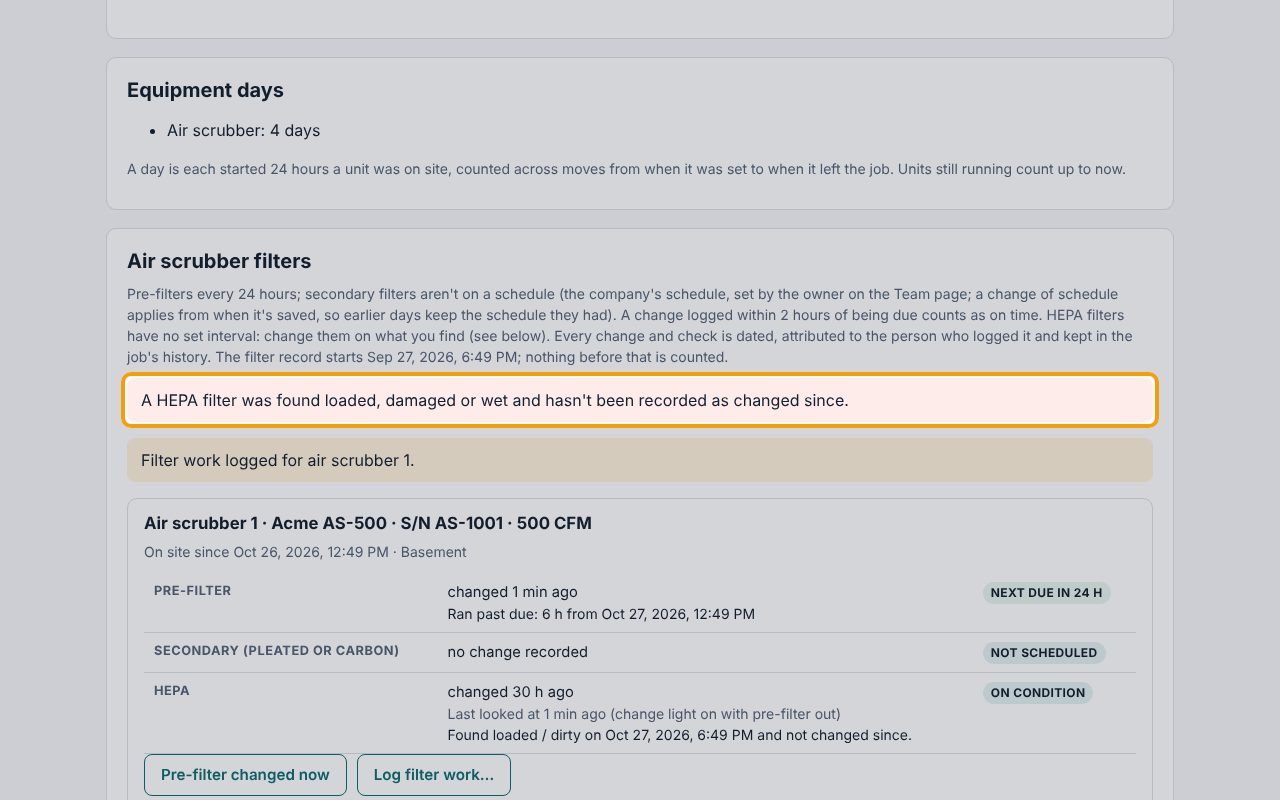
Because the HEPA was found Loaded / dirty and left in, the card flags it in red until a HEPA change is logged. A loaded HEPA moves less air, which weakens the containment's negative pressure.
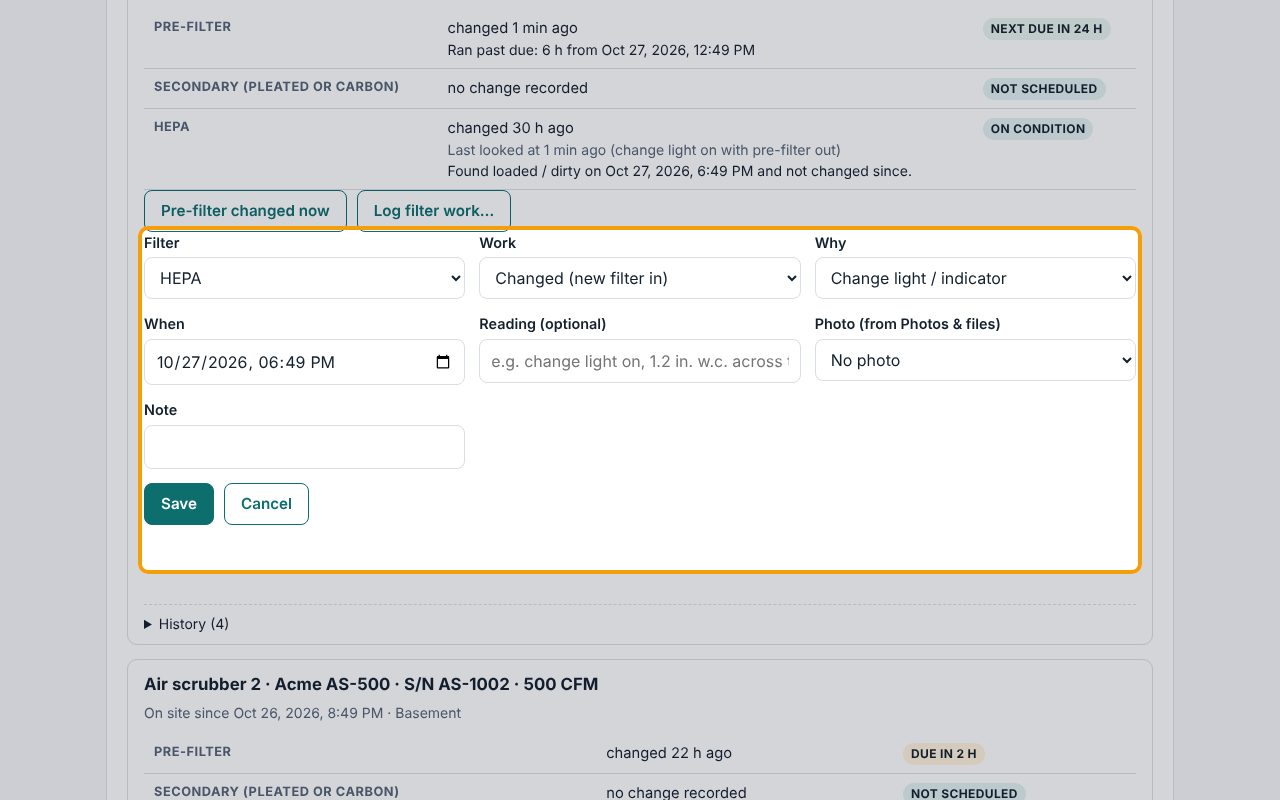
9Log the HEPA change
When you replace it, click Log filter work… again, choose HEPA and Changed (new filter in), and pick Why (here Change light / indicator). Click Save.
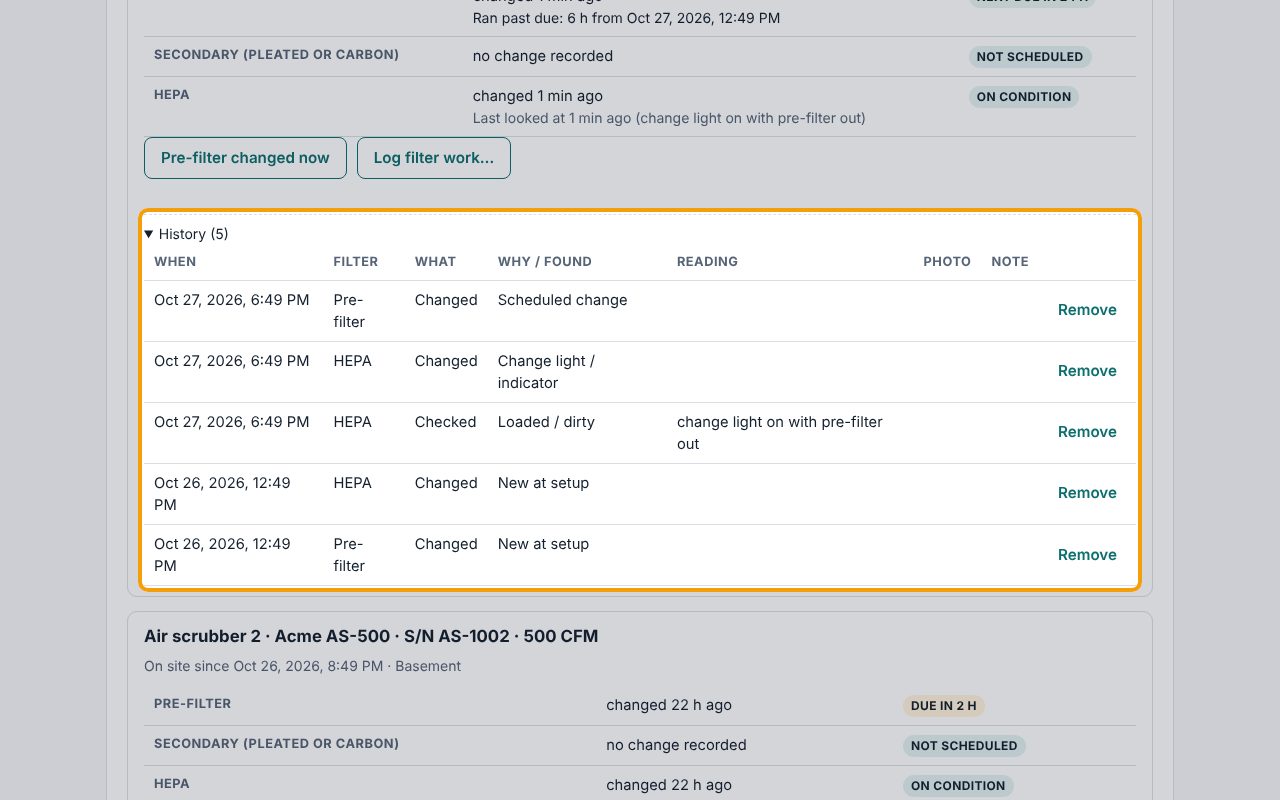
10Check the unit's history
The red flag is gone. Click History at the bottom of that unit's box (below its buttons) to see every change and check: when, which filter, what was done and why. Each entry is dated and kept in the job's history.
Tip: Not sure when a HEPA needs changing? Open When to change a HEPA filter, and what the manuals say at the bottom of the card: what each manufacturer gives as change triggers, with links to the manuals.
If something goes wrong
- "That's before the unit was set." or "That's after the unit left the job."
- The When time in Log filter work… is outside the time the unit was on the job. Check the date and time.
- "That time is in the future."
- Set When to the time the work was actually done, not later.
- A filter entry was logged by mistake
- Open the unit's History, click Remove on the entry, then Click again (entered by mistake). The removal is kept in the job's history.
- The schedule is wrong for my company
- Only the owner can change it: Team page, Air scrubber filter schedule. A new schedule applies from when it's saved; earlier days keep the schedule they had.